
Image banners (Local File and External File)
Upload an image creative or point to a hosted one — ad units, click URL, size rules and the two ways an image banner goes wrong.
The bread-and-butter display creative, in two flavours that differ only in who hosts the image:
- Local File — you upload it and Epom serves it. The upload can also take a link (From link), which is downloaded once on save and stored like an uploaded file, or a file from the Media Library (Media library).
- External File — it stays on your server or CDN and you give Epom the URL. Tick Serve from our server to keep the URL but serve Epom’s stored copy of the image: it is downloaded on save and again whenever the URL changes, Refresh copy re-downloads it on request, and a failed download blocks the save. The copy is held to the same file-size limit as an uploaded image, so an image too large to upload cannot be served from our server either. Without the box the image is hot-linked from your URL on every impression.
Everything else — ad unit, click URL, title, target — is the same. Both types are valid on Site, Non-standard, Mobile site, Application, Video and Email placements.
Who this is for
Anyone trafficking standard display creatives — advertiser users in the campaigns shared to them, network managers on the advertisers they own.
Prerequisites
- A campaign you can edit.
- The image file (Local File) or a stable HTTPS URL to it (External File).
- The ad unit you intend to serve on. Pick it before you upload — the ad unit decides the size the creative is checked against.
Steps — Local File
-
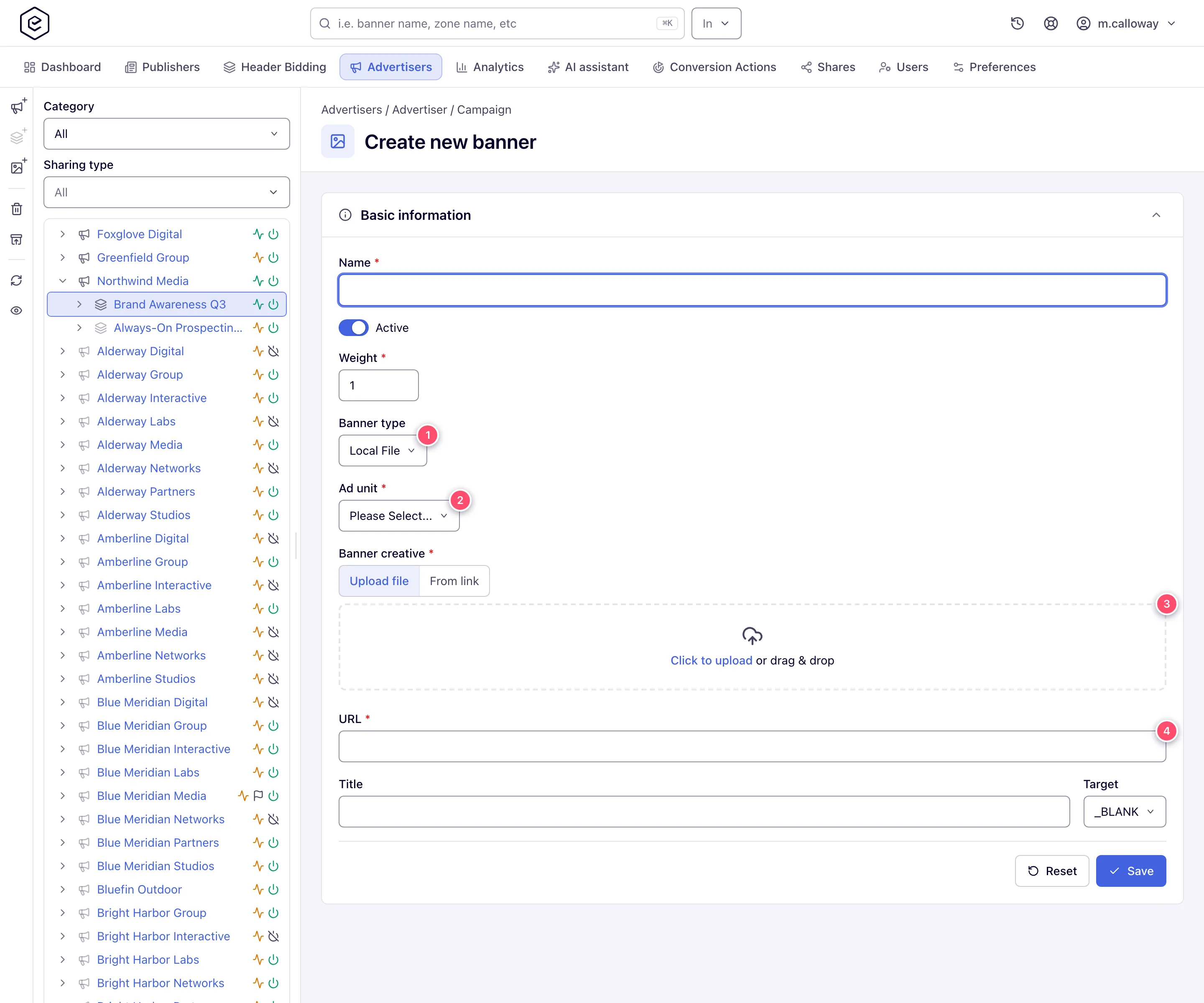
On the campaign, Add new banner → the placement type → set Banner type to Local File.
-
Pick the Ad unit. Required. Choose Custom to type a width and height by hand.
-
Drop the image into Banner creative, or click to browse. The File source switch above the drop zone offers two other ways in:
- From link — paste an
http://orhttps://address of a public host (no embedded user name or password). The file is downloaded once when you save and stored as if you had uploaded it, so the host need not stay online. A link that cannot be fetched refuses the save and names the reason under the field: not an http or https URL, not a public internet address, answered an HTTP error, took too long, over the size limit, or not an image. - Media library — picks an image already in the Media Library. The option is offered only when your role holds the Media Library permission (ask your network admin) and the network’s file storage is on. The picker lists only images of the creative’s size, so choose the Ad unit first.
- From link — paste an
-
Enter the URL — the click-through landing page. Required, and it may not contain spaces.
-
Optionally set Title (becomes the creative’s
alttext) and Target (which browser window the click opens). -
Save. The banner opens on its own edit page; link it to placements from the Linked placements card.
Note: the stock Advertiser role has no Linked placements card. Ask your network manager to link the creative, or rely on the network’s matching rules — see Hierarchy and linking.
The Ad unit list
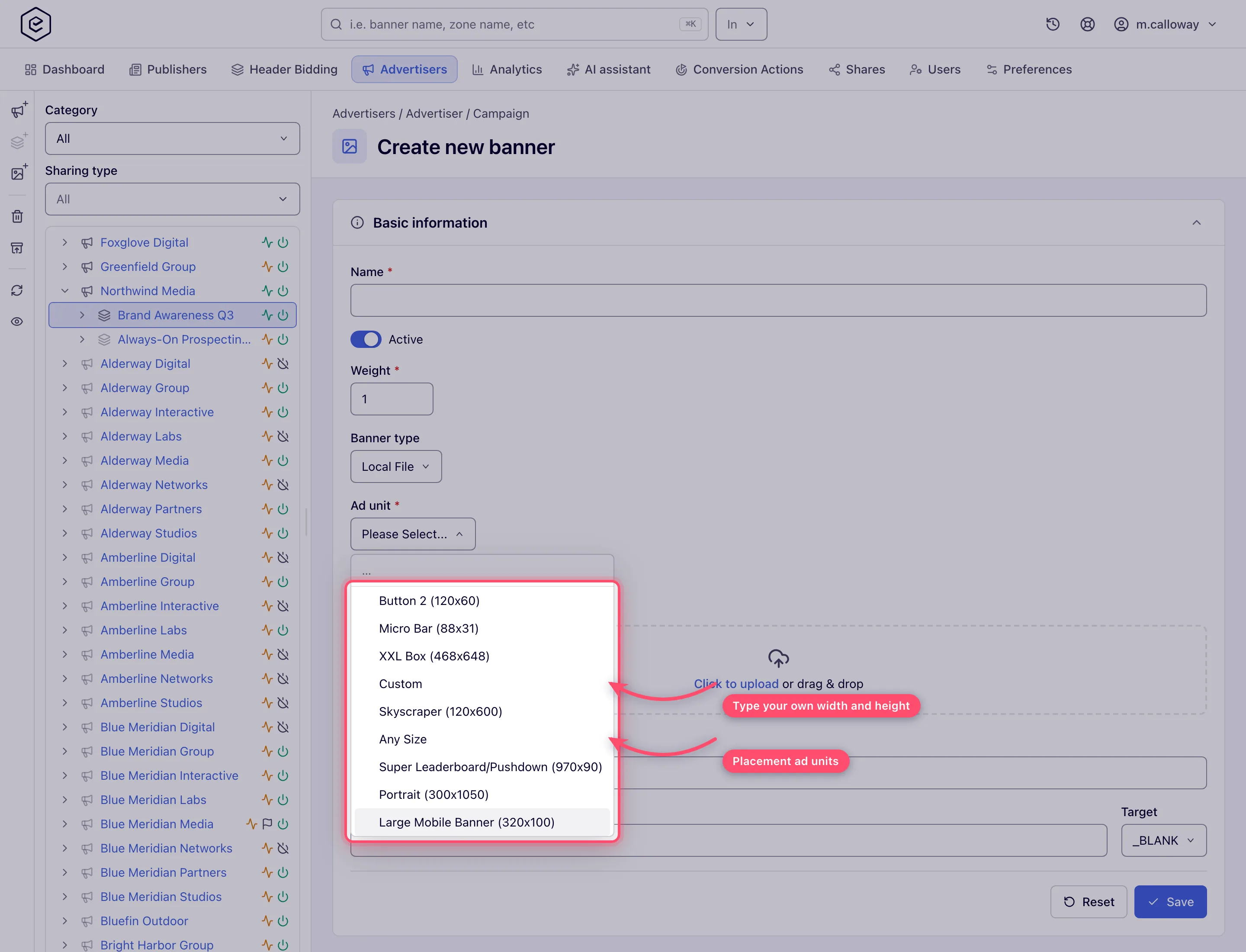
Standard IAB sizes, plus Custom, which reveals Width and Height inputs — use it for a size that isn’t listed.
After saving
The upload zone is replaced by an Image file row showing the stored creative with a thumbnail, with download and delete buttons. The File source switch stays above the row — choose Upload file, From link or Media library there to replace the image on the next save. Preview appears in the page header.
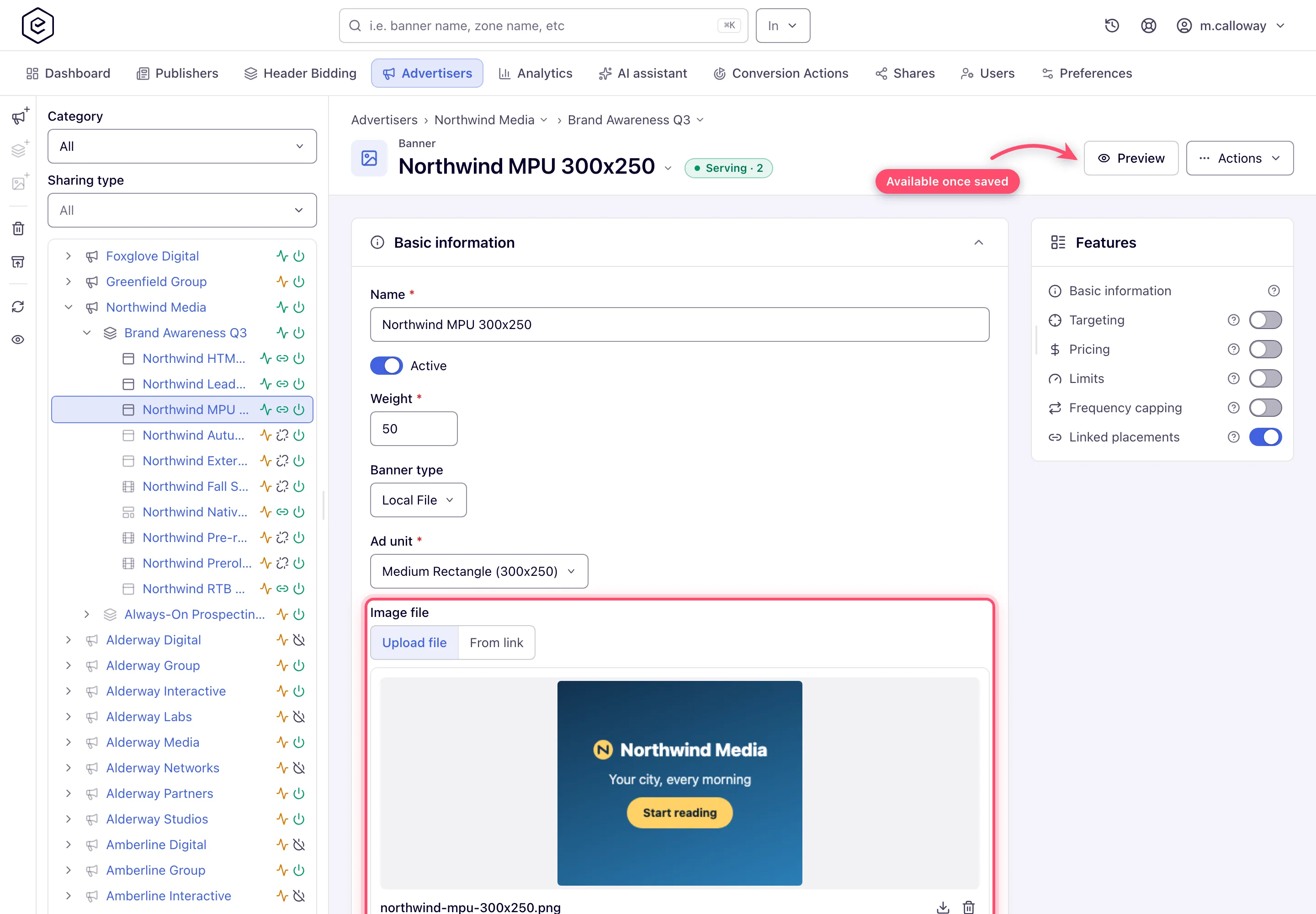
Preview opens in a new tab and renders the creative inside a resizable container, with the standard ad sizes as presets and an optional page mockup — it shows the creative as a page would, not just the file.
Steps — External File
- Add new banner → the placement type → set Banner type to External File.
- Enter the Image creative URL — where the image is hosted. Required, no spaces.
- Enter the click-through URL, pick the Ad unit, optionally Title and Target.
- Optionally tick Serve from our server, under the creative URL field, to have Epom download the image and serve its own copy while the URL stays as you typed it.
- Save. After saving with the box ticked, Served from our copy lists the stored file. Refresh copy downloads the link again for a file that changed behind the same address — it also saves any other edit you have made on the form.
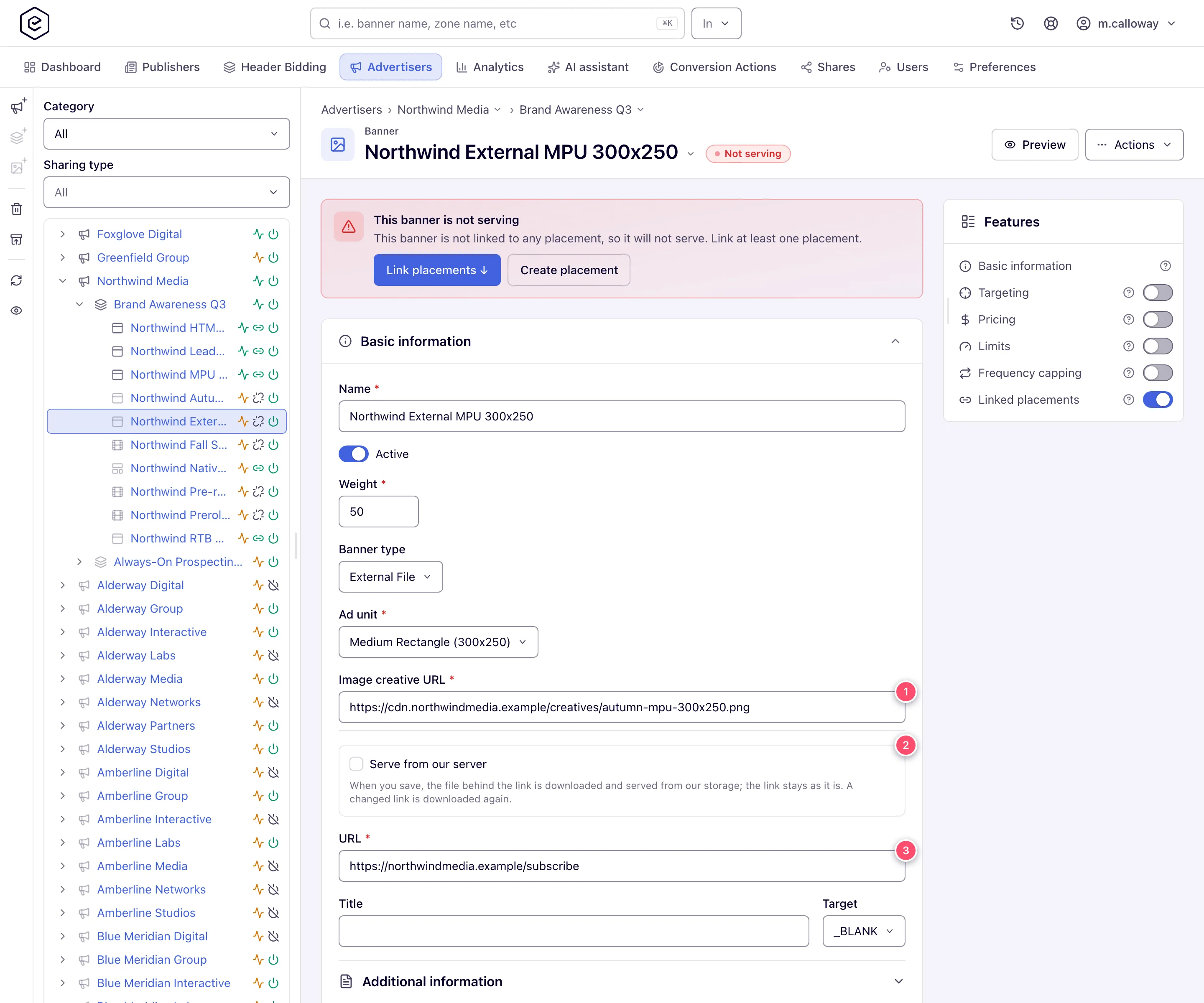
The two URL fields are easy to mix up: Image creative URL is the picture, URL is where the click goes.
Video placements are the exception — there the creative field is called Banner link instead, and Epom fetches the URL on save to confirm it really is an image. If it isn’t, the save fails with Cannot get an image file by this link.
Options and fields
| Field | Local File | External File | Notes |
|---|---|---|---|
| Ad unit | required | required | Sets the banner’s width and height. Custom reveals manual inputs. |
| Banner creative (upload, From link or Media library) | required — one of the three sources | — | An upload must be a file the browser reports as an image. 200 KB by default (the network’s Max allowed file size, which Epom support can raise or lower); a linked file is held to the same limit. An SVG is sanitised on the way in — whatever type the upload declares, recognised by its name or its content: scripts, event handlers and javascript: addresses are stripped. |
| Image creative URL | — | required | Every placement except Video. The URL the <img src> is built from. |
| Banner link | — | Video only | The creative URL on a video placement, where it replaces Image creative URL. |
| Serve from our server | — | optional | Downloads the file behind the creative URL on save and serves that copy; the URL stays as entered and a changed URL is downloaded again. Clearing the box serves the link again and drops the copy. |
| URL | required | required | Click-through. No spaces. |
| Title | optional | optional | Becomes the creative’s alt text. |
| Target | shown | shown | Which window the click opens. File banners always show it, on every placement type. |
| Install conversion action | optional | optional | Mobile site and Application placements only. |
| Enable viewability tracking (beta) | optional | optional | Under Advanced settings, Site and Non-standard placements only, and only with the Banner View Tracking permission. |
| Preview | after save | after save | Header button. Not shown while creating. |
Application placements add their own pair above the creative fields — Ad category and Application OS, preset to Banner Ad and iOS. A banner is offered only to application placements with the same OS and ad category.
Note: the Advanced settings section only renders when at least one of its fields applies to you. If you don’t see it, none of them do — it isn’t collapsed, it’s absent. Banner View Tracking in particular is an admin-level permission: it appears in the role permission matrix under Admin, not in the per-user permission editor.
What the form and the server check
| Situation | What happens |
|---|---|
| Upload is not an image | Save fails — Must be image. The check is on the content type the browser reports. |
| Upload is over the limit | Save fails — File is bigger than 200 KB, the figure being your network’s current limit. It is a network-wide setting Epom support changes on request — it can be lowered as well as raised; 200 KB is the default. |
| Image dimensions ≠ ad unit size | The banner saves anyway and you get Image size differs from Ad Unit size. |
| URL is empty | The form refuses the save and shows Required under the field. Through the API the answer is May not be empty. |
| URL contains a space | The form refuses the save — Landing URL contains spaces. Please verify the URL. The API answers Please remove whitespace characters from URL. |
| Image creative URL contains a space | The form refuses the save — Banner image link contains spaces. Please verify the URL. On a video placement the creative field is Banner link; its spaces are caught by the server — Please remove whitespace characters from image file link. |
| External URL can’t be fetched or isn’t an image | The banner saves anyway and you get Incorrect content type of the creative, it might not be displayed properly. On a Video placement this one is fatal. |
| Serve from our server is on and the download fails | Save fails, with the reason on the creative URL field (the same reasons as From link). |
Corner cases and gotchas
Note: two of those messages appear after a successful save. Image size differs from Ad Unit size and Incorrect content type of the creative… arrive as neutral notes right after the green Banner saved. The banner exists. Re-check the size or the URL, but don’t re-create it.
Note: Any Size is a placement-only ad unit, so the banner’s Ad unit list does not offer it — pick the banner’s real size, or Custom if it isn’t listed.
Corner case: a size mismatch is only a warning, so the creative serves at the ad unit’s dimensions, not its own — a 300 × 250 image on a 728 × 90 ad unit is stretched by the browser. If the placement ticks Flexible placement size, a creative that fits inside the placement (width and height both at or under the placement’s) is accepted as-is; otherwise the sizes must match exactly.
Corner case: deleting the stored image is deferred. The row disappears from the form, but the file is removed only when you next click Save — navigate away instead and the creative is still there. (Deleting a video file, by contrast, takes effect immediately.)
Corner case: a banner serves only where it is linked (or where matching rules are on). The header shows Not serving until you link a placement from the Linked placements card. Saving an existing banner offers to link matching placements only when New placements auto-linking is on for the banner or its campaign; creating a banner never offers it.
Over the API
POST /rest-api/banner/create.do and POST /rest-api/banner/{bannerId}/update.do take the same
choices as the form:
- Local File — a multipart
imageFile; orimageFileUrl, a public http/https address the server downloads once and stores (GIF, JPEG, PNG or SVG, sanitised; the ad unit’s size limit applies); ormediaAssetId, a Media Library image.deleteImage=trueremoves the stored image on an update. - External File — the image address goes in
imageBannerLink.hostExternalFiles=trueis Serve from our server: the link is kept, its file is downloaded on save and again when the link changes, andfalseserves the link again and drops the copy; leave it out to keep the current setting.refreshHostedFiles=true(update only) downloads every link again. linkToPlacements=truelinks the banner, after the update, to every placement its auto-linking rules match (the banner’s own when New placements auto-linking is on, otherwise its campaign’s). With auto-linking off on both, or without the Link Placements to Banners or Auto-Linking Settings permission, the rest of the save goes through, nothing is linked and the parameter comes back inignoredFieldswith the reason.- Link checks.
urlandimageBannerLinkfollow your network’s URL-validation switch, as the console does (see the URL note), and a link with whitespace in it is refused whichever way the switch is set.
See Entities CRUD → creating each creative type without a file upload.
Per-role notes
- Advertiser — the stock role creates Local File image creatives for Site placements; External File and the other placement types are switched on by your network manager. There is no Linked placements card, so the network manager links your creatives to placements. See What your network controls.
- Can view share — the upload zone, URL fields and delete buttons are disabled and the card carries a Read-only pill; Preview still works. Ask the owner for Can edit if you need to replace the creative.
Related
- Reuse creative files with the Media Library — upload an image once and pick it in many Local File creatives
- Banner types — decision guide — which type each placement accepts
- Bulk banner operations — upload many creatives at once
- Banner types reference
