
Set volume limits and budgets
Cap impressions, clicks, conversions, opportunities, ad requests and spend over a day, an ISO week, a calendar month or the lifetime of an advertiser, campaign, banner, site or placement.
A limit caps how much an entity delivers — money spent, ad requests received, ad opportunities, impressions, clicks and conversions — over a day, an ISO week, a calendar month, or the lifetime of the entity. Limits sit on advertisers, campaigns, banners, sites and placements, and each level is checked independently: whichever cap fills first stops delivery. A Total cap also switches the entity off once it fills (see When a Total cap is reached).
The card presents the caps as a grid — a row per metric, a column per period. Most of that grid ships switched off, so what you actually see is usually much smaller than what the product can do. Read What your network shows by default before you go looking for a column that is not there.
| Page | Read it for |
|---|---|
| This page | Switching limits on, the grid of caps, the other fields on the card, and who sees what |
| How limits behave | Limits and counters, when counters start over, how far a cap can overshoot, what happens when one is reached, even pacing, and why an entity delivers less than its limit |
| Limits over the API | The REST endpoints on all five levels and how they behave |
Who this is for
- Network managers — the Limits card on advertiser, campaign and creative edit pages, where budget and opportunities live, and on site and placement edit pages, where ad requests live and budget does not.
- Advertisers — the same demand-side card, mainly for the flight dates. On the stock Advertiser role the Budget and Daily Budget are read-only and the impression and click caps are not shown: your network manager sets your spend, and you set the Start date and End date.
- Anyone else on the supply side needs Manage Site and Placement Limits; the stock Publisher role has no Limits card. See What your network shows by default.
Both sides render the same card, so the layout, the dates row, the Even pacing toggle and the grid behave identically wherever you meet them. Only the set of rows differs — and which rows and columns your network has switched on, which is the next section.
Note: the eraser icon beside each cap zeroes that counter, and there is no confirmation dialog. The click posts immediately.
Prerequisites
- The entity exists and is otherwise able to serve.
- For conversion caps, a conversion action is tracking — see Conversion actions.
- For a budget cap, the entity has pricing, because the budget counts the gross that pricing computes. See Pricing.
Steps
- Open the entity: Account → Advertisers → advertiser / campaign / banner (demand) or Account → Publishers → site / placement (supply), and find the Limits card.
- Turn the card’s switch on. Limits only exist while the card is enabled — switching it
on creates the limit record, and switching it off deletes it.
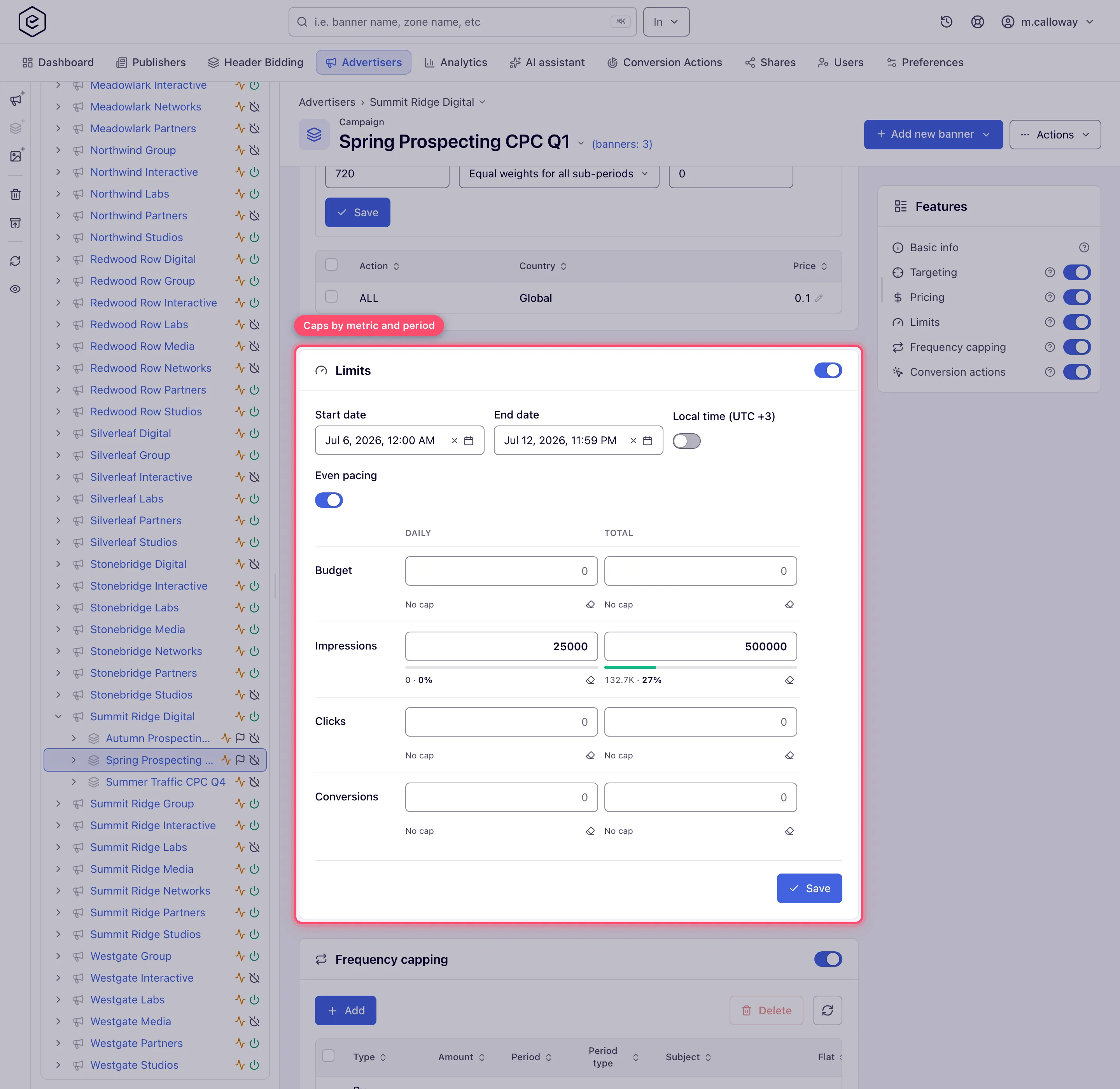
- Set Start date and End date if the flight is time-boxed. Picking a start date gives it 00:00 and an end date 23:59, so a flight covers whole days rather than starting and stopping at whatever time you happened to click; type a different time afterwards if you want one. An end date on or before the start disables Save and shows “End date is smaller than start date” under the field.
- The Local time (UTC ±X) toggle beside the dates reads only those two dates in the timezone shown — your browser’s — instead of storing them as typed. It does not move the daily reset boundary; see When a counter starts over.
- Use Even pacing to spread the remaining volume across the period instead of serving as fast as traffic allows. If the entity also carries time targeting, pacing spreads the budget across the hours it is allowed to serve — see Even pacing and time targeting.
- In the grid, find the row for what you want to cap and the column for the period, and type
a number. A value of 0 means no cap — only positive numbers restrict delivery, and the
cell reads No cap until you enter one. To stop delivery outright, switch the entity off
instead of entering
0. Under a cap that is set, a bar shows how much of it is used with a compact figure and a percentage beside it (18.2K · 73%); hover for the exact numbers. - Press Enter in any cap, or click Save. Success is a “Limits saved” toast.
What your network shows by default
The whole weekly and monthly tier, per-period ad requests, and all four opportunities caps start switched off for every role, so a network owner turns on what they mean to use rather than finding it all at once.
On a network that has not been reconfigured, the card shows:
| Role and side | Rows you see | Columns you see |
|---|---|---|
| Network Manager — advertiser / campaign / banner | Budget, Impressions, Clicks, Conversions | Daily, Total |
| Network Manager — site / placement | Impressions, Clicks, Conversions, Requests (Total only) | Daily, Total |
| Advertiser — advertiser / campaign / banner | Budget, read-only, plus the editable dates | Daily, Total |
| Publisher | No Limits card | — |
Networks that have run for years carry whatever their network administrators granted. The placement card below shows a Requests row with a dash under Daily because its role holds the total-requests cap and not the daily one, as the stock Network Manager does. A dash always means “this cap exists but you have no grant for it” (hover reads Not applicable), never “this metric has no such period”.
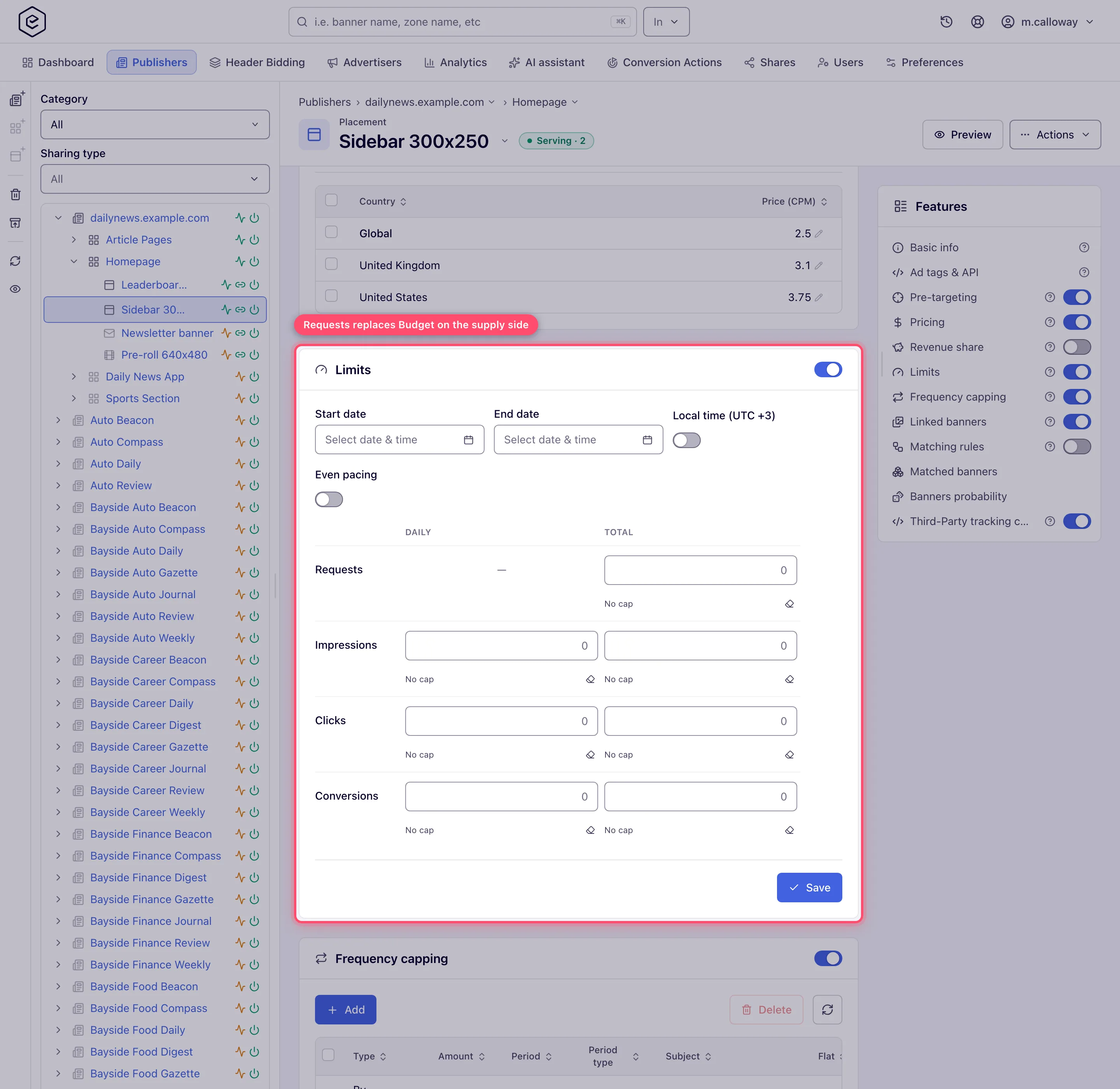
To use the rest, grant the corresponding permissions in Admin → Users & access → User roles & permissions, where each cap is listed under its own name — see User roles.
Warning: a cap that is already set stays enforced whether or not you can see it. Revoking a permission removes the column from the card; it does not remove the cap.
Options and fields
Metrics — the rows
| Row | Counts | Side | Money? |
|---|---|---|---|
| Budget | The gross the entity’s pricing computes — spend, in your account currency | Demand only | Yes |
| Requests | Ad requests received by the inventory | Supply only | No |
| Opportunities | Times the entity was selected to serve, before an impression is confirmed | Demand only | No |
| Impressions | Registered impressions | Both | No |
| Clicks | Clicks | Both | No |
| Conversions | Conversions across all your conversion actions — VAST playback events (quartiles, viewability, player interactions) are not counted; cap those with a per-action limit on the event’s action | Both | No |
Rows always appear in that order: money first, then the funnel from the request a publisher receives down to the conversion an advertiser pays for.
Periods — the columns
| Column | Covers | Starts over |
|---|---|---|
| Daily | The calendar day | Midnight |
| Weekly | The ISO week, Monday to Sunday | Start of Monday |
| Monthly | The calendar month | Start of the 1st |
| Total | The lifetime of the entity | Never — only when you clear it |
All six metrics offer all four periods, so the complete grid is 24 caps. The periods are independent calendars, not rolling windows: a weekly cap set on a Friday gets the remainder of that week, not seven days, and a week spanning the turn of a month still counts as one week while the monthly counter starts over mid-week.
Everything else on the card
| Control | What it does | Notes |
|---|---|---|
| Card switch | Creates the limit record when on, deletes it when off | Deleting takes the counters with it; switching off asks for confirmation |
| Start date | Delivery does not begin before this moment | Picked date defaults to 00:00 |
| End date | Delivery stops after this moment | Picked date defaults to 23:59; must be after the start |
| Local time (UTC ±X) | Reads start and end in your browser’s timezone | Affects only those two dates |
| Even pacing | Spreads remaining volume across the period | Renders on all five levels |
| Eraser (per cap) | Queues that counter for a reset | No confirmation; not instant |
| CPA … Auto Deactivation | Two paired fields, collapsed | Campaign and banner only, own permission |
Where each cap exists, per level
The card is one component used in five places, and which rows it offers depends on the side of the platform, not on the level — so an advertiser, a campaign and a banner get an identical set, and a site and a placement get an identical set.
| Advertiser | Campaign | Banner | Site | Placement | |
|---|---|---|---|---|---|
| Budget × 4 periods | ✓ | ✓ | ✓ | — | — |
| Requests × 4 periods | — | — | — | ✓ | ✓ |
| Opportunities × 4 periods | ✓ | ✓ | ✓ | — | — |
| Impressions / Clicks / Conversions × 4 periods | ✓ | ✓ | ✓ | ✓ | ✓ |
| Start / End dates, Local time, Even pacing | ✓ | ✓ | ✓ | ✓ | ✓ |
| CPA Auto Deactivation | — | ✓ | ✓ | — | — |
| REST API for limits | ✓ | ✓ | ✓ | ✓ | ✓ |
Zones have nothing to cap. There is no zone limit record, no zone Limits card, and nothing between a placement and its site that can stop delivery.
CPA Auto Deactivation
Campaign and banner pages add a collapsed CPA … Auto Deactivation subsection with two paired fields — No conversions traffic, ad impressions and No conversions period, hours, each with a read-only counter and its own eraser. If the subsection is absent, ask your network administrator for the No Conversions Within Period permission. Only real conversions reset these counters — VAST playback events do not — so the rule works on video campaigns too.
Corner case — it takes both, not either. The entity is only stopped when it has delivered that many impressions and that many hours have passed, both without a conversion. Setting one of the two alone does nothing at all: with hours left at 0 the pair can never both be reached. Set both, or neither.
Warning — this pair is not a pause, it is an off switch. Unlike every cap in the grid, the no-conversions rule is not evaluated on the ad request at all. It is applied by the hourly job, which sets the entity’s active flag to false — so it takes up to an hour to bite, and when it does the entity is switched Off and stays off until someone turns it back on.
Despite the name there is no pricing-type check — it works on any campaign or banner, so do not set it on one that legitimately gets no conversions.
Over the API
Limits can be read, set, changed, reset and removed over REST on all five levels. See Limits over the API for the endpoints and how they behave, and Targeting, capping and limits via API for the full parameter list.
Corner cases and gotchas
Corner case — a shorter period’s cap must not exceed a longer one’s. The card and the API check the same ladder, for every metric: daily ≤ weekly ≤ monthly ≤ total, with
0meaning uncapped and constraining nothing. The one difference is what gets judged. The API judges the limit as the request would leave it but only the pairs the request touches, so a call that sends only a daily cap is compared with the total already stored. The card sends every cap, so it judges the whole limit — an inconsistency already stored has to be fixed before the card saves.
Corner case — a cap that cannot be reached bites earlier than you meant. If a weekly impressions cap ended up above the total before both paths checked the ladder, the weekly figure never applies and the entity stops on the total instead — silently, and days before you planned. Saving the limit again names the offending cell.
Note — the ladder messages are translated; the API’s range messages are not. “Daily limit is greater than monthly” and its siblings follow your language. The API’s range messages (“Value is greater than the maximum allowed of …”) still arrive in English. The card shows the first error as a red toast rather than attaching it to the field that caused it.
Corner case — a cap you cannot see is still enforced. Caps are filtered by permission before they leave the server, and a save only submits the cells you were sent. If a colleague with wider grants set a monthly cap you have no grant for, your save leaves it alone — and it goes on stopping delivery from a column that is not on your screen.
Note — on a site or placement the switch follows the card’s own grant. Turning the switch on or off needs Manage Site and Placement Limits enabled, the same grant that saves the card; the demand-side Manage Capping & Limitations plays no part there.
Note — what the fields will take. Counts go up to 4,000,000,000 and money to 9,999,999,999.999. A larger figure is trimmed as you type. Counts are whole numbers; only a budget takes decimals.
Note — the grid scrolls sideways on a narrow card. Four periods of ten-digit caps need room, so rather than shrink the fields until the numbers clip, the grid keeps its width and the card scrolls horizontally. Collapse the left tree, or widen the window, to see every column at once. A phone stacks the periods under each metric instead.
Per-role notes
- Advertiser — on the stock Advertiser role you set only the flight’s Start date and End date; the total and daily Budget are read-only, and impression and click limits are not shown. Your network manager sets the caps, or widens your role. The Requests row never appears on this side. See What your network controls.
- Network manager — the demand-side card and the site and placement card, both on the stock role; weekly, monthly and opportunities caps need extra grants.
- Publisher — no Limits card on sites or placements; volume ceilings are the network’s to set.
- Can View share — caps are read-only, with no Save and no erasers; changes need Can Edit or Is Owner.
Exact grants: see User roles.
