
Create price adjustment rules
Multiply or replace the advertiser's gross price when the impression comes from one specific placement, with advertiser, campaign and banner rules applied in that order.
A price adjustment rule rewrites the gross price the advertiser pays when the billable event comes from one specific placement. Use it to charge a premium on a high-value spot, or to honour a fixed price negotiated for one placement, without cloning the campaign.
Every rule has the same shape, and today it is the only shape available:
If placement is X, then multiply the gross by N — or set the gross to N.
The card lives on advertiser, campaign and banner edit pages. It is the same card in all three places; only the level it saves to differs.
Who this is for
Network managers. Price adjustment is a network-manager card, on an advertiser, a campaign and a creative. It needs the Manage Price Adjusting permission; if you do not see the card, ask your network administrator to grant it in Admin → Users & access → User roles & permissions. It is not on an advertiser’s own pages — see Per-role notes.
You also need update rights on the advertiser that owns the entity. That holds even for a creative-level rule: the check always resolves up to the advertiser, and a refused save says “You do not have permission to add price adjustment for this advertiser”.
Prerequisites
- Your role holds Manage Price Adjusting. Without it the card is not drawn at all.
- The entity is already saved. The card does not appear while you are creating a new advertiser, campaign or banner — save it first, then reopen it.
- A base price exists on the campaign or the banner — see Pricing. A rule
adjusts a computed gross price. With no price configured the gross is
0, and Multiply on zero is still zero. - You can find the placement in the Site → Zone → Placement tree. You need the placement itself, not the site or the zone.
Steps
- Open the entity — for example Account → Advertisers → Northwind Media — and scroll to the Price adjustment rules card.
- Turn the card’s switch on. Until you do, the card is a header and a toggle and nothing
else: no grid, no Add button, and no way to expand it. The switch is not decorative —
it is also what makes the rules count at ad-serving time.
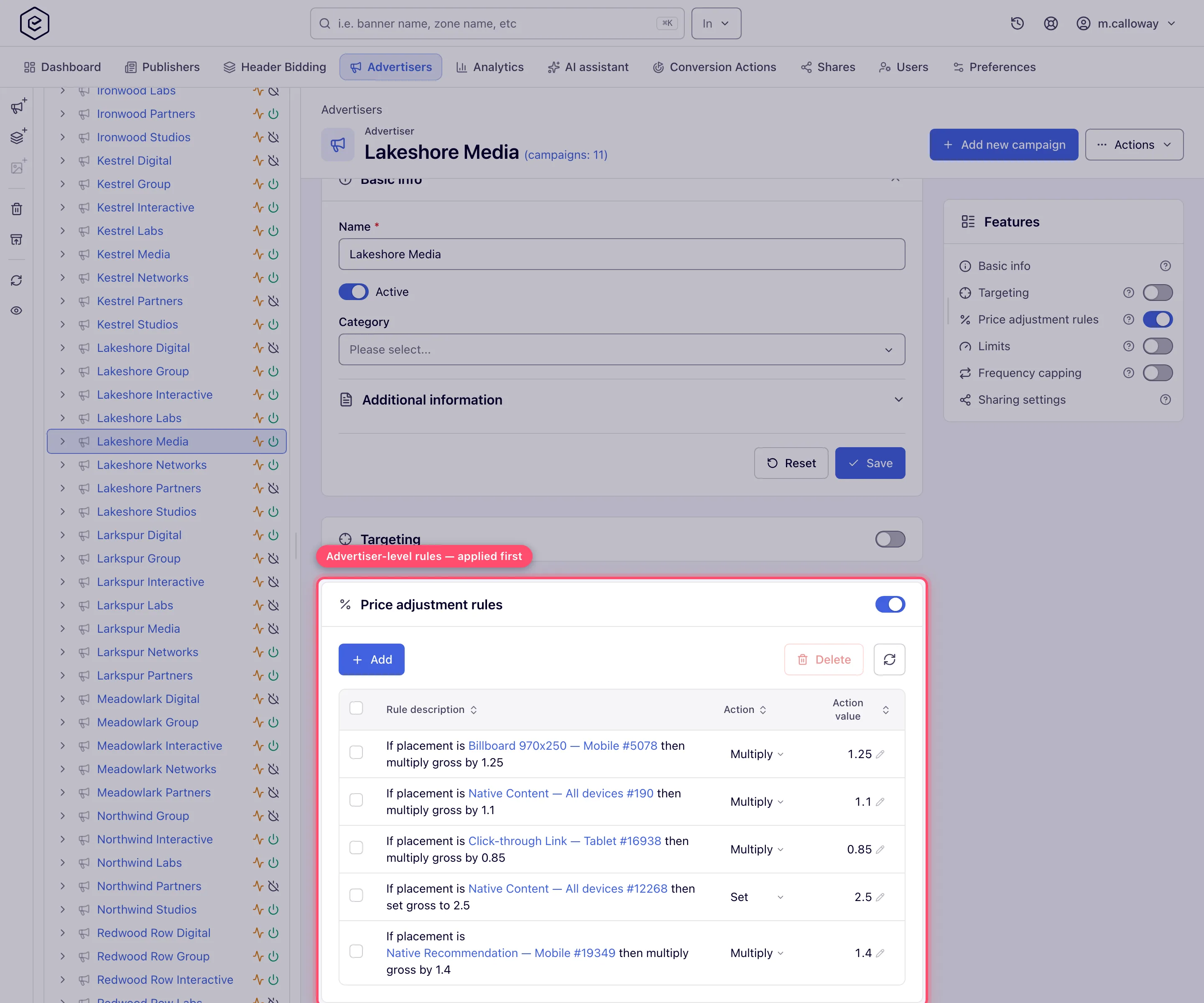
- Click Add.
- Condition subject and Condition operator are already set to Placement and Is. Both lists hold exactly one value, so there is nothing to choose — see Options & fields.
- Pick the placement through the three dependent lists: Site, then Zone, then
Placement. Zone stays disabled until you pick a site, and Placement until you pick a
zone. The lists cover all inventory you can see, not only the placements this campaign
runs on.
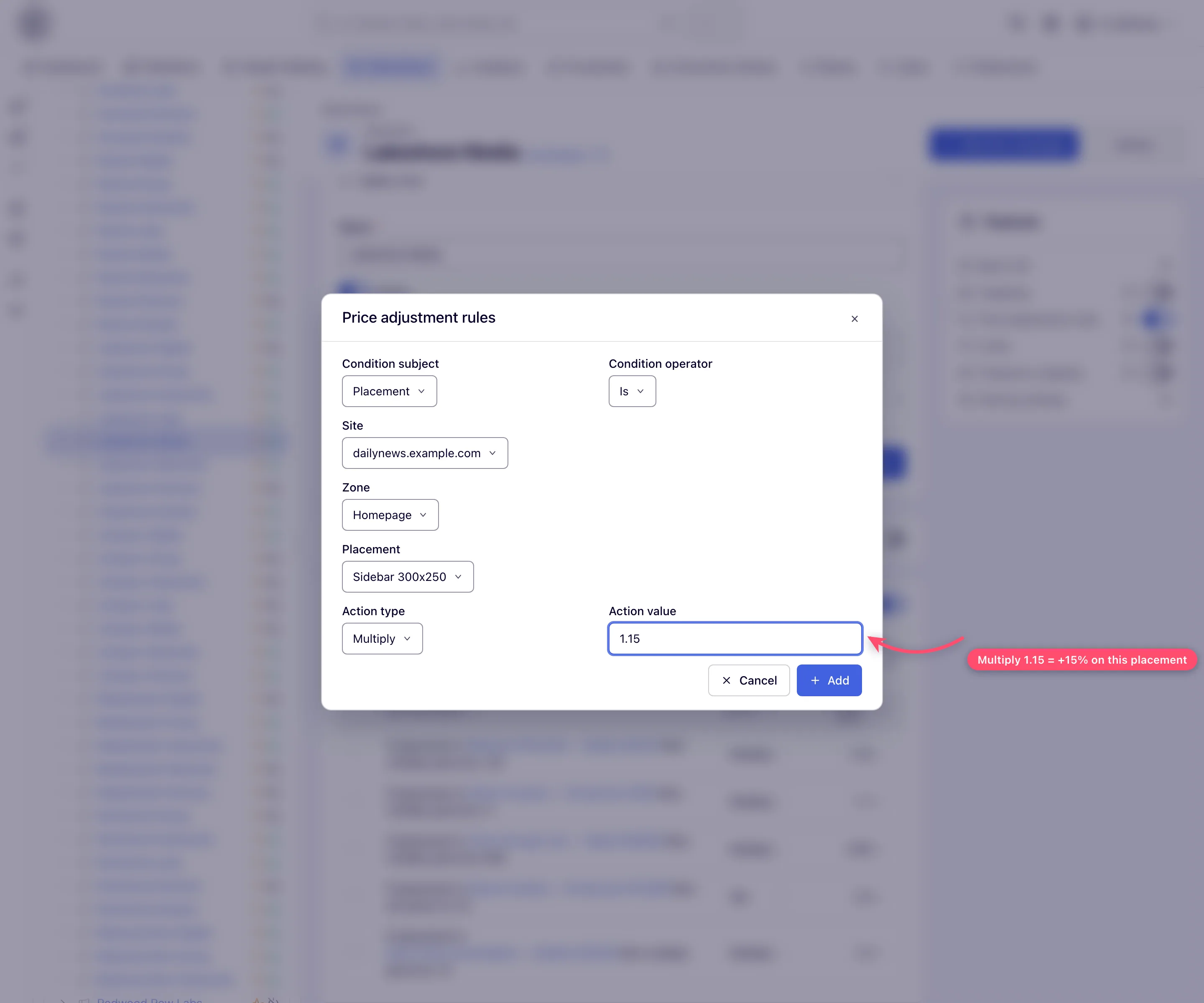
- Choose the Action type — Multiply or Set — and type the Action value. Read How the price is calculated before you type a Set value on a CPM entity: it is entered as a CPM, not as a per-impression price.
- Click Add. The dialog closes and the rule appears in the grid, described in words:
If placement is Article MPU #11 then multiply gross by 1.15. The placement name is a link to that placement. - To change a rule afterwards, edit the Action or Action value cell in the grid directly — each commit saves immediately. To remove rules, tick them and click Delete, then confirm.
Note: saving is instant in the UI, but the ad servers pick up rule changes on a schedule — every 10 minutes by default. Expect up to that long before a new, edited or deleted rule changes what an impression is billed at.
Options and fields
| Field | Values | Notes |
|---|---|---|
| Condition subject | Placement | The only value that exists. |
| Condition operator | Is | Likewise the only value. Exact match on one placement id. |
| Site | any site you can view | Not stored on the rule; it only narrows the Zone list. |
| Zone | any zone of that site | Not stored either; it narrows the Placement list. Disabled until a site is picked. |
| Placement | any placement of that zone | This is what the rule stores — a single placement id. Disabled until a zone is picked. Add stays disabled until you choose one. |
| Action type | Multiply · Set | See the arithmetic below. |
| Action value | a number | 0 – 10000 in the dialog and in the grid; anything outside is refused with Wrong values. The REST API applies the same range. |
The grid shows three columns — Rule description (the sentence above, with a link to the placement), Action and Action value. The last two are editable in place; the condition is not. To point a rule at a different placement, delete it and add a new one.
How the price is calculated
The two actions
Take a campaign priced at $2.40 CPM.
| Action | Arithmetic | Result |
|---|---|---|
Multiply, value 1.15 | gross × 1.15 | $2.76 CPM |
Multiply, value 0.8 | gross × 0.8 | $1.92 CPM |
Set, value 3.5 | gross replaced by 3.5 | $3.50 CPM |
Warning — a Set value on a CPM entity is a CPM. Internally the server holds CPM gross as a price per impression, so it divides your Set value by 1000. Enter
3.5for a $3.50 CPM. Entering3500because you were thinking in thousandths gives a $3,500 CPM, and nothing in the form warns you. For CPC and CPA entities there is no divisor — the value is used as-is per click or per conversion.
Multiply never involves the divisor: it is a plain factor whatever the pricing type.
Which event a rule fires on
A rule only applies when the event being priced matches the pricing type the entity is configured with. That is easy to miss, because nothing in the card mentions pricing type.
| Pricing type on the campaign or banner | Rules apply to | Rules never apply to |
|---|---|---|
| CPM | the impression | clicks, conversions |
| CPC | the click | impressions, conversions |
| CPA | the conversion (action) | impressions, clicks |
So a Multiply 1.15 on a CPM campaign raises what you pay per impression and leaves the click price alone — which is what you want, since a CPM campaign is not billed per click anyway. But if you priced the campaign per click and expected the rule to lift the impression price too, it will not.
Only these three pricing types take rules. Flat fees (Cost per day, Cost per month) are priced per period, not per event, so a rule never applies to them — the card still saves and lists rules on such an entity, but they have no effect.
The cascade
Rules are applied advertiser first, then campaign, then banner, and each level works on the value the previous level produced. The banner runs last, so it has the final say.
The card is identical at each level — this is the campaign’s copy, holding a Set rule that runs after the advertiser’s:
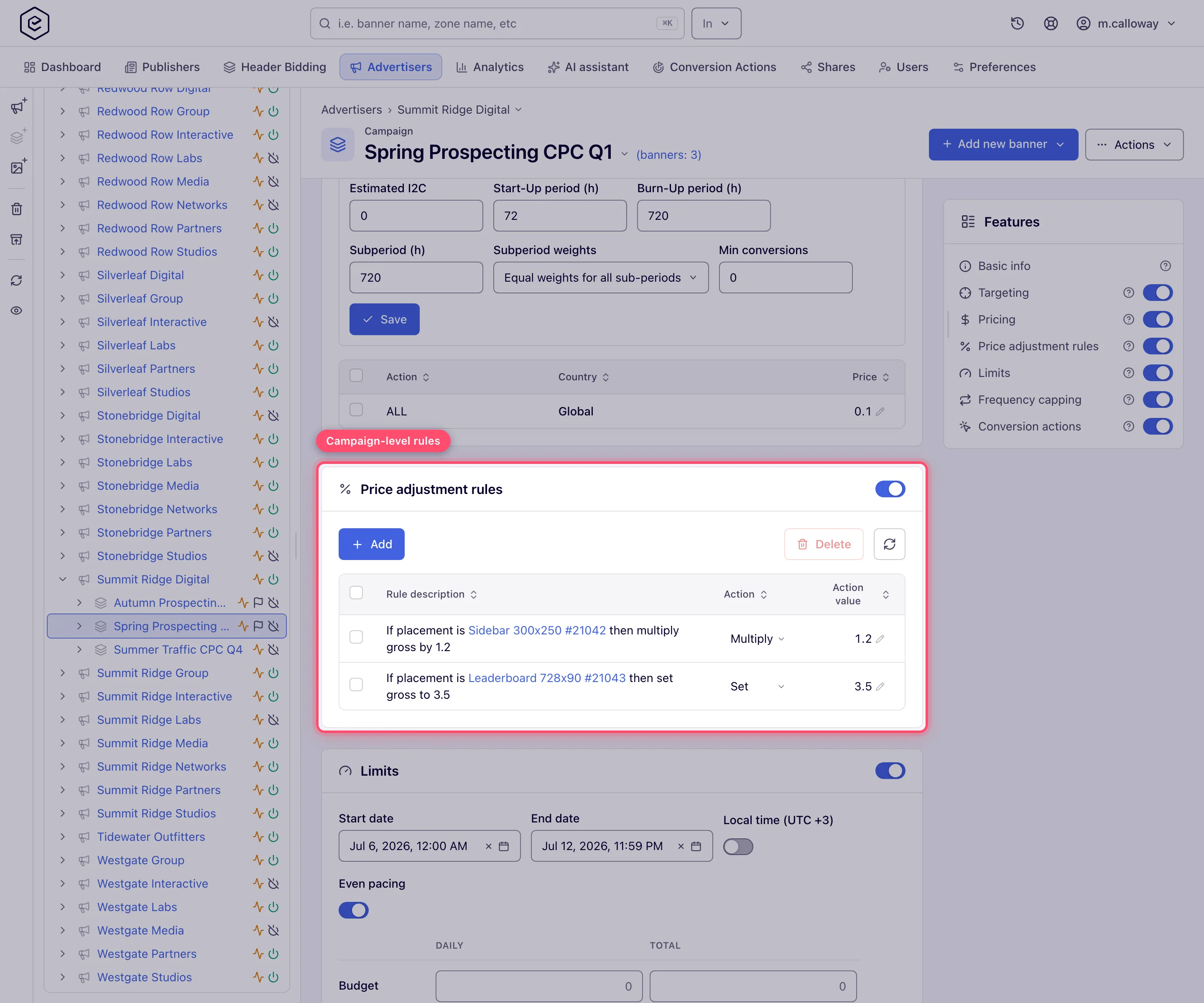
Starting from $2.40 CPM, for an impression on the placement all three rules name:
| Advertiser rule | Campaign rule | Banner rule | Charged |
|---|---|---|---|
| Multiply 1.15 | — | — | $2.76 |
| Multiply 1.15 | — | Multiply 2 | $5.52 (the factors compound) |
| Multiply 1.15 | — | Set 3.5 | $3.50 — Set discards everything before it |
| Set 3.5 | — | Multiply 1.15 | $4.03 |
| — | Set 3.5 | Multiply 2 | $7.00 |
Corner case — Set is not a ceiling, it is a reset. Set overwrites the running value outright, so any rule at a more specific level undoes it. A campaign-level Set 3.5 followed by a banner-level Multiply 2 charges $7.00, not $3.50. Put Set rules at the most specific level you can, or a banner rule you forgot about will silently override the price you negotiated.
Each level is also gated by its own switch. An advertiser rule counts only while price adjusting is on for that advertiser; turning the advertiser’s switch off leaves the campaign and banner rules running.
When several rules at one level match
Nothing stops you from adding two rules for the same placement at the same level, and both are applied — oldest first, in the order the rules were created.
- Two Multiply rules compound (×1.5 and ×2 give ×3), and the order does not matter.
- Two Set rules do not compound: the most recently created one wins, because it is applied last. Editing an older rule does not make it newer. When you save a Set rule and the level already has another Set rule for that placement, the card warns you but still saves it. To change the price, edit the existing Set rule rather than adding a second one.
- A Multiply rule created after a Set rule for the same placement multiplies the Set value; one created before it is overwritten by the Set.
Corner cases and gotchas
Corner case — turning the switch off hides the rules but does not delete them. With the switch off the card renders as a bare header: the grid is not merely collapsed, it is not loaded. The rules are kept and reappear untouched when you switch it back on. So “the card is empty” and “there are no rules” are not the same thing.
Corner case — a Multiply rule on a campaign with no price does nothing. With no pricing configured the gross starts at
0, and any factor times zero is zero. A Set rule does work in that situation, because it ignores the previous value. If a multiplier appears to have no effect, check the Pricing card first.
Corner case — the banner’s pricing type overrides the campaign’s for this purpose. If the banner has its own pricing row, its pricing type decides both which event the rules fire on and whether the Set value is divided by 1000 — even when the campaign is priced differently. A CPC-priced banner inside a CPM campaign takes its rules on clicks, with no divisor — and the impressions it serves, which the campaign’s CPM price pays for, get no rule at all (URL price overrides are ignored on them too). If you rely on the campaign’s rules, keep the banner’s Pricing card off or set it to the campaign’s model; see Pricing precedence.
Corner case — you can create a rule for a placement the campaign never serves on. The Site → Zone → Placement lists show all inventory you can view, not the placements linked to this campaign. A rule for an unlinked placement saves happily and never fires. The rule description links to the placement, so click through to check you picked the one you meant.
Corner case — a rule outlives its placement. Deleting the placement does not delete the rule. It stays in the grid, still saved, with (Deleted) after the placement’s name — and never fires again. Delete it by hand to keep the card tidy.
Corner case — the rule adjusts gross, not the publisher’s payout. Net is computed separately from supply-side pricing after the gross is settled. A multiplier reaches the publisher only where the placement is paid on revenue share; on a fixed supply-side price it changes your margin and nothing else.
Corner case — deleting the entity deletes its rules. The rules are removed along with the banner, campaign or advertiser that owns them. There is no orphaned state to clean up, and no way to recover the rules if the deletion was a mistake.
Corner case — the REST API turns the switch on for you, the UI does not. Creating a rule through
POST …/{entityId}/create.doenables price adjusting on the entity automatically if it was off. Creating one through the card does not — if you seed rules through the API and then look at the card, the switch will already be on; do it the other way round and your rules are inert until you flip it.
Note: every operation on this card is also available under
/rest-api/price-adjustment-rules/{advertiser|campaign|banner}/— list, read, create, update, delete, enable and disable. Without access the read calls answer 403, and 404 for an entity or rule that does not exist or is deleted. See Targeting, capping and limits via API. An AI assistant reaches the same operations over MCP withapi_write; there is no dedicated task tool.
Note: the rule sentence in the grid is always written in English — “If placement is … then multiply gross by …” — even when the rest of the interface is translated. The Condition subject, Condition operator and Action type dropdowns are translated normally.
Per-role notes
- Advertiser — no price adjustment card at any level, yet a network rule still changes the gross in their reports. If reported cost does not match the configured price, ask the network.
- Publisher — nothing here; price adjustment is demand-side only.
- Can View share — the card is read-only, and does not appear at all where price adjusting is off. Editing needs Can Edit or Is Owner on the owning advertiser.
Exact grants: see User roles.
Related
- Pricing — the base price a rule adjusts
- Limits
- Delivery controls overview
