
Work with the AI assistant
Run your account in conversation from the built-in AI assistant — what it can do as you, attachments, models and their cost, which Anthropic API key it runs on (yours, the network's or the platform's, billed), the monthly allowance and per-reply cost, and how administrators switch it on, cap it per user and see what it cost the network.
The AI assistant tab is a chat built into the console. Ask it for a report, have it set up a campaign, upload an image and get a banner back, or ask why something does not serve — it works in your account as you, with exactly your permissions, and answers in the language you write in.
It runs the same tools as the MCP connector — finding entities, creating advertisers, campaigns, creatives, sites, zones and placements, reading and changing a template creative’s settings (a video overlay’s Parent Selector, a catfish’s position or close button), targeting, capping, linking, ad tags, analytics reports, serving checks, empty-report checks, URL checks, raw event log analysis and the full REST API — so anything it does, you could have done yourself in the console or over the API.
A URL check requests a link from the ad server’s own network and tells you what came back:
whether a media file, click URL or pixel answers 404 or redirects oddly (every hop, with its
status), what a VAST tag actually returns (version, InLine or Wrapper, media files and their
sizes, VPAID, tracking — or no ad at all), and which elements of a publisher page’s HTML look like
the video player, with a CSS selector for each. Asked about a third-party script, pixel or tag, it
reads the file’s source (up to 8,000 characters) and says plainly what it does to the page and the
visitor — redirects, new windows, rewritten links, cookies, data sent elsewhere — and flags click
hijacking, forced redirects and cookie stuffing as something your network should refuse. It runs no JavaScript, and the request comes from a
datacenter, so a tag targeted by country, device or IP may answer differently than it does for a
real visitor. Only public http/https addresses are requested. It does not use your Epom API key; it needs an
Anthropic API key to talk to the model — yours, your network’s, or the platform’s (see
Which key it runs on).
For questions about single events — clicks without impressions, conversions without a click, where clicks come from (domain, IP, user agent, country, device), repeated IPs, the values a custom parameter arrived with — it reads the raw event logs of up to 3 days and summarises them; see Ask the assistant to analyse the raw logs.
For how to phrase requests, ready-to-use example prompts and ways to keep the cost down, see Get the most out of the AI assistant.
Who this is for
- Account users (network managers, publishers, advertisers) whose role has the AI Assistant Chat permission switched on. The tab appears only while the assistant is also switched on for your network — or when only an Anthropic key is missing, so the page can say how to get one.
- Administrators, who switch it on per role, set monthly limits and read the usage report on the Ad Server Fees page (see For administrators).
Prerequisites
- Your role has AI Assistant Chat enabled (Network specific features group in the role’s permission matrix). It ships enabled for the roles that view all campaigns and all inventory (Network Manager and similar account roles) and disabled for the rest; an administrator can change that per role, remembering that on the platform’s key every reply is billed to the network.
- The assistant is switched on for your network. If it is not, ask Epom support or your account manager — opening the page then says The AI assistant is turned off for your account.
- An Anthropic API key is available to you. Without one the page says The AI assistant needs an Anthropic API key and lists the ways to get one (see Which key it runs on).
Steps
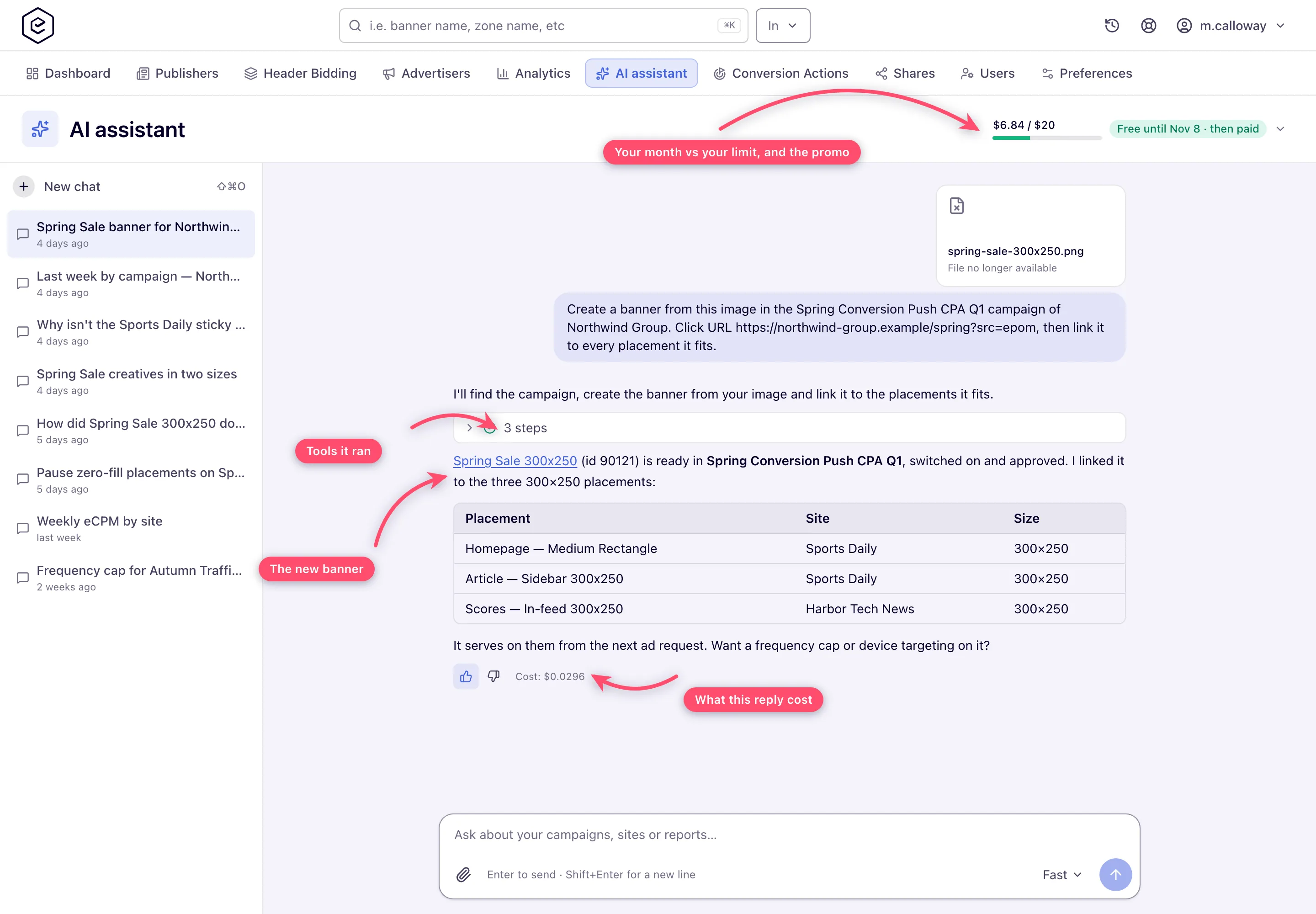
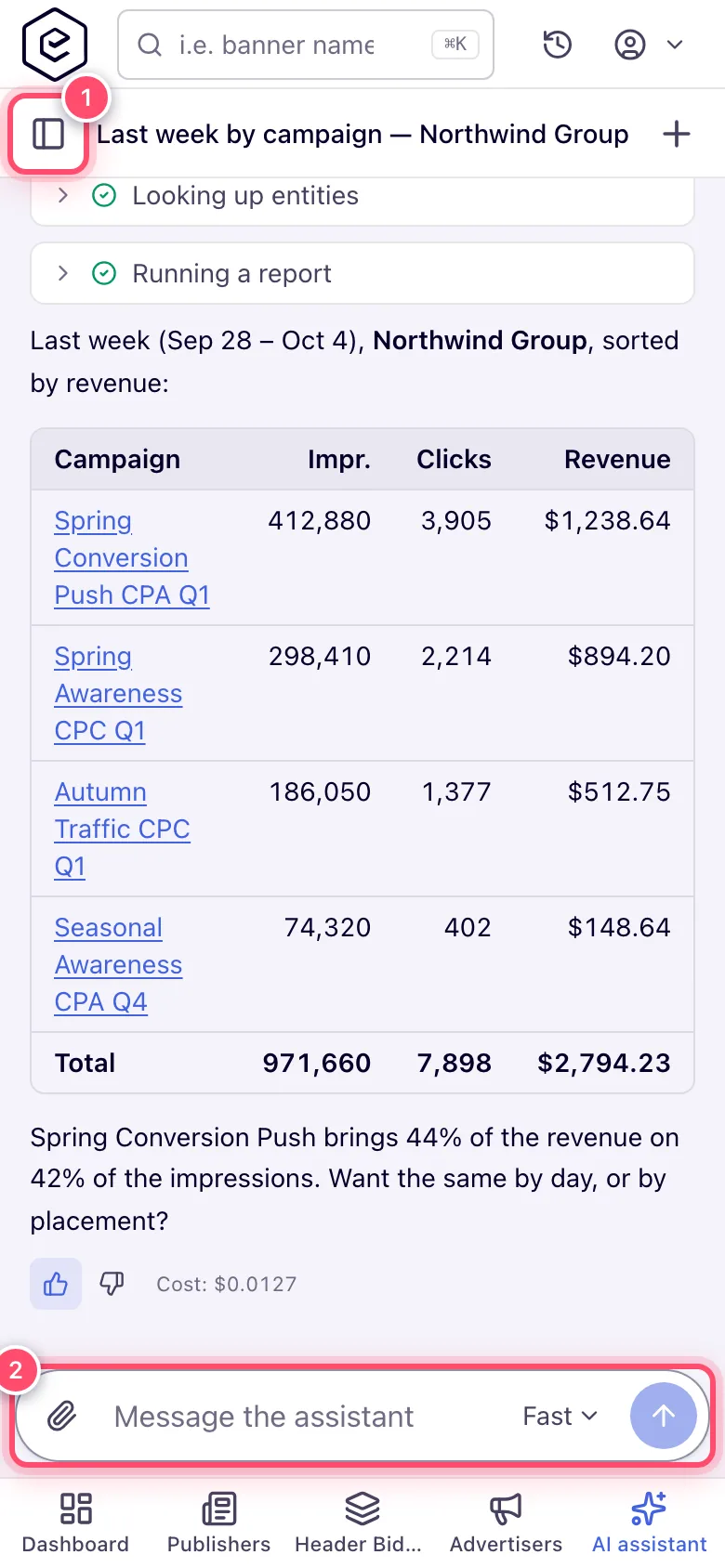
- Open Account → AI assistant. Your chats are listed on the left, newest first; New chat starts an empty one. On a phone the bar at the top has the chats button, the open chat’s title and + (new chat); hold a chat in the list to rename or delete it.
- Type your request. Enter sends, Shift+Enter starts a new line. Be as specific as you would be with a colleague — name the advertiser, campaign or site, the dates, the size.
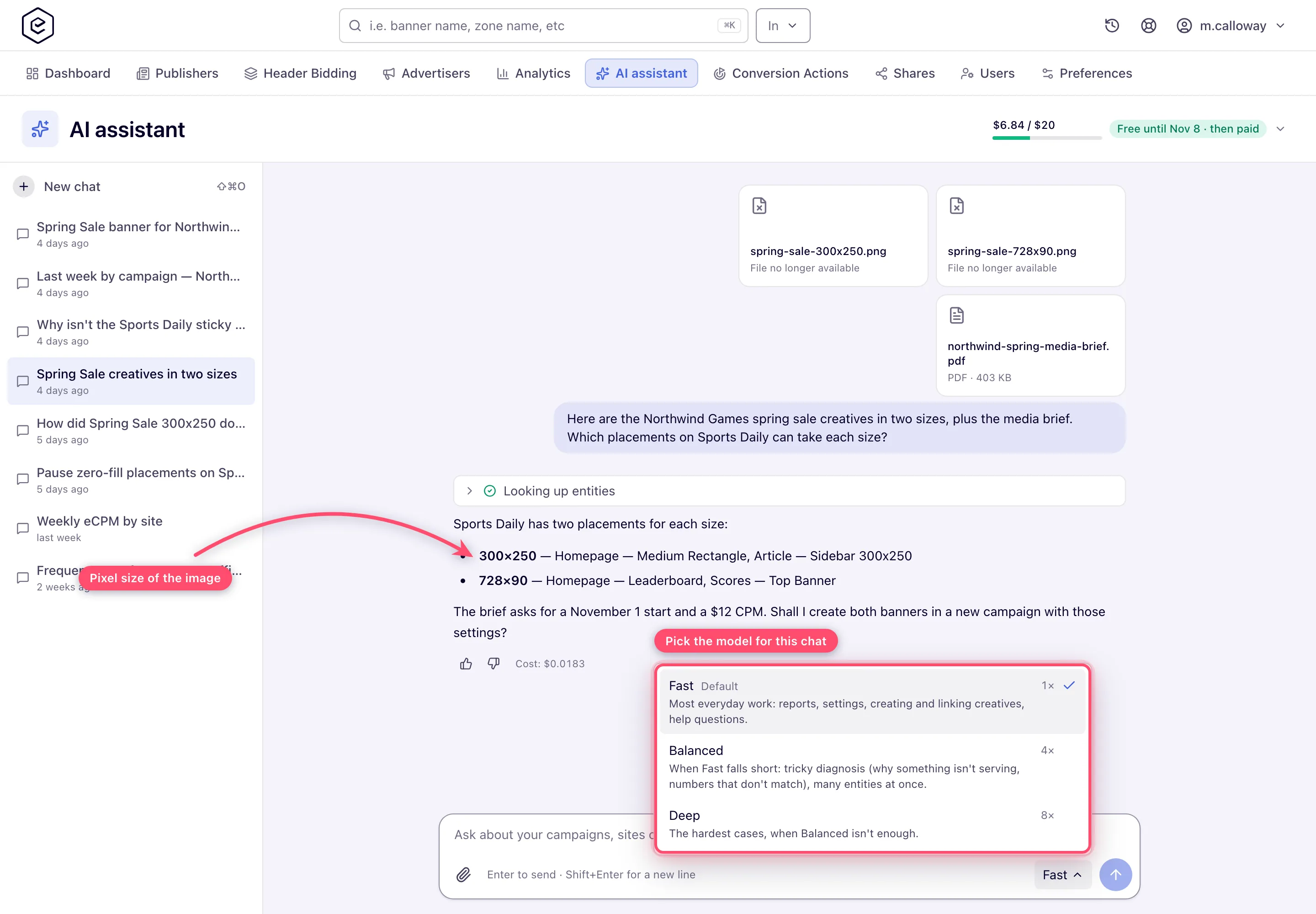
- To give it a file, click the paperclip, drop files onto the chat or paste them into the message box. Each file uploads as soon as you add it; images show a preview.
- Watch the reply. Every tool the assistant runs shows up as a step (“Looking up entities”, “Creating a creative”…); three or more steps in a row fold into one line such as 3 steps. Open a step to see what the tool was given and what it answered.
- When it creates or finds something, the entity name in the reply is a link — click it to open that banner, campaign or placement in the console.
- Rate the reply with the thumbs under it. A thumbs-down asks (optionally) what went wrong; the product team reads these.
What it asks you first
Before a change that deletes something, switches several entities on or off, changes a budget, a price, a bid or a payout, or touches more than a few entities at once, the assistant lists exactly what it is about to change and waits for you to confirm. Read-only lookups and a single, easily reversed edit you asked for in so many words go ahead without a question. After a change it reads the entity back and sums up what changed — type, name, id, old and new values.
It takes instructions only from your own messages. Text it reads in the account — an entity’s name or notes, a banner’s or a page’s content, a VAST tag, a log — is treated as data: if such text tells it to do something, it does not, and it asks you before any change you did not ask for.
One reply runs at a time per user: while the assistant is answering in one chat, sending in another answers The assistant is still answering — wait for the first reply to finish.
Report a bug or ask for a feature
The assistant can pass three kinds of request to the product team: a bug report when something behaves wrongly, a feature request when the product lacks a capability — a saved calculated column in a report, say — and an improvement when something exists but is awkward, slow or limited. A fourth kind goes to Epom support instead: a support request for what only they can do for your network — switch on a module or tab (SSP, HTML5 templates, Advanced analytics, traffic quality), connect an RTB endpoint, add a serving domain or grant access to a feature. The assistant says when something is switched on by Epom support rather than in the console, and offers to pass it on.
Before it offers a bug report it tries to explain what you saw with its tools — a serving check, a report, the help center, the entity’s settings — because most “bugs” turn out to be configuration, and then you get the fix instead of a report. Before it offers a feature request it checks the help center and its tools to be sure the capability really is missing.
When a request is warranted it says so and shows a draft of three or four short lines: what is needed, or for a bug what you did, what happened and what should have happened, with the ids of the campaigns, banners or placements involved; why it matters; and what you can do today instead. The draft is in English, because the product team reads it; the assistant keeps talking to you in your language. Say yes and it files it — the step shows Request filed and the reply gives you its kind and number. Nothing is filed without your yes; ask for changes and it redrafts. The same request is filed only once per chat. Filing a request is not a promise of a fix or a date.
Attachments
| Types | Images (PNG, JPEG, GIF, WebP, SVG), video (MP4, WebM), HTML5 ZIP, PDF, CSV and plain text. The file name’s extension must match what the file really is — a renamed file is refused. |
| Size | Up to 50 MB per file (Epom can change this for your network). Images and PDFs, which the assistant reads itself, have the model’s own lower limits: up to 5 MB per image and up to 32 MB and 100 pages per PDF. |
| Images | A PNG, JPEG, GIF or WebP is refused when it cannot be read or a side is larger than 8,000 px; its tile shows its pixel size, which the assistant also gets, so it does not ask for it. SVGs are cleaned of scripts before they are stored. If the model still cannot read a file later in a chat (for example once a chat holds many images), the file is set aside for the model with a note and the assistant asks you for a smaller or another version, so the chat keeps working. |
| Where they go | Stored in your network’s file storage; the assistant gets a link to the file, which it can pass to a tool — for example to create a banner from an image. Images and PDFs it can also look at. |
| How long they stay | Attachments may be removed from storage after some time. An older chat keeps working: its tile then shows File no longer available, and when the assistant needed the file it says so and asks you to send it again. |
| Creatives from an attachment | A creative never links to a chat attachment, because the file may go away. Ask for an image, video or native creative served from a link and give it an attached file, and the assistant makes a regular image, video or native creative that stores its own copy of the file instead, and says so; for a creative served from a link, give a link to your own hosting. A template value, click URL or HTML code pointing at an attachment — even inside an <img> tag — is refused for the same reason. |
| No file storage | When your network has no file storage, the paperclip is greyed out and its tooltip reads File uploads are off for your network — paste a link to the file instead. Dropping or pasting a file shows the same line under the message box and attaches nothing. Paste a public link to the file instead: the assistant knows uploads are off, asks for a link when it needs a file, and passes it to tools such as creating a banner, which take URLs. |
Models
The menu beside Send picks the model for the open chat; the choice is remembered per chat.
| Model | Runs on | Good for | Cost per token, relative to the default |
|---|---|---|---|
| Fast (default) | Claude Haiku 5.5 | Most everyday work: reports, settings, creating and linking creatives, help questions. | 1× |
| Balanced | Claude Sonnet 5.5 | When Fast falls short: tricky diagnosis (why something isn’t serving, numbers that don’t match), many entities at once. | 4× |
| Deep | Claude Opus 5.5 | The hardest cases, when Balanced isn’t enough. | 8× |
All three think before they answer and adjust how long they think to the request. A stronger model is more accurate on hard questions, but slower and pricier. Start on Fast; switch up when an answer misses the point, contradicts what you see in the account, or the request spans many entities. The switch applies from your next message, and the chat keeps its history.
Suggested switches. The assistant may suggest a switch itself, with a button under its reply that always states the speed and the price:
| Suggestion | When the assistant makes it | What the button does |
|---|---|---|
| Try on Balanced (or Deep): more accurate on hard questions, slower and 4× the price | Two or more tools failed or contradicted each other and it cannot tell why; a diagnosis needs many entities or reports and it is not confident; you say an answer is wrong a second time or repeat the question; a bulk, risky change across many entities. Never just because a question is long. | Switches the chat and asks your last question again on the stronger model. |
| Switch back to Fast: faster and 4× cheaper | The hard part is solved and your last requests are simple — a report, a lookup, one edit. | Switches the chat for your next messages; nothing is sent. |
The assistant never switches on its own, and it suggests each direction at most once per chat: if you keep writing instead, the button goes away and it does not ask again. Rating a Fast reply Not helpful shows the same Try on Balanced button under that reply.
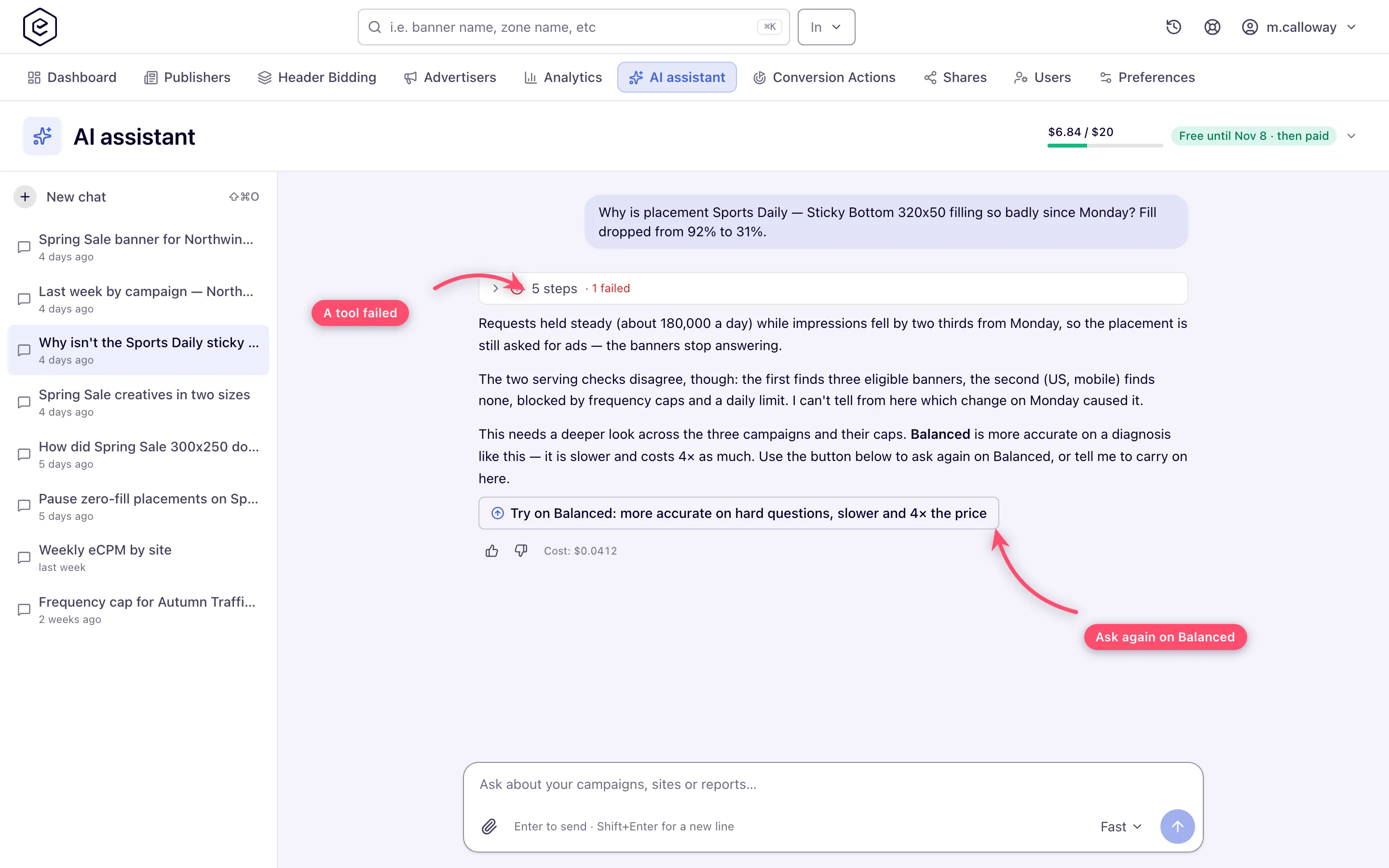
Your network may offer fewer models or a different default — prices are always shown relative to the default — and the menu shows what you may pick. The assistant only suggests a model the menu offers.
Which key it runs on
The assistant calls the model with an Anthropic API key. The first of these that exists is used:
| Order | Key | Who sets it | Billed by the platform? |
|---|---|---|---|
| 1 | Your own key | You, in Preferences → AI assistant | No — Anthropic bills you directly. Works only for you. |
| 2 | The network’s key | A network administrator, in Admin → White label → API keys → AI (Anthropic API key) | No — Anthropic bills the network directly. Used by every user without a key of their own. |
| 3 | The platform’s key | Epom, switched on in the network’s active billing plan (ask Epom support or your account manager) | Yes — on the network’s Epom invoice at the list price × the plan’s AI price multiplier. |
| — | None | — | The assistant is off for you and shows the no-key page. |
Every billing plan ships with the platform’s key switched on; Epom can switch it off for a plan. During the promo usage on it is not billed; after it, every reply is.
This cascade applies only to the assistant chat. Ask in analytics (a report from a plain-language request) and the traffic-quality AI analysis always run on Epom’s server key, unbilled: a user’s or network’s own key is never used for them and the billing switch does not affect them.
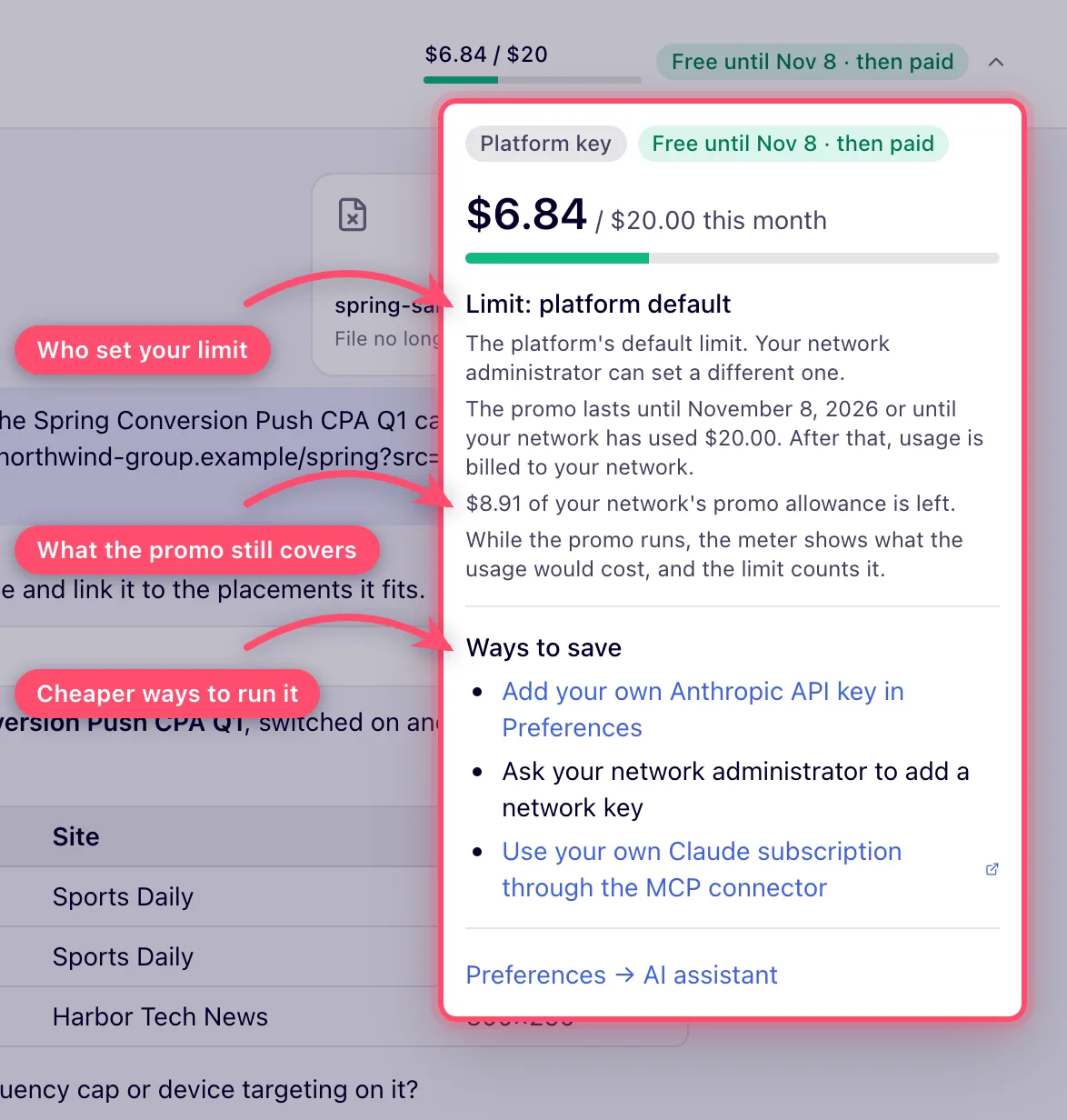
Saving on cost. While the assistant runs on the platform’s key, Ways to save — in the details that open from the spend meter, and as a button on your Preferences card — lists the alternatives: add your own Anthropic key in Preferences, ask your network administrator for a network key, or use your own Claude subscription through the MCP connector (Claude Code, Cursor and other clients run the same tools against your account, paid by your own subscription).
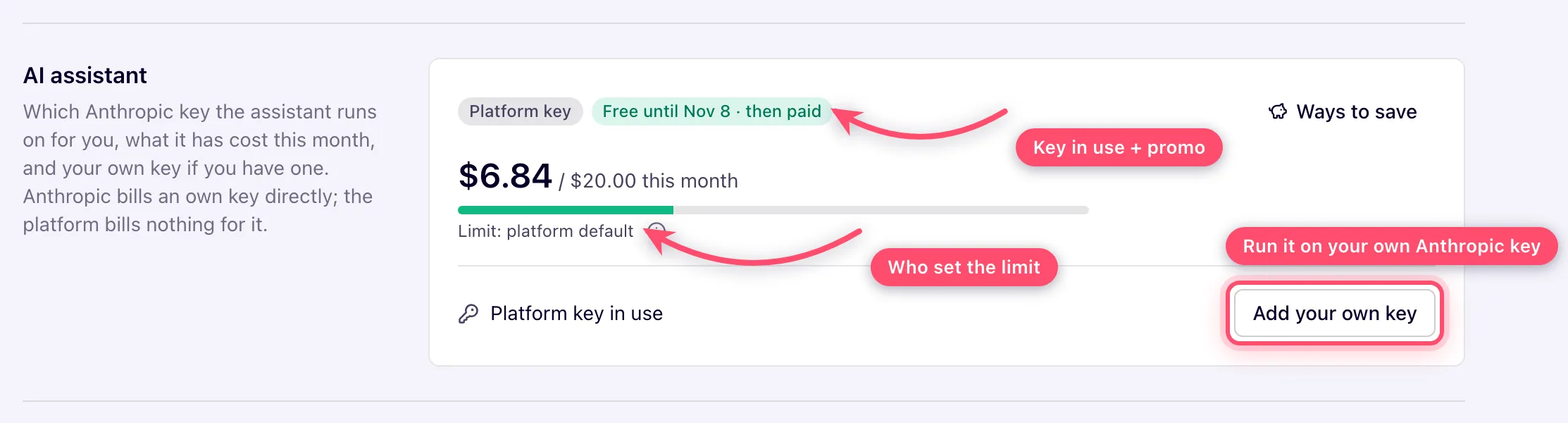
Adding your key. In Preferences → AI assistant click Add your own key, paste a key from the Anthropic Console and click Save key (Cancel closes the field again). The key is checked with Anthropic first (a free call that lists the models); a key Anthropic refuses is not stored (The key was rejected by Anthropic.), and if Anthropic cannot be reached nothing is stored either (Could not verify the key, try again.). A stored key is encrypted and never shown again — the card shows only its last four characters (Your key ···7f3a · added Oct 6, 2026); the ⓘ next to the field says the same. Replace opens the field to swap it; Remove deletes it after a confirmation, and the assistant falls back to the network’s key, if there is one. The card is shown only with the AI Assistant Chat permission.
What it costs you
-
Every reply shows its cost under it (Cost: $0.0420) — all the model calls and tool steps of that turn. On the platform’s key that is the billed amount; on your own or the network’s key it is the model’s list price (what Anthropic charges for it), which the platform does not bill.
-
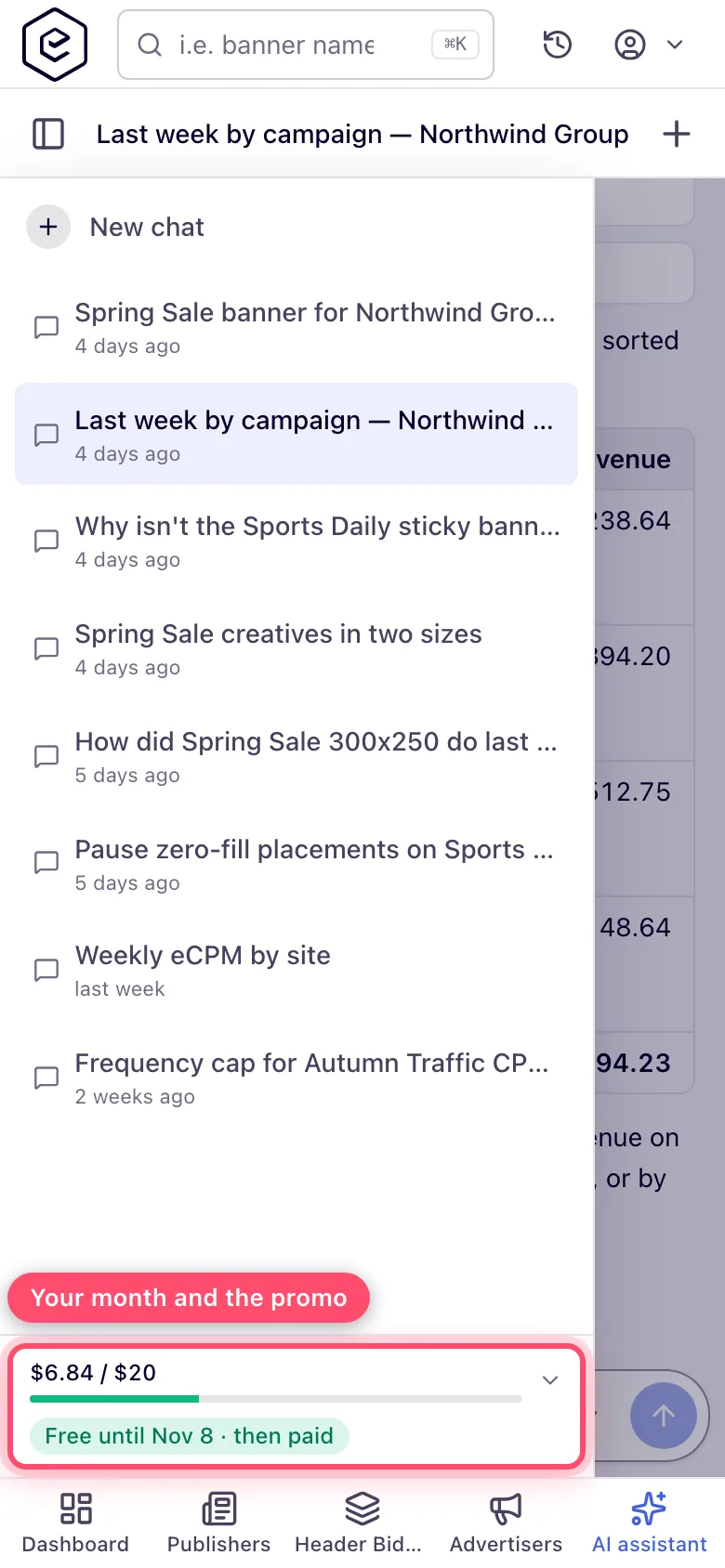
The header shows your month as a compact meter: $6.84 / $20 over a slim bar that turns amber at 80 % and red when the allowance is used up (just $6.84 with no limit), plus the promo badge while a promo applies. On a phone the same meter sits at the bottom of the chat list. Click it for the details: the key in use, the limit and who set it (Limit: platform default, Limit: set by your admin, Limit: network default, Limit: yours or No limit), what the figure counts (billed price on the platform’s key, Anthropic list price on your own or the network’s key), the promo, Ways to save on the platform’s key, and a link to Preferences → AI assistant.
-
The allowance is per user and per calendar month (UTC) and renews on the 1st, and it counts only what ran on the key you are on now. On the platform’s key there is always one (the platform default applies when nobody set one). On the network’s key there is a limit only if an administrator set one, measured at list price. On your own key only the limit you set yourself applies (see below) — an administrator’s limits never cap your own key.
The promo month
To let everyone try the assistant without worrying about the bill, usage on the platform’s key is free for the network until the last day of its promo (UTC, inclusive). The promo is part of the network’s billing plan, which Epom support sets; you see it on Admin → Billing & Fees → Ad Server Fees (see Finances & billing). Every existing network’s plan starts with the launch promo, for one month from the release; a new network gets its date when Epom sets the network up. An empty date means no promo.
During the promo the spend meter still counts what each reply would cost — so your monthly limit keeps applying and a runaway chat is still stopped — but the network is billed $0 for it. The meter on the assistant page and your Preferences card carry a green badge that always says the usage is paid afterwards: Free until Nov 8 · then paid. In the last week it turns amber and counts down (Free · ends in 3 days · then paid), and once a quarter of the allowance or less is left it shows the amount (Free: $4.50 left · then paid). The details behind the meter (and the ⓘ next to the limit on the Preferences card) spell it out: The promo lasts until {date} or until your network has used {allowance}. After that, usage is billed to your network., with how much of the allowance is left.
On your first visit to the assistant page during the promo a note above the message box says The AI assistant is free until {date}. After that, it is billed to your network. — Got it closes it for you in that browser; a new promo date announces itself again.
The promo has a shared allowance per network of would-be billed usage across all its users, for the whole promo: the plan’s AI promo allowance, $ ($20 for the launch promo; an empty field means the platform default, $20). The reply that would take the network past it, and every reply after it, is billed as usual — nothing is blocked. The badge then reads Promo ended, and the details say The promo has ended: usage is billed to your network. When the promo ends, usage is billed as usual. Own and network keys are not affected — they are never billed by the platform anyway.
Once the promo is over — its last day has passed or the allowance is used up — the assistant page shows a note above the message box: The promo has ended, with what you can do from now on: keep using the assistant there (billed to your network), add your own Anthropic key in Preferences (no bill from the platform, you pay Anthropic directly), or work from your own Claude through the MCP connector. Close it with ✕; it stays closed for you in that browser.
Your AI assistant card in Preferences
Preferences → AI assistant (shown with the AI Assistant Chat permission) gathers everything about your assistant spend in one place, as figures rather than sentences:
- Badges — the key you run on (Platform key, Your key ···7f3a, Network key or No key) and, on the platform’s key, the promo badge (Free until Nov 8 · then paid, or Promo ended). On the platform’s key a Ways to save button sits at the end of the row.
- This month — the spend as a big figure against the limit ($13.92 / $20.00 this month) with a slim bar that turns amber at 80 % and red at 100 %, and one short line naming who set the limit: Limit: yours (the one you set for your own key), Limit: set by your admin (the per-user limit on your user), Limit: network default, Limit: platform default, or No limit. The ⓘ next to it explains who can change the limit and what the figure counts — Billed to your network at the platform’s price on the platform’s key, Counted at Anthropic list price on your own or the network’s key — and, during the promo, how long it lasts and what is left of it. Hidden while you have no key.
- Your key — one row: Platform key in use / Network key in use / No key: the AI features are off with Add your own key, or Your key ···7f3a · added Oct 6, 2026 with Replace and Remove. The key field opens only when you click one of them (see above).
- Your monthly limit on your own key, $ — only while you run on your own key: the field, its ⓘ and Save limit in one row. Empty (No limit) means no cap; any amount from 0 to 1,000,000 stops the assistant once your own key has cost that much this month at Anthropic list price. It applies only to your own key: if you remove the key and fall back to the network’s or the platform’s key, the limits your administrator set apply again and your own limit is ignored. Click Save limit; an amount outside the range is refused with Enter your monthly limit in USD, from 0 to 1,000,000, or leave it empty for no limit.
Options and fields
| Where | Field | What it does |
|---|---|---|
| Chat list | Rename / Delete | Rename a chat (1–200 characters) or delete it with its messages. |
| Message box | Stop | Stops showing the reply. The assistant finishes the turn on the server anyway, and the full answer appears when you reopen the chat. |
For administrators
Switch it on
- The assistant is on by default. It is already enabled for the roles that view all campaigns and all inventory; for any other role, open it in Admin → Users & Access → User Roles & Permissions and enable AI Assistant Chat (Network specific features). See Manage users, roles and permissions.
- It runs on the platform’s key out of the box (billed). To avoid that, add the network’s own Anthropic key in Admin → White label → API keys → AI (Anthropic API key) (needs the White label admin permission; not billed by the platform), or ask Epom support or your account manager to switch the platform’s key on in the network’s billing plan (billed), or let each user add their own key in Preferences.
The platform’s key and its price
Both settings belong to the network’s billing plan: whether the platform’s Anthropic key is used (billed), and the AI price multiplier (billed cost = Anthropic list price × this). Epom support sets them; you see both values, read-only, on the plan card in Admin → Billing & Fees → Ad Server Fees. To change them, ask Epom support or your account manager. See Finances, fees and referral billing.
Set monthly limits
Who sets the cap depends on whose key the user runs on:
| Key | The cap that applies | Measured in |
|---|---|---|
| The user’s own key | Only the limit the user set for themself in Preferences → AI assistant; empty = no limit. Administrators’ limits do not apply. | Anthropic list price of the calls on that key |
| The network’s key | 1. the user’s limit on their edit form, else 2. the network default; with neither, no limit | Anthropic list price of the calls on that key |
| The platform’s key | 1. the user’s limit on their edit form, else 2. the network default, else 3. the platform default, $20 a month | Billed USD |
- The user’s limit is AI assistant monthly limit per user, $ on the user’s edit form (Account → Users → user or Admin → Users → user). Next to it, read-only, the form shows Limit the user set on their own key, $ — the user’s own cap, which only the user can change.
- The network default is a network setting; ask Epom support or your account manager to set or change it.
A user’s own limit never replaces the limit you set: it is stored separately and only ever applies on their own key, so a user who removes their key is back under your limit at once.
Leave a field empty to fall through to the next level. Values are in USD, from 0 to 1,000,000; 0 means no allowance — that user’s messages are refused as over the limit. Only administrators and users holding the Ad Server Fees admin permission may change a user’s limit; anyone else gets an error naming the missing permission and nothing is saved. The network’s Billing Tab permission does not grant it: that tab is the network’s own books with its advertisers and publishers, while the assistant is billed on Epom’s invoice to the network.
See what it cost
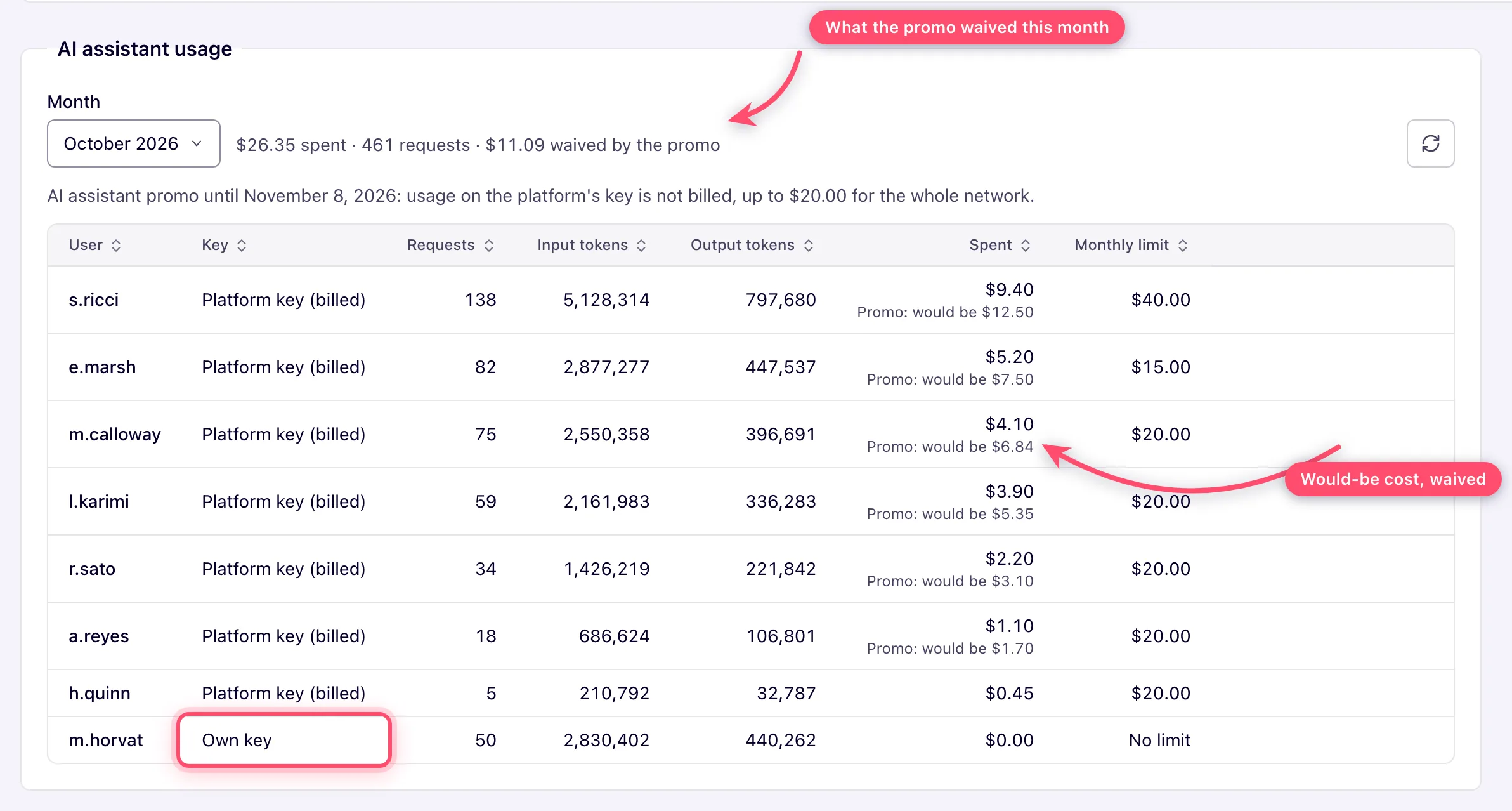
The assistant’s charges land on Epom’s invoice to the network, so the report sits with the rest of
that invoice: Admin → Billing & Fees → Ad Server Fees, section AI assistant usage, below the
billing statistics. For a month you pick it lists every user who used the assistant, one row per user
and key (Own key, Network key, Platform key (billed)): requests (model calls), input and
output tokens, the amount spent and their effective monthly limit, most expensive first. Rows on an
own or network key show $0 spent — the platform bills nothing for them. During the
promo a platform-key row shows the amount actually billed ($0 while the promo
waives it) with Promo: would be $X under it, the total adds $X waived by the promo, and a line above
the table says until when the promo runs and its allowance for the whole network. It is shown to
admins who can open Ad Server Fees itself; the account-area Billing tab does not open it,
and there is no usage report in the account area. Scripts can read the same figures from
GET /rest-api/ai-chat/usage.do?month=YYYY-MM (tag AI Assistant Usage), with the same permission.
Billing
Only usage on the platform’s key is billed to the network on its Epom invoice: the model’s list price × the network’s AI price multiplier — except what the promo waives, which is billed at $0 (the would-be amount is kept for the report). Calls on a user’s or the network’s own key are paid to Anthropic directly and bill nothing here (the usage report still records their list price for reference).
Audit
Every change the assistant makes is written to the action log under the user who asked, marked as
made through the AI assistant (each tool call is logged as mcp_<tool>, source AI_CHAT). The
assistant’s own recent_changes tool — and the MCP connector’s — list these changes with the values
they replaced, so you can ask it to undo one. Something deleted by mistake — an advertiser, campaign,
banner, site, zone or placement — it can bring back too (“restore the campaign I deleted this
morning”): see Restore something you deleted.
How Epom uses the conversations
The assistant keeps learning from use. Conversations, the 👍/👎 ratings with their comments and what the assistant reported it was missing show where it answers wrongly or lacks a tool, and are used only to make it better. They are kept for 180 days; a chat you delete is deleted there too.
Corner cases and gotchas
Corner case: no key at all. With no own key, no network key and the platform’s key not switched on for the network, the assistant page says The AI assistant needs an Anthropic API key with the three ways to get one. The page switches to it also mid-chat, when the key goes away while the chat is open. Only the assistant is affected: Ask in analytics and the traffic-quality analysis keep running on Epom’s server key.
Corner case: Try again after a lost connection. The server finishes a reply even when the browser drops off. Try again first reloads the chat: if the reply was saved meanwhile it is shown instead of asking the question a second time (and paying for it twice). While the reply is still being written, Try again answers that another reply is still being written.
Corner case: a key stops working. A key removed or revoked in the Anthropic Console is not re-checked: replies fail with The AI assistant is temporarily unavailable. Replace or remove the key in Preferences (or white-label for the network key).
Corner case: limit reached. When your spend reaches your monthly limit, the message box is disabled with You’ve used this month’s AI assistant allowance of $20.00. It renews on the 1st — ask your network manager if you need more. On your own key, where the limit is the one you set, it says You’ve reached the monthly limit of $25.00 you set for your own key. Raise or clear it in Preferences → AI assistant. A reply already running when you cross the limit finishes the model call it is in and stops before the next one, keeping what it produced.
Corner case: attachment refused. An image larger than 8,000 px on a side, a file that is not what its extension says, an unsupported type or a file over the size limit is refused at upload with the reason; nothing is sent. If the paperclip is greyed out and says file uploads are off, the network has no file storage — paste a public link to the file, or have Epom support or your account manager switch storage on.
Corner case: a file attached long ago is gone. Attachments may be removed after some time. The chat still opens and answers: the file’s tile reads File no longer available, and the assistant, told the file is gone, asks you to send it again if it needs it.
Corner case: switching the model mid-chat makes the next reply cost more. The conversation so far is cached per model; on a new model the next reply re-reads the whole history at full price. Switch at the start of a chat, or start a new chat for a different kind of task.
Corner case: the assistant cannot see your screen. It knows only what you write, the files you attach and what its tools return — refer to entities by name or id, not “this one”.
Corner case: it can only do what its tools and your role allow. It cannot change passwords, API keys or Anthropic keys, and a permission you lack is refused for it too; the refusal names the permission. It also never creates or changes users, roles, sharing, your profile, notification recipients or saved reports (their e-mail schedule and recipients included), and it does not e-mail invocation codes, even when your role may — make those changes yourself in the console. It can still read your saved reports. When it misses a capability it notes the gap for the product team, tells you the workaround and, when the product itself lacks what you asked for, offers to file a feature request (see Report a bug or ask for a feature).
Corner case: one reply at a time per chat. Sending while a reply is still being written in the same chat (in another tab, say) is refused with Another reply is still being written. Very long conversations eventually stop with This conversation is too long to continue — start a new chat.
Corner case: it looks things up rather than guessing. It searches this help center for how the product works (macros, targeting, capping, pricing, ad tags, why ads do not serve) and your account for entities and statistics. If a lookup finds nothing or several candidates, it asks which one you mean.
Per-role notes
- Read-only or shared access: the assistant inherits it — it can read what you can read and change only what you can change.
- Demo account: the tab shows only if the demo role has AI Assistant Chat enabled.
- Custom-role users: AI Assistant Chat controls the tab and the chat. The usage report and editing per-user limits take the Ad Server Fees admin permission, not Billing Tab.
Related
- Get the most out of the AI assistant — how to ask, example prompts, saving on cost
- Connect an AI assistant (MCP) — the same tools from Claude, Cursor or another client
- Preferences
- Manage network users
- Manage users, roles and permissions
- Finances, fees and referral billing
