
Use case: A/B-test creatives inside one campaign
Rotate several banners against each other, read per-banner results, and promote the winner — with weights, CTR optimization or the probability panel.
You have several versions of a creative and want traffic split between them, a fair read-out, and an easy way to shift delivery to the winner. Everything happens inside one campaign — no extra campaign copies needed.
Who this is for
Network managers and advertisers testing creatives on a campaign. The stock Network Manager role sets campaign and banner Weight and the CTR optimization and I2C optimization for actions checkboxes, so nothing here needs your network administrator. On the stock Advertiser role Weight is read-only and the optimizer checkboxes are off: an advertiser can create the variants and read the results, and asks their network manager to set the split and the optimizer. The optional Banners probability check reads a placement, which is a supply-side page — a network manager reaches it directly.
Prerequisites
- One campaign whose banners already serve — linked to placements, or matched by Rules. See Go-live checklist.
- Two or more banners of the same type and size, so they compete for the same slots.
- A conversion action attached to the campaign, if you want to judge the variants on conversions rather than clicks.
Steps
- Create the variants. In the campaign, use Add new banner to add the versions. Name
them so the report reads well:
Promo-A,Promo-B. - Split the traffic. Open each banner and set Weight on its Basic information card. The field is required, accepts 1–32 767 and starts at 1, so banners you leave alone already rotate evenly. Set explicit weights (50/50, or 90/10 for a careful ramp) only when you want an uneven split, and keep them equal until you have data. Rotation is a weighted lottery run per request, not a rota — over a few dozen impressions the realised split can look nothing like the configured one.
- Don’t optimize while testing. On the campaign’s Basic information card, open Advanced settings and leave CTR optimization and I2C optimization for actions unticked for the test window. Once either is ticked, the share of traffic the optimizer steers stops following weights and concentrates on the creative that is scoring best, which spoils a fair read-out. Turn one on later as your “auto-promote” step (step 6).
- Run the test window. Give each variant enough volume — as a rule of thumb a few hundred clicks per variant, not a threshold the product enforces — before CTR differences mean anything.
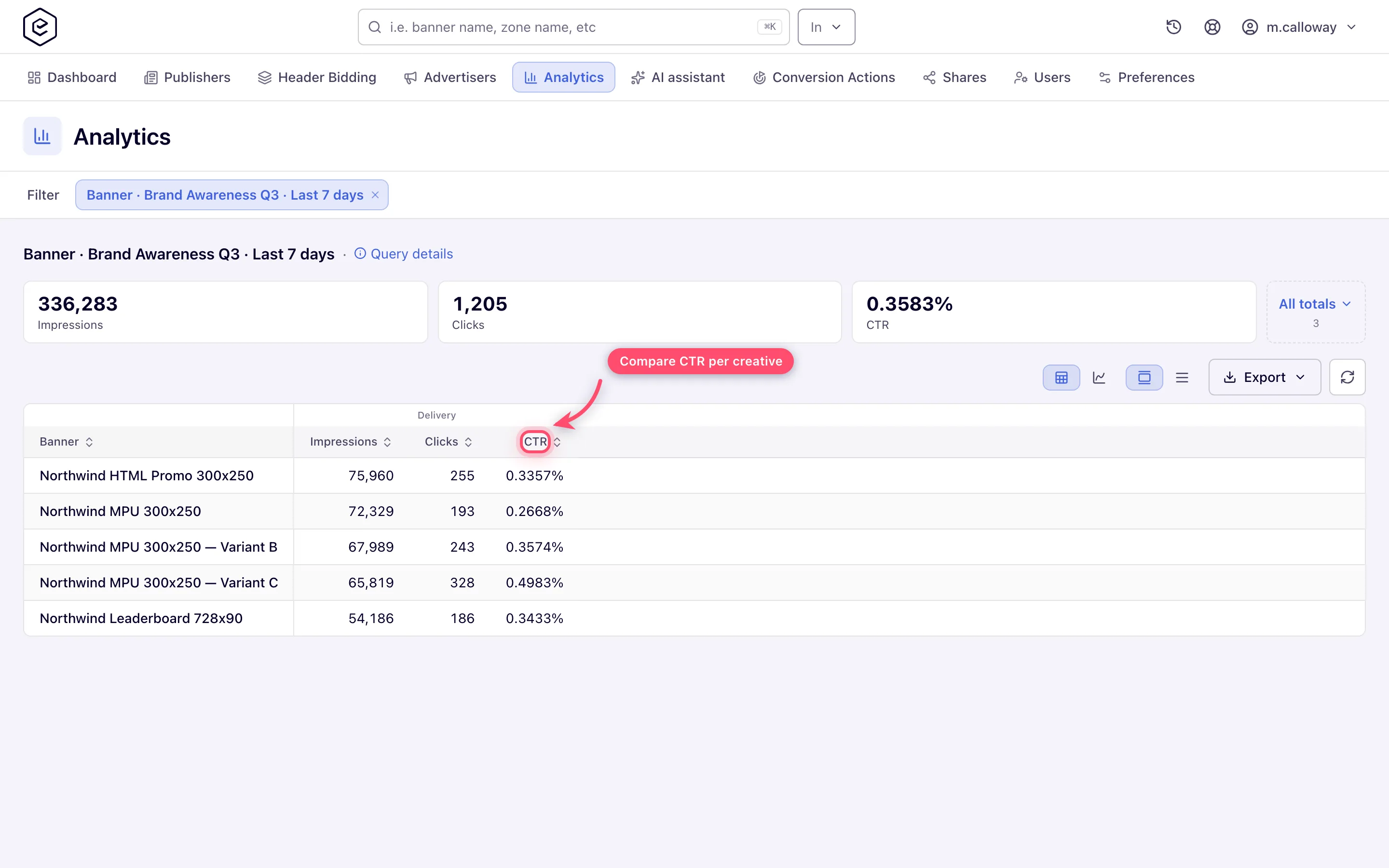
- Read the results. In Account → Analytics, set the Date range, choose Group by →
Banner, tick the campaign in the Advertisers filter tree, and click Run report.
Compare CTR and, if a conversion action is attached, I2C. The tree hides inactive entities
by default (the eye button at the top of the panel), so a banner you have already paused is
only tickable after you un-hide inactive ones.
- Promote the winner. Pick one:
- lower the loser’s Weight (the smallest value is 1, so a weight alone cannot stop a banner) or switch it off with its Active switch;
- tick CTR optimization (or I2C optimization for actions) on the campaign and let the optimizer take over the pick.
Options and fields
| Lever | Where | Use it for |
|---|---|---|
| Banner Weight | Banner → Basic information | Fixed traffic split during the test. Required, 1–32 767, default 1. |
| Banner Active switch | Banner → Basic information; the power icon beside the banner in the tree | Retiring a losing variant at once. |
| CTR optimization | Campaign → Basic information → Advanced settings | After the test: steers the banner pick toward the best click-through rate. Mutually exclusive with I2C — the form unticks the other. |
| I2C optimization for actions | Same place | Steers the pick toward the best impression-to-conversion rate; the Actions picker beside it limits which conversion actions count (All by default). |
| Group by → Banner and the Advertisers filter | Account → Analytics | The per-banner read-out. |
| Banners probability card | Placement → Banners probability | A read-only forecast of the weighted split on one placement. It shows the draw, it never changes it. |
Corner cases and gotchas
Corner case: weights only arbitrate between banners that both match the request. If B-2 has narrower targeting or a different size, the split will not follow the weights — fix the matching first.
Corner case: turning an optimizer on mid-test reshapes the split without any warning. The optimizer serves the single best-scoring banner for the share of traffic it steers and falls back to weights only for the remaining exploration share, so the “loser” may simply have stopped getting traffic, not lost. Compare only windows where the optimization state was constant. Unticking the box deletes what it had learned, so switching it off and on again restarts from zero. The share of traffic the optimizer steers is a network-wide optimization setting, which your network administrator owns.
Corner case: an optimizer never changes a banner’s stored Weight. After you switch it off, delivery returns to whatever weights are saved.
Corner case: the Banners probability card is a forecast of the weighted path only. It models nine kinds of targeting (blocked advertisers, campaigns, banners, placements and sites, plus Country, Browser, Operating System and Mobile Carrier) and ignores day, time, device and the rest, and it does not know about the CTR or I2C optimizers — on an optimized campaign the real split is more concentrated than the card shows. Its Ignore Priority filter spreads probability across every priority tier at once; the default As served view does not. Use it to confirm that all your variants are eligible on a placement, not to predict an optimized split. See Optimize ad rotation.
Note: pausing a banner keeps its history. Prefer pausing to deleting until the analysis is archived.
Per-role notes
- Network manager: every lever above, including the placement’s Banners probability card. Ask your network administrator for any card your role is missing.
- Advertiser: the variants, the Active switch and the report are yours. On the stock role Weight is read-only and the optimizer checkboxes are off — ask your network manager to set the split, or to switch these on for your role. Priority is the network’s call, and Banners probability is a placement card, not on your campaign.
- Can view share: Weight and the optimizer checkboxes are locked; the report still runs.
