
Serve an HTML5 creative from a ZIP bundle
Serve a self-contained HTML5 creative in Epom by uploading its ZIP into the file property of an HTML5 template your network prepares — there is no top-level "upload zip" banner type.
You have an HTML5 creative exported as a ZIP — an index.html plus its images, CSS, JS and
assets — and you want to serve it as a rich creative. The non-obvious part in Epom: there is
no “HTML5 zip” banner type to pick. An HTML5 ZIP is a template property, so the creative
is served through a Template banner whose template exposes an HTML5 Zip Creative field. The
network manager builds the template once, then uploads each ZIP into a banner. This page walks
both sides of that split.
Who this is for
- Network managers and traffickers who have a finished HTML5 bundle and need to get it live — jump to Upload the ZIP into a banner.
- Network managers who need to prepare the reusable HTML5 template first — start at Prepare the HTML5 template.
- Advertisers: the stock Advertiser role cannot create Template banners, so send the ZIP to your network manager, or ask them to switch Template banners on for your role.
The HTML5 template behind the ZIP field is authored in the Templates section — see Create and manage banner templates.
Prerequisites
- A campaign you can edit.
- An HTML5 creative packaged as a
.zipwith a self-contained entry file (commonlyindex.html) that references its assets by relative paths. - At least one HTML5 template enabled for the target placement type. If none exists, a network manager prepares one first (next section).
Steps
Prepare the HTML5 template
(Network-manager step — skip if a suitable HTML5 template already exists.)
-
Go to Account → Templates → Add and save a template for the placement type you serve HTML5 into (Template banners work on Site, Non-standard, Mobile site and Application placements).
-
In Template properties, add a property of type HTML5 Zip Creative. Give it a Key — this is the token you reference in the body — and a Title (the label advertisers see).
-
In the template Body, reference the property key to point at the served bundle. At serve time the key resolves to the URL of the unpacked bundle’s folder, with a trailing slash — so you append the entry file yourself:
<iframe src="$$HTML5$$index.html" width="$$WIDTH$$" height="$$HEIGHT$$"
        frameborder="0" scrolling="no"></iframe>
(Here
HTML5is the property’s Key.) You can also reference specific assets inside the bundle the same way —$$HTML5$$assets/banner.png. -
Activate the template and Save. Only active templates appear in the banner form’s Template picker.
Note: Epom unpacks the ZIP server-side on upload and hosts each extracted file. The template body does not embed the markup; it points a frame (or asset URL) at the hosted bundle. A daily cleanup job removes uploaded ZIPs that no banner property references any more.
Upload the ZIP into a banner
(Trafficker step — a role that can create Template banners.)
- In the campaign, Add new banner → pick the placement type, then set Banner type to Template.
- Choose the HTML5 template in the Template combo. The list is filtered to templates enabled for this placement type.
- The Template properties subsection now shows the template’s fields, including the HTML5
Zip Creative upload. Drop your
.zipinto it. The file must end in.zip(any case —.ZIPis accepted too) — anything else is rejected on save with “Should be a .zip file” — and must unpack within the archive limits. The field’s File source switch offers two other ways in: From link — anhttp://orhttps://address of a public host, at most 10 MB, downloaded once on save and stored exactly like an upload — and Media library, which picks a ZIP from the Media Library. The second needs the Media Library permission and the network’s file storage; when an Ad unit is chosen the picker lists only ZIPs saved at that size, so pick the Ad unit first. - Fill any other template properties (text, colors, click URL — whatever the template defines).
- Pick the Ad unit size where the placement type shows one — this is what
$$WIDTH$$/$$HEIGHT$$resolve to in the template body. Match it to your creative’s design size.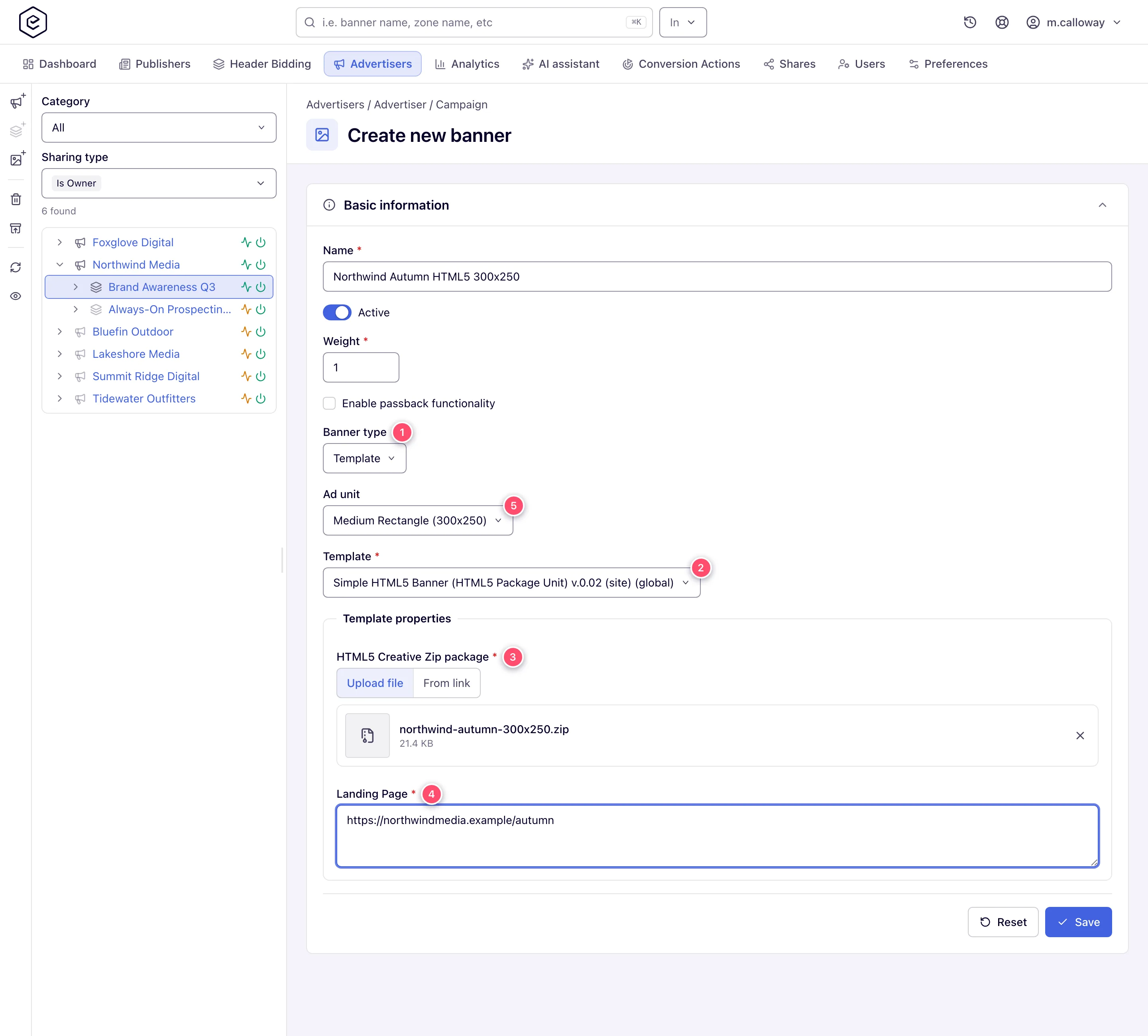
- Save, then use Preview to render the creative.
After saving, the property row shows the uploaded file name with a download link, a delete button, and a View contents toggle that lists the files inside the bundle — use it to confirm the ZIP extracted with the structure you expect.
Over the API
POST /rest-api/banner/create.do (and …/{bannerId}/update.do) takes the ZIP in one of three ways,
with bannerType=TEMPLATE and templateId:
- as a multipart upload under the property’s key;
- for clients that cannot send files, as
html5ZipUrl, the URL of the hosted archive. The server downloads it once (publichttp/httpshosts only, at most 10 MB) and stores it exactly like an upload, so the archive limits apply to it too; - as a Media Library ZIP, by reference:
mediaAssetIdwhen the template has one HTML5 ZIP property,mediaAsset.<property key>per property when it has several.
A template with several HTML5 ZIP properties takes html5ZipUrl[<property key>] per property; a plain
file property of the same template (an image, a video) takes fileUrl / fileUrl[<property key>] the
same way. See Entities CRUD → creating each creative type without a file
upload.
Archive limits
The bundle is unpacked on the server, so what it unpacks to is what is limited: the ZIP is not held to the network’s image file-size cap (200 KB by default). Sizes are counted on the unpacked files, and the save is refused, with the reason on the ZIP field, when the archive:
- is itself larger than the 50 MB it may unpack to (“The archive is larger than 50 MB.”);
- holds more than 1000 files (“The archive holds more than 1000 files.”);
- has a single file that unpacks to more than 20 MB, or unpacks to more than 50 MB in all;
- contains a path that would land outside the bundle’s own folder — an absolute path, a
..segment, a backslash or a drive letter (“The archive contains a file outside its own folder: …”).
The three numbers are server-side settings; ask Epom support or your account manager to change them for your network. A refused archive stores nothing.
HTML5 ZIP requirements — checklist before you upload
Epom unpacks the ZIP and serves each file from storage as a static file. That makes these the rules:
index.htmlat the top of the bundle. The template points at$$KEY$$index.html, the top of the bundle. Two common packaging slips are repaired on upload. A ZIP of the creative’s folder (Spring_300x250/index.html, or a chain of single folders) is unpacked from inside that folder; every path moves together, so the creative’s relative links keep working. And an entry page calledindex.htmlin another case (Index.html) is renamed toindex.html, while one calledindex.htm, or the only page at the top level under another name (Spring_300x250.htmlfrom Google Web Designer or Adobe Animate), is copied toindex.htmland also kept under its own name. System clutter —__MACOSX/,._*files,.DS_Store,Thumbs.db— is never stored.- One clear entry page. The upload is refused, with the reason on the ZIP field, when the bundle
has no page at its top level, several pages none of which is
index.html(the message names them — rename the one the ad opens), or several folders that each hold their ownindex.html(one creative per ZIP). The stock HTML5 Container template opens the page its Index Page field names instead, so with that field filled the bundle is not refused for its page names. Open View contents on the banner to see the bundle as stored; one uploaded before release 153 is stored as it was sent. - Relative paths for every asset (
img/bg.jpg, not/img/bg.jpg, notC:\…orhttp://localhost/…). A path starting with/points above the bundle. - External libraries load from their own host. A creative that loads a framework (an animation runtime, a font) from a CDN works only while that host answers and is not blocked where the visitor is. Epom neither copies nor checks it. Bundling the library into the ZIP removes that dependency.
- Macros inside the ZIP are not expanded.
$$CLICK_REDIRECT_URL$$,$$RANDOM$$and other macros work in the template body, not in files from the ZIP — those are served untouched. Anything the creative needs per impression (the click URL above all) has to be handed to it by the template, for example as a parameter on theindex.htmlURL that the creative reads. - Archive limits: at most 1000 files, 20 MB per file, 50 MB unpacked in all, and the ZIP itself no larger than 50 MB (see Archive limits).
- Name ends in
.zip— upper or lower case.
How the click reaches an HTML5 creative
A Template banner has no Url field — the landing page is a template property, and the click
is counted only when it passes through Epom’s click redirect ($$CLICK_REDIRECT_URL$$, see the
macros reference). Because the ZIP’s files
are not processed, the template must pass that URL into the frame, and the creative’s own click
handler must open it. If the creative opens a hard-coded landing page, visitors get there but
Epom records no clicks. Every template property is also available URL-encoded as
$$KEY$$ESC$$ and JavaScript-escaped as $$KEY$$ESC_JS$$ (with $$KEY$$ the property’s key) —
use the URL-encoded form when a value goes into a URL parameter.
Can an HTML5 creative call an external API (live prices, weather, a data feed)?
Yes — Epom does not restrict it. The ad server adds no Content-Security-Policy to ad markup and keeps no list of allowed hosts, and every Ad wrapper keeps scripts and same-origin requests allowed (the sandboxed variants included). What decides whether the call works is where the creative’s code runs:
- In the visitor’s browser. The request to your API leaves from each visitor’s device, from their IP address — not from an Epom server. An API that only answers whitelisted IPs therefore refuses it. Put a small proxy or cache of your own in front of such a feed (it calls the API from your whitelisted server and serves the result publicly), and point the creative at that.
- Under the bundle’s origin. The
index.htmlof a ZIP loads from Epom’s file storage or CDN host inside the template’s iframe, so afetch/XHR is a cross-origin request: the API must answer with CORS headers that allow that origin (or*). An API without CORS fails in the browser console with a CORS error, not in Epom. A creative that is not framed — HTML code placed with Without Wrapper — runs under the publisher’s page origin instead, and the publisher’s own Content-Security-Policy, if their page sets one, applies to it. - Over HTTPS. On an
httpspage anhttpAPI is blocked as mixed content.
Keep secrets out of the bundle: every file is publicly downloadable, so an API key in the ZIP is readable by anyone. Use a key meant for browser use, or keep the key in your proxy. And plan for the API being slow or down — show a static fallback rather than an empty frame.
Make an HTML5 banner responsive (fit the width of the slot)
The frame is as big as the template makes it: the example above uses the banner’s
$$WIDTH$$ × $$HEIGHT$$, which is the ad unit you picked. To fill a slot whose width changes
(full width on mobile, a fixed height of 100 px, say), two things are needed:
- The template sizes the frame to the slot —
width="100%"with a fixed height instead of$$WIDTH$$— and, on Mobile Site and Non-standard placements, the tag’s Fit container option makes the ad take the size of the element you put the tag in. - The creative itself is built to stretch (CSS sizes in % or viewport units). A creative exported at a fixed 300×250 stays 300×250 inside a wider frame — it is cropped or letter-boxed, and only rebuilding it responsive fixes that. Creatives with very different proportions (a 492×328 design into a 728×90 slot) cannot be adapted by sizing at all.
My HTML5 banner is blank, cropped or shows 404 in Preview
| What you see | Usual cause | Fix |
|---|---|---|
| Blank frame or 404 inside the frame | A bundle uploaded before release 153 with index.html in a folder, or a page with another name | Upload the ZIP again — it is laid out on upload now; check View contents |
| Page shows but images/animation missing | Absolute or local paths, or an external library that did not load | Make paths relative; bundle the library |
| Cropped or not filling the slot | The creative has a fixed size; the frame is the ad-unit size | See Make an HTML5 banner responsive |
| Clicks open the page but reports show 0 clicks | The click does not go through $$CLICK_REDIRECT_URL$$ | See How the click reaches an HTML5 creative |
| ”Should be a .zip file” / an archive error on save | Wrong file type, an archive limit, or no clear entry page | Fix the bundle as the message says and upload again |
Options and fields
| Field | What it does | Notes |
|---|---|---|
| Banner type | Set to Template | HTML5 has no dedicated type; it rides on Template |
| Template | The HTML5 template to use | Filtered by placement type; active templates only |
| HTML5 Zip Creative property | Uploads and hosts the bundle | Must be a .zip; extracted server-side |
| Other template properties | Per-template text/number/select/file fields | Defined by the template |
| Ad unit / Width / Height | Creative size | Feeds $$WIDTH$$ / $$HEIGHT$$; shown on Site/Mobile placements |
For the full template-authoring reference (property types, files, sharing), see Create and manage banner templates.
Corner cases and gotchas
Corner case: saving the banner with the ZIP field left empty keeps the previously uploaded bundle — an empty file input does not clear it. To replace the creative, pick a new ZIP; to remove it, use the field’s delete button. This is the standard file-property behavior (see HTML code and Template banners).
Corner case: a ZIP exported from macOS Finder carries a
__MACOSX/folder; it is dropped on upload and never stored, but its files still count towards the 1000-file limit, which is checked on the archive as sent.
Corner case: the entry file and every asset must be referenced by relative paths inside the ZIP. The bundle is served from its own hosted folder, so an absolute path or a hard-coded localhost URL from your authoring tool will 404 in production.
Corner case: the property key in the template body resolves to the folder URL with a trailing slash. Write
$$KEY$$index.html, not$$KEY$$/index.html— the leading slash would point above the bundle folder.
Corner case: the ZIP field is a template property, not a banner field — if the template has no HTML5 Zip Creative property, there is nowhere to upload the bundle. Ask whoever manages the template to add one (or use a template that already has one) rather than hunting for a zip upload elsewhere on the banner form.
Corner case: the upload needs file storage to be enabled for the network. Where it is not, the save fails with an error against the ZIP field — that is a network setup problem, not something wrong with your bundle; contact Epom support or your account manager.
Corner case: a property key cannot be a reserved macro name —
$$WIDTH$$and$$HEIGHT$$are refused when you define the template, because the platform already substitutes them. They are still available to use in the body; they just cannot be the key of a property you define.
Corner case: HTML5 Zip Creative properties are not supported on the placement-side native adapter templates — they only work as banner creative properties. Use them on regular (General / Content Adapter) templates.
Corner case: editing the template body or properties later affects every banner built on it once the ad cache reloads, without re-saving each banner. Change the entry file name in the body and existing banners must have their ZIPs match, or they break.
Per-role notes
- Advertiser — the stock role cannot create Template banners; send the ZIP to your network manager, or ask them to switch Template banners on for your role. With that permission you upload the ZIP into the template property on the banner yourself.
- Network manager — prepares that template, then traffics banners against it like anyone else.
- Can view share — the ZIP field and the other property inputs are disabled; existing files stay downloadable and the View contents tree still opens.
Related
- Reuse creative files with the Media Library — upload a ZIP once and pick it for the HTML5 ZIP property of many creatives
- HTML code and Template banners — the banner type HTML5 rides on
- Create and manage banner templates — building the HTML5 template
- Macros reference —
$$WIDTH$$,$$HEIGHT$$and property keys - Banner types — decision guide
