
Create and edit an advertiser
Set up an advertiser — basic info, categories, private flag, analytics finalization, payments, sharing and the statistic user.
An advertiser is the top demand-side container: it owns campaigns, carries default demand settings (targeting, limits, capping, price adjustment) and is the unit you share with external users. This page covers creating one and every card on its edit page.
Who this is for
- Network managers — create and manage advertisers for clients.
- Advertiser users — edit the advertisers shared to them, often read-only or with a masked name; see Per-role notes.
Prerequisites
- An account with access to Account → Advertisers.
Steps
-
Go to Account → Advertisers and click New advertiser — the top button of the left action rail.
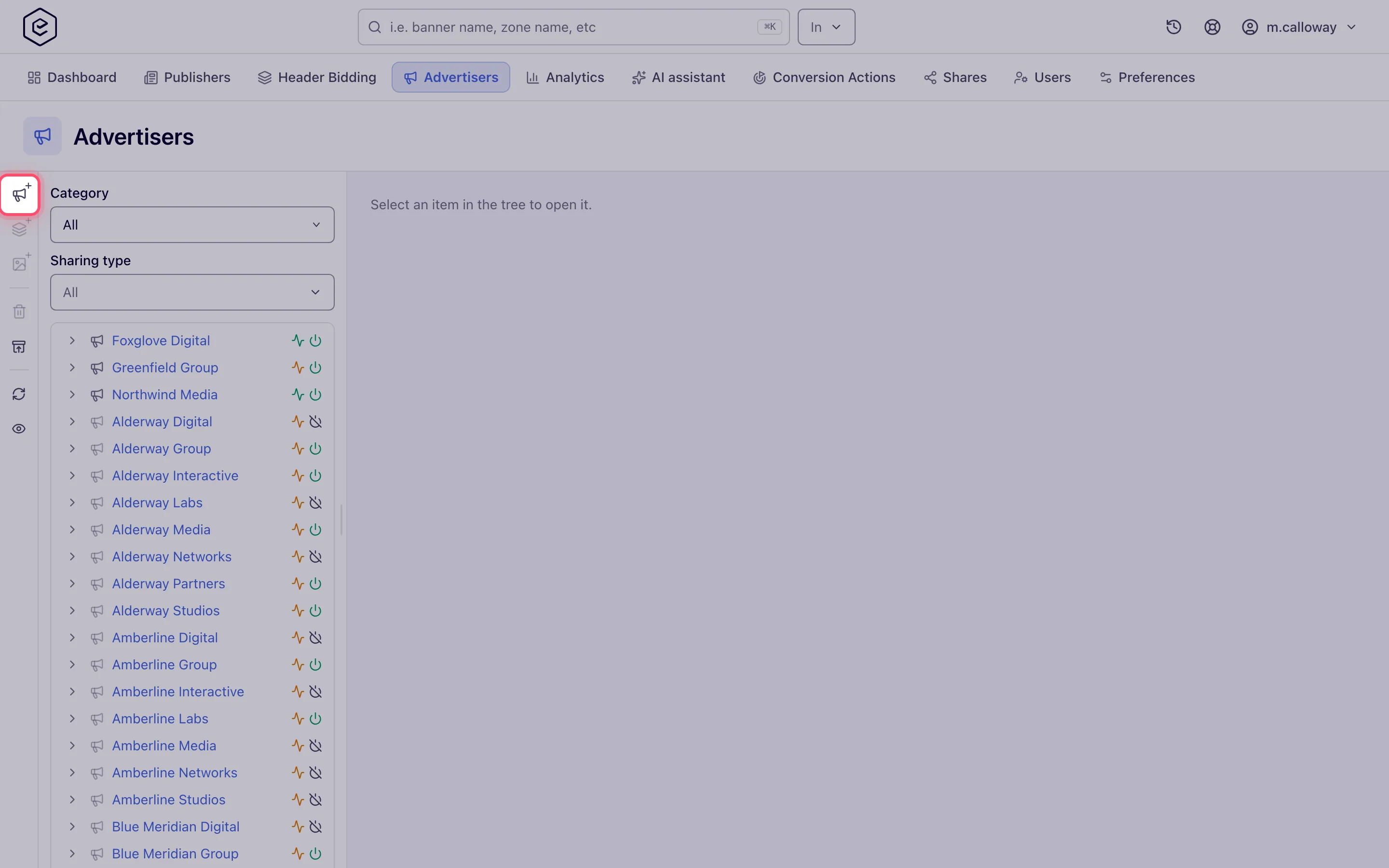
Note: that rail belongs to tree view, the default. If your account is set to grids view instead, the same action is a New advertiser… button above the grid. Switch between the two under your username → Trees / Grids.
-
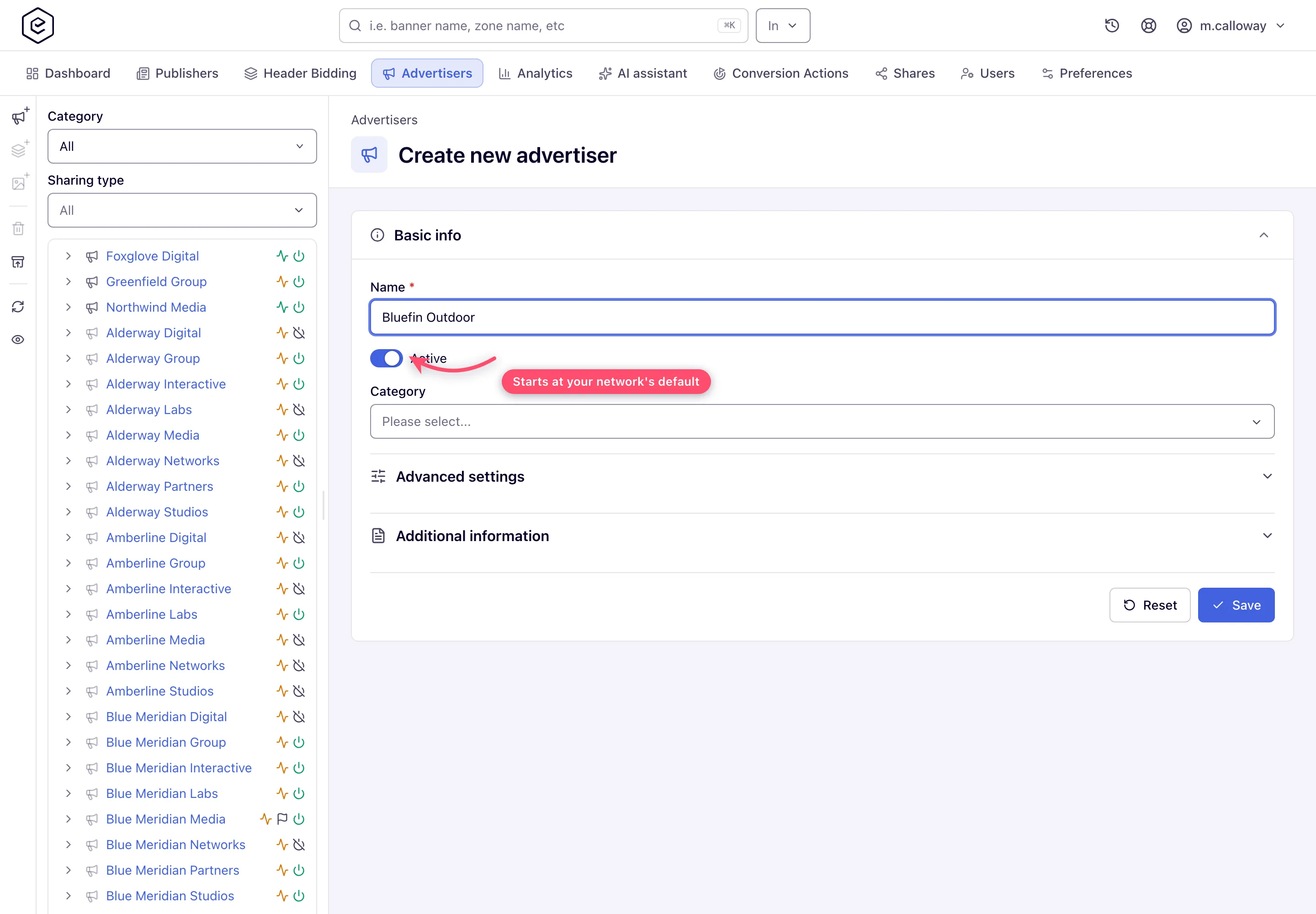
Fill in Name — the only required field — and check the Active toggle. It is already on unless your network’s default activity status says otherwise, so in most cases you leave it alone.
-
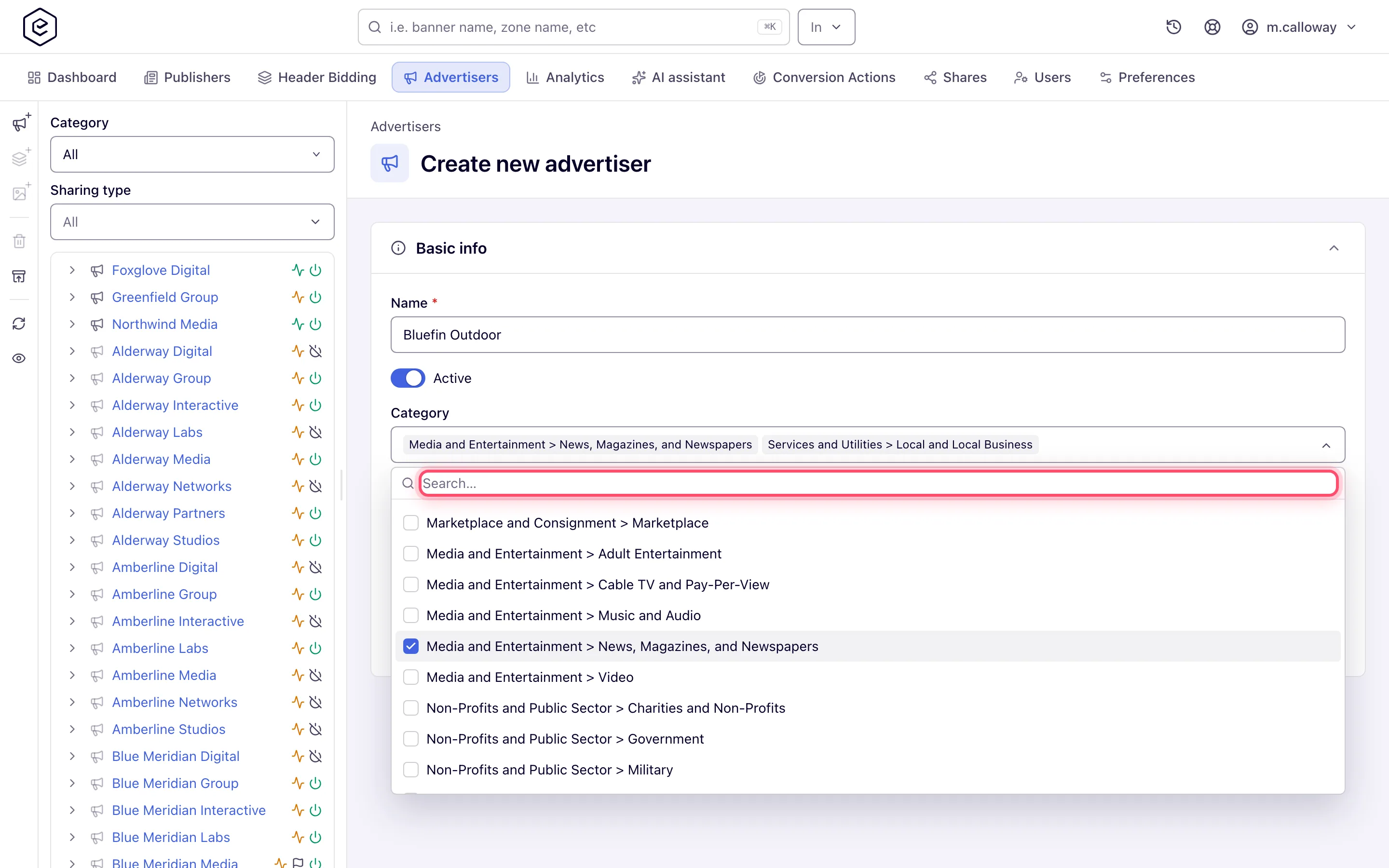
Optionally pick one or more Categories. The picker is a searchable checkbox list, and each category you tick is added to the field above it as a chip. Categories feed matching rules and reporting. If the field is not on the page, ask your network admin for Advertisers Categorization.
-
Open Advanced settings if you need the Advertiser domain or the Private flag. Each of the section’s three settings has its own permission; if your role holds none of them there is no Advanced settings row at all.
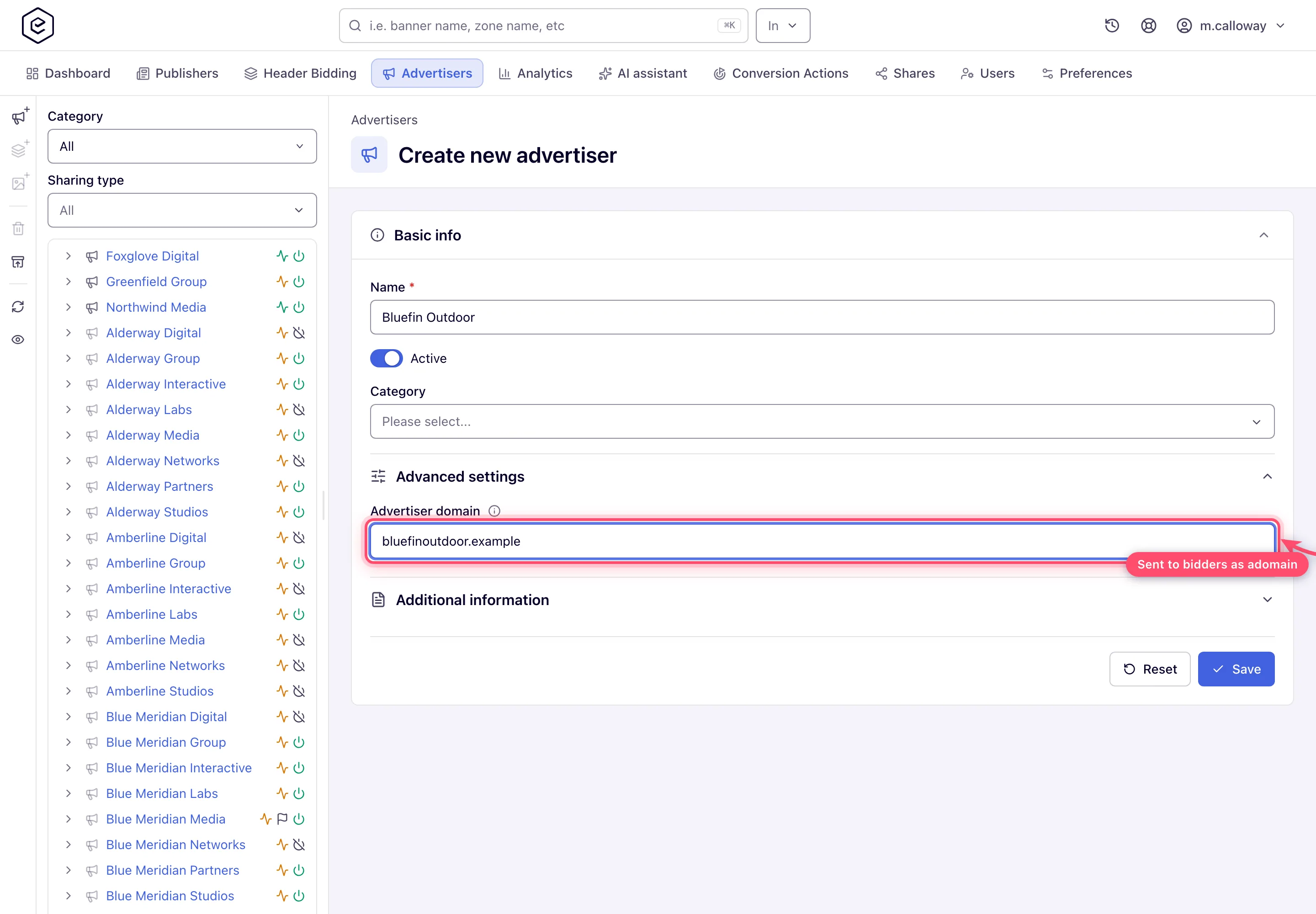
Note: the Analytics finalization policy also lives in this section, but only on an advertiser that already exists. You will not see it here — it appears after the first save.
-
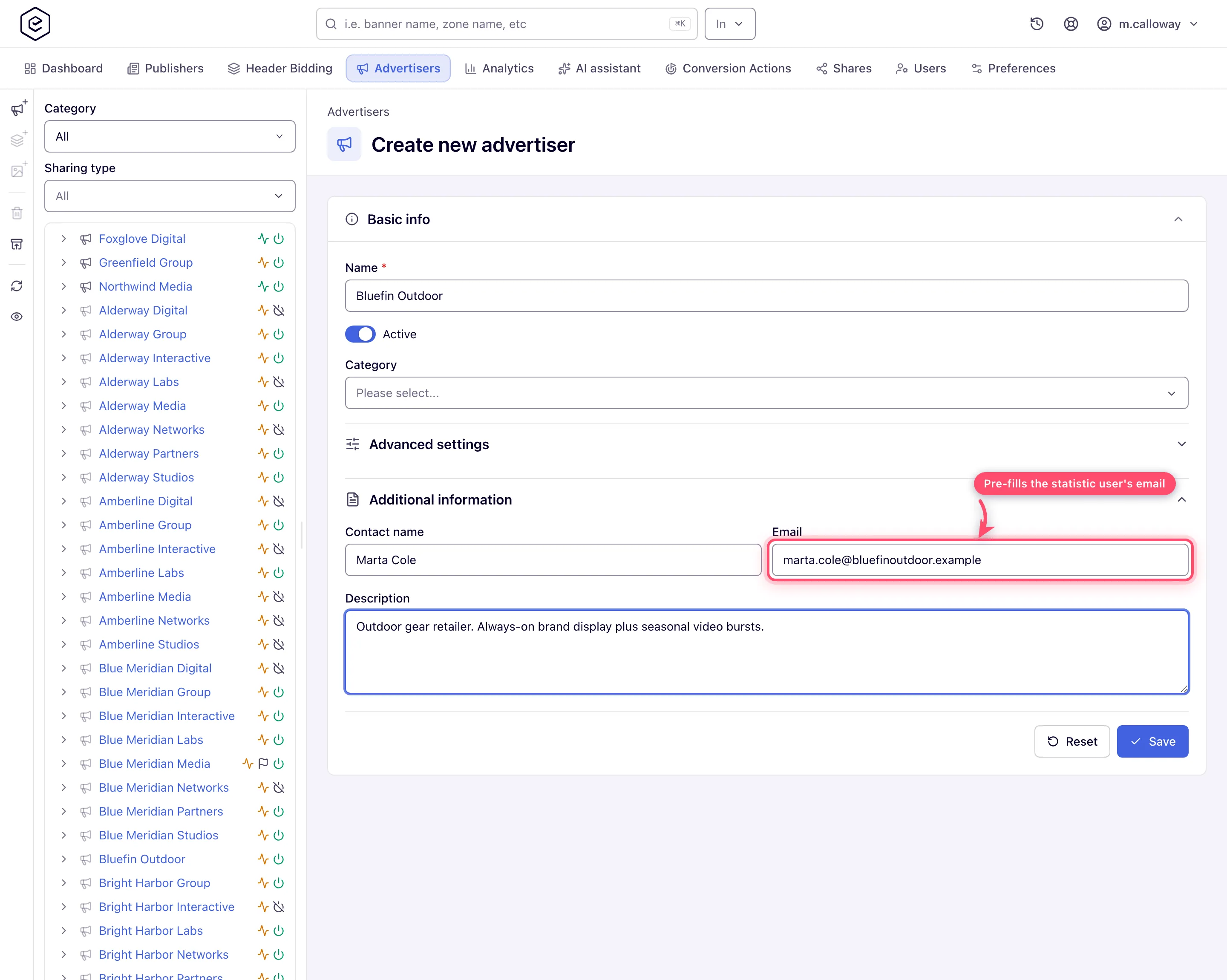
Open Additional information for Contact name, Email and Description. The email is worth filling in: it pre-fills the statistic user’s email if you later create one.
-
Click Save (the toast reads Advertiser saved). You land on the full edit page for the new advertiser: the header gains Add new campaign and an Actions menu, and the feature rail appears on the side. The campaign count reads zero and a setup nudge offers a Create campaign shortcut — both stay until the first campaign exists.
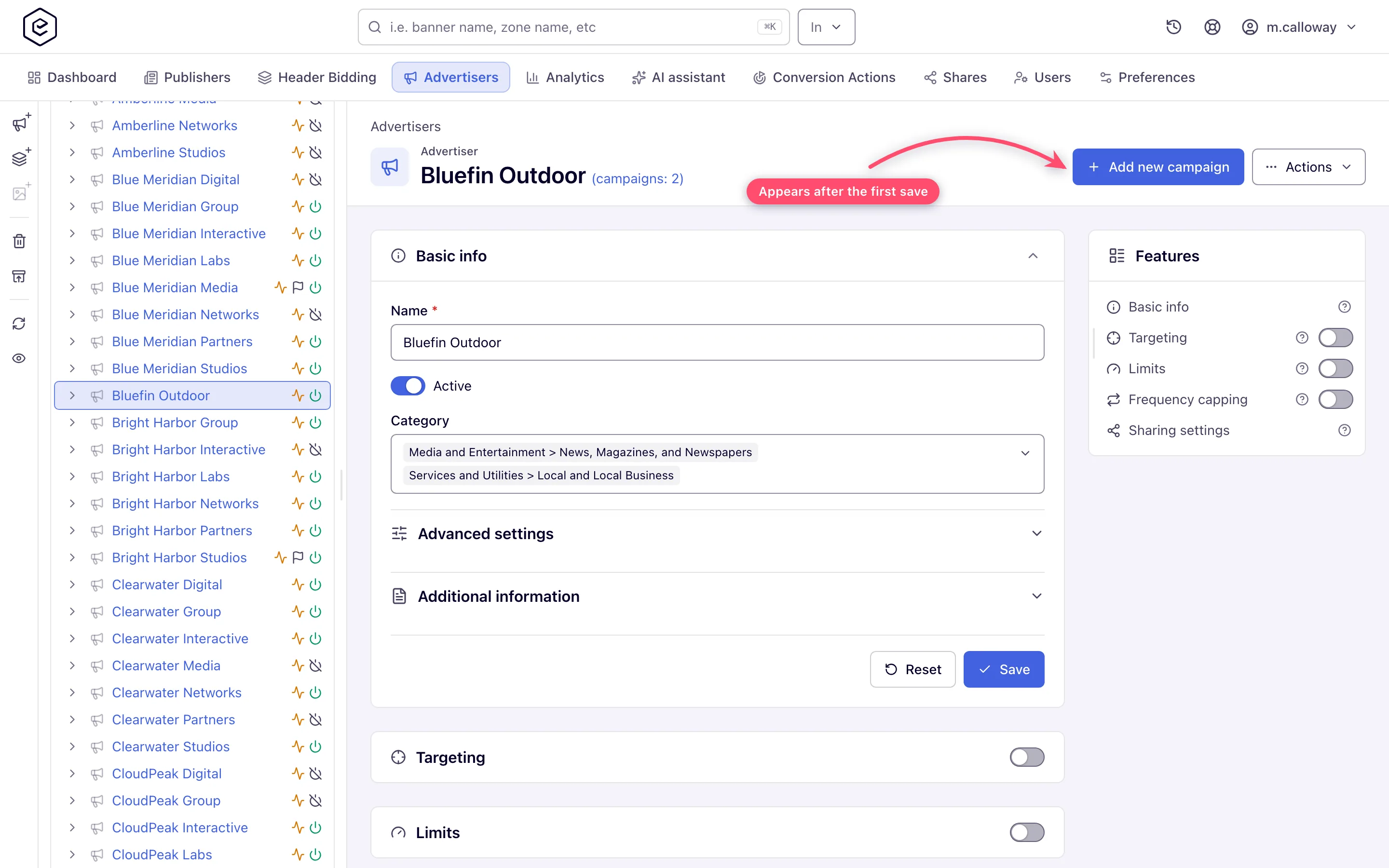
Advanced settings also gains the Analytics finalization policy at this point; it needs a saved advertiser, so it was not on the create form. See Advanced settings for what it does.
After the first save — the feature cards
In page order (each card can be switched on/off from the side rail when you can edit it). Which of these cards you see depends on your role — see User roles.
| Card | What it does |
|---|---|
| Basic info | The fields above, now with the Analytics finalization policy and a read-only Created date. |
| Targeting | Advertiser-level targeting rules applied to all its campaigns. See Add targeting. |
| Price adjustment rules | Adjust gross prices by condition; advertiser rules apply before campaign and banner rules. See Price adjustment rules. |
| Limits | Impression/click/conversion/budget limits across all campaigns. See Limits. |
| Per conversion action limits | Limits per individual conversion action. See Action limits. |
| Frequency capping | Advertiser-level frequency capping (all campaigns combined). See Frequency capping. |
| Matching rules | Category/label rules that auto-pair this advertiser’s demand with inventory. |
| Matched placements | Read-only list of placements the rules currently match. Appears only while Matching rules is showing — see the corner case below. |
| Payments | The advertiser’s payment records. |
| Sharing settings | Share this advertiser with other users. See Shares. |
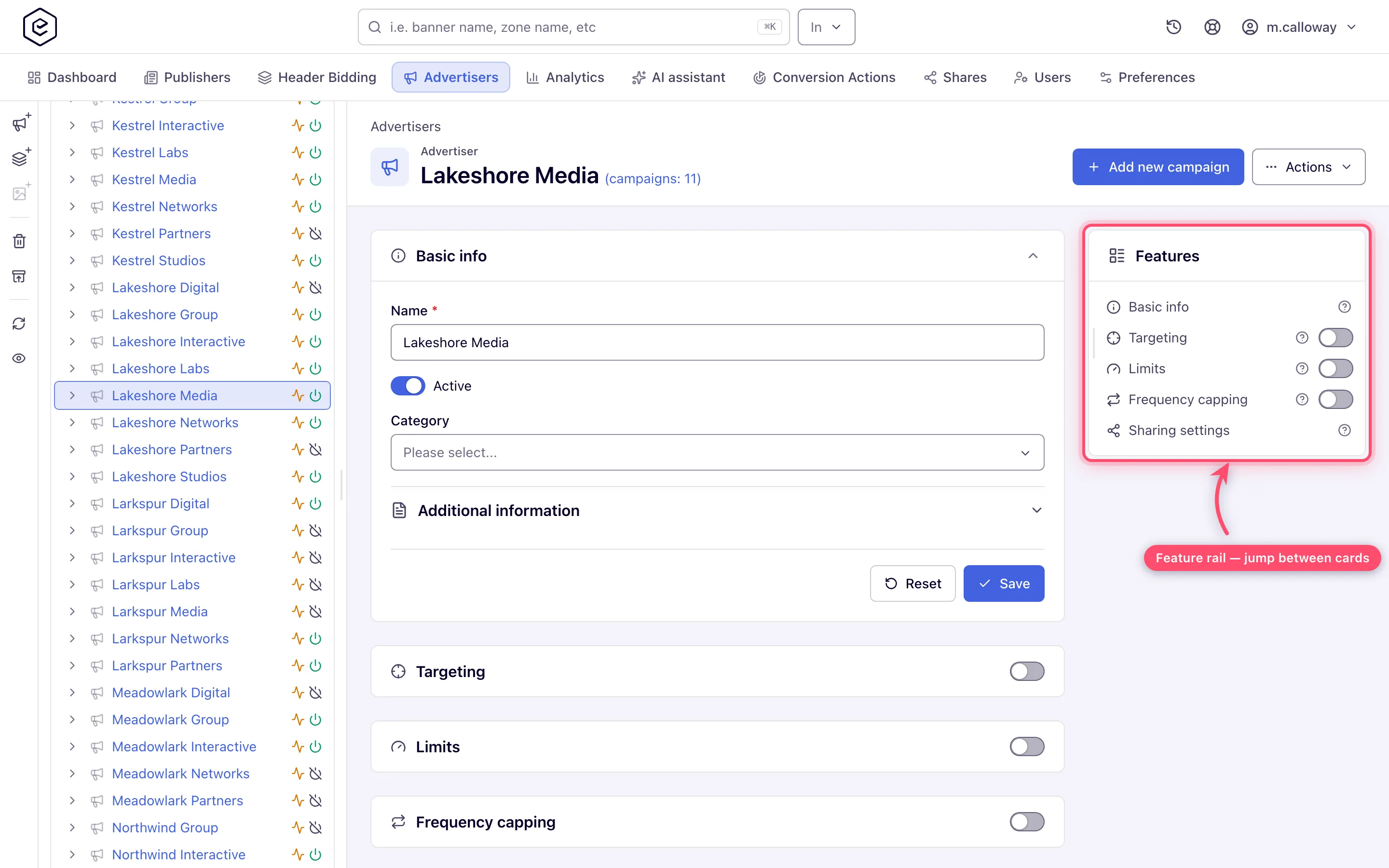
Header actions
The header appears only on a saved advertiser.
Add new campaign jumps to the campaign create form (Campaigns). It needs the right to create campaigns and an advertiser you can edit; on a masked share the button is visible but disabled.
Actions opens a menu with up to two entries: Create user & share, which needs the right to share campaigns, at least one role you may assign and edit rights on the advertiser, and Delete this advertiser, which is offered on an advertiser you can edit.
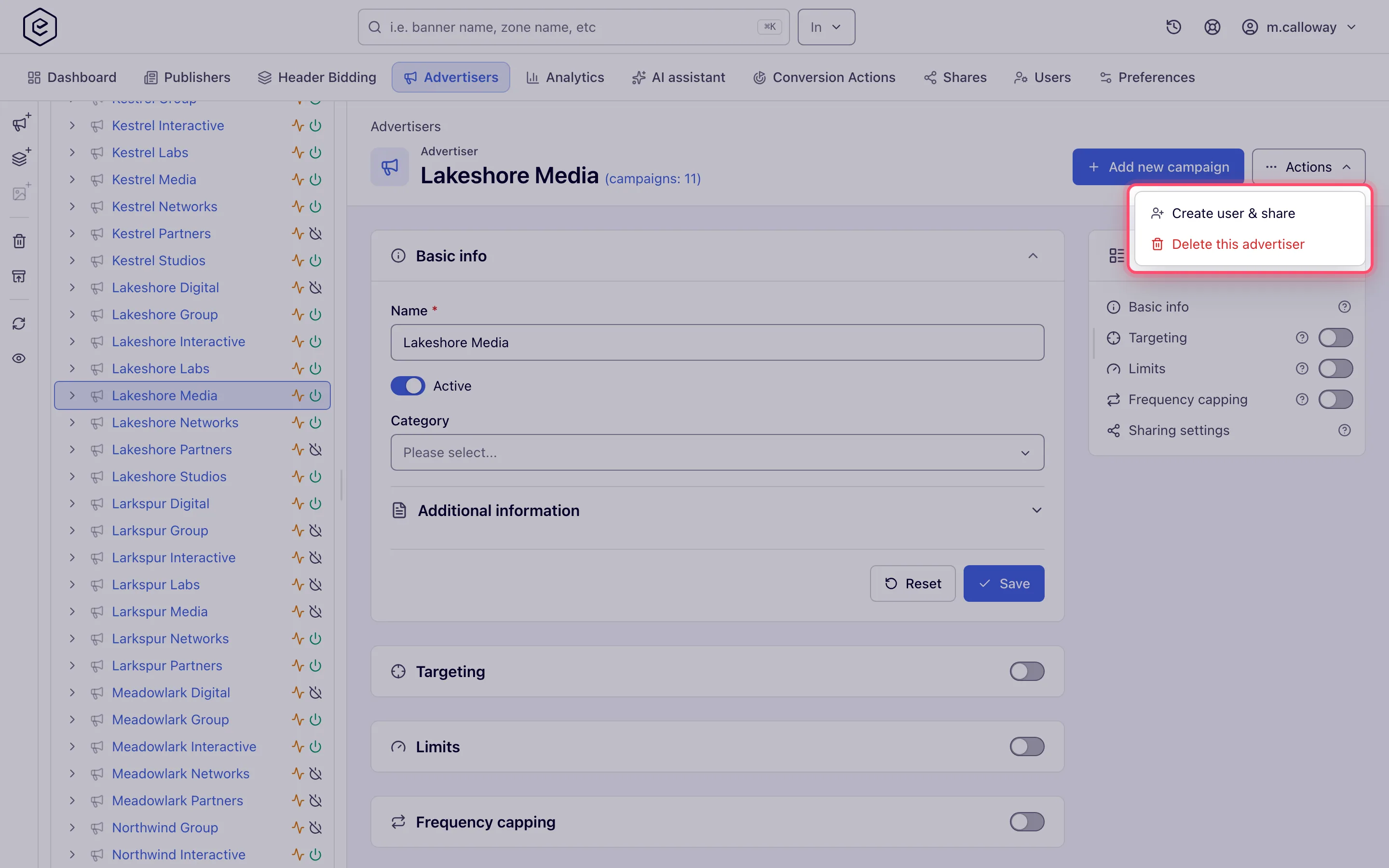
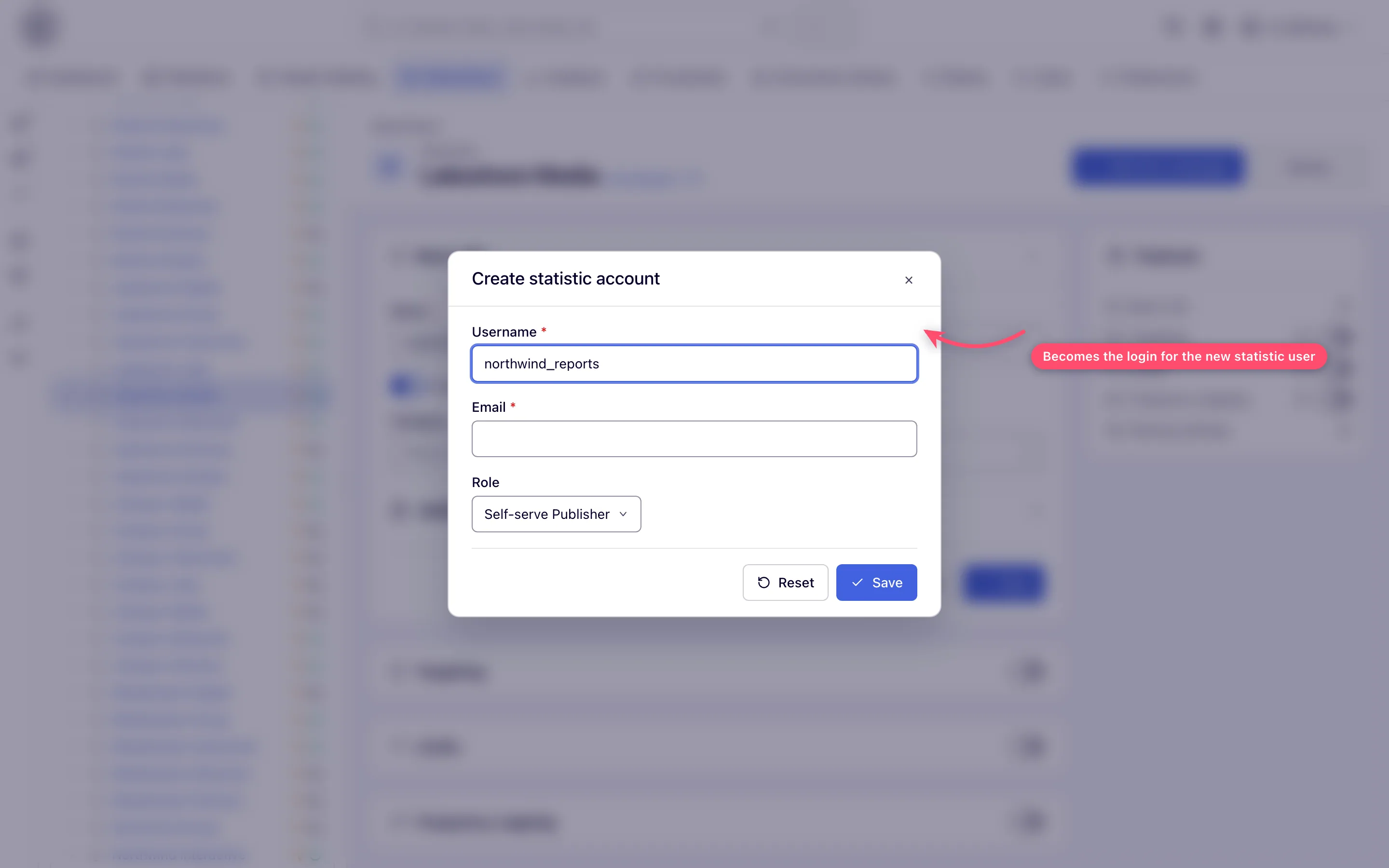
Actions → Create user & share creates a statistic user: a login pre-shared to this advertiser as Can view, so a client can watch their own stats. The dialog is titled Create statistic account and asks for a username, an email and a role (the roles you are allowed to assign that can also view campaigns). Username starts blank — only the email, taken from the advertiser’s contact email, and the role are pre-filled. Save sends the invitation and the toast reads Invitation to choose a password sent to the address; Reset puts the three fields back. The invitation carries a link for the user to set a password, never a password itself.
Corner case: the pre-selected Role is simply the first role you are allowed to assign, which is not necessarily an advertiser-side one — on a stock network it can come up as Self-serve Publisher. Set it deliberately rather than accepting the default.
Warning: a username or email that is already taken is not refused — the server rewrites it first. A taken username gets a number appended (
opsbecomesops1,ops2, …) and a taken email gets+N, a random digit from 1 to 9, put before the@. The invitation goes to the rewritten address and the toast names it, so read the toast. Because of the rewrite, a taken username or email never produces a “must be unique” error. A blank username or email answers “Required” and a malformed email “Invalid email”.
Note: if the advertiser’s own Email is blank, creating a statistic user backfills it with that user’s email. The Basic info card will show a contact email you did not type.
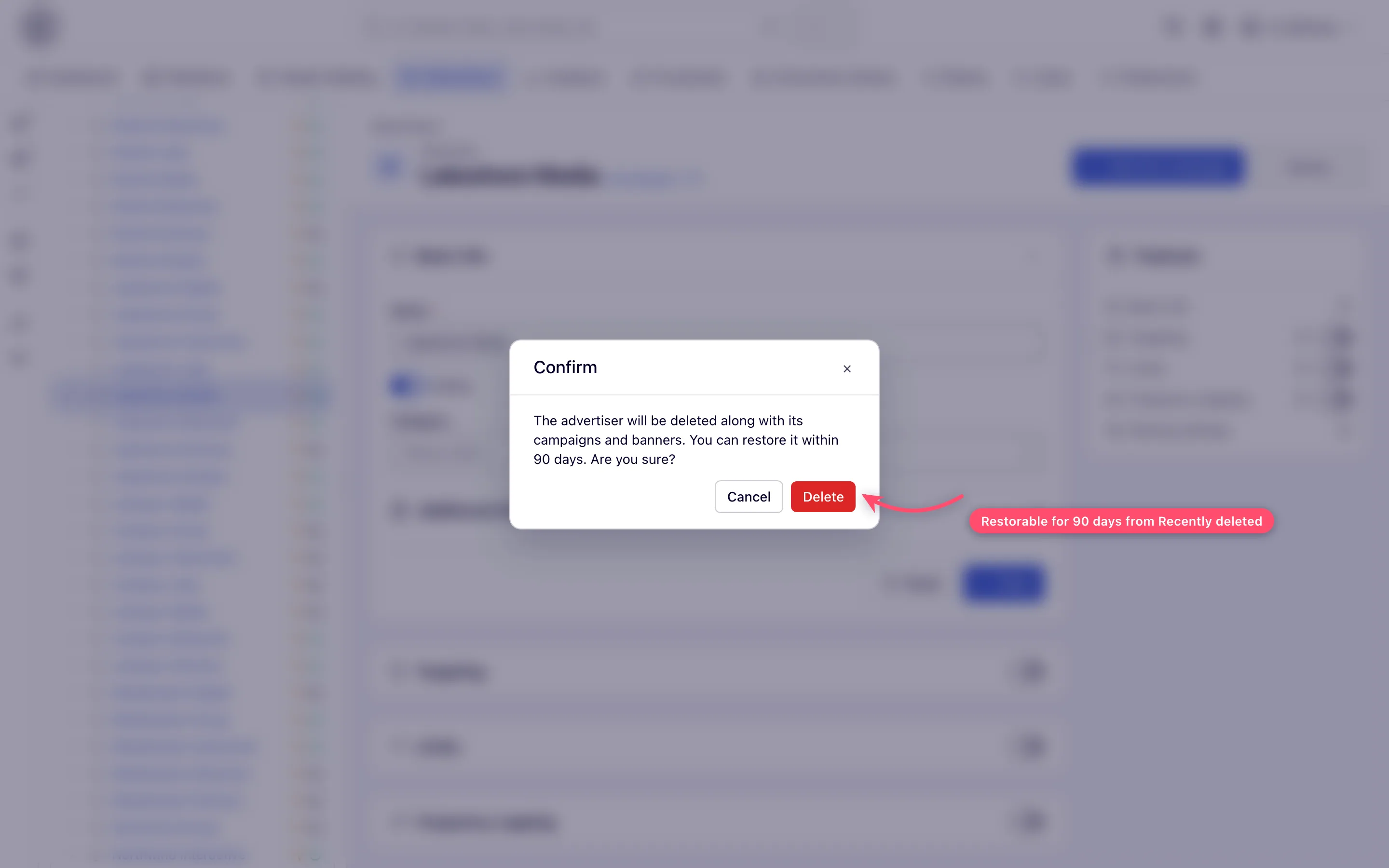
Actions → Delete this advertiser asks “The advertiser will be deleted along with its campaigns
and banners. You can restore it within 90 days. Are you sure?” and, on Delete, marks the
advertiser and every campaign and banner under it as deleted and switches them off. They leave the
console and its lists. The success toast carries a Recently deleted link; that page (also the
box-with-arrow button in the tree’s action rail) or POST /rest-api/deleted-entities/{type}/{id}/restore
brings the advertiser back together with all of them for 90 days
(Restore something you deleted).
Options and fields
Everything the Basic info card can show, split by the three sections you see on screen. “Where” says whether a field is on the create form, the edit page, or both.
Basic info
The always-visible top of the card.
| Field | What it does | Control | Default | Where | Notes |
|---|---|---|---|---|---|
| Name | Advertiser display name | Text, max 128 | — | Both | Required. Locked (and skipped on save) when the share masks the identity. |
| Active | On/off switch for the whole subtree | Toggle | network default | Both | Hidden when your role cannot switch advertisers on and off. |
| Category | Advertiser categories for rules/reporting | Searchable multi-select | none | Both | Your role may show it locked (it then reads “All without category”) or make it required, in which case a save with none is refused (“You must provide at least one category”). |
| Additional fields | Network-defined extra text fields | Text, max 255 | empty | Both | Only present when your network administrator defined additional entity fields for advertisers; the label is whatever they named it. Not hidden by masking. |
Advanced settings
A collapsed subsection. It is rendered only if at least one of its three fields applies to you — hold none of the permissions and there is no Advanced settings row at all.
| Field | What it does | Control | Default | Where | Notes |
|---|---|---|---|---|---|
| Advertiser domain | The brand’s own domain, published to buyers as the OpenRTB adomain on bids for this advertiser’s creatives | Text, max 255 | empty | Both | Hidden for masked shares. See below. |
| Private | Leaves the advertiser out of the linked-banner trees and of analytics for users who hold no share on it, and out of label-only auto-linking of new placements | Checkbox | off | Both | Unlike its two neighbours, it is not hidden by masking. |
| Analytics finalization policy | When this advertiser’s analytics is considered final (confirmed) | Select | Default | Edit only | Absent from the create form — it needs a saved advertiser. Over the REST API the same fields are confirmationDelay, preliminaryConfirmationDays and lastConfirmedDate (yyyy-MM-dd) on advertisers/update.do, and GET /rest-api/advertisers/{id}.do returns them to roles that may set the policy. |
| Days for confirmation | How many trailing days stay unconfirmed | Text, 0–365 | 1 | Edit only | Appears only while the policy is Last N Days. |
| Last confirmed date | The cut-off date for confirmed analytics | Date picker | empty | Edit only | Appears only while the policy is Last Confirmed Date. |
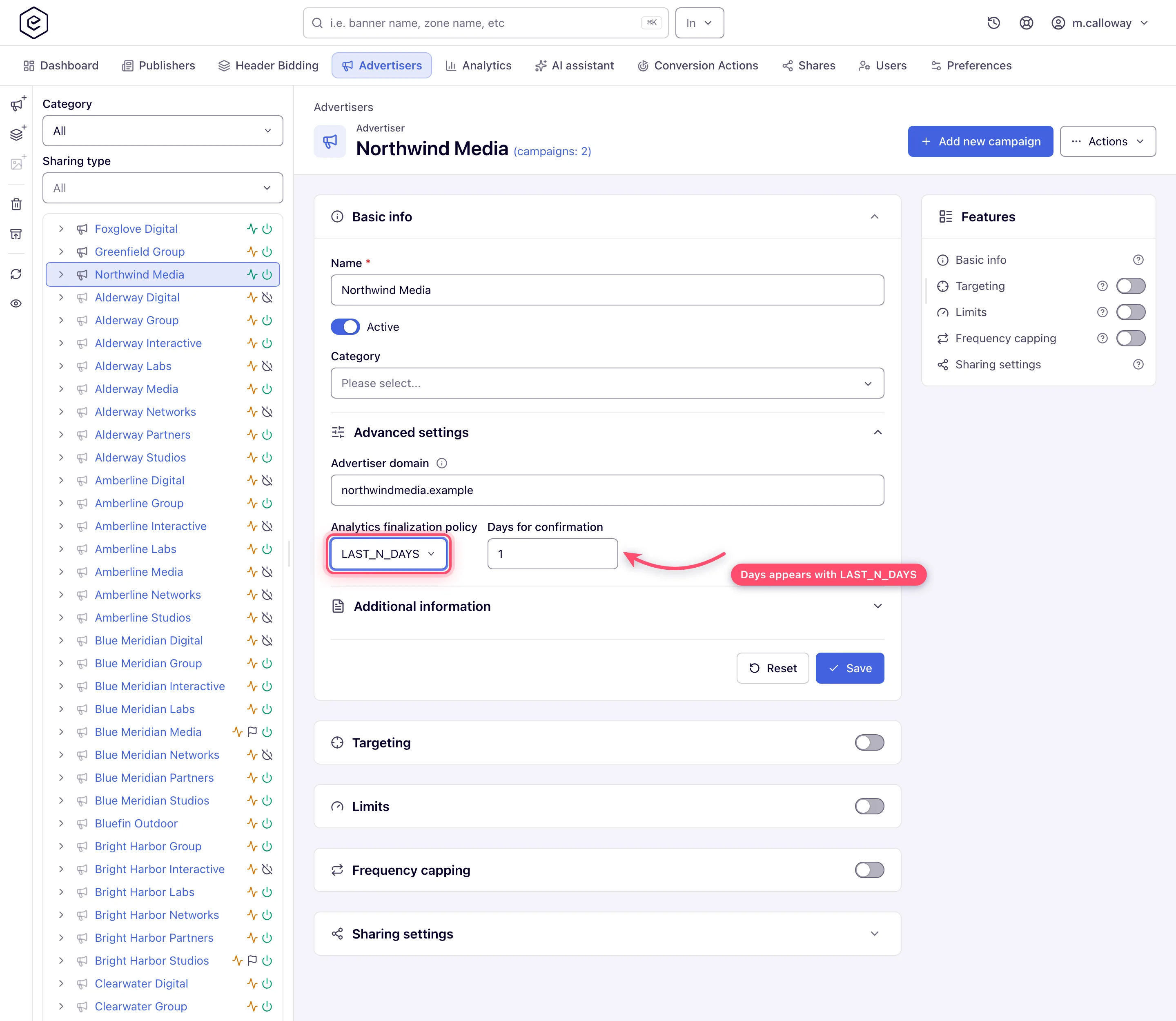
Note: the policy options read Default, None, Last N Days and Last Confirmed Date (translated in other interface languages; the REST API takes
DEFAULT,NONE,LAST_N_DAYS,LAST_CONFIRMED_DATE). Default means “follow the network setting”; None means this advertiser’s analytics is never marked confirmed.
Additional information
A second collapsed subsection. On a masked share it holds nothing but Created.
| Field | What it does | Control | Default | Where | Notes |
|---|---|---|---|---|---|
| Contact name | Client contact name | Text, max 64 | empty | Both | Hidden for masked shares. |
| Client contact email | Text, max 64 | empty | Both | Hidden for masked shares. Validated for format only when non-blank, and only on save — there is no client-side check. Pre-fills the statistic user’s email. | |
| Description | Free text | Textarea | empty | Both | Hidden for masked shares. The form checks no length. |
| Created | Creation date | Read-only text | — | Edit only | Audit field, always rendered last. |
Advertiser domain
An OpenRTB bid can name the advertiser behind the creative in a field called adomain. Whoever
receives that bid — a publisher’s page running header bidding,
their ad server, an exchange further down the chain — matches the domain against its own advertiser
block lists and reports demand by it. Epom fills that field in this order:
- This field. Whatever you enter wins, for every creative under the advertiser.
- The DSP’s own declaration. For a creative bought from a DSP partner, the domain that came back on the winning bid is used when this field is empty.
- Nothing. With neither, the bid carries no
adomainat all.
Enter the brand’s own site — acme.com for Acme’s campaigns. Not the click tracker the creative’s
landing link points at (Affise and its kind): a tracker’s domain published as the advertiser tells
every buyer the wrong name, which is worse than telling them nothing. An absent adomain is honest;
a wrong one gets the bid blocked by anyone who blocks that tracker, and never blocked by anyone
avoiding the real brand.
Ad selection does not use this field to filter or target, with one exception: a video placement
whose Competitive separation in a pod is on compares advertiser domains to keep competing
advertisers out of one ad break (https://www.toyota.com/ and toyota.com count as one). See
Keeping competitors apart in a pod.
An advertiser with no domain is never separated by domain.
Who may set it
The field carries its own permission — Set Advertiser Domain (OpenRTB adomain), in the Campaigns Management group of the role matrix — separate from the rights that let someone edit the advertiser at all. It is granted separately because the value leaves the platform: whatever is typed here is the name Epom gives this advertiser on every bid it sends, to every buyer, and a domain that is not the brand’s own can get the network’s supply blocked wherever that domain is on a block list.
Without the permission the field is not on the page, and a save that carries the value anyway is ignored. Nothing else is affected: Advanced settings keeps whichever of its other fields you can use, and disappears entirely only when you can use none of them.
The permission starts off for every role: this is the one advertiser field whose value leaves the platform, so nobody speaks for a brand until you say who may. To let the people who set up your advertisers use the field, grant them the permission in Admin → Users & Access → User Roles & Permissions.
An advertiser that already has a domain keeps it: the field is hidden, not cleared, and bids keep publishing the stored value.
Corner cases and gotchas
Creating
The create form is Basic info only. Targeting, limits, capping, payments, shares and every other card appear after the first Save — the entity has to exist first.
Analytics finalization policy is not on the create form. It needs a saved advertiser, so even with the right permission you will only find it when you come back to edit.
Unsaved edits are kept in your browser. Leave the card with changes you have not saved and the next visit shows “You have unsaved changes from a previous visit.” with Restore and Discard above the form — a stale draft is the usual reason a card opens with text you do not recognise.
An advertiser with zero campaigns cannot serve anything. The page shows a setup nudge with a Create campaign shortcut until the first campaign exists.
Deleting
Only the owner can delete. Deleting needs an Is owner share. With Can view, Delete still shows in the tree rail, but the server refuses it.
Deletion cascades — and can be undone for 90 days. Deleting an advertiser marks all of its campaigns and banners as deleted too, switches them off and unlinks the banners from their placements; the confirm dialog says so and that it can be restored within 90 days. A deleted advertiser answers 404 over the API, including for writes — but for 90 days Recently deleted, the Undo on the toast of a delete made from the tree rail, or
POST /rest-api/deleted-entities/{type}/{id}/restorerestores the advertiser together with exactly those campaigns and banners, their on/off state and their placement links (Restore something you deleted).
Masked shares
A masked share locks the identity fields. When you can see the advertiser but not its real identity, Name is locked and Contact name, Email and Description are hidden; whatever those fields would contain is not saved. The rest of the form saves normally — Active, Category, additional fields and Private are all still yours to change.
Add new campaign is disabled, not hidden, on a masked share.
When Advertiser domain is not on the page
Corner case: the Advertiser domain field can be absent from an advertiser that has one set. Its absence hides the field, not the value — the stored domain is unchanged and is still published on bids. So if a buyer reports the wrong advertiser domain and you cannot find the field, the value is still there and still in use. Ask your network manager to surface it rather than assuming it is empty.
Corner case: an advertiser you hold as a masked share never shows the domain field, whatever else is set up for you — masking and field-level availability are separate things, and each one alone is enough to keep it off the page.
An emptied Advertiser domain is stored as no value, not an empty one. Bids then fall back to the DSP’s declaration, or omit the field.
Over the API
POST or PUT /rest-api/advertisers/update.do creates an advertiser (no id) or updates one. Fields you
do not send keep their stored value, and a field the caller has no permission for is ignored and listed
in ignoredFields with its reason in ignoredFieldReasons. An unknown or deleted id answers 404.
POST /rest-api/advertisers/status.do switches up to 500 advertisers on or off in one call; it is
all-or-nothing on permissions. DELETE /rest-api/advertisers/{advertiserId}/delete.do is the soft
delete described above. The update also takes selfServeCpmFloorAdjustment and adsHost, which the
advertiser card in the new console has no control for.
The advertiser’s custom fields are under /rest-api/additional-fields/ADVERTISER/{advertiserId}.do (see
Admin tools), and its Matched Placements card under
GET /rest-api/matched/ADVERTISER/{advertiserId}.do?returnType=SITE|ZONE|PLACEMENT. The Payments card is
GET /rest-api/advertiser/{advertiserId}/payments.do; adding and removing payments is described in
Finances, fees and referral billing.
Per-role notes
- Network manager — Basic info, Targeting, Limits, Frequency capping and Sharing settings, plus the extra cards (price adjustment, matching rules, payments) your network administrator grants.
- Advertiser — the same five cards; Basic info has no Category field and no Advanced settings.
- Can view share, including a statistic user — every card is read-only, with no Save or Reset. Ask the owner for Can edit.
- Masked share — identity fields locked or hidden, Add new campaign disabled; stats still work.
Exact grants: see User roles.
