
Preset groups — domains, IP ranges, app packages
Build reusable domain, IP-range and app-package lists in the admin area, then target a whole list with one rule — with the real upload, deduplication and propagation behaviour.
When a rule needs hundreds of values — a domain blocklist, a data-centre IP list, an app allowlist — adding them one at a time is impractical. A preset group is a named list an administrator maintains once in the admin area; any advertiser, campaign, banner, site, zone or placement then targets the whole list with a single Preset Domains, Preset IP Ranges or Preset App Packages rule.
A rule stores only a reference to the group, not a copy of its contents, so editing the list changes what every rule that points at it does. That propagation is not instant: the ad servers reload preset groups on a ten-minute cycle, and one way of emptying a group does not propagate at all — see Corner cases before you rely on either.
Who this is for
- Maintaining groups — administrators only. Each of the three admin pages is gated by an admin-area permission of the same name, assigned per admin role in Admin → Users & access → Admin roles & permissions; without it the page is missing from the nav and returns HTTP 403. Account users never reach the admin area.
- Using groups in targeting — an account user picks a group from the Preset Domains, Preset IP Ranges or Preset App Packages dimension of a Targeting or Pre-targeting card. Most of those dimensions are off for the default account roles, so expect to ask for the one you need; see Per-role notes.
Prerequisites
- An administrator account, to create or edit groups — the group pages are in the admin area.
- At least one group already saved, before anyone can reference it in a rule — the picker in the Targeting card lists exactly what exists and nothing else.
- Targeting (or Pre-targeting) switched on for the entity you want to add the rule to.
- For bulk import: a plain-text or CSV file, one value per line. Lines are read as CSV with a
comma delimiter and only the first column is used, so
example.com,notes,2026importsexample.com.
Steps — create and fill a group
- Go to Admin → Targeting presets → Preset domain group management (or the Preset IP ranges / Preset application package variant — all three pages behave identically apart from the entry shape).
- Create the group: press Add above the grid, enter a Title, then Save. A Done toast
appears and the page reloads with the group’s id in the URL, which is what makes the entries
grid below appear. The title is all account users see in the targeting picker — never the
entries — so name it for what it is: “Data-centre IPs”, “Gambling domains”.
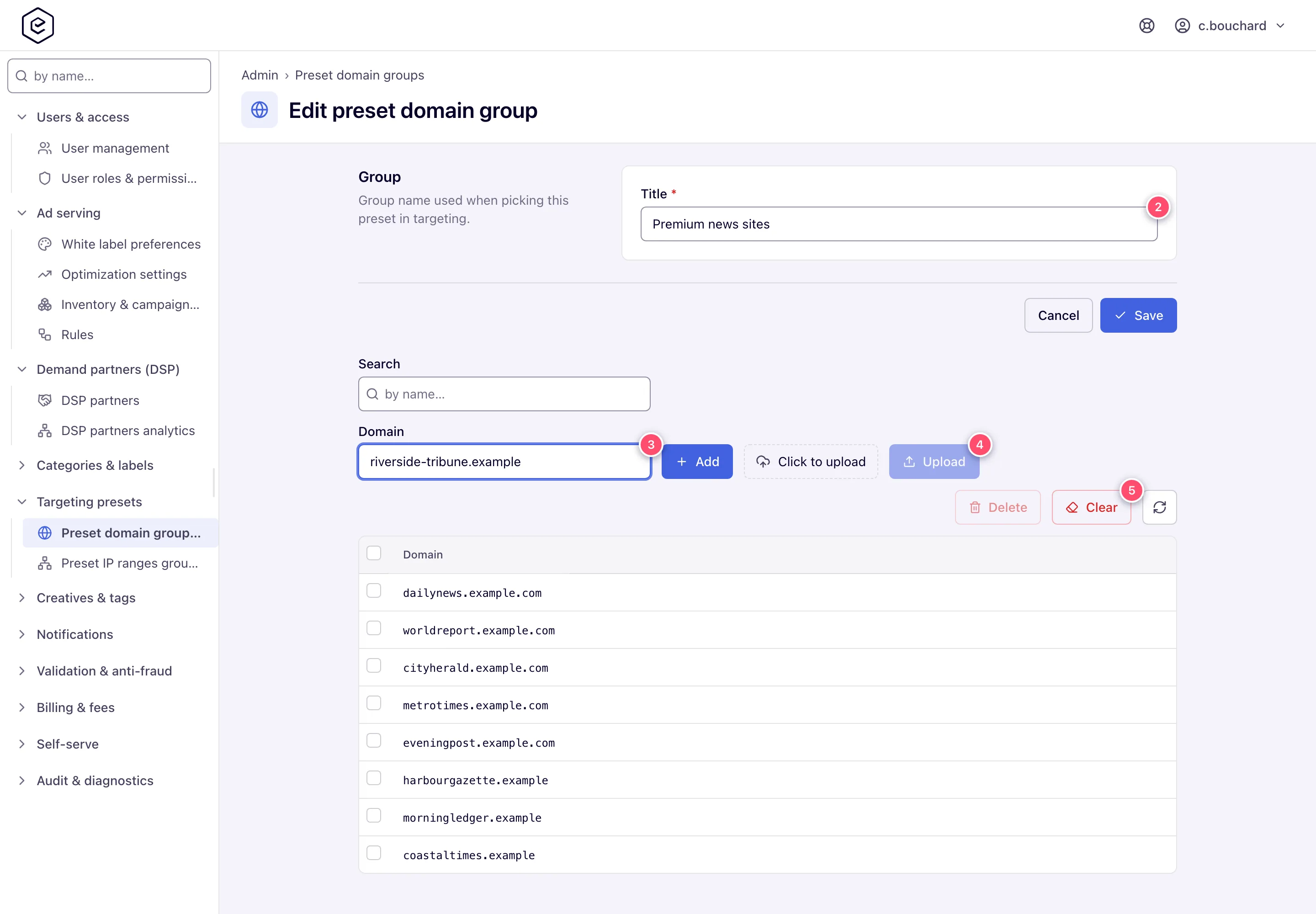
- Add entries one at a time: type the value in the field next to Add and press Add
(Enter submits too). IP-range groups have a From and a To field instead of one value.
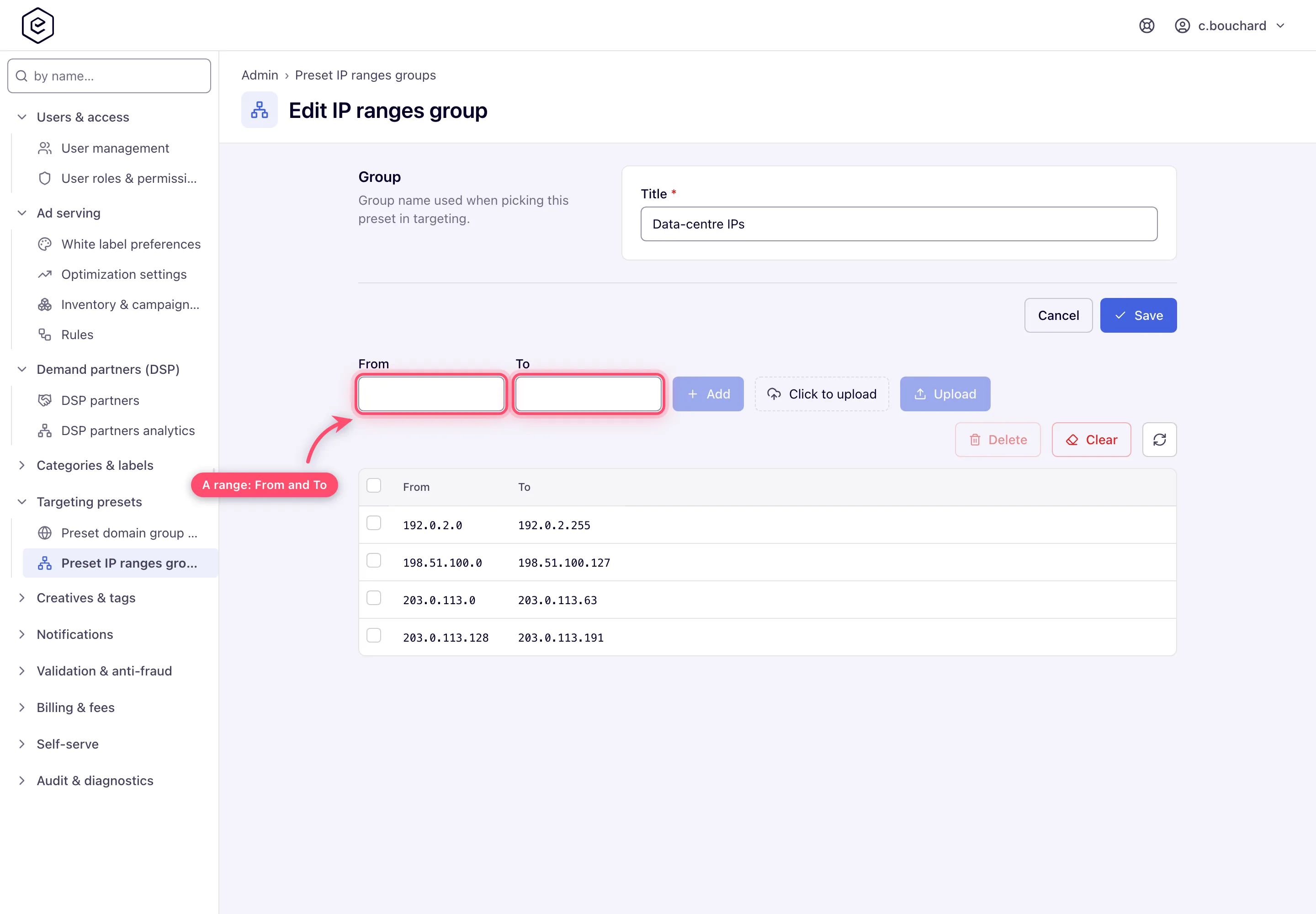
- Or import in bulk — this is a two-step control, not a single button:
- Pick the file: click the Click to upload dropzone, or drag the file onto it. The
dropzone then shows the file name and an ✕ to unpick it. The file dialog filters to
.txtand.csv. - Press Upload. An Uploaded N record(s) toast reports how many rows were actually
written — Uploaded N record(s), skipped M duplicate(s) when some were already there; any
lines that failed validation come back in a second toast as
Invalid resource <value>.
- Pick the file: click the Click to upload dropzone, or drag the file onto it. The
dropzone then shows the file name and an ✕ to unpick it. The file dialog filters to
- Manage what is there:
- Search filters the grid server-side as you type (domain and app-package groups only).
- Tick rows and press Delete — it asks Delete N record(s)? first.
- Clear empties the whole group after confirming Remove all entries?.
- The pager below the grid pages through long lists; entries cannot be edited in place, so correcting a value means deleting it and adding it again.
- Move a whole group to another network with Export and Import. On the list page select one group row and press Export — the server sends that group’s entries as a CSV it names after the group. On the destination network press Import and pick the file. The import always creates a new group, titled after the file name with its extension dropped; it never merges into a group that is already there, and it refuses a file whose name matches an existing group (“A group named X already exists”) — rename the file to bring in a second copy. A file that cannot be read is reported on the file field, and nothing is created.
Steps — use a group in targeting
- Open the entity’s Targeting card (or Pre-targeting on site, zone and placement) and make sure its switch is on.
- In the dimension list on the left, under the Presets heading, choose Preset Domains, Preset IP Ranges or Preset App Packages.
- Pick a group from the dropdown. It is a searchable single-select: one rule references
exactly one group, and Include and Exclude stay disabled until you pick one.
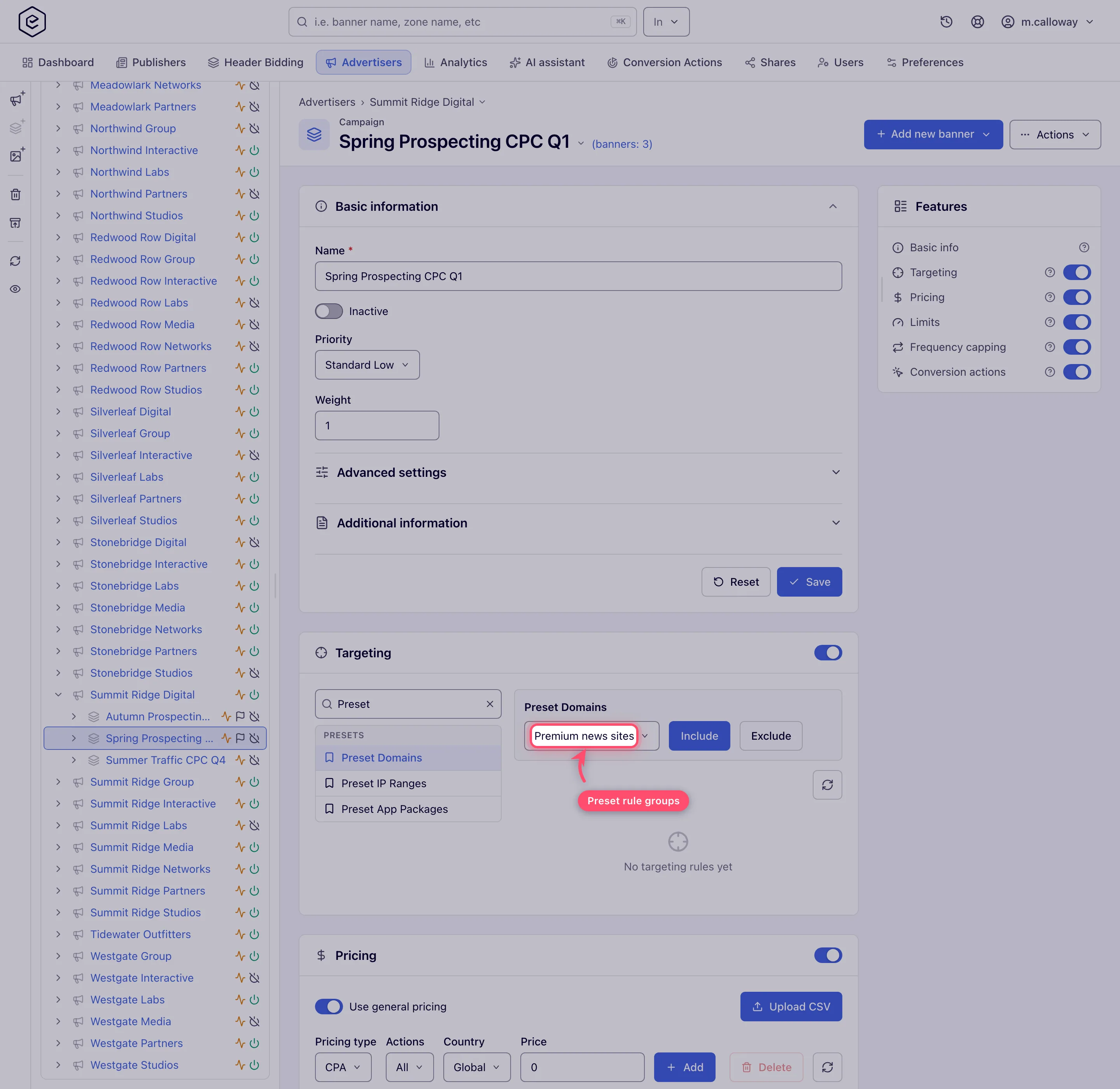
- Click Include or Exclude. The saved rule appears on the right as a chip labelled with the group’s title.
- To reference several groups, add one rule per group. Multiple Include rules of the same dimension are OR-ed at serve time — traffic matching any one of the groups passes.
Options and fields
The three group kinds
| Group kind | Admin page | Entry shape | A valid entry is… |
|---|---|---|---|
| Preset domains | Preset domain group management | One domain per line (news.example.com) | A syntactically valid domain name, or a public suffix from the Mozilla Public Suffix List (so com and co.uk are accepted as whole-TLD entries). At most 128 characters — a longer value is rejected as invalid. |
| Preset IP ranges | Preset IP ranges group management | from-to per line (10.0.0.1-10.0.0.255); the manual form has separate From and To fields | Two addresses separated by a hyphen, both valid, from ≤ to. IPv4 and IPv6 both work. CIDR is not accepted — 10.0.0.0/24 fails, write it as a from–to pair. A line with anything other than exactly one hyphen is rejected. |
| Preset app packages | Preset application package group management | One bundle id per line (com.example.app) | A dotted Java-identifier-style name: each dot-separated segment must start with a letter, _ or $ and contain only letters, digits, _ or $. Hyphens and spaces are rejected. At most 128 characters — a longer value is rejected as invalid. |
Entries toolbar
| Control | What it does | Notes |
|---|---|---|
| Search | Server-side “contains” filter on the entry value | Domain and app-package groups only; the IP-ranges grid has none |
| Value field / From + To | The value to add manually | One field for domains and packages, a pair for IP ranges |
| Add | Adds one entry | Disabled until the field(s) are filled; Enter submits |
| Click to upload | Picks a file for bulk import — click or drag & drop | Only stages the file; nothing is imported yet |
| Upload | Imports the staged file | Disabled until a file is staged. Appends — never replaces |
| Delete | Removes the ticked rows | Disabled with nothing selected; confirms first |
| Clear | Removes every entry in the group | Disabled on an empty group; confirms first. See the corner case below — this one does not reach ad serving |
| Refresh / pager | Re-reads the grid; pages through entries | Default page size 25 |
What an entry matches at serve time
| Kind | Compared against | Matching rule |
|---|---|---|
| Preset domains | The request’s referrer domain, taken in turn from the rd parameter, the Referer header, the request-URL parameter, the request URL itself and the Origin parameter | Case-insensitive, and matches on label suffixes: an entry example.com also matches news.example.com and a.b.example.com. An entry that is a bare TLD (com) therefore matches every .com domain |
| Preset IP ranges | The client IP address | Inclusive of both bounds; overlapping ranges in one group are merged; IPv4 and IPv6 |
| Preset app packages | The app bundle id on the request | Case-insensitive, and matches on dotted prefixes: an entry com.example also matches com.example.app and com.example.app.free |
Corner cases and gotchas
Corner case: changes take up to ten minutes to affect delivery. The ad servers pick up changed preset groups every 10 minutes by default. Add a domain and check the log a minute later and you will see the old behaviour — that is the refresh delay, not a lost save.
Corner case: Export stays disabled until exactly one group row is selected — it exports the entries of the selected group, not the list of groups.
Corner case — duplicates are skipped, not added twice. Values already in the group, and repeats within the file, are both skipped: the entries are collected into a set before they are written, so Uploaded N counts only what was actually added. Values the group already held are reported as skipped M duplicate(s) in the same toast; repeats within the file are folded before that count, so they show up only as a total lower than your file’s line count. Re-uploading the same file is therefore safe.
Corner case — to stop a preset rule, delete the rule, not the group’s contents. Emptying a group with Clear does not stop the ad servers enforcing the entries it held. To stop a preset rule taking effect, delete the rule on the entity.
Corner case: an empty group never matches anything — including a brand-new group you have not filled yet. An Include rule on an empty group therefore blocks all delivery for that entity on that dimension, while an Exclude rule on one quietly excludes nothing. Fill the group before you point rules at it.
Corner case: uploads append. There is no “replace the list” upload — to swap a list out, Clear first (accepting the propagation problem above) or delete the group and build a new one.
Corner case — deduplication ignores case. A group cannot hold two values that differ only in case, so the upload treats them as the same value:
Example.comis skipped when the group already holdsexample.com, and when a file contains both spellings only the first one is saved. The stored spelling is whichever arrived first.
Corner case: the Uploaded N record(s) toast counts only what was written, so a file of 500 domains landing on an existing group can legitimately report
Uploaded 3 record(s), skipped 497 duplicate(s).
Corner case: invalid lines never abort an upload. The valid remainder is saved and each bad line comes back as
Invalid resource <value>in a separate toast. Read that toast on a large import — it is the only place the rejections are shown.
Corner case: adding a value manually that the group already holds reports Done and adds nothing — no duplicate row, and no message telling you it was already there. Search for the value first if you need to know.
Corner case — deleting a group in use also removes its rules. When targeting rules still use the group, Delete first asks for confirmation and lists the entities they belong to (Banner #12 “Summer sale”, Campaign #3 “Q3 retargeting”). Confirming deletes the group and every targeting rule that points at it, so those entities stop being restricted — or stop being excluded — on that dimension straight away. Cancel leaves everything as it was. To keep an entity restricted, point its rule at another group before you delete this one.
Corner case: a preset dimension your role cannot use is simply not listed — there is no greyed-out entry. If Preset Domains is missing, have your role checked. Once a dimension is listed, its picker shows every group of that kind, so an empty picker means no group exists yet.
Corner case: nothing stops two groups sharing a title, and the targeting picker shows only titles. Two groups called “Blocklist” are indistinguishable to the account user choosing one.
Over the API
Group CRUD, entry add and delete, and the file uploads exist for all three kinds under
/rest-api/preset-domain/…, /rest-api/preset-app-package/… and /rest-api/preset-ip-ranges/… —
the verbs, parameters and curl examples are in
Targeting, capping and limits over the API. The
domain and IP-range endpoints check the Preset Domains Group permission, and the app-package
endpoints check Preset App Packages Group. Neither is one of the three admin-area page
permissions above, so an API client needs them granted separately.
Per-role notes
- Advertiser — Preset IP Ranges and Preset App Packages are in your Targeting card; Preset Domains is not.
- Network manager — the preset dimensions are off on both sides as shipped; ask your administrator for the one you need.
- Publisher — no Pre-targeting card, so no preset dimension on the supply side.
- Shared-entity viewer — on a Can View share, saved preset rules are read-only.
