
Export reports and ask in plain language
Export an executed report to CSV, XLSX, PDF, HTML or JSON (optionally zipped), and use the AI Ask box to fill the report form from a sentence.
Two shortcuts around the report builder: downloading an executed report as a file, and letting the AI Ask box fill the Filter form from a sentence.
Who this is for
- Exports: anyone who can run a report — network manager, publisher, advertiser, the same menu on every executed report tab.
- Ask: users whose role may run the General report. Ask is provided by Epom free of charge to you; your own or your network’s Anthropic key is never used for it. Without the report permission, or when Ask is not enabled for your network, the box is not shown.
Prerequisites
- An executed report tab — see Run a report. Exports read the report already in your session; there is nothing to export from the Filter tab.
- For Ask: the permission to run the General report — nothing else to set up on your side. If Ask is not enabled for your network, the box is not rendered; ask Epom support or your account manager.
Steps: export a report
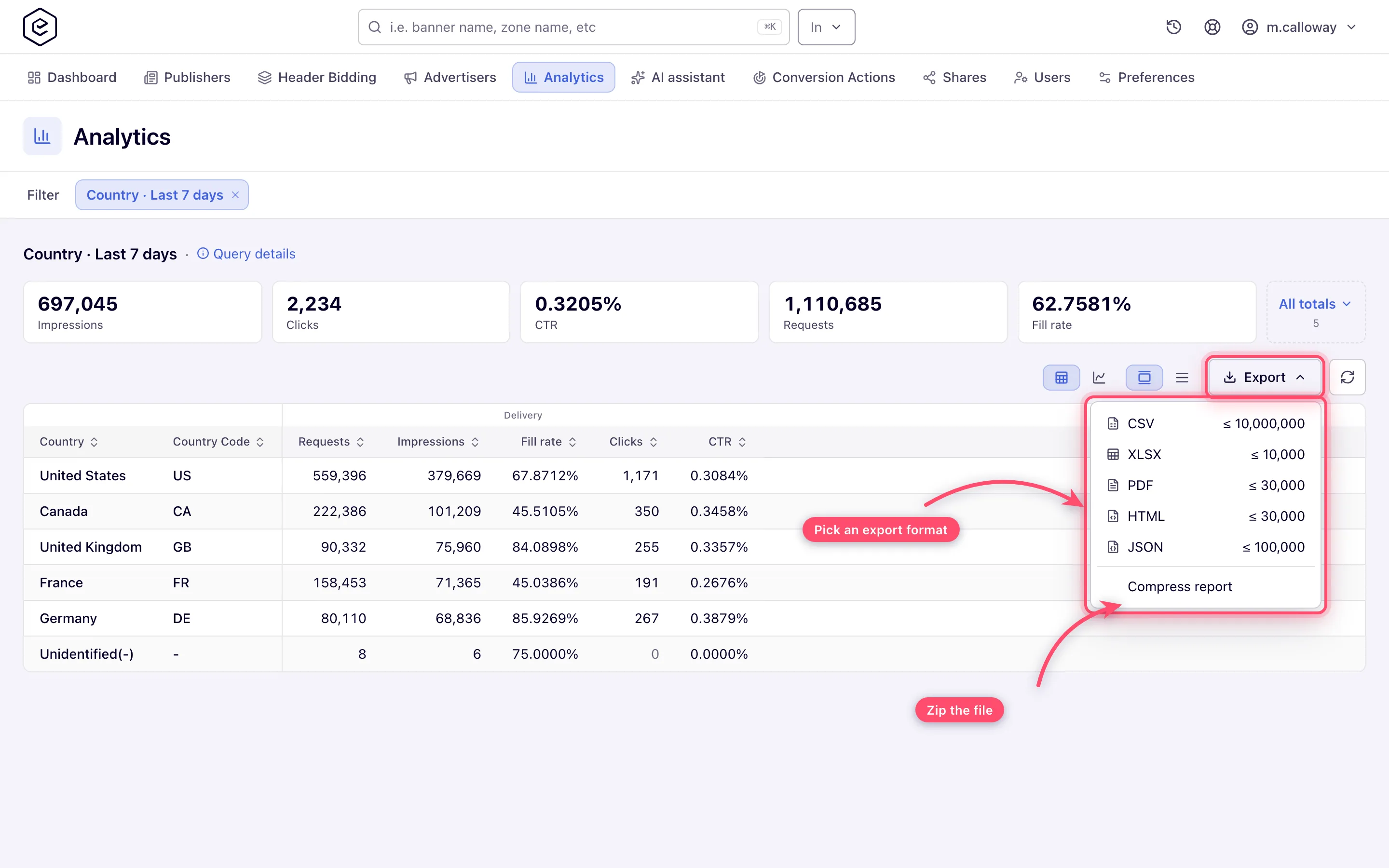
- Run a report, so you are on a report tab. The tab is named after what you asked for — Country · Last 7 days — not “Report 1”.
- Click Export in the toolbar above the grid.
- The menu lists five formats — CSV, XLSX, PDF, HTML, JSON — each with the row
cap your network allows for that format shown beside it as
≤ 10,000and so on. - Optionally click Compress report at the bottom of the menu. It is a toggle: a tick appears beside it and the menu stays open, so you can pick the format in the same visit. Until you click it, the toggle starts in the state your network’s administrator chose; once you click it, your choice is remembered in this browser for your next exports.
- Click the format. The button becomes a spinner while the server builds the file, then the
download starts on its own. An uncompressed CSV arrives as
export.csv; a compressed one asexport.csv.zip, holding a singleexport.csvinside.
Note: the file is built fresh on the server from the report’s own query — it is not the rows the grid happens to be showing. Which page of the grid you are on makes no difference: the file always starts from the first row.
Steps: ask for a report in plain language
- On the Filter tab, type a request into the sparkle Ask box — for example “top campaigns by CTR last week, US only” — and press Enter or click Ask. The request must be between 1 and 500 characters.
- On success the form fills itself and a Filled the form from your request — review and Run
confirmation appears. A row of Applied chips under the box summarises what was understood:
the date range,
Group by: …, and one chip per filter. - Review the form. Ask never runs the report for you.
- Click Run report.
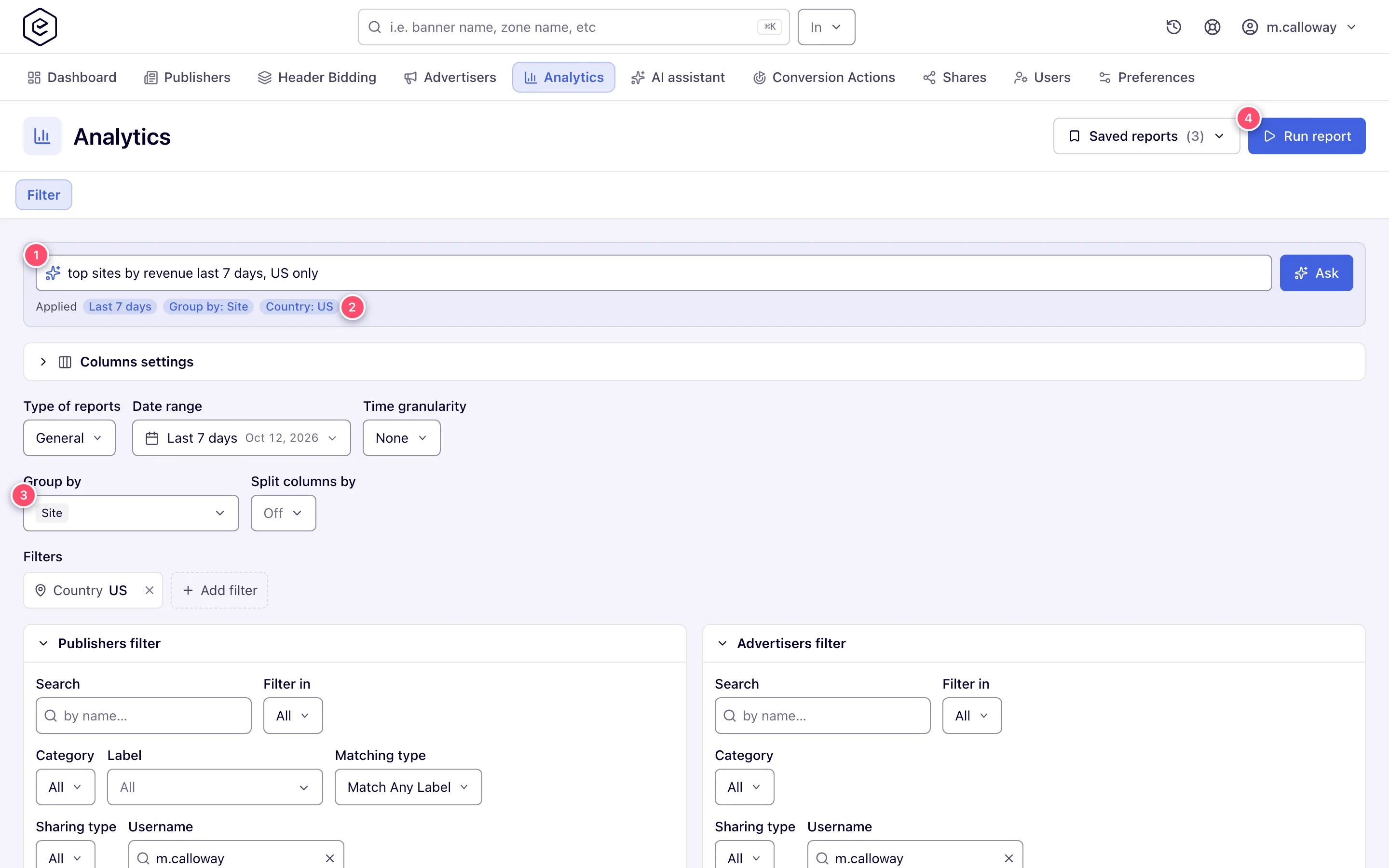
If the request could not be mapped, you get Could not understand that — try rephrasing and nothing on the form changes. If the AI service itself does not answer (unreachable, timed out or failing), you get The AI assistant is temporarily unavailable. Try again later. instead — rephrasing will not help then.
Ask starts from the report type selected on the form and keeps it unless the request needs another one — Advanced for browser, device, risk or fraud breakdowns, a raw log when you ask for log rows. It never switches to Header Bidding, though it keeps Header Bidding when that is the selected type. Besides the report type, Ask can set the date range (including a custom from/to pair), time granularity, group-by dimensions, the string filters (country, browser, operating system, device format, risk level, risk category, connection type, placement type, incognito) and the valid/invalid filter on raw-log reports. Ask groups only by what the Group by picker offers you for the report type it sets, so it never picks a grouping your role cannot use. What it deliberately will not do is filter by the name of a campaign, site, advertiser or banner — name one in your request and it is ignored, so pick those entities yourself in the Publishers and Advertisers trees.
Options and fields
The Export menu
| Item | What it does | Notes |
|---|---|---|
| CSV | Comma-separated, every value quoted | |
| XLSX | Excel workbook | |
| A4 landscape print sheet | ||
| HTML | One styled page laid out for A4 landscape printing, with the network’s branded header and footer | The logos are loaded from the network by URL, not embedded |
| JSON | An array of objects keyed by the column headings. Every value is a string, the numbers included — "Impressions":"22271" | Parse the numbers on your side |
| Compress report | Zips the file: the download becomes export.<format>.zip containing one entry named export.<format> | Toggle, ticked when on |
The ≤ N beside each format is that format’s row cap, a network-wide setting Epom support
changes on request. The caps differ per format and per network, so read the numbers in your own
menu rather than assuming them.
Corner case: Ask not enabled for your network. The Ask box is simply not shown. Adding your own or your network’s Anthropic key does not bring it back — those keys serve only the AI assistant. To run reports in plain language anyway, use your own Claude subscription through the MCP connector.
Controls next to Export that do not change the file
| Control | What it does | Effect on the exported file |
|---|---|---|
| Grid / chart pair (tooltips Report in details and Graph) | Switches the content area between the detail grid and the chart | None |
| Density pair (Comfortable rows / Compact rows) | Row height on screen | None |
| Columns | Hides whole metric families — Delivery, Conversions, Money — from the grid | None. A family hidden on screen is still in the file |
| Refresh | Re-fetches the current page of results | None |
Note: the toolbar adapts to the report. The grid/chart pair appears only when the report has something to chart (a time granularity or a group-by), the density pair only in grid view, and Columns only when the report has more than one metric family. Export and Refresh are always there.
Corner cases and gotchas
Corner case: the exported file has the same columns as the grid but not the same column order, and none of the grouped header bands. The grid interleaves the money and eCPM columns under Delivery / Conversions / Money; the file lists the plain money columns first and the eCPM columns after them.
Corner case: eCPM columns are written at eight decimal places in the file where the screen rounds them — an eCPM Net shown as
1.33is1.32600000in the CSV. The other money columns keep the network’s configured precision. Nothing is wrong; the file is simply not rounded for display.
Corner case: on a General report the file follows the sort the grid last asked the server for. Clicking a column header re-queries the server, which keeps that sort on the report, so the export that follows comes back in the same order; a third click, back to unsorted, returns the file to the report’s default order. The sort is applied before the row cap, so sorting first is how you get the top N by a metric into a capped file.
Corner case: when the report has more rows than the format’s cap you get a notice — The maximum number of exported records for this report is N. The system will generate an export file, limiting records to N. — and the file is then truncated, not sampled: the first N rows from the top. Narrow the report or choose a format with a higher cap.
Corner case: on an Advanced report the CSV button skips that notice — and only the notice. The CSV cap is still applied when the file is built, so a very large Advanced report can come back truncated with nothing having warned you. Check the row count against the
≤ Non the CSV row before you rely on the file being complete.
Corner case: the Status column (Up-to-Date Data and friends) is only filled in when the report has 1,000 rows or fewer. Above that the blockage lookup is skipped for speed and the column comes out empty, in the grid and in the file alike.
Corner case: each download link is single-use. Every click on a format mints its own key, and the server deletes the file the moment it has been sent. Re-opening the same download URL — from browser history, say — fails. Click the format again instead.
Corner case: a CSV export of a raw event log report (Impressions Log, Clicks Log, Conversions Log, Actions Log) takes a different route: it streams the cached log file, so it is always zipped, whatever the Compress toggle says. If the cache has expired since the report ran, the export fails with Report cache expired, please rerun — rerun the report and export again.
Corner case: the export uses the report as it was run, not the Filter form as it looks now. Editing filters without clicking Run report changes nothing about what the Export menu produces.
Corner case: the exported HTML is not self-contained. Its header and footer logos are loaded by URL from your network, so the page can render without logos for a recipient who cannot reach it. Send PDF instead when the recipient is outside.
Corner case: each user may send 30 Ask requests per hour by default (Epom support or your account manager can change the number for your network). Past that, Ask answers You have reached the limit of 30 AI requests per hour. Please try again later. and the form is left as it was; fill the form by hand instead.
Corner case: an Ask fill replaces the whole form. Anything the request does not mention is reset to its default, exactly as applying a saved report does — your previous selections are gone, not merged.
Corner case: the Applied chips translate the field names but show the values raw — a country chip reads
Country: US, notCountry: United States. Past three values a chip collapses toN selected. Only the string filters get chips; the report type and the entity trees do not, so glance over the form as well.
Corner case: if Ask still picks a grouping that the report type it set cannot use — typically after switching report type, for example a device breakdown the Advanced report on your network does not have — the grouping is dropped before the form is filled and the notice names it: Skipped grouping by Device format: not available for the selected report type. The rest of the request is still applied, so read the chips before running. The same happens whenever the model answers a request such as “by day” or “by size” with a grouping name the report builder does not have (Date, Hour, Size); use Time granularity or Placement Size yourself.
Per-role notes
- Every account role — the same Export menu; the file holds exactly the rows the report returned, so a share-limited user exports share-limited data.
- Network administrator — every export is recorded in the Actions log as
analyticsExport. To change the per-format row caps, ask Epom support or your account manager. - Enabling Ask — Ask is switched on per network by Epom; ask Epom support or your account manager to enable it or to change the per-user hourly limit (30 by default).
Related
- Run a report
- Saved and scheduled reports — scheduled email reports use the same five formats and the same caps, but the attachment is never zipped
- Report types
