
Create and edit a campaign
Set up a campaign — priority, weight, optimization, pricing type, dates and budgets, plus a tour of every campaign card.
A campaign groups banners under one advertiser and carries the delivery contract: priority, weight, pricing, dates, budgets, capping and conversion tracking. This page walks the create flow and tours every card on the campaign edit page.
Who this is for
Network managers and advertiser users. Which cards you see depends on your role — see Per-role notes.
Prerequisites
- An existing advertiser.
Steps
-
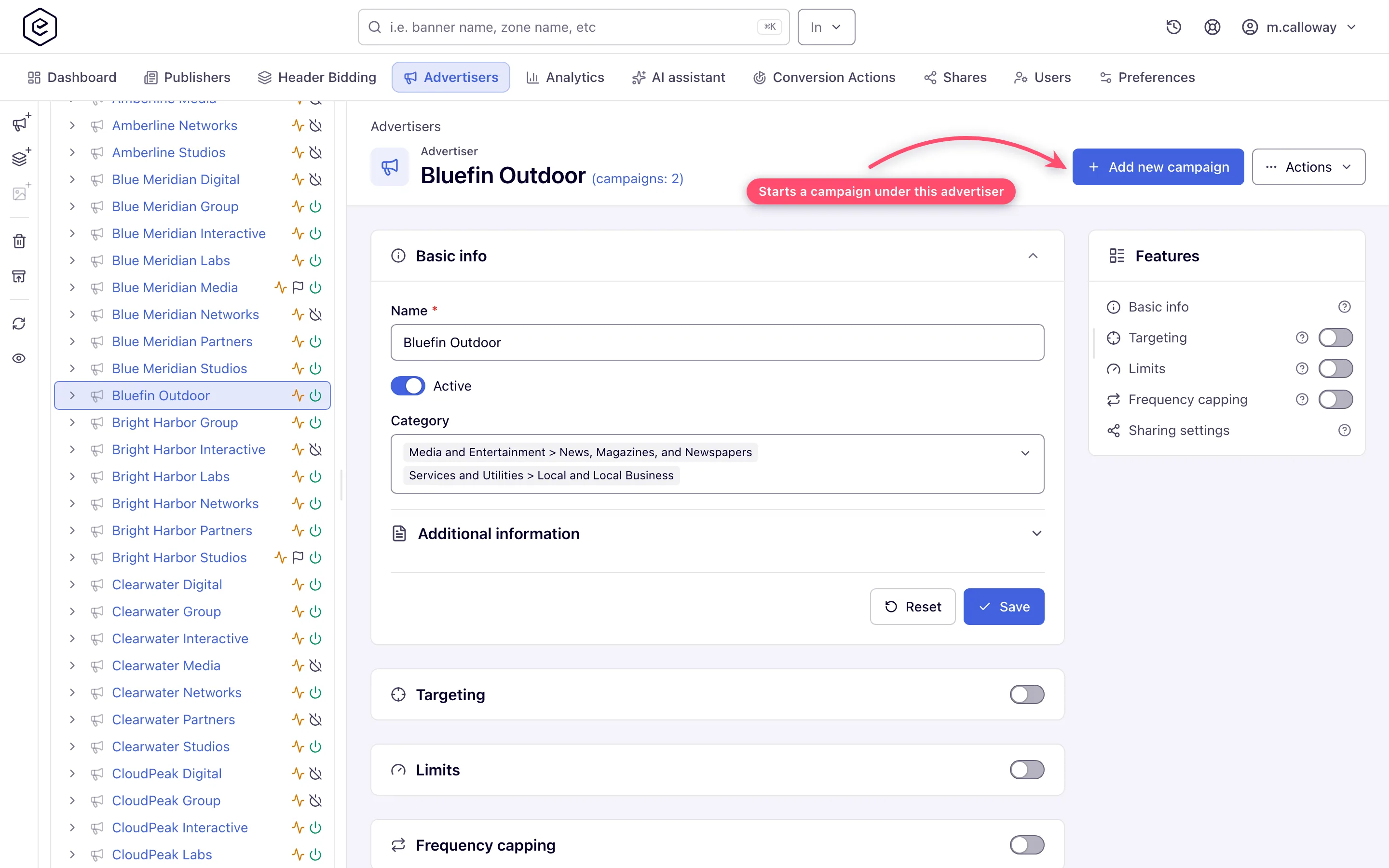
Open the advertiser and click Add new campaign in the header.
-
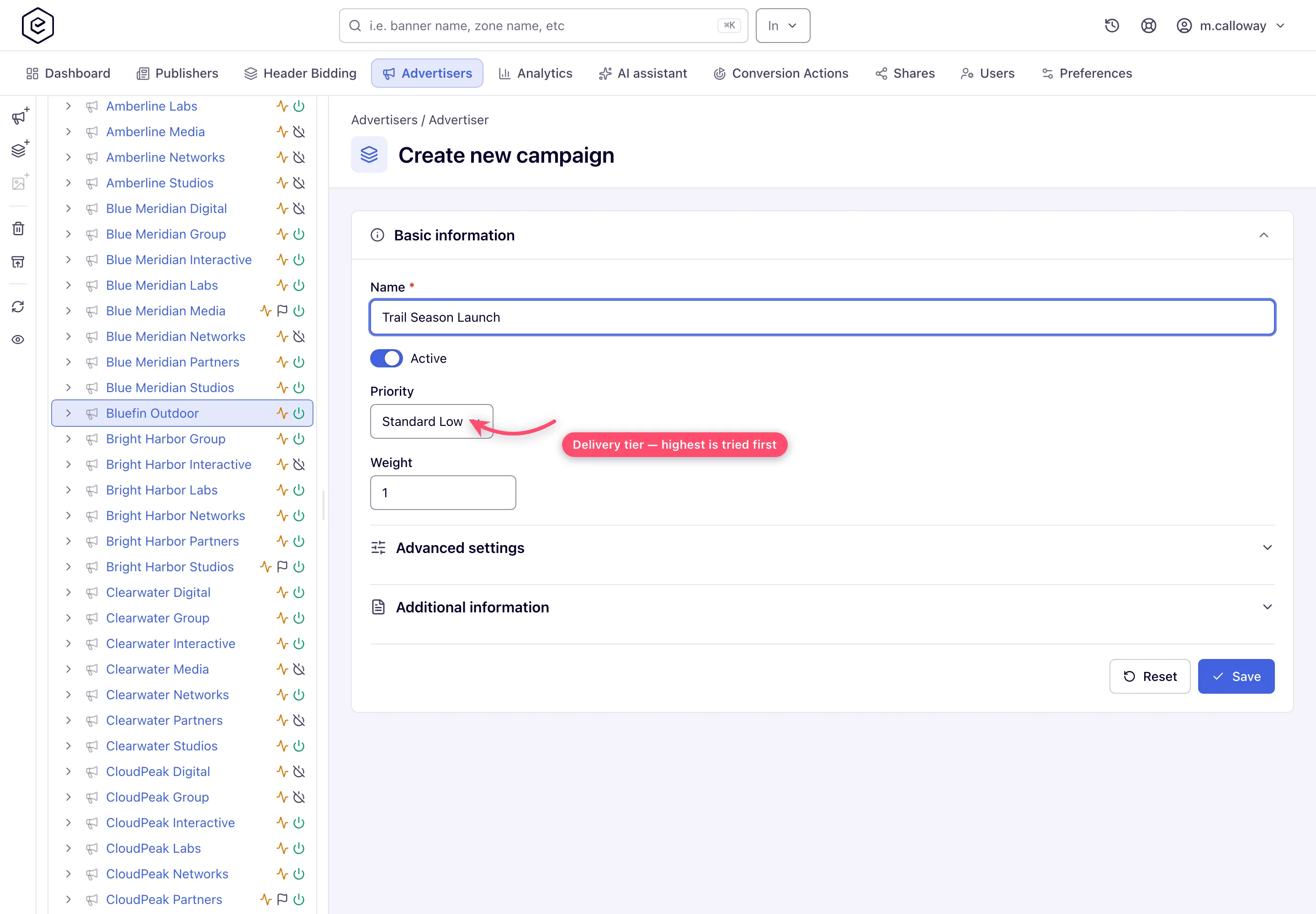
Enter a Name — the only required field. Leave Active on, then set Priority and Weight. Priority is the delivery tier and starts at Standard Low; Weight is the share within that tier and starts at 1. On the stock Advertiser role the form has no Priority, and Weight is shown read-only: the network manager sets both.
-
Open Advanced settings if you need any of its three options: Allow impression/click pricing overriding in URL, CTR optimization, or I2C optimization for actions. The two optimizer checkboxes are not on the stock Advertiser role.
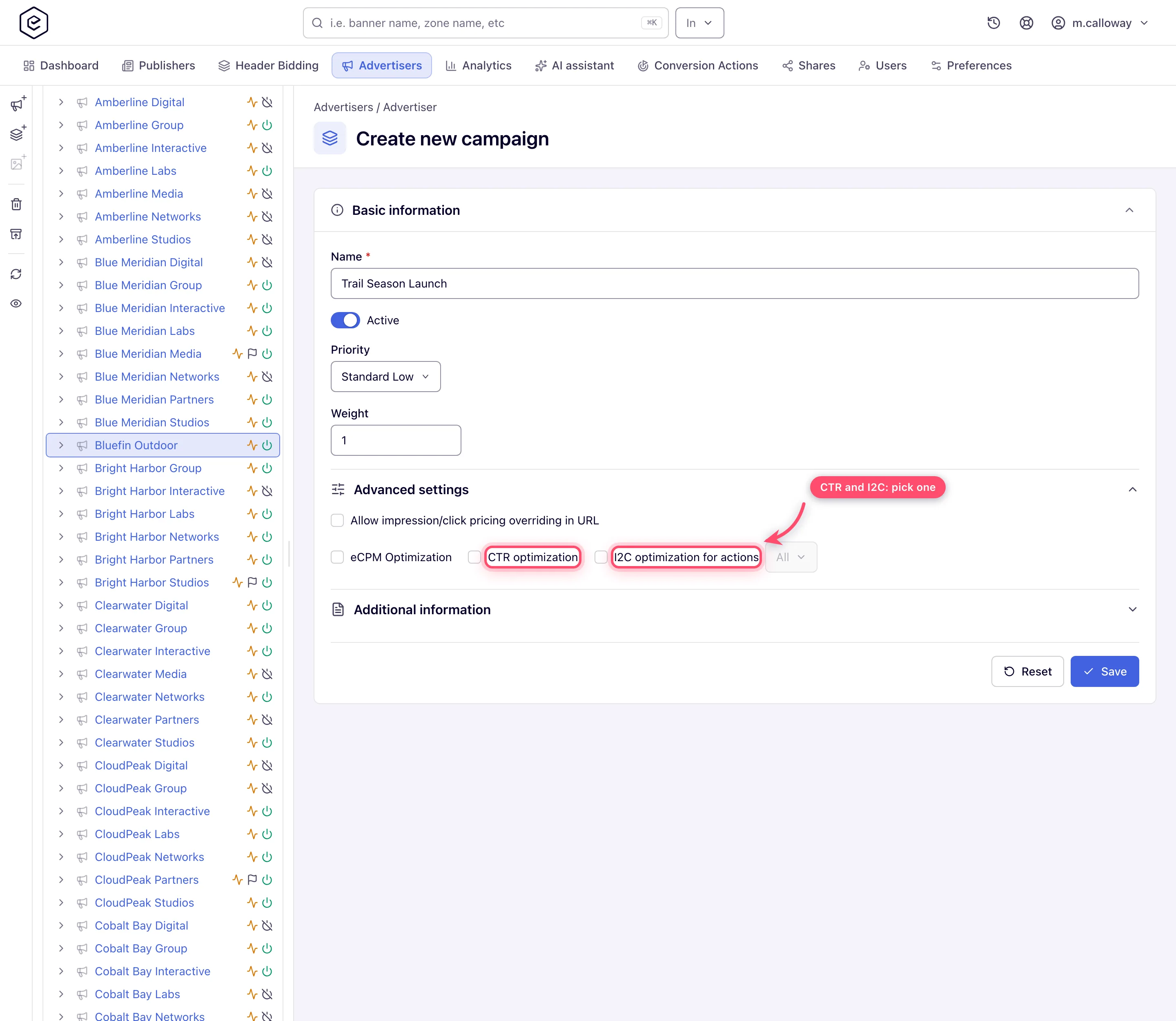
Note: this is the create form, so it is deliberately short. Labels, auto-linking, the conversion-pricing options and the same-page settings all live in Advanced settings too, but only once the campaign exists — several of them depend on a saved campaign or on another card being switched on.
-
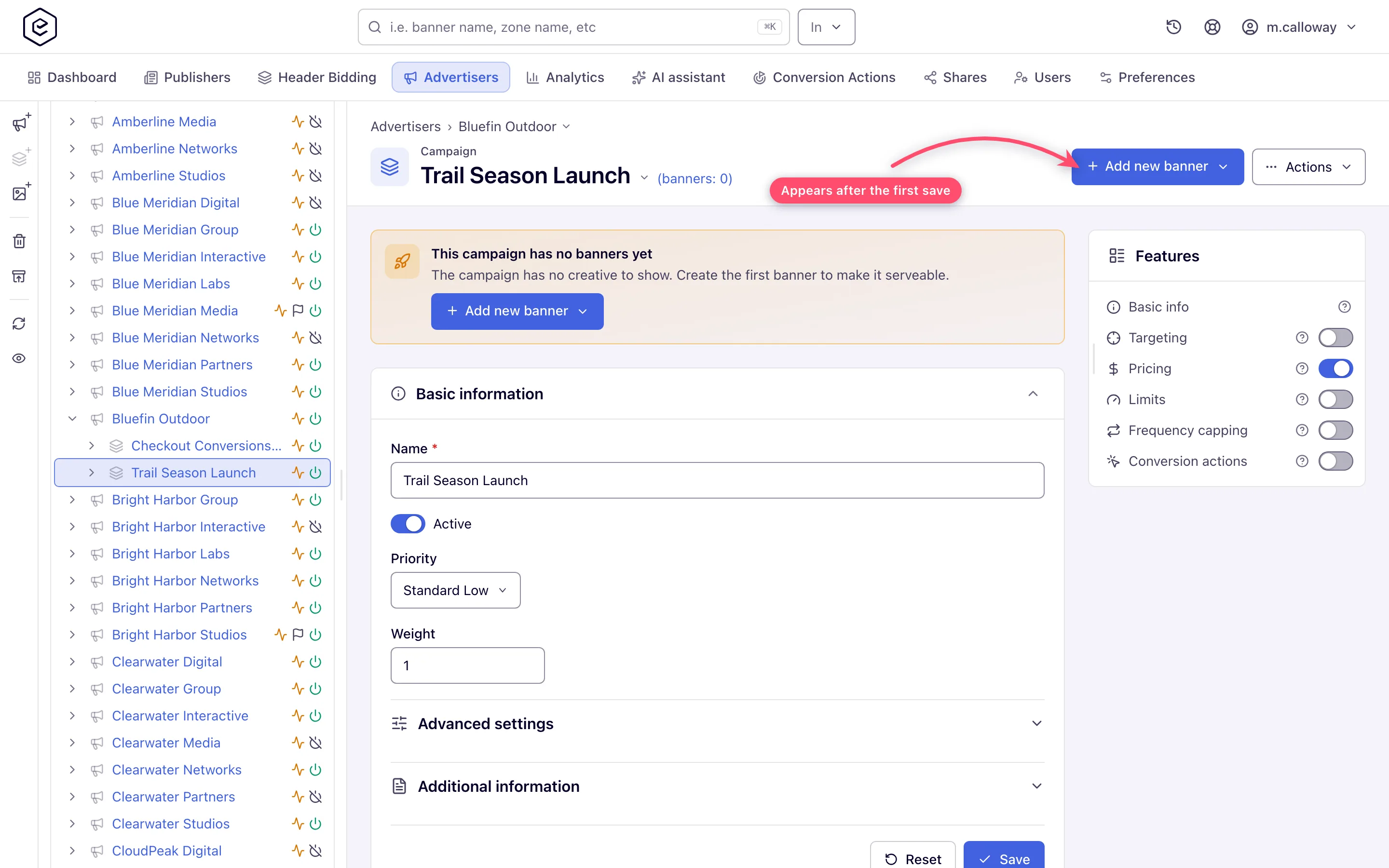
Optionally add a Description under Additional information, then click Save (the toast reads Campaign saved). The full edit page opens: the header gains Add new banner and Actions, and the cards your role holds appear.
-
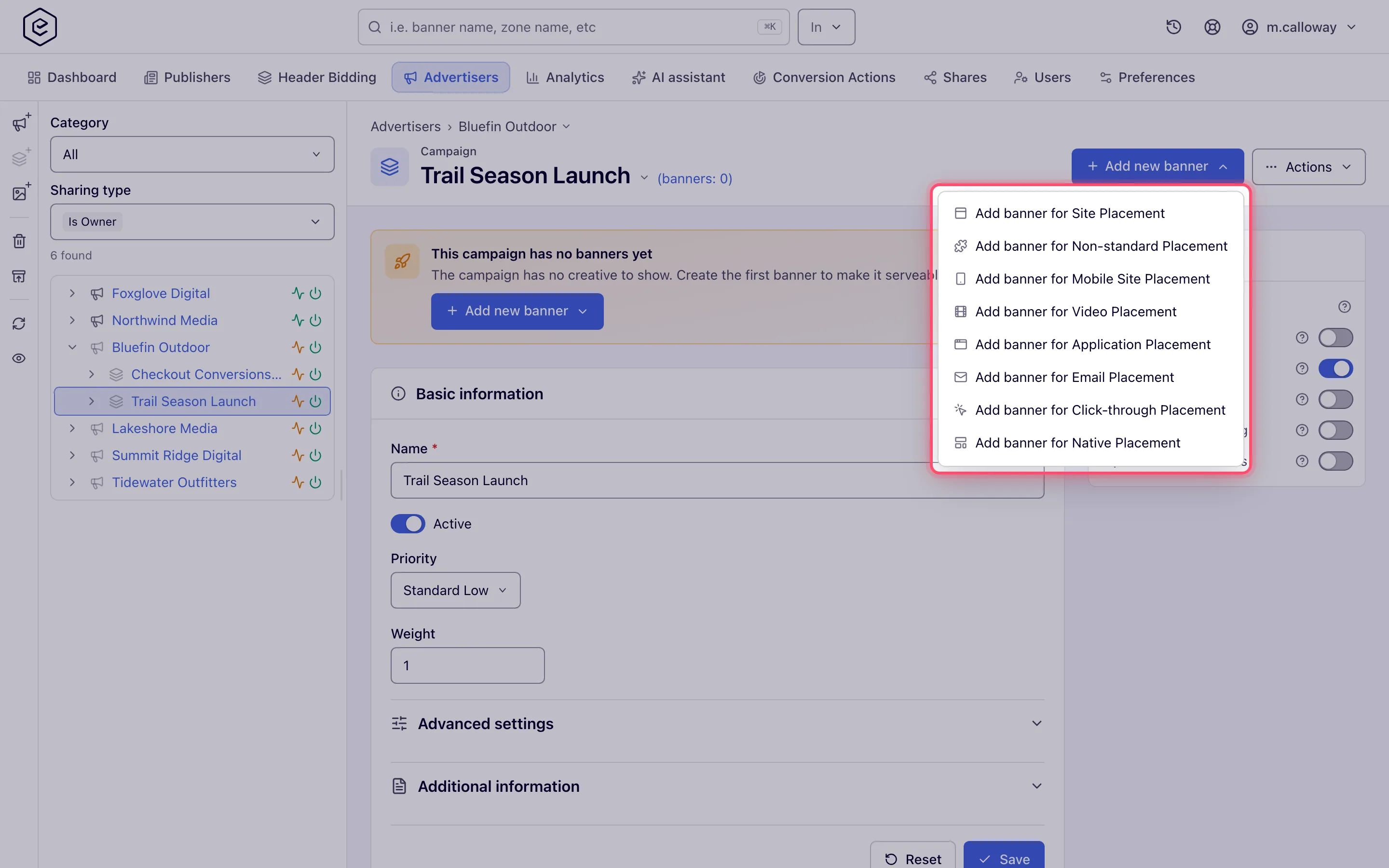
Add creatives with Add new banner. You pick the placement type first and the matching creative form opens — see Banner types — decision guide. The menu lists only the placement types your role can build for; the frame below shows a role that holds all of them. The stock Advertiser role gets Add banner for Site Placement only.
-
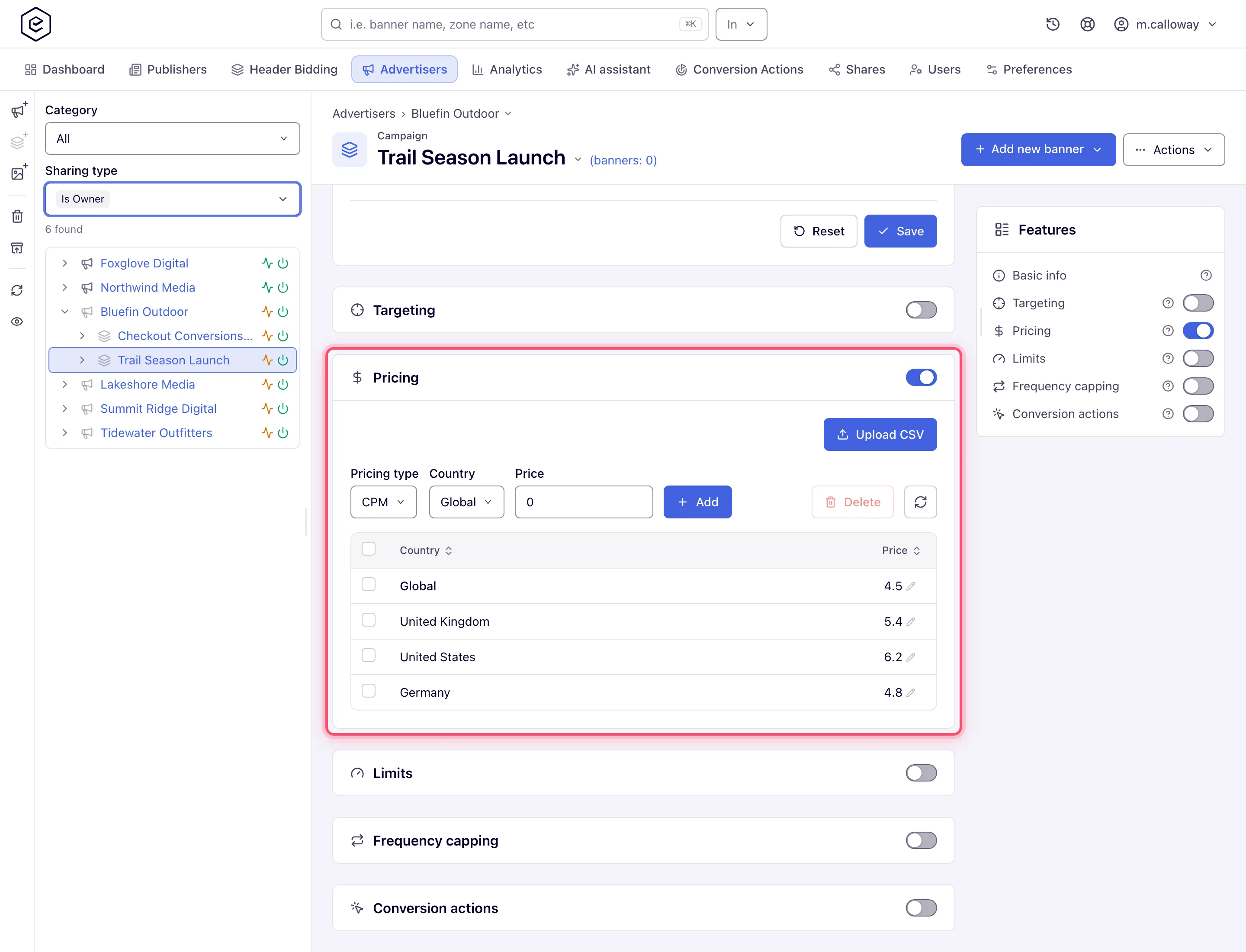
Switch on Pricing and set a price. Pick the Pricing type (CPM, CPC or CPA — each offered only with its own permission; the stock Advertiser role has CPM and CPC), then add a Global row — the price a country without a row of its own is charged — and a row for each country priced differently. Switching the card on creates an empty record whose global price is Not set: nothing is priced until you set one (see Pricing).
-
Switch on Limits and set the start and end dates. They are not in Basic information — they live on the Limits card with the budget and volume caps. Dates that do not include today block serving.
Options and fields — Basic information
The card is titled Basic information; the feature rail abbreviates it to Basic info.
Always visible
| Field | What it does | Default | Notes |
|---|---|---|---|
| Name | Campaign name | — | Required; locked on masked shares. |
| Active | On/off switch | on | Turning it off while CTR/I2C optimization is on shows an info toast: “Campaign uses optimization, uncheck it if no longer needed.” |
| Priority | Delivery tier: Premium, Standard High, Standard Medium, Standard Low, Non-guaranteed, House ads | Standard Low | Not on an advertiser user’s form. Higher tiers are tried first during banner selection. |
| Weight | Traffic share within the same priority tier | 1 | Read-only on the stock Advertiser role. Zeroed and locked for House ads. Hidden entirely — permission or not — when the network runs plain eCPM optimization; it only appears under manual or eCPM with burn-up. |
Advanced settings
Three of these are on the create form; the rest need a saved campaign or another card switched on.
| Field | What it does | Default | Notes |
|---|---|---|---|
| Allow impression/click pricing overriding in URL | Lets an ad-request URL set the CPM or CPC price | off | The CPM/CPC counterpart of the conversion option below, and easy to miss. |
| CTR optimization | Shifts delivery toward the banners with the best click-through rate | off | Mutually exclusive with I2C. Unavailable while priority is House ads. |
| I2C optimization for actions | Shifts delivery toward the banners with the best impression-to-conversion rate | off | Mutually exclusive with CTR. The select beside it (showing All) narrows optimization to specific conversion actions and is greyed until the box is ticked. Unlike CTR, this one stays available on House ads. |
| eCPM Optimization | Automatic weighting by observed eCPM | off | Only when the network’s optimization type allows it. Unavailable while priority is House ads. |
| Label | Free-form labels | none | Used by matching rules and bulk label operations. Your role may show it locked, or allow picking existing labels but not creating new ones inline. |
| Allow conversion action pricing overriding in URL | Lets a conversion URL set the payout instead of the campaign’s CPA rate | off | Needs a saved campaign with Conversion actions switched on. Changes nothing where the effective pricing type is CPM or CPC. Reveals Max payout per conversion and URL price multiplier. |
| Max payout per conversion | Upper bound on the payout a conversion URL may ask for | empty | Empty means no bound. A higher payout is reduced to this value and still counted — never dropped. Price-adjustment rules run afterwards and can still raise the final price. |
| URL price multiplier | Multiplier applied to prices passed in URLs | 1 | Appears with the URL-overriding options. |
| Pass custom params in conversion action | Forwards ad-request custom parameters to conversion tracking | off | Only when the network passes custom parameters per entity rather than globally. |
| New placements auto-linking | Auto-links future matching placements to this campaign’s banners | off | Reveals Auto-link site categories; at least one is required when on. Campaigns have no auto-link labels — to auto-link by label alone, turn it on per banner (Auto-linking). |
| Only this campaign on page | One-campaign-per-page mode, with a Campaign alias… | off | The alias is editable only while the checkbox is on; click the pencil beside it to edit. |
| Only one banner from this campaign per page | Caps this campaign to a single creative per page view | off | A separate setting from the option above, often confused with it. |
Additional information
| Field | What it does | Default | Notes |
|---|---|---|---|
| Description | Free text | empty | Hidden on masked shares. |
| Created | Creation date | — | Read-only, always last. |
Note: campaign start and end dates are not in Basic information — they live on the Limits card, together with the impression/click/conversion and budget caps.
The campaign cards
In page order. Each mirrors into the feature rail, where it can be switched on and off. Which of these cards you see depends on your role — see User roles.
| Card | What it does |
|---|---|
| Basic information | The fields above. Shown in the rail as Basic info. |
| Targeting | Campaign-level targeting rules. See Add targeting. |
| Pricing | Pricing type (CPM, CPC or CPA) plus a per-country price grid with CSV upload. CPA adds an Action column and a “Use general pricing” switch. See Pricing. |
| Price adjustment rules | Conditional price multipliers/overrides; campaign rules apply after advertiser rules and before banner rules. |
| Limits | Start/end dates plus a grid of caps: budget, opportunities, impressions, clicks and conversions, each over a day, an ISO week, a calendar month or the campaign’s lifetime. See Limits. |
| Per conversion action limits | Limits per individual conversion action. |
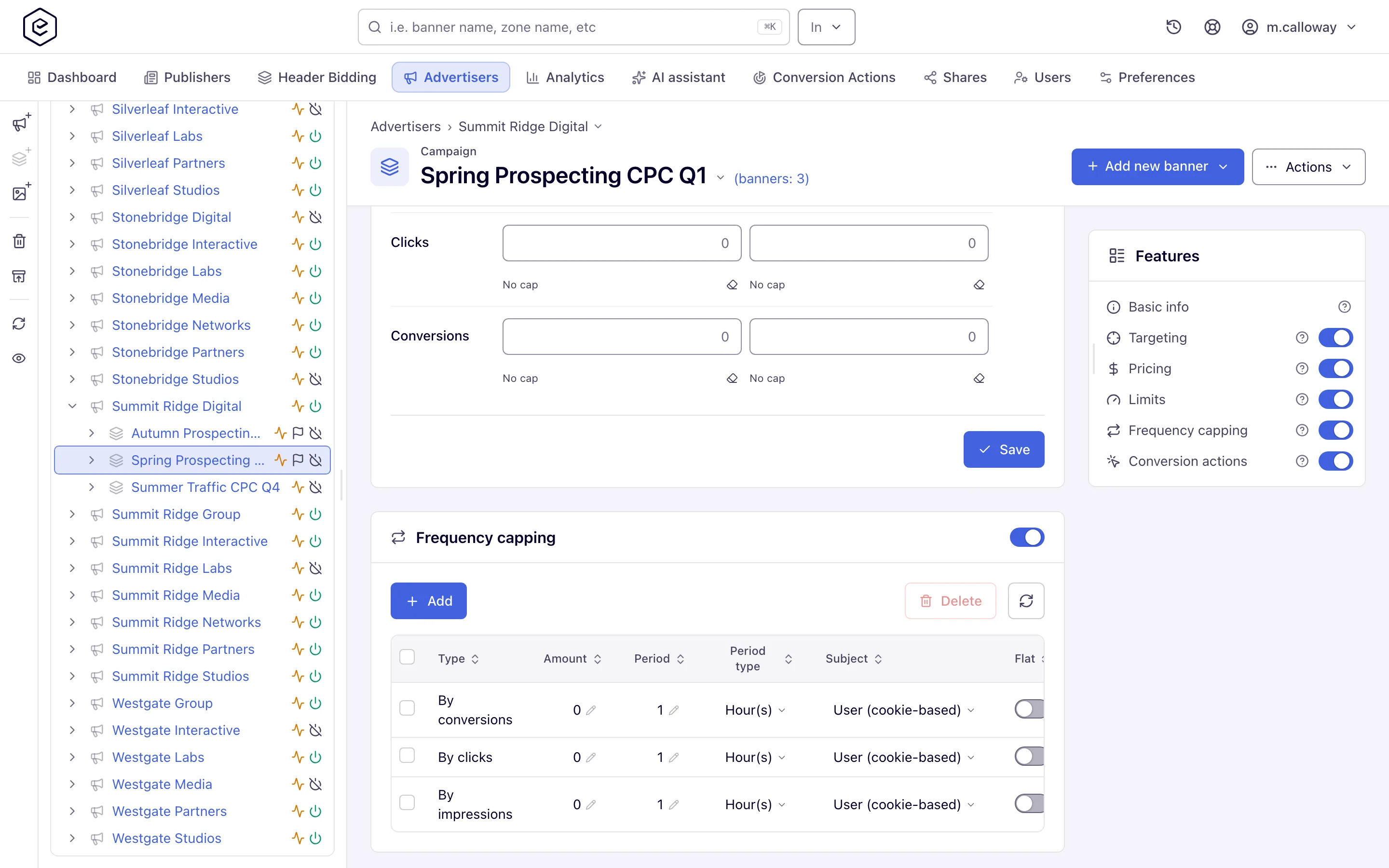
| Frequency capping | Campaign frequency, click, action, no-click and request capping. See Capping matrix. |
| Matching rules | Category/label rules pairing this campaign with inventory. |
| Matched placements | Read-only list of currently matched placements. Appears only while Matching rules is showing. |
| Conversion actions | The campaign’s conversion actions and its tracking alias. See Conversion actions. |
| RTB PMP deals | Private-marketplace deal IDs and the private-auction flag. See Manage PMP deals. |
| Piggybacks | Third-party tracking pixels fired with this campaign. See Piggybacks. |
| Exclude competitors campaigns | Stops this campaign serving beside listed competitors on the same page. See Exclude competitors. |
Header actions
Add new banner opens a menu with one entry per placement type you can build for, worded Add banner for Site Placement, …for Non-standard Placement and so on. There are seven possible entries — Site, Non-standard, Mobile Site, Video, Application, Email and Native — each behind its own role permission. The stock Network Manager role gets Site, Non-standard, Video and Native; the stock Advertiser role gets Site only. Your network manager can add the others to a role.
Corner case: a Click-through entry can appear here if your role is granted click-through banners. It is not a working path: no banner type accepts a click-through placement, so the form opens with an empty Banner type combo and cannot be saved.
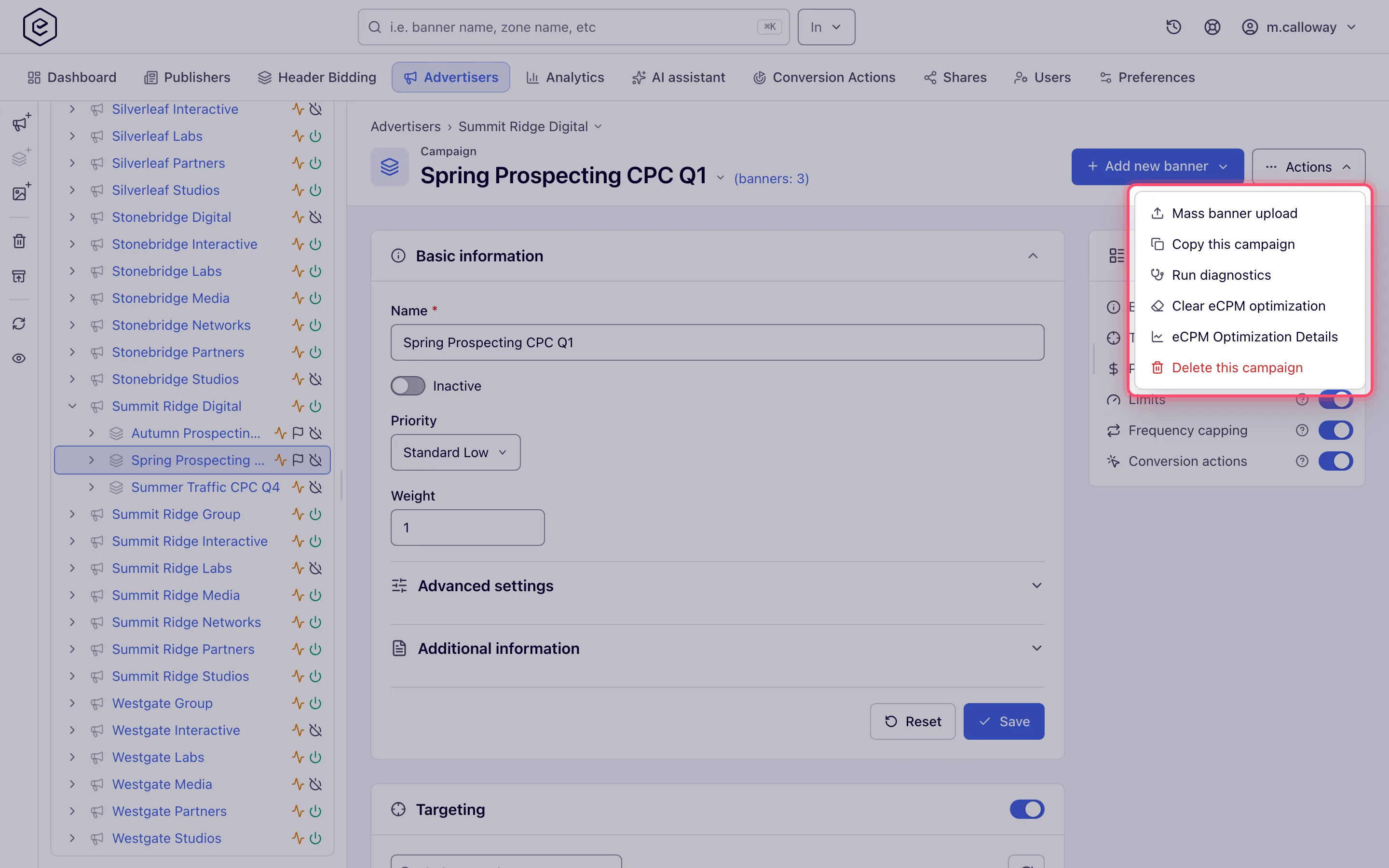
Actions holds up to six items; four are always there when you can edit the campaign.
| Action | What it does |
|---|---|
| Mass banner upload | Bulk image-creative wizard. See Bulk banner operations. |
| Copy this campaign | Duplicates the campaign under the same advertiser; the copy’s banners stay linked to the same placements. |
| Run diagnostics | Checks the campaign for common serving blockers and groups the findings by type. A clean campaign reports “The diagnostics did not detect any problems with campaign’s settings and configuration.” |
| Delete this campaign | Asks “The campaign will be deleted along with its banners. You can restore it within 90 days. Are you sure?”, then marks the campaign and its banners deleted and switches them off; the banners are unlinked from their placements. For 90 days Recently deleted (the box-with-arrow button in the Advertisers tree’s action rail, and the link on the delete toast), or POST /rest-api/deleted-entities/{type}/{id}/restore restores it with those banners and their placement links (Restore something you deleted). Needs an Is owner share; with Can edit or Can view the server refuses it. |
| Clear eCPM optimization | Resets accumulated optimization data. Present whenever the eCPM optimization checkbox is currently ticked — not, as you might expect, only once data has built up. |
| eCPM Optimization Details | The weighting report. Only when the network runs eCPM with burn-up and you hold the details permission. |
Corner cases and gotchas
Priority and optimization
House ads zeroes and locks the Weight. House campaigns fill leftover traffic; they are not weighted.
House ads disables eCPM and CTR optimization — but not I2C. The impression-to-conversion optimizer stays available on a House ads campaign. Only the other two are greyed out.
CTR and I2C are mutually exclusive. Ticking one unticks the other.
Weight can be missing even with the permission. When the network’s optimization type is plain eCPM, the Weight field is not rendered at all — the optimizer sets the weighting, so there is nothing to type. It reappears under manual or eCPM with burn-up.
Pricing
Campaign pricing is CPM, CPC or CPA. Cost per day and cost per month exist on the supply side — site and placement pricing — not here.
Changing the pricing type on a campaign that already has optimization data prompts you to reset that data. Accepting clears the accumulated statistics and the optimizer restarts.
The eCPM optimization estimates box in Pricing (Estimated CTR for CPC or Estimated I2C for CPA, Start-up period, Burn-up period, Sub-period, Sub-period weights and Min clicks or Min conversions, with its own Save) exists only when the network runs eCPM with burn-up, the pricing type is CPC or CPA and you hold Manage “eCPM Optimization” (read-only locks it). The sub-period cannot exceed the burn-up period.
Cards and permissions
The create form is Basic information only. Every other card your role holds appears after the first save.
Unsaved edits to Basic information are kept in your browser. Come back after leaving with changes unsaved and the card shows “You have unsaved changes from a previous visit.” with Restore and Discard.
A card that is switched off and that you cannot edit is hidden completely. A campaign with capping off looks like it “has no capping card” to a read-only user.
Matched placements cannot appear on its own. It shows only while Matching rules is showing.
Per-role notes
- Network manager — the standard cards plus Priority in Basic information, and any extra cards (price adjustment, matching rules, PMP deals, piggybacks) your network administrator grants. Exclude competitors campaigns is not on the stock role — see Exclude competitive campaigns.
- Advertiser — on the stock role: Basic information without Priority and with a read-only Weight, no CTR or I2C checkboxes; Targeting; Pricing in CPM or CPC; Limits, where you set the dates and read the budget; and Exclude competitors campaigns. There is no Frequency capping or Conversion actions card. Add new banner offers Site Placement only, and the creatives you add are linked to placements by your network manager. See What your network controls.
- Can view share — every card read-only, no Save or Reset; ask the owner for Can edit. Deleting needs an Is owner share.
- Masked share — Name and Description locked and not saved; Mass banner upload hidden and Add new banner disabled.
Exact grants: see User roles.
Over the API
The Matched Placements card is GET /rest-api/matched/CAMPAIGN/{campaignId}.do with returnType SITE, ZONE or
PLACEMENT (the default), matchByRules / matchLinked (both on by default), the card’s name, label, category and parent filters,
and start / limit (1-500). It needs view rights on the campaign, on campaigns and inventory, and the Matched
Inventory permission, and lists only entities you may see. The same endpoint serves advertisers and banners. The
campaign’s custom fields are under /rest-api/additional-fields/CAMPAIGN/{campaignId}.do.
A campaign is created with POST /rest-api/campaign/create.do and advertiserId. Unlike the
form, which requires a Name, the call may leave name out: the campaign is then named
Campaign <id>. A name that is sent but blank is refused with a 400. See
Entities: create, read, update, delete.
