
Native placements
Configure a native placement — icon, image and video sizes, required fields and context types — and understand its API-only serving model (no classic tag, no preview).
A native placement serves ads that match your page’s look — a title, description, icon, image and call-to-action delivered as structured JSON over an API request, not as ready-made HTML. You configure what the ad must contain here; your page or app renders it in its own style.
Note: the type is always called Native Placement in the console. The zone’s Add new placement… button, the left tree’s + menu and this card’s subsection always show that name; a network-level label for the Native type does not rename it there (see the Placement types reference).
Who this is for
Publishers integrating a native feed via API, and network managers preparing native inventory.
Prerequisites
- A saved placement of the Native type (create one).
- A developer on your side able to fetch a URL and render JSON — native placements have no copy-paste tag.
Steps
- Open the placement. The Basic info card contains a dedicated Native Placement subsection. It
carries the three size pairs; the Required fields picker and the three context combos appear
only once your network administrator grants them (see the corner case below).
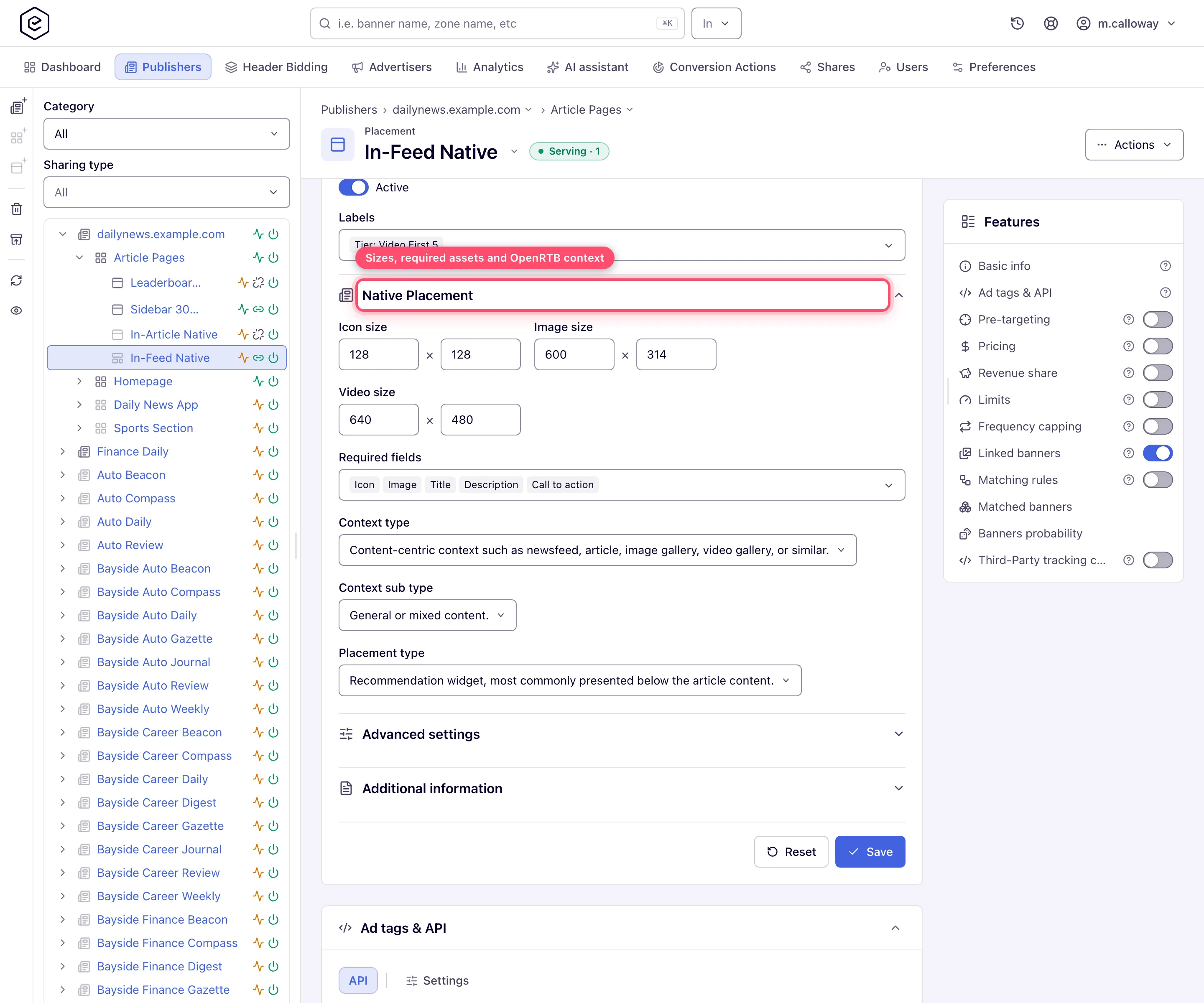
- Set the three size pairs — Icon size, Image size, Video size (width ×
height,
0= not used). Banners must provide assets matching what you require. - Pick the Required fields — the asset fields (title, icon, image, description, rating…) a native banner must have to be eligible for this placement.
- Optionally classify the slot with Context type, Context sub type and Placement type (the native-standard placement context, e.g. content feed vs. recommendation widget). These are passed to programmatic buyers.
- Click Save — the native settings save together with the rest of Basic info in one go.
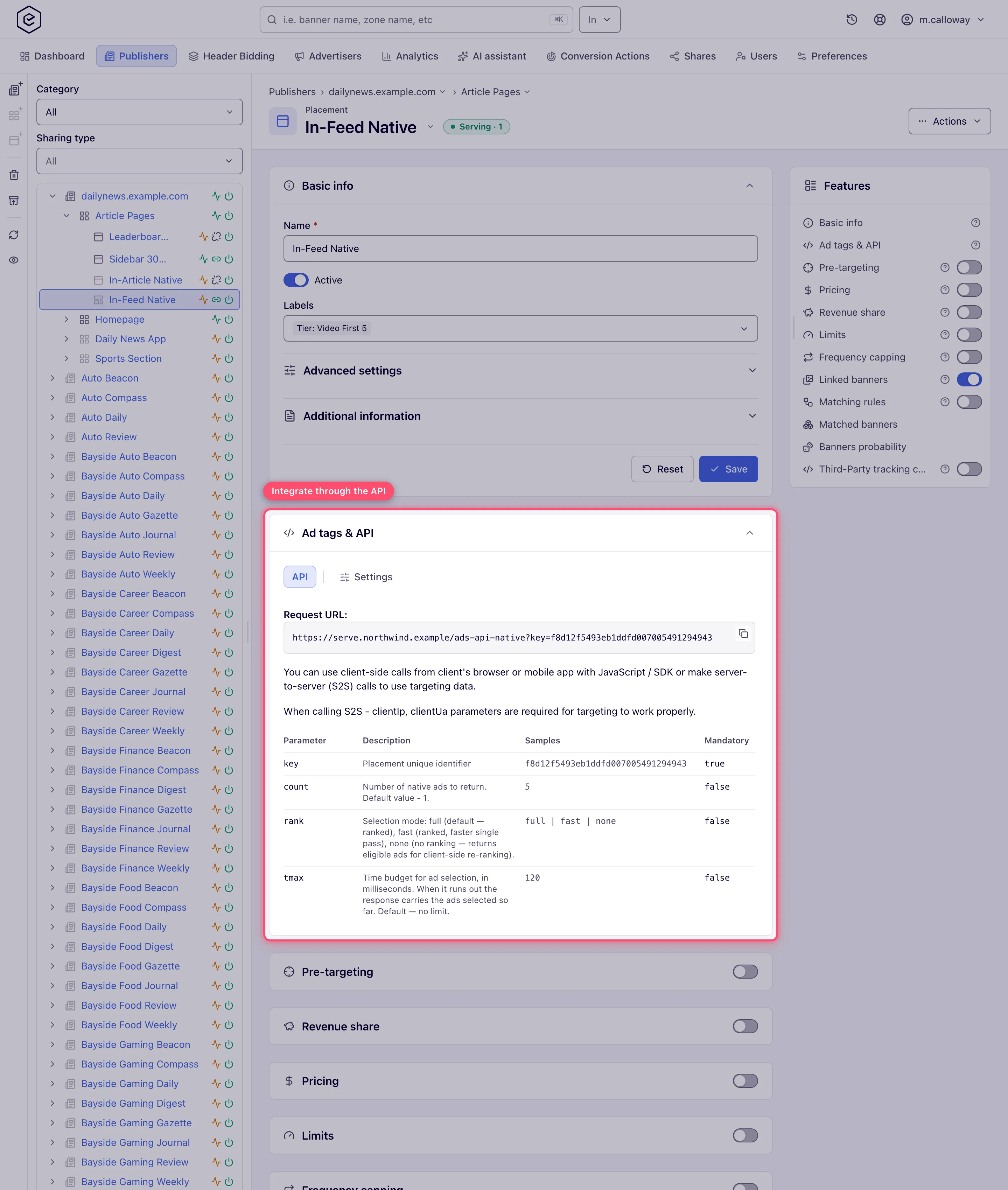
- Open the Ad tags & API card → API tab and hand the Request URL to your
developer.
Options and fields
| Field | What it does | Default |
|---|---|---|
| Icon size / Image size / Video size | Asset dimensions the ad must provide; 0×0 disables the asset | 0×0 |
| Required fields | Asset fields a banner must contain to serve here | none |
| Context type | Content context of the surrounding page (OpenRTB native values) | — |
| Context sub type | The finer context classification | — |
| Placement type (native context) | Where in the layout the ad sits (feed, content wall, widget…) | — |
| RTB configuration: Min./Max. ad duration | Video-asset duration bounds forwarded to RTB demand. Native gets the durations only, not Playback method / API framework / Skip min | — |
| Placement key | The identifier your API request carries. Read-only, saved placements only | — |
Which of these fields you see depends on your role — see User roles.
Corner case: on a new network the subsection shows only the three size pairs. Required fields and the three context fields stay hidden until your network administrator grants them to your role in Admin → Permissions, under the Native Preferences group — ask your network admin.
How serving works (and why there is no preview)
- The API tab documents the integration: the request URL
(
…?key=<placement key>), the parameter table — including the native-onlycount(how many ads to return, default 1),rank(selection mode:full,fast, ornonefor client-side re-ranking) andtmax(a millisecond budget after which you get the ads selected so far) — plus sample success and “no ads” JSON responses. The Native API reference covers all three in full, along with the response shapes and the beacons. - The response is a JSON object with
title,subtitle,description,ctaText,advertiser,rating,icons,images,videos,clickUrland impressionbeacons— a field the creative does not carry is left out. Your renderer must fire the beacons and useclickUrlfor the click, otherwise nothing is counted. - Because the server never produces displayable markup for this type, the Preview button does not appear on native placements — there is nothing self-contained to render. Test by calling the request URL and inspecting the JSON.
Corner cases and gotchas
Corner case: there is no classic ad tag. The copy-ad-tag quick action in trees and grids answers “This placement type has no ad tag” for native placements — that’s expected, use the API request URL instead.
Corner case: the native adapter template is not here on purpose. If you want native-looking ads rendered by the ad server inside a normal web slot, use a display placement with a native adapter template. A Native placement is for integrations that render the ad themselves.
Corner case: over-constraining Required fields and sizes silently shrinks demand: a native banner missing any required asset never matches this placement. If fill drops after an edit, loosen the requirements first.
Corner case: the placement’s default tag parameters (channel, custom parameters, click, the pass-through privacy signals) are not applied to an arbitrary incoming native request — the ad server does not substitute them for a parameter you left out. They are spliced into the Request URL shown on the API tab, though. So a developer who copies that URL gets them and a developer who hand-builds the query string from the parameter table does not. Copy the URL.
Per-role notes
- Publisher and network manager — the same page for both: the Native subsection in Basic info and the API tab, the only integration path this type has.
- Can View share — the native inputs are read-only, but the API tab stays visible so you can still copy the request URL.
- Demo account — the Preview button appears and opens the demo showcase page with this placement’s native API URL.
Exact grants: see User roles.
