
Email ad codes on a site
The script-free email tag — what the generated image-plus-link markup contains and how it counts impressions and clicks — and the site-level Email ad tags dialog that mails placement tags to recipients.
Email inventory can’t run scripts, so its ad code is the simplest tag the platform generates: a click link wrapping an image. This page covers what that generated markup actually contains and how it tracks, plus the site-level Email ad tags dialog — the tool that mails any placement’s tags (email or otherwise) straight to the people who will paste them.
Who this is for
Publishers with newsletter inventory and network managers handing tags to site owners. Reading a tag from the placement editor needs only view access on the site; the site-level mailing dialog needs the Email Invocation Codes permission and an editable site — see Per-role notes.
Prerequisites
- A saved Email placement under the site — creating one and its basic fields are covered in Application, email and click-through placements.
- For the mailing dialog: your network must have the Send invocation code email template configured — without it the Actions entry does not exist at all.
Steps
Mailing tags from the site: Email ad tags
The site editor’s header Actions → Email ad tags opens a mailing dialog that covers all the site’s placements, not just email ones:
- Open Account → Publishers → site → Actions → Email ad tags. The dialog is titled Ad tag
mailing settings, and the grid’s first column is headed Publisher/Zone/Placement.
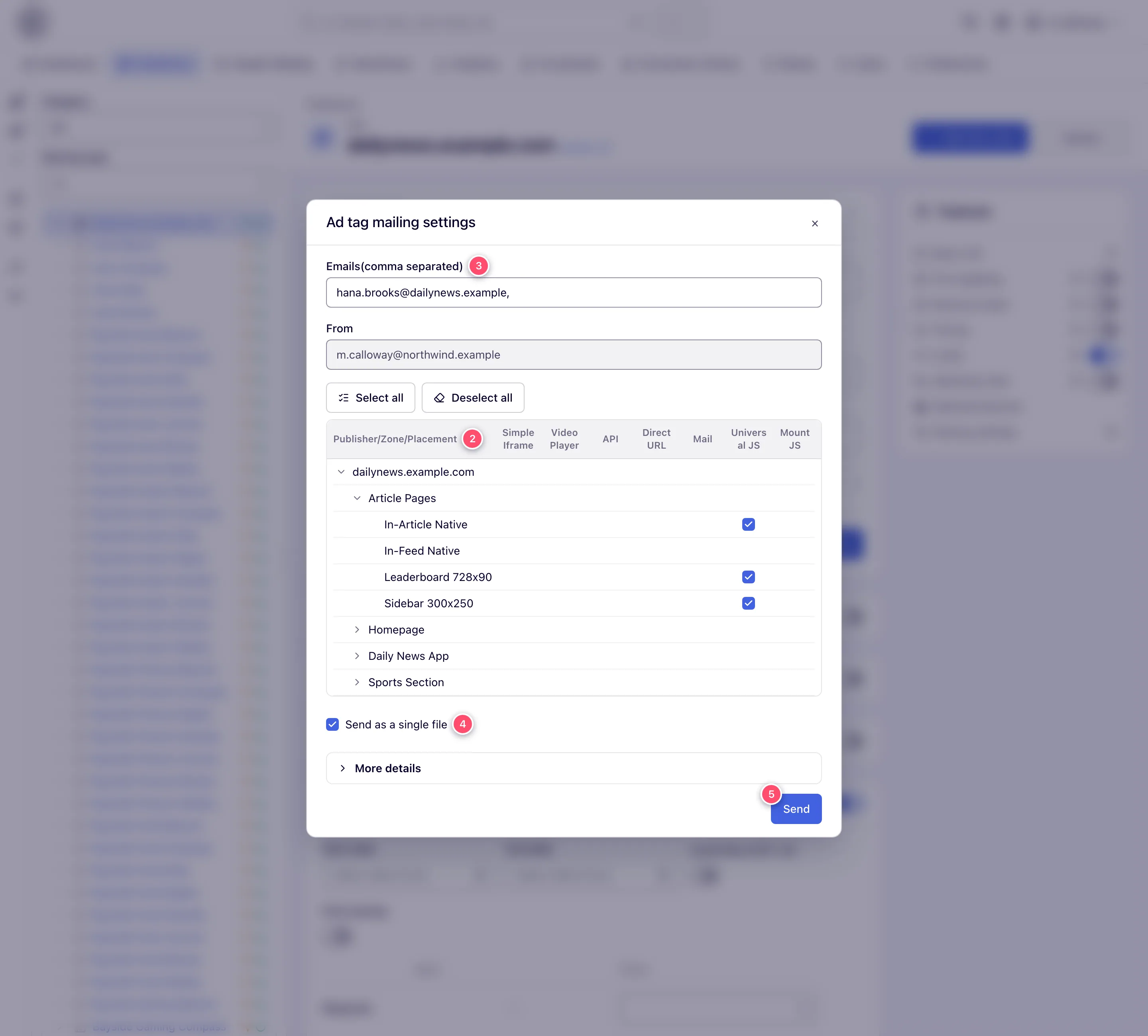
- The dialog shows the site’s zone → placement tree as a grid: one row per placement, one checkbox column per tag type. A checkbox renders only where the tag type applies to that placement’s type, and each placement’s default tag type comes pre-checked. Select all / Deselect all work across the whole tree.
- Fill the mailing fields: Emails(comma separated) (pre-filled with the site’s contact email, or the site owners’ emails when it has none). From is read-only: the mail always goes out from your own account’s address. Under More details, Subject and HTML Body arrive pre-filled from the Send invocation code template; edit them to send something custom.
- Choose the packaging: with Send as a single file on (the default) all selected codes go into
one
.txtattachment separated by per-placement comment headers; off, each placement×tag-type pair becomes its own.txtattachment. - Click Send. Each recipient gets their own email built from the network’s Send invocation code template.
What the generated email code contains
The Email tab of the placement’s Ad tags & API card generates exactly this markup (domain and key filled in for your placement):
<a href='https://<ad-serving-domain>/admlclck?key=<placement-key>&rand=<SET_UNIQUE_AD_ID_HERE>'>
<img src='https://<ad-serving-domain>/adml?key=<placement-key>&rand=<SET_UNIQUE_AD_ID_HERE>'/>
</a>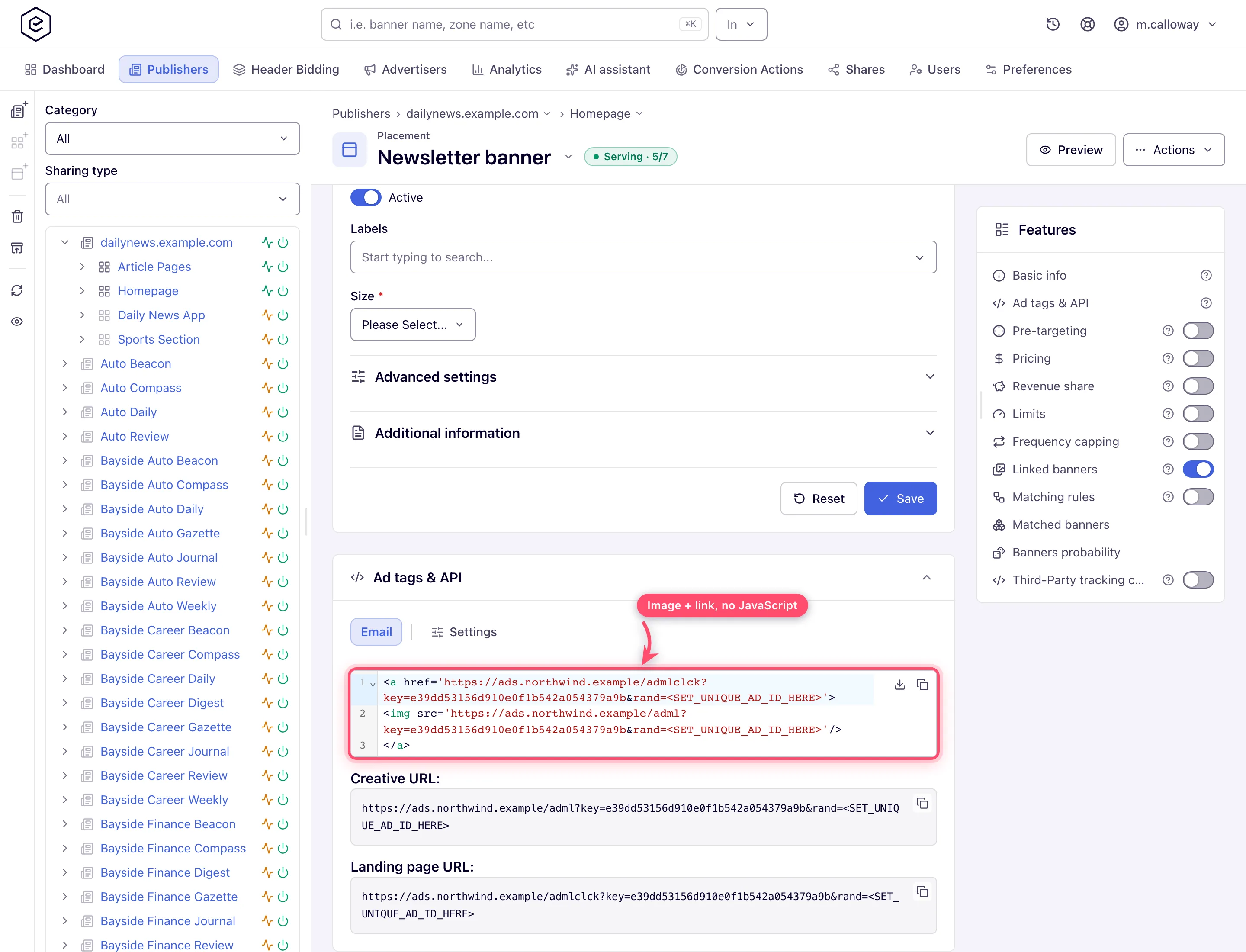
- The
<img>is the impression request: when the mail client fetches it, the ad server picks a banner for the placement, logs a CPM impression and redirects to the creative’s image file. If nothing is eligible to serve, it returns a transparent 1×1 PNG so the email never shows a broken image. - The
<a>is the click link: it logs the click and redirects to the click-through URL of the same banner the image showed (see how below). rand=<SET_UNIQUE_AD_ID_HERE>is a placeholder you must fill — replace it with a value unique per sent email (a merge tag / message id from your sending platform). Both URLs must carry the same value within one email.- The serving domain comes from the placement’s Domain selection (falling back to the
site’s serving domain) and is always
https.
The same two URLs appear separately as the read-only Creative URL and Landing page URL fields — directly under the code block on that same Email tab, not on the Basic info card.
Corner case: the snippet also carries a
$allDefaultUrlParamstoken on both URLs, right after therandvalue. It resolves to whatever default tag parameters the placement carries (channel, custom parameters, click, the pass-through privacy signals from the Settings tab), so it is empty on a fresh placement and not empty the moment someone adds a default. If you keep a copy of the tag somewhere, re-copy it after changing those defaults.
How impression and click stay in sync
The rand value is the glue: on the image fetch the server remembers “placement + this rand
→ banner X” for 24 hours; the click with the same rand looks that pairing up and redirects to
banner X’s landing page. Without it, the click would re-run banner selection and could send
the reader to a different advertiser than the one whose creative they saw.
Corner cases and gotchas
Corner case: if you leave
<SET_UNIQUE_AD_ID_HERE>literally in the sent email, every recipient shares one pairing key — the first image fetch fixes the banner, and everyone’s clicks resolve against whatever banner was cached last. Stats still count, but click attribution across recipients becomes meaningless. Always substitute a unique value.
Corner case: the impression→click pairing lives for 24 hours after the last image fetch. A reader who opens the email today and clicks next week triggers a fresh lookup: the click cannot resolve the shown banner and the link goes nowhere. Reopening the email (re-fetching the image) refreshes the pairing.
Corner case: the generated markup uses the short
/admland/admlclckpaths. These are the legacy aliases of/ads-mailand/ads-mail-click— both stay mapped precisely because emails already sent can never be updated. The same logic applies to the serving domain: never retire a domain used in sent newsletters.
Corner case: the Email ad tags entry disappears entirely when the network has no Send invocation code email template — this is a network-level configuration, not a permission. If an admin expects the action and it’s missing, check the email templates before checking Roles.
Corner case: sending with nothing ticked “succeeds” and mails nothing. The dialog only validates the From and recipient addresses, and the server only does any work when the selection is non-empty — so the dialog closes on a success that never produced an email. Check that at least one checkbox is ticked before you click Send.
Corner case: the send is permission-filtered per tag type on the server: a tag type you ticked but have no permission for is silently skipped from the sent mail — no error, the email just lacks that attachment/section. Deleted placements are skipped the same way.
Corner case: every ticked placement must be on a site you can view. If one is not, nothing is sent at all and the dialog reports a permission error — the check is not per placement.
Over the API
The same listing and mailing are available under /rest-api; both need view access to the site
(all inventory, or a share on this site).
GET /rest-api/sites/{siteId}/invocation-codes.dolists the site’s live placements, zone by zone:{success, total, data: [{zoneId, zoneName, placementId, placementName, placementType, codeTypes}]}.codeTypesis what you may generate for that placement — the tag types its placement type offers, minus those your role lacks the per-type permission for. Page withstart(default 0) andlimit(1–1000, default 50). A deleted or missing site is404.POST /rest-api/sites/{siteId}/invocation-codes/send.domails them. Parameters:emails(repeat it, 1–20 addresses),placementInvocationCodes[<placementId>](the tag types to send for that placement, e.g.placementInvocationCodes[4001]=AJAX,DIRECT_URL), and optionallysubject,body,singleFile(defaulttrue) andbccAuthor. The response is{success, recipients}.
The API is stricter than the dialog about what it will send: a placement of another site or a
tag type you cannot generate is a 400 rather than a silent skip, and a missing or deleted
placement is a 404. On a network with a Send invocation code template, subject and
body replace the template’s own. A network with no such template still mails the codes when
the call sends both subject and body — a plain message with the codes attached; without
them it answers 400, where the dialog simply is not offered. There is no from parameter — like the dialog, the mail always goes out from the
calling user’s address. Each send is recorded in the action log.
Per-role notes
- Publisher — copies the email code from the placement’s Email tab; the site-level Email ad tags dialog needs Email Invocation Codes — ask your network admin.
- Network manager — also gets Actions → Email ad tags when the role holds that permission and the network has the template.
- Administrator — configures the Send invocation code template; without it nobody sees the action.
- Can View share — no mailing dialog; the Email tab and its URLs stay copyable.
Exact grants: see User roles.
