
Referral program
Find your referral link, understand flat and bracket revenue-share terms, and track referred clients, revenue and payout statuses.
Refer new clients to the platform and earn a share of the revenue they generate. The Referral program page shows your personal link, the current terms, everyone who signed up through your link, and every payout with its status.
Who this is for
Anyone whose role holds Manage Referral Program, on any side of the network. The referral program is opt-in: your network administrator turns it on per role in Admin → Users & access → User roles & permissions, and without it there is no Referral program tab.
Prerequisites
- Nothing to configure yourself. The terms and the link template are set by your network administrator; you only share the link.
Steps
- Go to Account → Referral program. A shortcut icon (two people with a dollar sign) in the top bar opens the same page.
- Read the terms in the top panel:
- Flat share — a single sentence: “Earn an amazing 9.00% of revenue generated by every publisher you refer to …” followed by the program’s name.
- Bracket schedule — “Earn tiered commission on every publisher you refer to …, based on their monthly Net revenue:” and a table of Monthly Net ranges against Your share. The rates are marginal — Commission is calculated tier-by-tier: each dollar of monthly Net is paid out at the rate of the bracket it falls into. If your network administrator has scheduled new brackets, a second table follows Starting …, the brackets below will apply:, dated the first of the coming month.
- Below the terms, Use the link below to refer publishers of all sizes to use … advertising
network. and, when your network administrator has set one, a Learn more link.
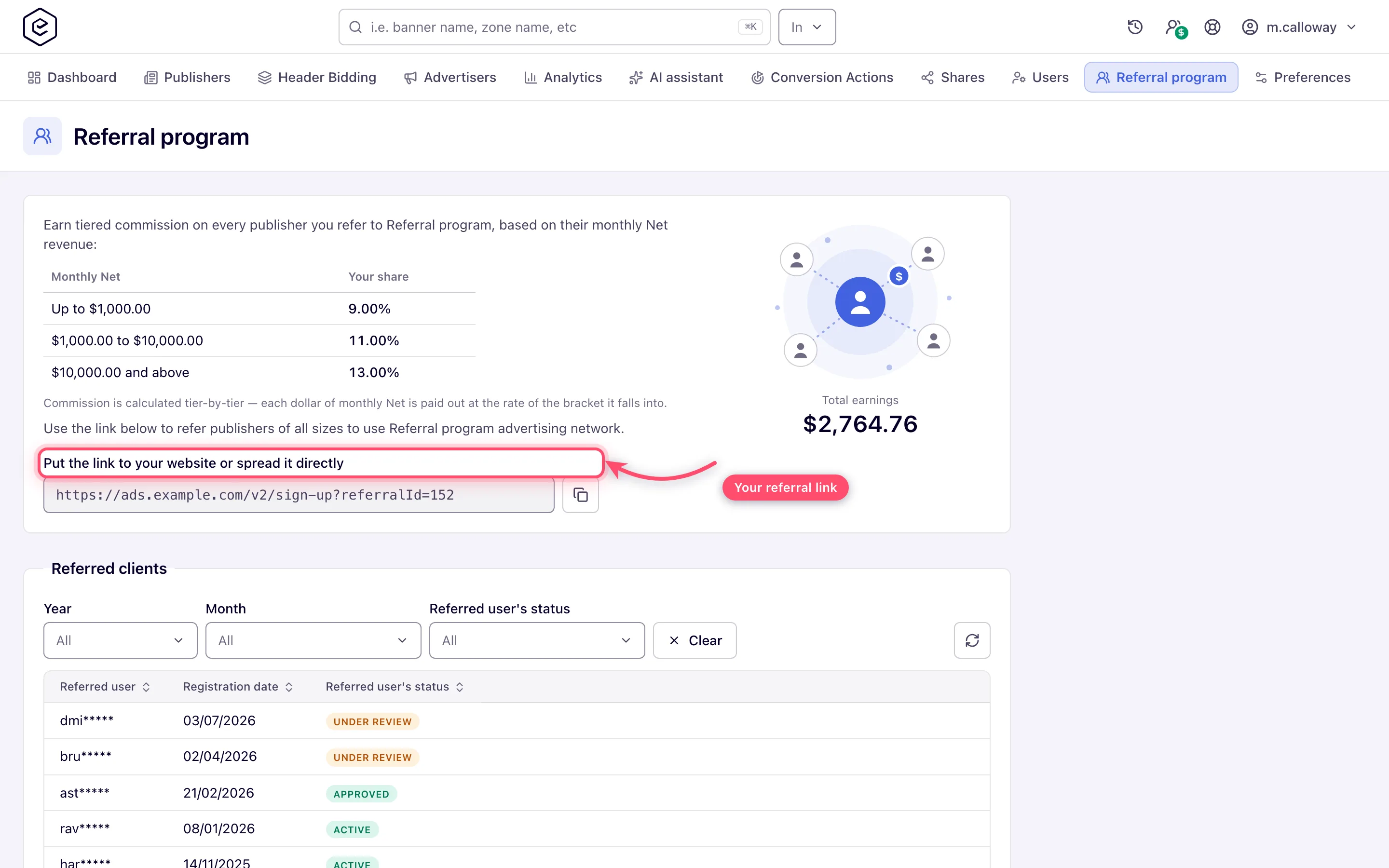
- Copy the link from the field headed Put the link to your website or spread it directly with the copy button (Click to copy link to clipboard) and share it. Anyone who signs up through it becomes your referral.
- Track sign-ups in Referred clients: masked e-mail, registration date and Referred user’s status. Filter by Year, Month and Referred user’s status; Clear resets all three.
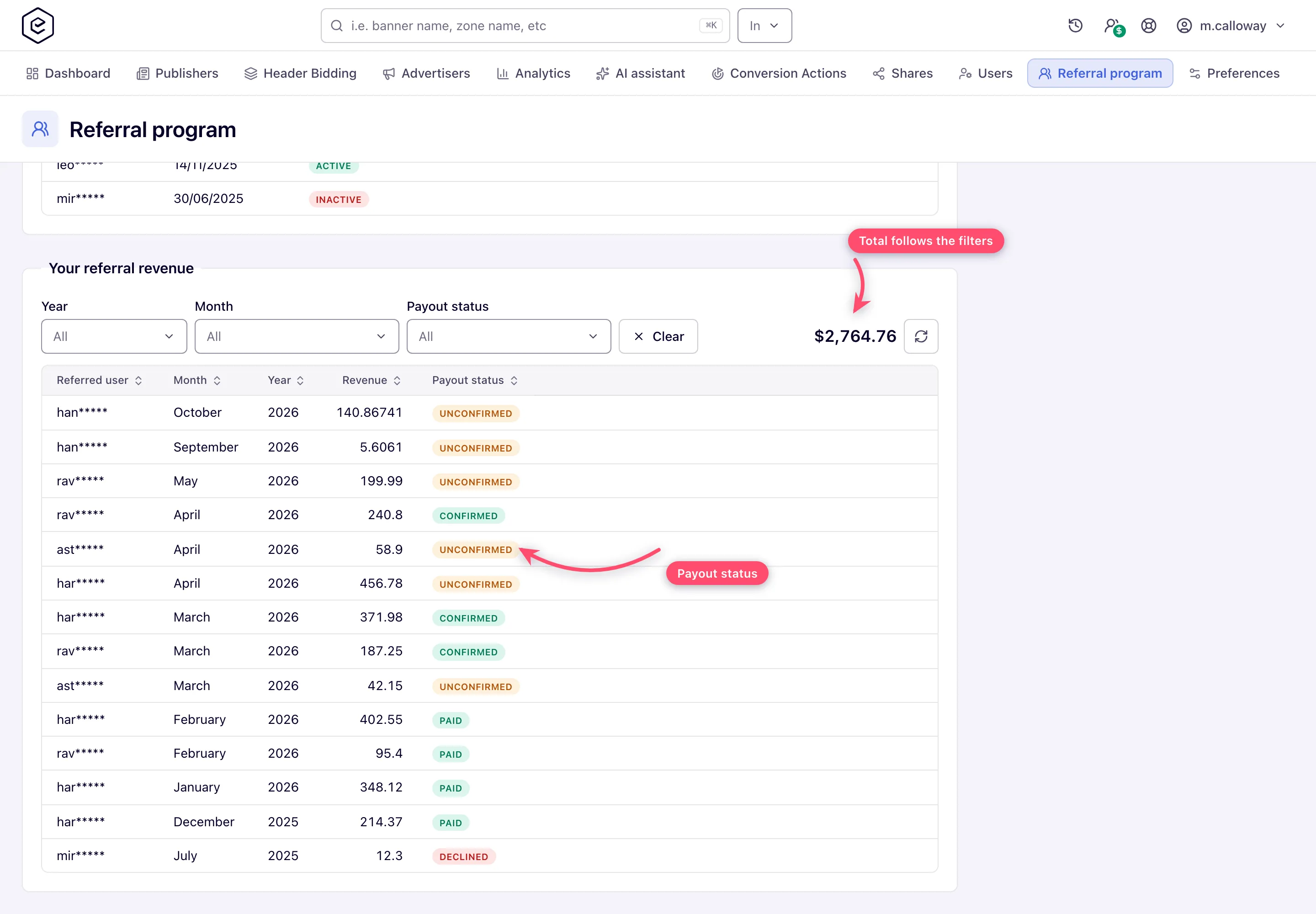
- Track money in Your referral revenue: one row per referred client per month with the
revenue amount and its payout status. The total at the end of the filter row follows your
filters; the lifetime Total earnings figure sits in the top panel. The totals, the
bracket ranges and the Revenue column are shown in US dollars with two decimals, in your
display language’s number format.
Options and fields
Referred client statuses — computed by a job that runs every four hours, not set by hand:
| Status | Meaning |
|---|---|
| Under Review | The referred account is not active yet (the first time the job sees it) |
| Approved | The referred account is active and its sites have had no traffic yet |
| Active | A site shared with the referred user has had traffic in the last month |
| Inactive | A site shared with the referred user has had traffic, but none in the last month |
An account first seen inactive moves from Under Review to Approved on the job’s next run after it is activated. Once a shared site has traffic the account is Active or Inactive from then on.
Payout statuses
| Status | Meaning | Counts toward earnings? |
|---|---|---|
| Unconfirmed | Calculated, not yet confirmed by the network | yes |
| Confirmed | Verified by the network, awaiting payment | yes |
| Paid | Paid out | yes |
| Declined | Rejected by the network | no |
When earnings decline
If the network rejects a payout (for example, the referred client’s revenue was reversed or the sign-up violated the program terms), its row flips to Declined and the amount drops out of Total earnings and the filtered total — declined payouts are treated as never earned. There is one exception: if you explicitly filter Payout status to Declined, the total then answers “how much was declined” instead.
Corner cases and gotchas
Corner case: referred users’ emails are always masked to a short prefix (e.g.
tmp*****) — you cannot recover the full address from this page, so keep your own record of who you referred if you need to reconcile.
Corner case: the terms panel can be hidden entirely. Your network administrator can suppress referral details per user or network-wide; you then see only the link and your numbers.
Corner case: the link comes from the network’s referral URL template when one is set; without it the page builds
<this site's address>/v2/sign-up?referralId=<your user id>itself, so a link is always shown.
Corner case: your network administrator can set a personal flat share for you that replaces the global bracket schedule — if your terms read as a single percentage while a colleague sees brackets, that’s why.
Corner case: the Total earnings figure under the illustration is lifetime and ignores the grid filters; the total inside the Your referral revenue filter row is the filtered one. They match only with no filters set.
Per-role notes
- Every role — no page until your network administrator grants Manage Referral Program; once granted it behaves the same for every role, because nothing here is share-scoped.
- Network manager — with the grant, also gets the referral column and toggle in Account → Users and the referral tab in the user editor.
Related
- Collaboration overview
- Manage network users — the Referer / Referral ID fields and the per-user referral panel
- Preferences
