
Target audiences and retarget known users
Recipe for audience-based delivery — DMP segment targeting, first-party cookie audiences, include/exclude suppression, the Targeting Cookie report, and how GDPR/TCF consent and cookie loss affect it all.
The goal: show this campaign only to people you already know something about — visitors of the advertiser’s site, members of a purchased data segment, everyone except recent buyers. Epom does this with two targeting dimensions (DMP for segments, Cookie Value for first-party cookies) plus the standard include/exclude machinery — and it all sits on top of cookies and consent, so this recipe ends with the privacy fine print.
Who this is for
Network managers and advertisers building the campaigns; your network administrator for the one-time DMP connection. Cookie Value rules are on for the stock Advertiser, Publisher and Network Manager roles. DMP rules, and each DMP provider (First-Party DMP, DTScout DMP), are off for every role out of the box; ask your network manager (or, as a network manager, your network administrator) to switch them on for your role.
Prerequisites
- A campaign ready to serve (create one).
- For DMP segments: your network administrator has connected a data provider under Admin → Audience & analytics → DMP settings; imported segments appear under Admin → Audience & analytics → DMP audiences.
- For first-party audiences: a way to mark your users — either a list of ad-server user IDs delivered to the First-Party DMP over FTP (see Upload a First-Party audience file), or a cookie your pages set that the ad server can read (see the corner cases).
Steps
1. (Administrator, once) Connect the data source
In Admin → Audience & analytics → DMP settings, add one record per provider: the Platform (First-Party or DTScout), the full and incremental import URLs and the credentials used to pull segment data. The segments it imports show up under Admin → Audience & analytics → DMP audiences. For your own audiences use the First-Party platform:
- Admin → Audience & analytics → DMP settings → add a setting with Platform First-Party, URL (full) =
the FTP server’s host name (for example
ftp.audiences.example; the import connects on port 21), User and Password of the FTP account, Active on and Rebuild full index on schedule on. - Admin → Audience & analytics → DMP audiences → pick First-Party as the DMP Platform → Add root
segment: an Audience name (what targeting editors see, e.g. Clicked Spring Sale) and
an External audience id (the id your files use, e.g.
clicked-spring-sale). Add child segments under it if you want a hierarchy. - Put the audience files on the FTP server (next section).
Upload a First-Party audience file (FTP)
-
Where: the root folder of the FTP account. Files in subfolders are not read.
-
Which files: every file ending in
.csv; other extensions are skipped. -
Format: one line per user and segment, comma-separated, no header:
b7f3c2a91e0d4c55,clicked-spring-sale
b7f3c2a91e0d4c55,cart-abandoners
0c9e44d2a7b81f30,clicked-spring-sale
The first value is the ad server’s user ID — the value of
$$UUID$$and of the UUID column in the raw Impressions / Clicks logs, not your own CRM id. The second is the segment’s External audience id from DMP audiences. A user in several segments takes several lines (up to 20 are used per user). -
Sync schedule: every ad server re-reads the FTP root every 4 hours (the first run about an hour after a server starts) and swaps in the new audience as soon as it is built. Segments you add in DMP audiences reach the ad servers within about 10 minutes. To force a sync sooner, ask Epom support or your account manager.
-
Every sync rebuilds the audience from scratch out of all
.csvfiles currently in the root. Keep every file whose users should stay in the audience — adding a new daily file next to the old ones accumulates; deleting yesterday’s file removes its users at the next sync. -
Check it worked: the DMP settings grid shows Last updated, Last retrieved (lines read) and Last merged (lines in the audience) for the setting.
Note: uploading through
POST /rest-api/dmp/FIRST_PARTY/data.doonly stores the file — the First-Party sync reads the FTP server alone, so put audience files there (API reference).
2. Target a segment
- Open the campaign (or banner/advertiser) and its Targeting card; switch it on.
- Pick DMP in the dimension list. Select the provider, then drill down the
segment levels — the deepest segment you pick is what the rule targets
(dimension reference).
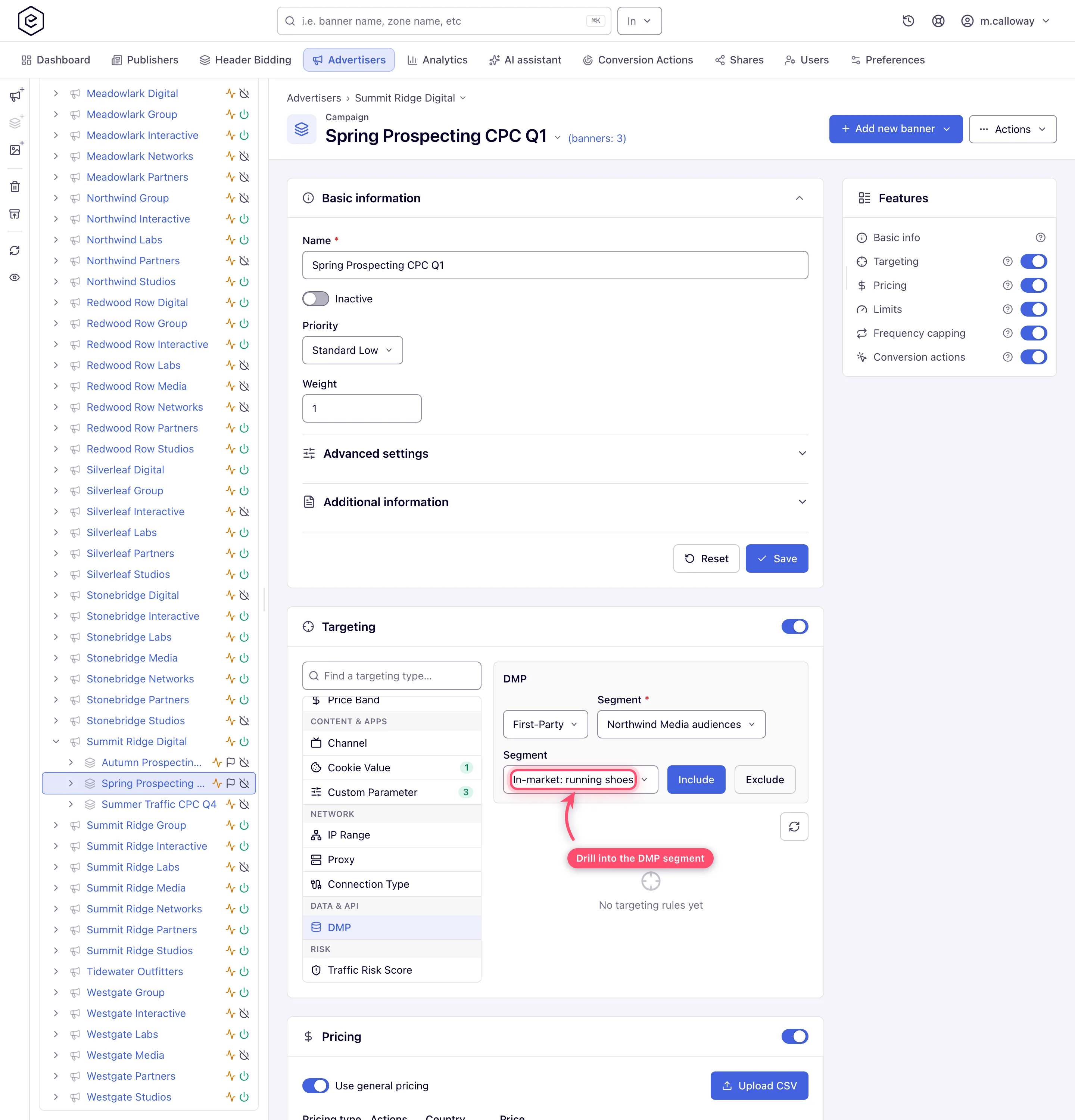
- Click Include. Repeat for more segments — several include rules of the same dimension mean “in any of these segments”.
3. Retarget with a first-party cookie
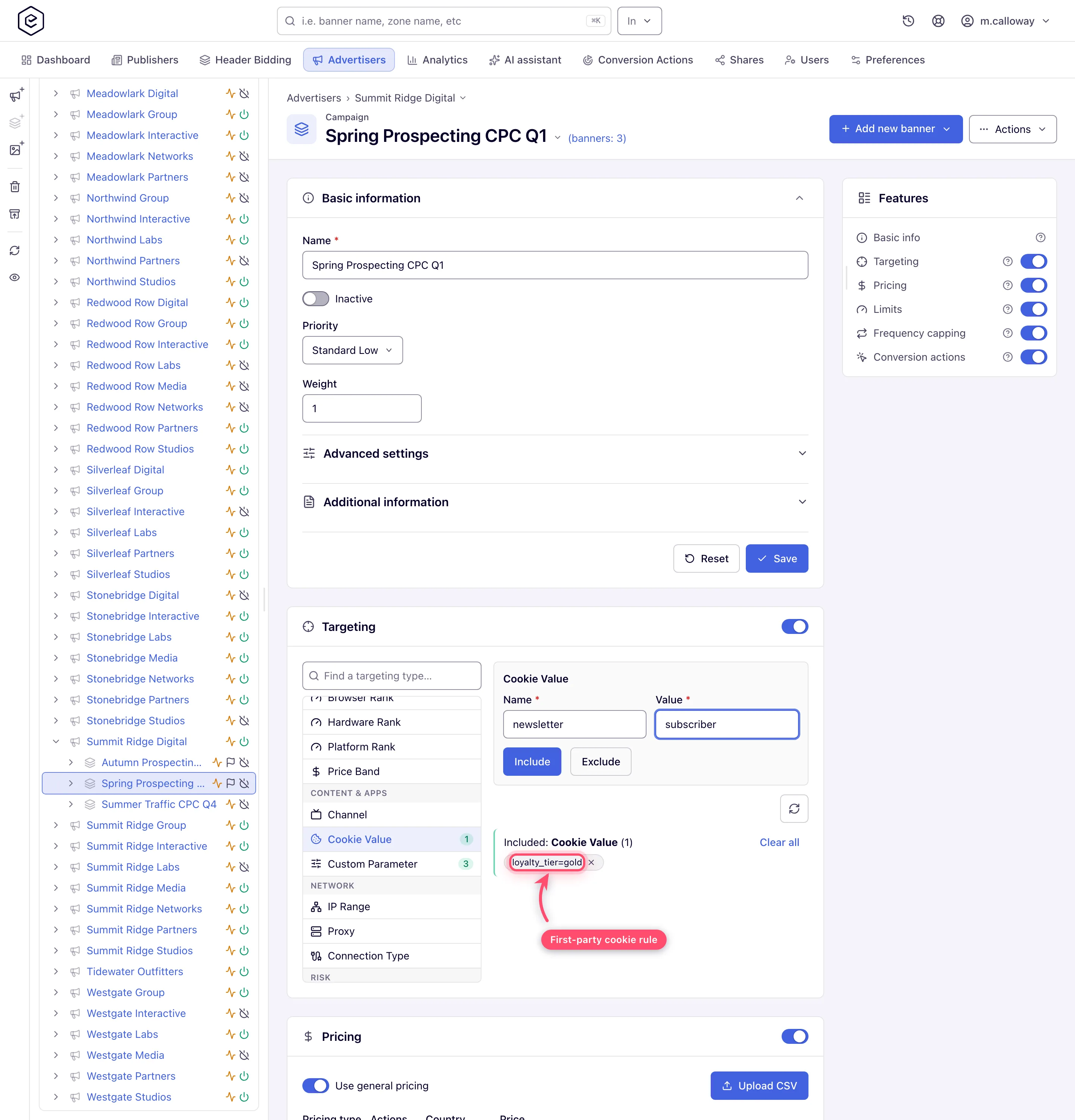
If your audience is “visitors who did X on the site”, the lightweight alternative to a DMP upload is Cookie Value targeting:
- Have the site set a cookie for those visitors (e.g.
aud=cart_abandoner) in a way the ad server sees it on ad requests (see the corner case about cookie domains). - Add a Cookie Value rule: cookie name + cookie value, then Include.
Retarget users who clicked a banner (or saw an ad)
- Run the Clicks Log (or Impressions Log) report for the source campaign and the period you want, with the UUID column, and export it (Report types).
- Turn the UUIDs into an audience file —
<uuid>,clicked-spring-saleper line — and put it in the FTP root. - Administrator step: add the segment
clicked-spring-salein Admin → Audience & analytics → DMP audiences (step 1). - On the retargeting campaign add a DMP rule: First-Party → Clicked Spring Sale → Include. It starts matching after the next sync.
Requests that had to stay anonymous under GDPR have no UUID. Visitors whose browser does not keep the ad server’s cookie may have one in the log but arrive with a different one next time, so they are not matched either.
4. Suppress the people you don’t want
Exclusion works the same way in reverse — pick the segment (or cookie value) that marks converters/customers and click Exclude. A typical retargeting pair is one include rule (“visited product pages”) plus one exclude rule (“purchased”) on the same campaign. Mind how the AND/OR operator combines dimension groups if you mix DMP and Cookie Value rules (Add targeting rules).
5. Cap it
Retargeting is the fastest way to annoy a known user. Add a frequency cap with the User (cookie-based + server-side storage) subject so the cap survives cookie loss as far as possible.
6. Measure
- Standard delivery reporting works as usual (Run a report).
- For cookie-based delivery specifically, the Targeting Cookie report type shows cookie name/value statistics — it is only meaningful while cookie logging is enabled on your network, and it is not in any stock role — ask your network manager (Report types).
7. Know the privacy mechanics
- GDPR/TCF consent can gate serving, not just targeting. When your network administrator sets GDPR policy to Require IAB consent (Admin → Ad serving → System preferences, last card — see GDPR / TCF consent), an in-scope request without valid consent for the configured vendor gets the No-consent restriction. Only Do not serve ads withholds the ad, and then the request never reaches your targeting rules; the other three restrictions still serve it, with cookies, or cookies and server-side processing, switched off — so a Cookie Value or cookie-matched DMP rule has nothing to read. See also My ad is not serving.
- Consent travels downstream via the
$$GDPR$$and$$GDPR_CONSENT_IAB$$macros — use them in creative markup and tracking URLs that third parties require consent signals on. - Cookies are the weak link. Cookie Value rules, DMP matches and cookie-based caps all depend on the visitor’s cookie being present. Private browsing, cookie-blocking browsers and cleared cookies make a known user look new. Mixed-subject capping falls back to server-side counters; targeting has no such fallback — an audience rule simply doesn’t match, and with an include rule the visitor is skipped.
Why does my retargeting campaign get no impressions?
Work down the list — the first four are about the user ID, which every DMP and Cookie Value match depends on:
- The browser did not send the ad server’s cookie. Safari and Firefox block third-party
cookies by default and private windows start empty, so those visitors arrive without a user
ID. A video player or SDK that requests the VAST or fires the pixels with
fetch/XHR without credentials sends no cookies either — the publisher has to enable credentials (credentials: 'include'/withCredentials) in the player. - The tag switches cookies off.
data-cookie-policy/cookie-policy1,2or3on the tag means no user-ID cookie is set (ad request parameters). - GDPR without consent. When a request must stay anonymous, it carries no user ID and no audience matches.
- The IDs came from another serving domain. The user-ID cookie belongs to the domain the ads are served from. IDs collected through tags on one domain do not match requests that go to a different one — give publishers codes on the same serving domain the audience was collected on.
- The audience is not loaded yet or was emptied. Check Last updated / Last merged in DMP Settings; remember a deleted file removes its users at the next sync, and with Rebuild full index on schedule off the First-Party audience is not refreshed at all.
- The id in the file and in DMP Audiences differ. A segment is matched only if its External audience id exists in DMP Audiences — ids in the file that are not there are ignored.
- The traffic is DSP demand. Audience rules are not applied to external DSP bids.
Corner cases and gotchas
Corner case — your audience rules still decide whether an OpenRTB banner may bid. Targeting rules are evaluated locally on every candidate, OpenRTB banners included, before any bid request is built, so a campaign your DMP or Cookie Value rules exclude never reaches the DSP. The rules are not forwarded: the DSP sees ordinary OpenRTB fields, not your segments, so programmatic buyers must bring their own audience data (details).
Corner case — the cookie must be visible to the ad server. Browsers only send a cookie to the domain it was set for. A cookie set for the advertiser’s own site domain is not sent with ad requests going to your ad-serving domain, so a Cookie Value rule never matches it. The cookie must be set on (or for) the serving domain — e.g. by a pixel or script loaded from that domain.
Corner case — consent enforcement is a serving gate, not a targeting filter. With the policy on and Do not serve ads chosen, a non-consented visitor gets no ad from any campaign — including ones with no audience targeting; with another restriction the ad serves but cookie-based rules lose their input. Diagnose “why did volume drop after enabling GDPR enforcement” network-wide, not per campaign.
Corner case — an empty drill-down means no segments, not a broken page. The provider list holds the providers switched on for your role (First-Party DMP, DTScout DMP), not the ones configured under DMP settings, and segment levels load as you drill. If the provider list is empty, no provider is switched on for your role — ask your network manager; if a level is empty, no segments were imported at that level (your network administrator checks Admin → Audience & analytics → DMP audiences).
Note: adding a rule identical to an existing one is silently skipped — re-adding the same segment neither errors nor duplicates.
Per-role notes
- Advertiser: cookie audiences on the advertiser, campaign or creative Targeting card. DMP rules are not in the stock role.
- Network manager: the same, plus supply-side Pre-targeting to scope an audience by inventory.
- Admin: the DMP connection, audiences and consent settings are in the admin area.
- Can view share: existing rules are visible but read-only.
