
Set up daisy chaining and passbacks
Order a placement's linked demand into a fixed waterfall, return fallback code when nothing fills, and let a third-party tag hand the impression back to Epom.
Three different mechanisms share this page, and mixing them up is the usual reason a fallback never fires:
- Daisy chaining turns the demand already linked to a placement into a fixed waterfall instead of a weighted rotation. It does not bring in new demand and it has nothing to do with third-party tags.
- Default code is the markup the ad server returns when nothing at all filled the request — the placement-level fallback, typically another ad source’s tag.
- Banner passback works the other way round: it lets a third-party tag that Epom served hand the impression back to Epom, so Epom drops that banner and serves the next one.
You can use all three at once. Daisy chaining decides the order Epom tries its own demand, a banner passback recovers impressions a third party declined, and the default code catches whatever is left.
Who this is for
Publishers and network managers, on a placement, once your network administrator has granted their role the Daisy Chaining permission. A chain replaces that placement’s normal rotation with a fixed order, so it is one of the few delivery decisions a publisher can make directly rather than asking the network for.
Changing anything here also needs update rights on the placement — your own inventory, or a share with edit. The default code and a banner’s passback tag are separate from the chain and covered further down.
Before you start: a role without Daisy Chaining does not see the Daisy chaining card on the placement page at all, and the Features rail has no entry for it. Ask your network administrator to grant it in Admin → Users & access → User roles & permissions — see Per-role notes.
Prerequisites
- A saved placement. Daisy chaining lives on the placement only — there is no equivalent card or field on a zone or a site.
- Banners already linked to that placement. Daisy chaining orders what is linked; it cannot add demand.
- For a default code or a banner passback: the fallback tag from the other ad source.
Steps — order a placement’s demand into a chain
- Go to Account → Publishers → site → zone → placement and find the Daisy chaining card near the bottom of the page.
- Turn the card’s switch on. Two things happen immediately: the placement starts in
Banner mode, and the chain is populated for
you from the banners already linked to the placement — one row per active banner whose
campaign and advertiser are also active. You do not build the chain by hand.
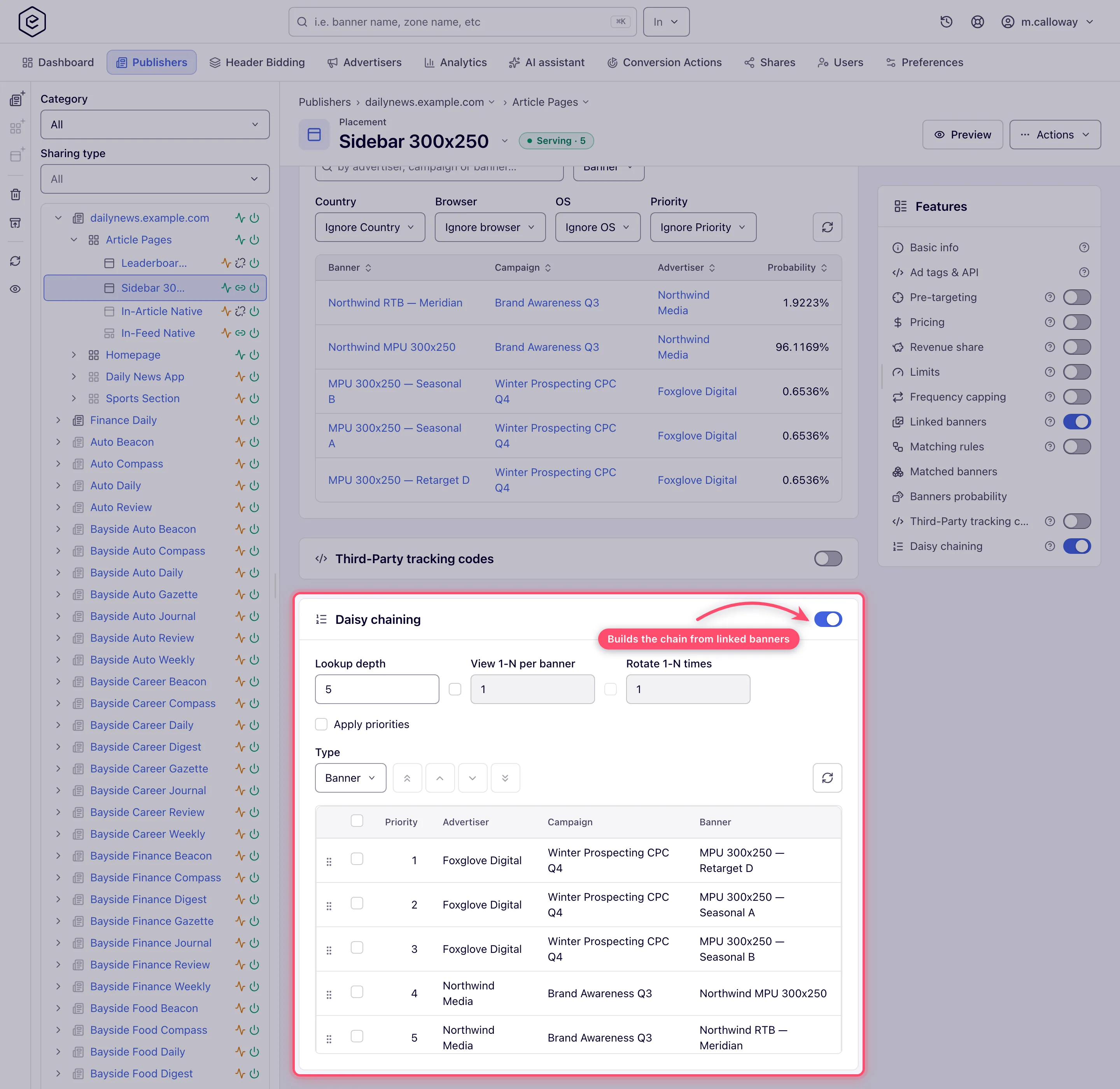
- Set Lookup depth. A new chain starts at the network’s default — 5 unless your network administrator changed it under Admin → Ad serving → Inventory & campaigns settings → Daisy chaining lookup depth. This is how many excluded chain entries the server is allowed to step over before giving up on the chain — see How the chain is walked below, because it does not mean “how many entries are tried”.
- Optional: tick the checkbox next to View 1-N per banner (or per campaign) and set a count, to show each entry N times to the same visitor before moving down. The number field is disabled until you tick the box.
- Optional: with view-per-entity on, tick Rotate 1-N times and set a count. Read the corner case below first — this control limits cycling rather than enabling it.
- Optional: tick Apply priorities to group the chain by delivery priority and give each tier its own country list.
- Pick the chain Type — Banner (chain individual banners) or Campaign (chain whole campaigns). Changing it asks “Selected order will be lost. Are you sure you want to proceed?”, and the warning is literal: the rows of the other kind are deleted and the chain is rebuilt from scratch in link order.
- Reorder: tick a row first, then use Top / Up / Down / Bottom. The four arrows stay
greyed out until exactly one row is selected. You can also drag a row to a new position.
Position 1 is tried first.
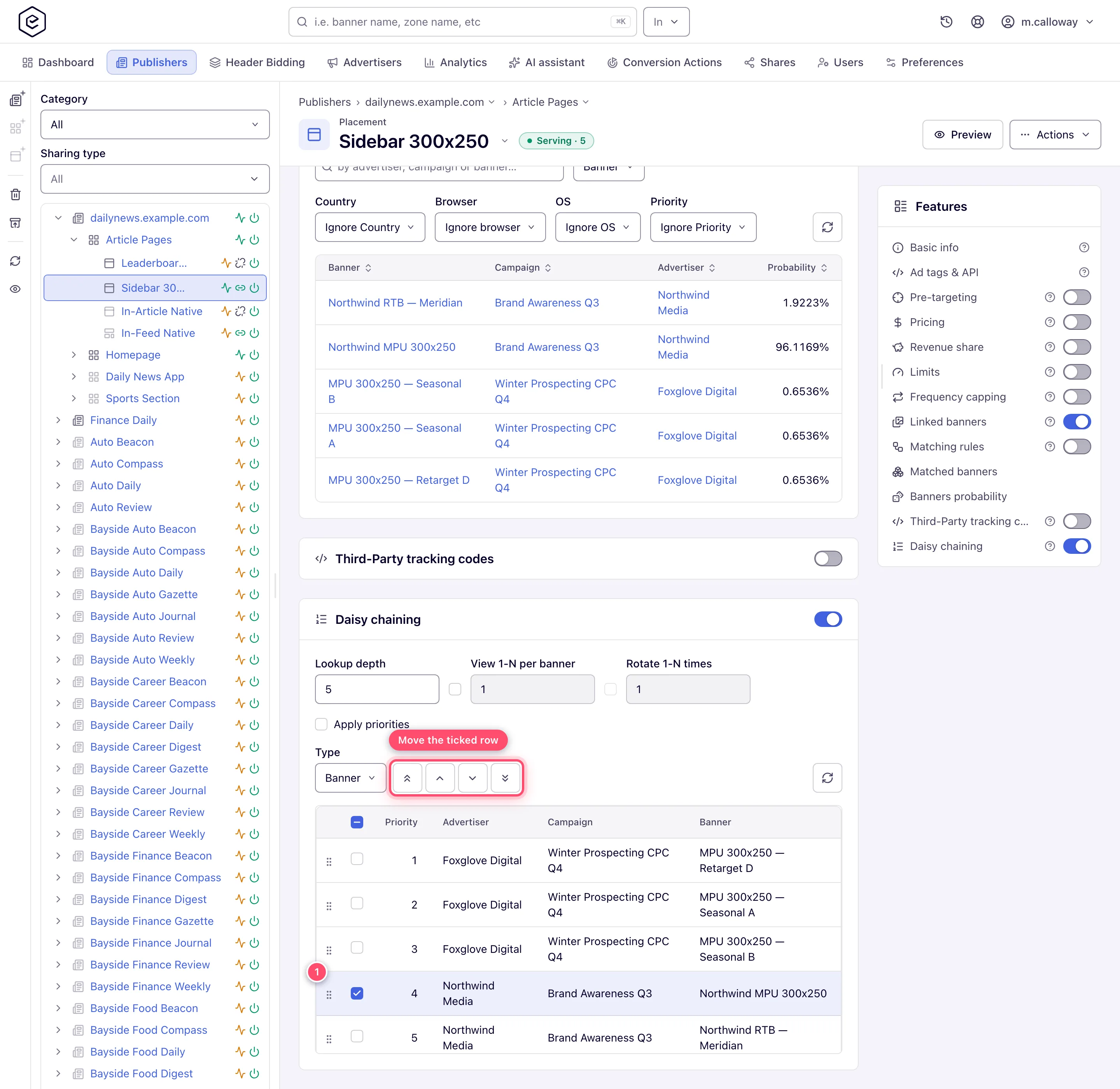
There is no card-level Save button. Every control posts on change (or on blur for the number fields) to its own endpoint, and a failure surfaces as an error toast.
Steps — set a default code for unfilled requests
- On the same placement, open Basic info → Advanced settings (the subsection is collapsed by default). Default code is there on Site, Mobile site and Non-standard site placements only, and only for a role holding Placement Default Code.
- Paste your fallback markup into Default code. Epom substitutes macros into it before
returning it, with the same processor as banner markup:
$$RANDOM$$and$$TIMESTAMP$$as cache-busters,$$PAGE_URL$$,$$COUNTRY$$,$$PLACEMENT_ID$$,$$CHANNEL$$, custom parameters and the rest of the request, page and placement set all work. No creative was chosen, so banner, campaign and advertiser macros and the click URLs come out empty. A recognised macro that cannot resolve is removed rather than left in the output; an unrecognised token (a partner’s own[timestamp]) is left as written. See Macros.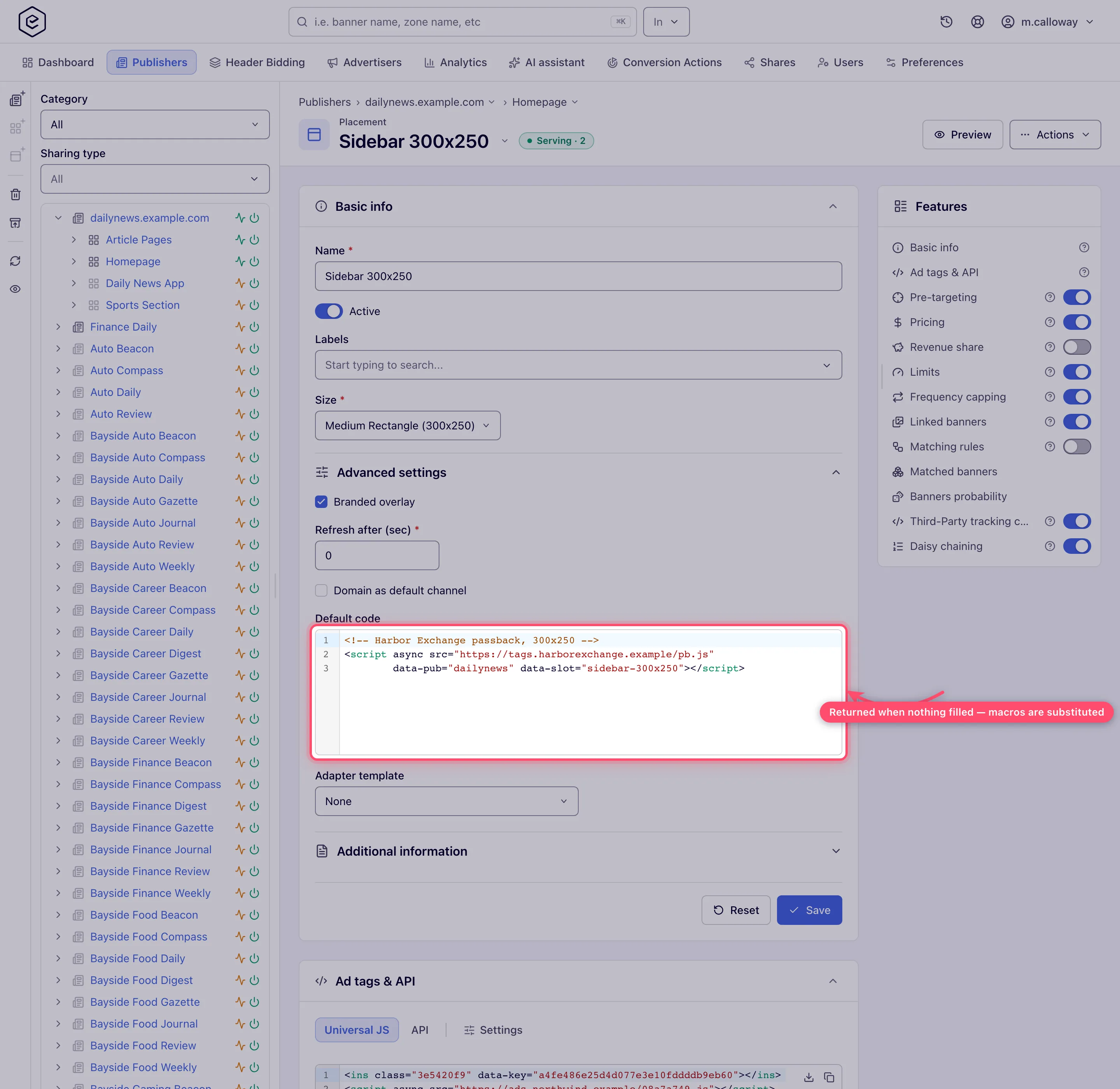
- Click Save.
Whether that code is ever returned depends on the placement type and how the tag calls Epom — see When the default code is returned.
Warning: the console draws the field on Site, Mobile site and Non-standard site placements only. A default code stored on another type anyway — the REST API accepts
defaultCodefor a role holding Placement Default Code — is never returned for an Application placement, never for a VAST/video request, and never from the native JSON endpoint; a Video or Native placement only sees it on the request paths listed below.
Steps — let a third-party tag pass the impression back
Use this when Epom serves a Code or Template banner that hands the slot to another ad source, and you want the impression back if that source declines it.
- Open the banner (Account → Advertisers → advertiser → campaign → banner). The option appears only for a Code banner on a Standard / Non-standard / Mobile site placement, or a Template banner on a Standard / Non-standard site placement — and only for a role holding the Ajax invocation-code permission of that placement type (Standard, Mobile or Non-standard placement invocation codes), on a network that has an AJAX invocation-code domain configured.
- Tick Enable passback functionality and save.
- Reopen the saved banner. A Banner passback code: block appears with a one-line
<script>snippet; the ⓘ beside its label says to put it where the creative has nothing to show, and that it works with the Universal JS tag only. ItpostMessages{by: <serving domain>, bId: <banner id>, pb: true}up the frame chain to the Universal JS loader, which re-requests the ad. On a network with more than one AJAX invocation-code domain, a Domain picker sits above the block — choose the domain the page’s Universal JS tag is served from and the snippet is rebuilt for it (the first domain is preselected). The choice only changes the snippet you copy; nothing is saved with the banner.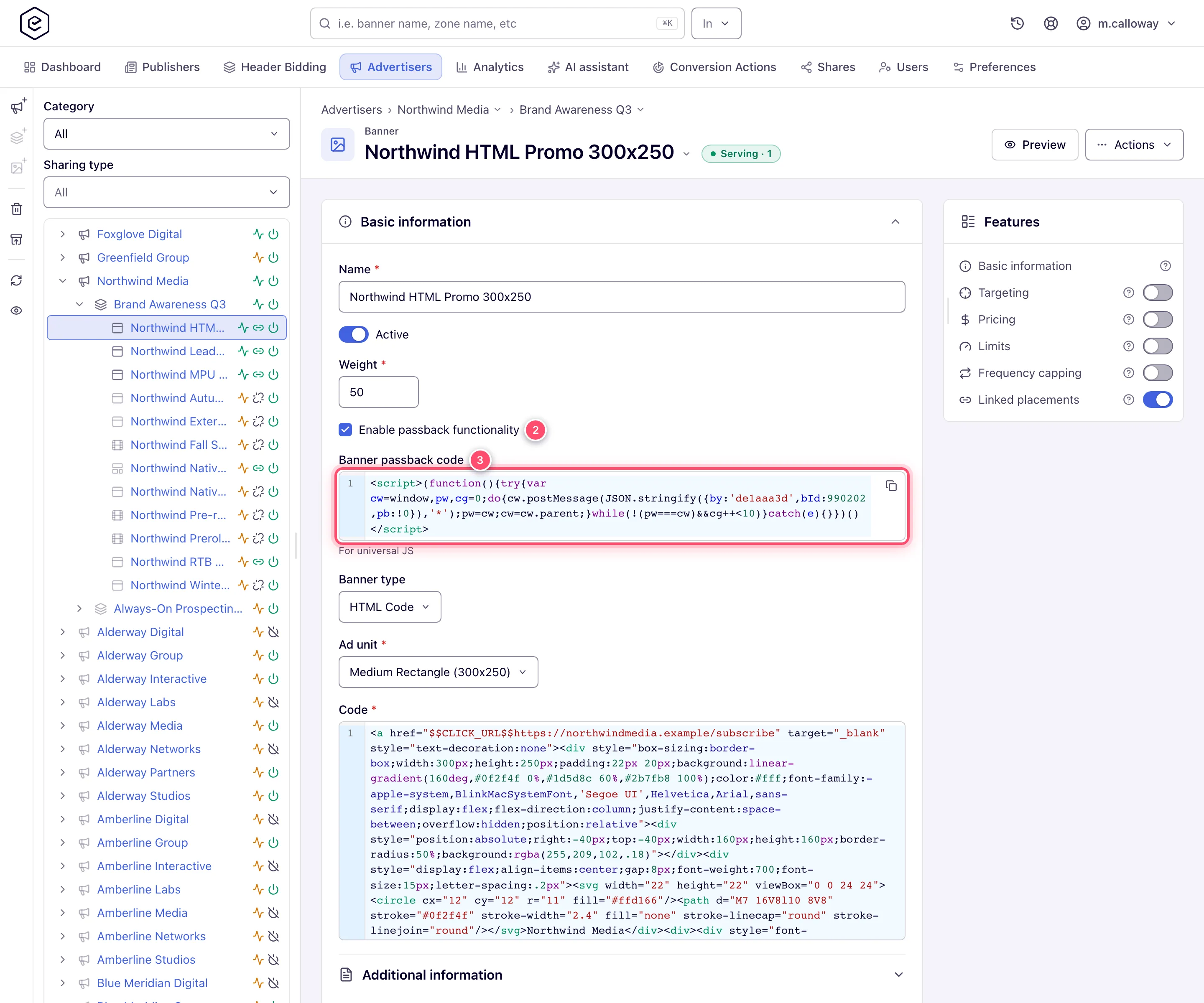
- Give that snippet to the third party, to be executed on their no-fill branch. For tag and
redirect flows that cannot post a message, put the
$$PASSBACK_INFO$$(or$$PASSBACK_INFO_ESC$$) macro in the fallback URL instead — it expands topb=customwl.unipass.p:<placement key>|txid:…|ch:…|b:<banner id>, which is what the ad server parses on the way back in.
When a request arrives carrying that passback value, Epom excludes the named banner from selection for this request, writes a passback log record for it, and re-runs banner selection.
A fallback VAST tag for a video placement (no default code)
Default code exists only on site, mobile site and non-standard placements (and needs the Placement Default Code permission). A video placement has no such field, so a third-party VAST tag that should play “only when Epom has no ad” is set up as demand at the bottom of the stack:
- Create an advertiser and campaign for the fallback (for example Backfill — Partner Video) with delivery priority House ads or Non-guaranteed, below every campaign that should win first. Priority tiers are tried top-down, so this campaign only gets requests nothing above it could serve.
- Add a video banner of type Third Party VAST/VPAID Tag URL with the partner’s tag.
- Add the campaign’s targeting — for example only the countries the partner buys.
- Link the banner to the video placement.
The fallback’s impressions are counted and priced like any other banner’s — by its campaign’s Pricing card — so give it the price you agreed with the partner, or none for a pure house fill. To let the player try several partners in turn, see VAST waterfall across several networks.
Options and fields
Daisy chaining controls
| Control | Range / values | What it does |
|---|---|---|
| Card switch | on / off | On creates the chaining record and auto-populates the chain in Banner mode. Off deletes the record, the order and every setting below, after a confirmation. |
| Lookup depth | 1–100, network default 5 | The walk gives up once this many excluded chain entries have been skipped, so it steps over at most depth − 1 of them and still serves the next one. Also raises the per-request reselection cap (see below). |
| View 1-N per banner / per campaign | checkbox + 1–10 000 000, default 1 | Serve each entry this many times to the same visitor before moving down. Counted in a per-placement cookie. |
| Rotate 1-N times | checkbox + 1–10 000 000, default 1 | Caps how many times the exhausted chain restarts for one visitor. Disabled until view-per-entity is on. |
| Apply priorities | checkbox | Groups the chain by delivery priority and adds a per-tier enable + country list. |
| Per-tier checkbox + Country | one row per delivery priority; * = Global | Which delivery tiers take part, and in which countries. |
| Type | Banner / Campaign | Whether chain entries are banners or whole campaigns. Changing it rebuilds the chain. |
| Top / Up / Down / Bottom | — | Move the selected row. Enabled only with exactly one row ticked. |
| Refresh | — | Re-reads the chain from the server. |
The six delivery-priority tiers, strongest first: Premium, Standard High, Standard Medium, Standard Low, Non-guaranteed, House ads.
Chain grid columns
| Column | Notes |
|---|---|
| Priority | Display position, renumbered from 1 within each group when Apply priorities is on |
| Advertiser | Masked for users with the campaign-masking permission unless they own the advertiser |
| Campaign | As above |
| Banner | Only in Banner mode |
| Priority (group) | Only with Apply priorities on — shows the tier name plus the row’s country |
Fallback fields outside the card
| Field | Where | What it does |
|---|---|---|
| Default code | placement → Basic info → Advanced settings (Site, Mobile site and Non-standard site placements) | Markup returned when nothing filled. Macros are substituted. |
Third-Party lookup limit (thirdPartyNetworkLookupLimit) | REST API only — the placement form no longer shows it | 0–10; a new placement starts at 5. Caps how many times one request may drop the chosen banner and re-select — the loop that recovers an impression a third-party tag passed back. |
| Enable passback functionality | banner → Basic information | Lets this banner’s tag hand the impression back to Epom. |
| Banner passback code | banner → Basic information, after saving | The generated snippet to give the third party. |
How the chain is walked
The chain is evaluated for every ad request, in priority order:
- The server steps down the chain and takes the first entry that has not already been excluded by any other delivery control. It stops there.
- An entry that is excluded — capped, out of limits, targeting mismatch, wrong size, and so on — costs one unit of Lookup depth. The first entry that is not excluded is served only while fewer than depth entries were skipped before it; past that the walk stops and the request falls through to ordinary selection.
- Entries that are not linked to the placement, or (with Apply priorities on) do not match the visitor’s country, are skipped without consuming depth.
- With View 1-N per entity on, a separate pass first excludes every entry the visitor has already seen enough times. That pass reads the country-matched rows and the Global rows as two lists, each capped at Lookup depth, so it can consider up to twice the depth.
- House ads are pushed out of the chain while any non-house entry is still available, and come back only when they are all that is left.
Per-visitor state — how many times each entry has been seen, and how many times the chain has restarted — lives entirely in cookies scoped to the placement.
When the default code is returned
The default code is not tied to any particular failure. Every reason a request ends without a banner funnels through the same “no banner” branch, so all of these reach it:
| Reason the request did not fill | Reaches the default code |
|---|---|
| No banner linked / campaign empty / no banner left in campaign | yes |
| Targeting or pre-targeting mismatch | yes |
| Frequency, click, action, no-click, IP or proxy capping | yes |
| Volume limits or per-action limits exhausted | yes |
| Size mismatch, placement type unsupported, in-stream type mismatch | yes |
| Page competitor / same-campaign exclusion | yes |
| Native creative missing required fields, or no native adapter | yes |
| DSP did not bid, timed out, or bid below the site CPM threshold | yes |
| DSP excluded: second-price only, empty DSP UID, traffic tier, minimum margin | yes |
| GDPR mediation restricted | yes |
Banner excluded by exclude parameter, or by an inbound passback | yes |
| Every chain entry over its view limit and rotations exhausted | no — the last chain entry is put back and serves |
| A banner was selected but produced empty markup | yes |
What decides whether you actually get it is how the request arrived, not why it failed. Each entry point has its own no-fill response, and only some of them carry the default code:
| How the request arrives | Returns the default code? |
|---|---|
| Universal JS / AJAX / the standard ad API — Standard, Non-standard, Mobile, Video, Email, Click-through, Native placements | yes |
| Iframe tag | yes |
| Universal JS / AJAX / the standard ad API — Application placement | no — empty response, no-impression logged |
| VAST / video request | no — an empty VAST document with an <Error> node |
| Native JSON endpoint | no — a native “no ads” JSON carrying a no-impression beacon |
| Video overlay request | no — empty response |
| Ad API v4 | no — JSON/XML/JSONP carrying only NO_IMPRESSION_BEACONS |
| Server-to-server call carrying a no-ads token | no — only the no-impression marker |
| Unknown or deleted placement key | no — empty response |
Note: the site CPM threshold does not “trigger a passback”. It is a bid floor: DSP bids under it are rejected, and only if nothing else fills does the default code get its turn. See Set a site CPM threshold.
How to confirm it fired
Two different mechanisms, two different metrics — and they live in different reports.
An unfilled request (default code returned, or nothing returned) is counted by the
No ads column, which comes from the no-impression event. That event is fired by a
no-impression.gif beacon embedded in the response, so it is only counted if the caller
actually loads the returned markup.
A passback is counted by five Advanced-report columns. The first four are gated by the Impressions report-column permission:
| Column | Means |
|---|---|
| Valid passbacks | A passback that matched an impression of the same banner in the same transaction, neither side flagged as fraud |
| Rejected passbacks | A passback with no matching impression, or with either side flagged as fraud |
| Fraud passbacks | The fraud subset of the row above — chiefly passbacks arriving from a blacklisted IP |
| Rejected passbacks, % | The second row as a share |
| Unique passbacks | Distinct transactions with a valid passback; needs the Conversions and Unique report-column permissions instead |
Alongside them, Eligible impressions, Fill rate, % and Effective fill rate, % all account for passbacks.
Warning: those four columns come from a merge that joins passback records against impressions. They exist only in the Advanced report. The General report has no passback column at all — there, a passback shows up as a missing impression, because each passback’s count, gross and net are subtracted from the matching impression figures.
Is a passback counted and paid?
A passback carries a price: the ad server prices the banner at CPM for the placement and country and stores gross and net on the passback record. What happens next depends on the report:
- General report — the passback’s impression, gross and net are subtracted from that banner’s impression aggregate. Net effect: the impression is undone and not paid.
- Advanced report — both events are kept, so you can see how many impressions were handed away and what they would have been worth.
If the passback record cannot be matched to an impression (they can be recorded by different ad servers), the subtraction is skipped and a negative row is written instead — but only when the network runs Advanced reporting, so that negative impressions never reach the General report.
Corner cases and gotchas
Corner case — “Rotate 1-N times” limits cycling, it does not enable it. With view-per-entity on and Rotate off, an exhausted chain restarts from the top every time, indefinitely. Turn Rotate on with a count of N and the chain restarts only N−1 times; after that the last view-limited entry is put back into play and keeps serving to that visitor. If you wanted “stop after N passes”, this is not that control.
Corner case — turning the card off deletes everything, not just the switch. Disabling daisy chaining removes the placement’s chaining record, and with it the order, the lookup depth, the view/rotate settings and the priority filters. Turning it back on starts from a fresh auto-populated chain in Banner mode, even if it was in Campaign mode before.
Corner case — switching Type discards the order. Campaign ↔ Banner deletes the rows of the other kind and rebuilds the chain in link order. Switching back does not restore what you had; that is exactly what “Selected order will be lost” means.
Corner case — toggling “Apply priorities” off deletes the country rows. Unticking it removes every per-tier country record, and the next sync then deletes every chain row whose country is not Global. Re-ticking gives you all six tiers enabled worldwide again, not the lists you had.
Corner case — the chain follows the placement’s links, not your edits. Every time the card loads, the chain is re-synced: newly linked active banners are appended at the bottom, and rows whose banner was unlinked, deactivated, or whose campaign or advertiser was deactivated are deleted. Link a banner and its position is the end of the chain until you move it.
Corner case — the reorder arrows and the group headings disagree about groups. With Apply priorities on, the grid groups rows by delivery priority and country, but the arrows only refuse to cross a priority boundary. Two rows in the same tier with different countries look like separate groups and can still be swapped.
Corner case — view-per-entity is cookie-based, so cookie-less traffic never advances. The seen counts and the rotation counter are stored in cookies scoped to the placement. A visitor in a private window, or any caller that does not return cookies, sees position 1 on every request. Changing any daisy-chaining setting also changes a hash stored in a cookie, which resets every visitor’s position.
Corner case — Lookup depth is a skip budget, not a walk length. It counts entries the server steps over because they are already excluded. A chain of 40 healthy banners serves fine with the default depth of 5, and so does one whose top 4 entries are capped; a chain whose top 5 entries are permanently capped abandons the chain at the default.
Corner case — the reselection cap is the larger of two numbers. When the banner Epom picked cannot produce a usable response, the request drops it and re-selects — at most
max(thirdPartyNetworkLookupLimit, daisy-chaining Lookup depth)times. Raising the chain’s depth silently raises that cap too, and passback logging is suppressed on the retries so one passback is not counted twice. RTB (OpenRTB DSP) banners are never retried this way, except on Native placements. The placement’s own number is no longer on the form: read it withGET /rest-api/placements/{placementId}.doand change it with thethirdPartyNetworkLookupLimitparameter ofPOST /rest-api/placements/update/<type>.do(0–10; a console save leaves it alone).
Corner case — auto-refresh survives a no-fill, but only on the iframe tag. If Refresh after (sec) is set, the iframe tag’s no-fill response carries the same
<meta http-equiv="refresh">as a filled one, so a placement that never fills keeps re-requesting on that interval. The Universal JS / API no-fill response does not carry it.
Corner case — a blacklisted IP’s passback is not counted as valid. Passbacks from blacklisted IPs are recorded as fraud and excluded from the impression subtraction, so the original impression stands.
Over the API
POST /rest-api/placements/{placementId}/chaining.do switches daisy chaining on (enabled=true, or a type:
BANNER or CAMPAIGN) or off (enabled=false), and sets lookupDepth, viewPerEntityEnabled /
viewPerEntityCount, rotatingEnabled / rotatingCount and groupByDeliveryPriority — only those you send.
lookupDepth is 1–100, as in the console, and the two counts 1–10000000; a value outside is a 400 that names the range.
enabled=false drops the chain, so sending it together with a type or an option is refused (400) rather than
answered as if the option had been set.
GET /rest-api/placements/{placementId}/chaining.do reads the chain together with those same options and
placementId / enabled (switched off, it answers {"placementId":…,"enabled":false,"daisyChains":[]}; a missing
or deleted placement is a 404), and POST /rest-api/placements/chaining/update-priority.do reorders it. Reading needs
the Daisy Chaining permission enabled or read-only; changes need it enabled, and update rights on the site.
GET /rest-api/placements/{placementId}/daisy-chain.do answers the order the ad server currently walks — as it
holds it, so a change shows up after its next reload, within a few minutes — with names only for advertisers you
may view, and null while chaining is off. It needs the same permission and view rights on the site. See the
Placements API reference.
The per-tier country filters of a grouped chain are
POST /rest-api/placements/{placementId}/chaining/delivery-priority-filter.do with deliveryPriority (PREMIUM,
STANDARD_HIGH, STANDARD_MEDIUM, STANDARD_LOW, NON_GUARANTEED or HOUSE_ADS), enabled and countries
(ISO alpha-2 codes, repeat the parameter; * or none sent means worldwide). enabled=true replaces the tier’s
countries, enabled=false leaves the tier out of the chain. The chain must already be grouped
(groupByDeliveryPriority=true), and an unknown country code refuses the call. Both the chain read and the setup
answer list the tiers kept in the chain under deliveryPriorityFilters, each with its countries; right after
grouping is switched on that is every tier with *.
Per-role notes
- Publisher — once granted Daisy Chaining, the chain is one of the few delivery controls that is genuinely theirs: they decide the order their demand is tried in.
- Network manager — the same card on the same placements, once granted.
- Read-only grant or Can View share — the chain and its settings are visible but cannot be changed; where chaining is off, the card does not appear. Changes need Can Edit or Is Owner.
Exact grants: see User roles.
Related
- Optimize ad rotation — what the placement does when daisy chaining is off
- Set a site CPM threshold — the bid floor that removes DSP demand
- Delivery controls overview
- Create a placement — where Default code lives
- Macros reference —
$$PASSBACK_INFO$$and everything else the default code can use - Low fill rate
- Google (GPT) passback tags
