
Demo accounts
What you get in a demo account — the welcome overlay, the trial window and its arithmetic, the guided onboarding walkthroughs, the demo ribbon and live preview, the read-only example entities, and the settings behind them.
A demo account is a time-limited, guided way to explore the ad server. It is a real account on a real installation: read-only example advertisers and sites to click through, a guided walkthrough that builds a working setup with you, and a live page where you can watch your ads serve. This page is for demo users first; the last section points network administrators to the settings.
1. Start from the welcome overlay
On your first page load in a browser tab, an overlay shows how many days your demo has left.
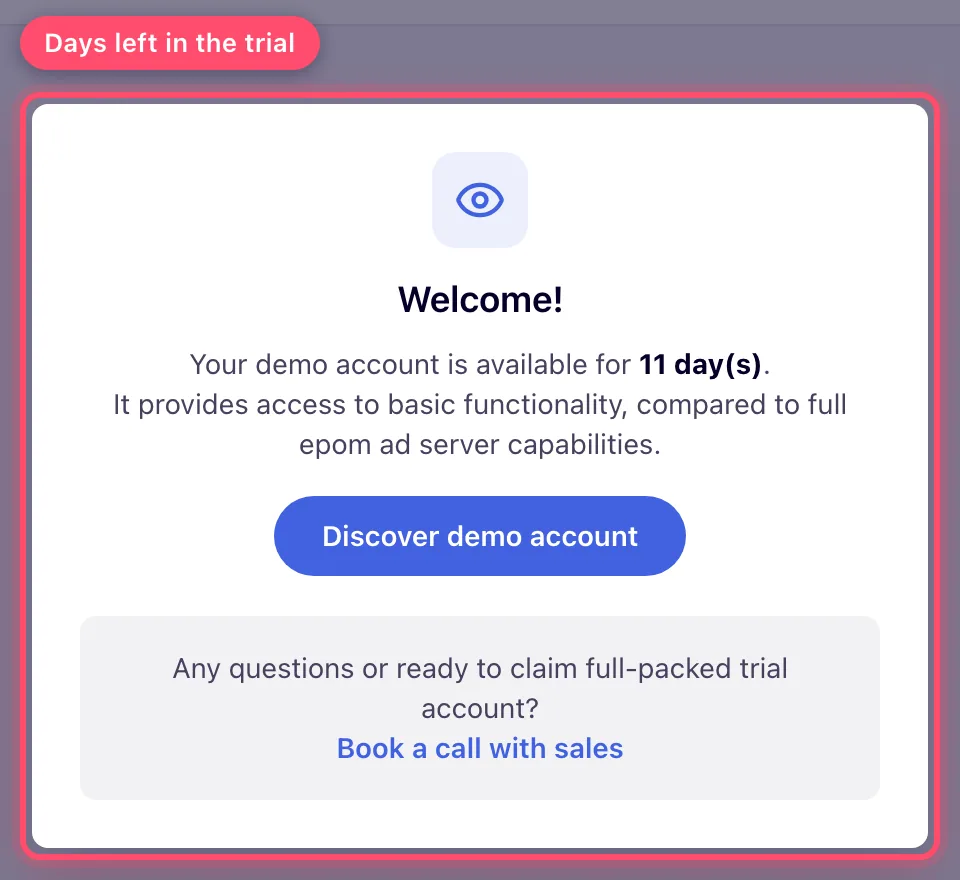
Discover demo account closes it and opens the guided onboarding. Book a call with sales opens a booking page in a new tab and leaves your session alone.
The overlay is dismissed for that browser tab only. It comes back in a new tab, a new or private window, or after a browser restart, with the day count recomputed.
2. Know your trial window
Your trial runs for a fixed number of days, 15 by default, counted from the moment the account was created, not from your first sign-in. It ends at the same time of day it started, not at midnight. The counter shows whole days left and reads 1 during your last day.
3. Explore the examples
The demo advertisers and sites are shared with you at Can View. Their pages open and every card and figure is readable, but nothing can be changed. Drill down into campaigns, banners, zones and placements, and run analytics over them to see a realistic working setup.
4. Build your own with the guided onboarding
The guided onboarding drives the real interface: it navigates for you, highlights the control it is talking about, and waits while you fill the field in. Open it any time from the Start guided onboarding pill in the bottom-right corner, which shows your progress out of 12. It also opens by itself a few seconds after you land, once, until you press Go! or Skip tour.
The chooser splits the work into walkthroughs:
- Start here — Launch your first ad. About twenty steps through a site, zone and display placement, then an advertiser, campaign and display banner, then the link between banner and placement and the tag to paste into your page. Finishing it ticks six of the twelve.
- Supply — Site, Zones, and Display, Video and Native placements.
- Demand — Advertisers, Campaigns, and Display, Video and Native banners.
- Then check it works — Preview and Analytics.
- Where are the settings? — tours of the site and advertiser cards. These do not count towards the twelve.
Later walkthroughs stay locked until the one they build on is done; a locked button names its prerequisite. Continue onboarding at the bottom of the chooser puts you back where you stopped.
Steps marked Your turn unlock Next once you fill the field or save the form. Create forms come pre-filled with names such as Tour Test Site, so you can click straight through. The banner size must match the placement size, and the tour reminds you which size you picked.
Your progress is kept on the server, so it follows you to another browser. The point where you stopped stays in the browser, so a new browser has no Continue onboarding.
See Sites, Create placements, Campaigns and Banners overview for the full forms.
Corner case: you cannot link your own banner to a read-only demo site. The linking tree does not list those sites, the placement picker refuses them with a message, and automatic linking skips them. Build both halves yourself — your own site, zone and placement, and your own advertiser, campaign and banner.
5. Watch it serve
A slim ribbon above the tabs marks the session as Demo and carries links to the Quick Start Guide and API Reference, See live, which opens the installation’s live demo page, and Get full access, which opens a booking page for the sales team. A support chat bubble sits in the corner.
Previewing a placement
When the installation has a live demo page, every placement has a Preview button. For site, native and video placements it opens the live demo page with that placement’s own tag, so you watch the real placement serve. Other types open the built-in preview, which shows Not Supported if you hold no previewable tag type for them. Without a live demo page, only previewable placement types show the button. This is what the Preview walkthrough covers.
Note: a demo account is not a sandbox. What you create is an ordinary entity, served and measured like everything else on the installation.
When the trial expires
The welcome overlay is replaced by an expired one that cannot be dismissed. Its Contact sales and Book a 30-min call links open in a new tab and sign you out of the original tab about a second later. That is deliberate.
The overlay locks the interface, not the account. You can still sign in, and if the trial is extended the account opens up again on the next page load.
Corner cases and gotchas
Corner case: on a phone the onboarding pill is hidden and the tour cannot be started. Run it in a desktop browser.
Corner case: the Display, Video and Native buttons in the chooser stay in English in every interface language.
For network administrators
Demo behaviour is set by Epom in the ad-serving server configuration, not in the admin UI: a master switch, the demo role, the trial length, the example advertisers and sites, the live demo page and an ad-request origin allowlist. Demo mode describes each setting and the setup checklist. Points that catch administrators out:
- A user is a demo account because their role is the demo role and demo mode is on. Moving them out of the role lifts every demo behaviour at once.
- Example shares are created when a user is created in the demo role while demo mode is on, by any sign-up path or by an administrator. Moving an existing user into the demo role later adds no shares.
- Expiry is computed on every check, so changing the trial length re-opens or expires existing accounts.
- The origin allowlist applies to all ad requests on the installation, so use it only on a dedicated demo installation.
- Setting the demo role without turning demo mode on does nothing: the role’s members see an ordinary account, with no overlay, ribbon, tour or expiry.
