
My ad is not serving
The decision tree for an empty ad slot or a banner that never wins — from on/off switches through linking, sizes, targeting, capping, limits, price rules and network-level gates.
The ad slot is empty, shows the passback ad, or a specific banner never appears. Work through the checks below in order — they run from the most common and easiest-to-verify cause to the rarest, and end with gates only your network administrator can see. The ad server applies its own gates in a different order (see How ad selection works), so the first check that fails is the likeliest answer, not a trace of what the server did.
Two useful splits before you begin:
- Nothing renders at all, not even a passback? That is usually a tag problem, not a selection problem — see Tags and preview problems.
- The passback / default ad shows? The tag works and the request reached the server; something in the checks below filtered out your banner.
If you are a publisher
The stock Publisher role has no Linked banners, Matching rules or Matched banners card, so it sees no serving pill and cannot run checks 4 and 5: which ads may fill your slots is decided by your network. What you can check yourself:
- Your side is switched on. The Active switch on the placement, its zone and its site (in Basic info, or the toggles in the tree). A switched-off placement also loses its Ad tags & API card.
- The page carries the placement’s current tag. Compare the code on the page with the placement’s Ad tags & API card; a retired tag type serves nothing. If nothing renders at all, see Tags and preview problems.
- What the slot shows when nothing fills it. On a Site, Mobile Site or Non-standard placement, the Default code is returned when no ad matches. If it appears, the tag works and the request reached the ad server — nothing was eligible for it. With no Default code an empty slot looks like a broken tag, so set one while you test.
- Your pre-targeting. Pre-targeting on the site, zone or placement filters every request before any ad is considered; a rule that lets in one country or device only is a common cause (see Check 6).
- The site’s status. A Pending or Rejected badge on the site does not stop serving by itself; only the site’s Active switch does.
- Requests in the report. Run a General report grouped by Placement with Requests, Impressions and Fill rate. Requests with zero impressions means the tag works and no ad was eligible.
If all of that is in order, send your network manager the placement’s name or ID and the page URL. Linking banners, matching rules, and the campaigns’ own targeting, capping and limits are set on the network’s side.
If you are an advertiser
The stock Advertiser role has no linking card and no Matched placements card, so there is no serving pill on your banner page and checks 4 and 5 are your network manager’s. What you can check yourself:
- Run diagnostics. On the campaign page open Actions → Run diagnostics. It checks the campaign’s limits, pricing, targeting and capping, and each creative’s size and links, and lists what blocks delivery. Every role that can open the campaign has it.
- Everything is switched on. The Active switch on the advertiser, the campaign and the creative (in Basic information, or the toggles in the tree). All three must be on; a paused advertiser stops every campaign under it.
- The dates. On the campaign’s Limits card, Start date and End date must include today. A campaign outside its flight does not serve.
- The Limits card. When a budget or other cap stopped the creative, its Limits card names the cap and the level that was reached — the creative, its campaign or the advertiser. A filled total cap also switches the campaign off, and it stays off after the cap is raised; switch it back on. See Check 8.
- Your targeting. Open the Targeting card on the advertiser, the campaign and the creative. A request has to pass all three, so a narrow rule at any level starves the others (Check 6). Test from a location and device your rules allow.
- Review. If your network reviews creatives, a Pending or Rejected badge on the creative means it may be switched off until approved (Check 3).
- Linking comes from your network manager. If diagnostics report no linked placements, the creative has nowhere to run yet. Send your network manager the campaign and creative names, and the sites or sizes they are meant for. The publisher’s own pre-targeting can also exclude your traffic, and you cannot see it — your network manager can.
Read the signals first
Open the banner edit page (Account → Advertisers → advertiser → campaign → banner) and the placement edit page (Account → Publishers → site → zone → placement). Both headers show a serving-state pill — as long as your role has the page’s Linked card and that card’s own switch is on; without either there is no pill (the stock Publisher and Advertiser roles never see one, see If you are a publisher and If you are an advertiser):
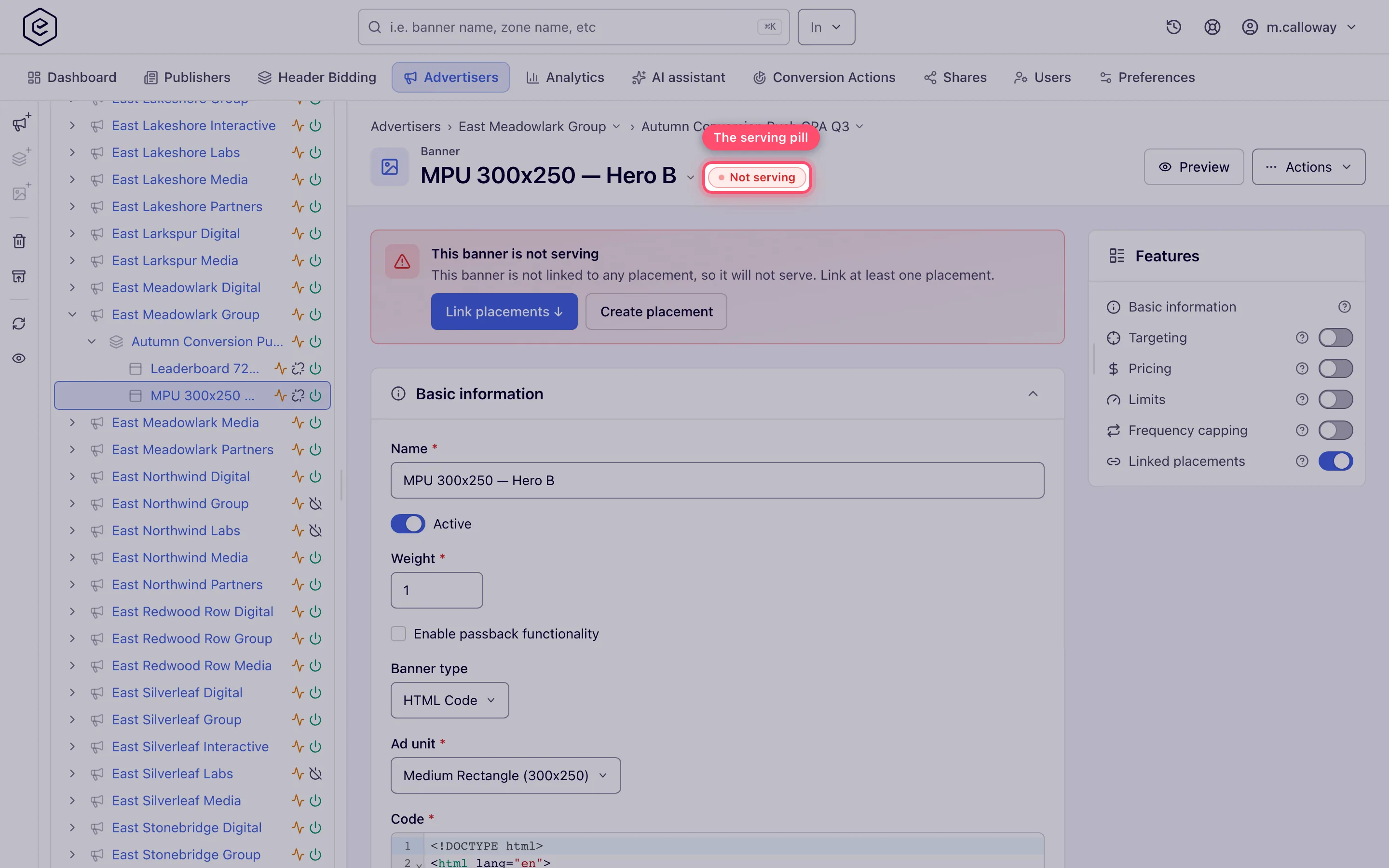
| Pill | Meaning |
|---|---|
| 🔴 Not serving | No links to the other side and selection Rules are off — nothing can serve. Click the pill to jump to the linking card. |
| 🟡 Rules only | No direct links; the entity serves only where its Rules match. |
| ⚪ Paused · N | The entity itself — or every one of its N linked entities — is turned off. Resume it (or one of them), or link an active one. |
| 🟢 Serving · N | N linked entities on the other side are on and keep their links switched on (a mix shows Serving · active/total). |
The pill is a wiring signal, not a guarantee. It counts the entity’s links (deleted entities excluded), and counts a link as live only while the linked entity is on and keeps its own Linked switch on — the ad server ignores the link otherwise (Check 4). It does not look at parents — a banner whose campaign is paused still counts as on — nor at targeting, capping or limits. A green pill means “linked”, not “will serve”.
For a banner and placement pair, the AI assistant’s serving check (MCP server) runs checks 1–5 and 8 in one go: it names each switched-off level, a missing link, a creative that does not fit the placement’s kind or size, an uploaded video that misses the site’s video requirements, a campaign outside its dates and a delivery limit already reached. Like the ad server, it counts a direct link only while both sides keep their Linked switch on, and treats a pair the matching Rules bring together as linked (it says so among the warnings). Of the targeting rules it evaluates only country rules, when you give it a country. A line saying a creative or site is not Approved is a prompt to look, not proof (Check 3).
Then expand the Matched banners card on the placement (sites and zones have it too) or Matched placements on the banner, campaign and advertiser. It lists what the ad server’s current snapshot matches — by links, by rules, or both (the Matched by boxes):
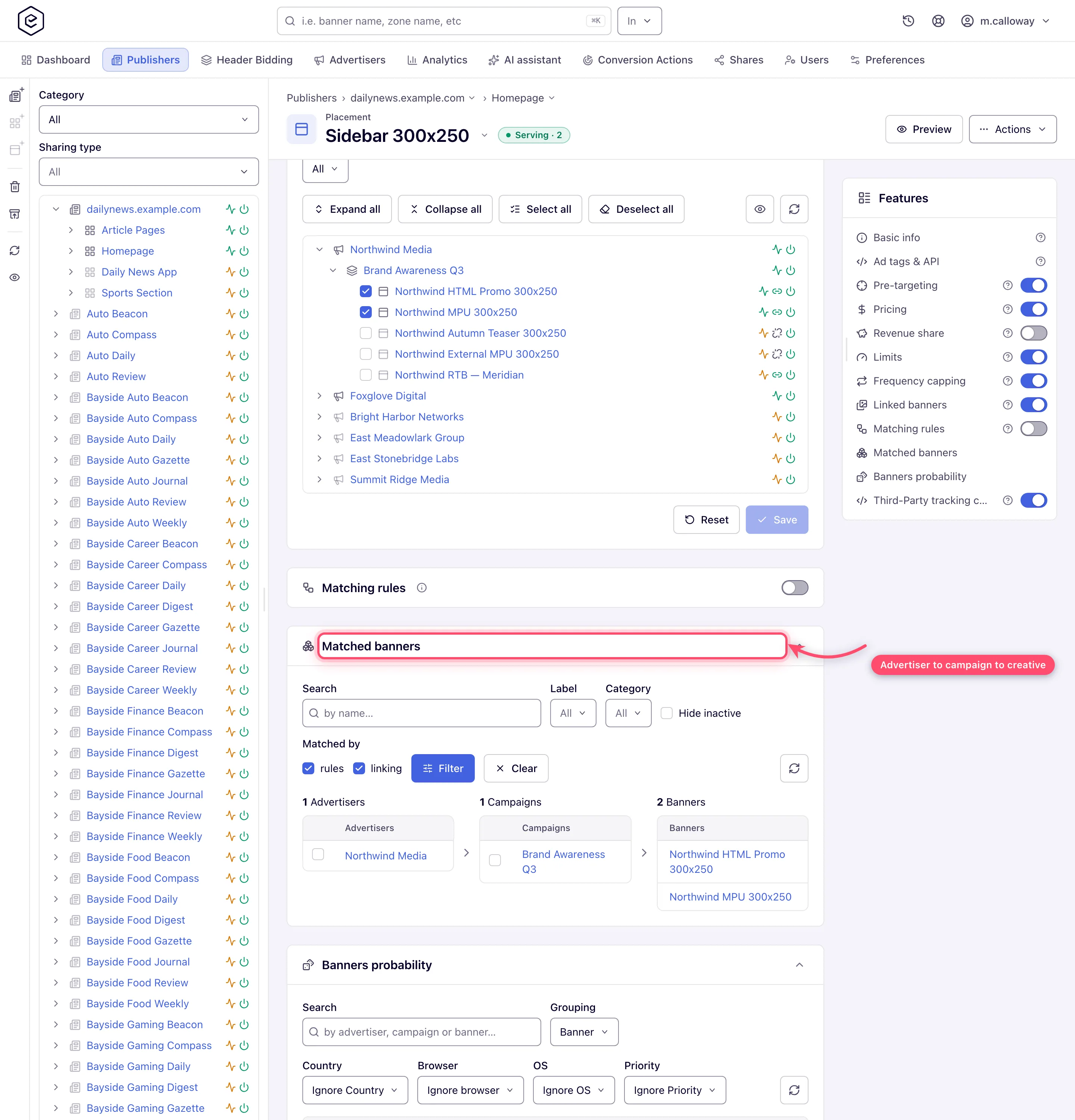
It applies the on/off switches, the links, the rules and the type and size fit. It does not evaluate targeting or capping. No stock role has these cards — your network administrator grants Matched inventory / Matched advertisers — and on every page except the banner’s they also need the page’s Matching rules card.
- Your banner appears in the Matched card → wiring is fine; jump to targeting, capping, limits and price rules.
- Your banner is missing → work through checks 1–5.
A third quick signal: run a General report grouped by placement with Requests and Impressions columns. Requests counted but zero impressions means the tag works and selection is filtering everything out. (Group by supply-side dimensions only — Requests disappears when a report is grouped by advertiser, campaign or banner; see My fill rate is low.)
Check 1 — is everything switched on?
The ad server only loads a banner when its entire demand chain is on, and only serves into a placement when its entire supply chain is on.
- Demand: banner AND campaign AND advertiser must all be active.
- Supply: placement AND zone AND site must all be active.
Where to look: the Active switch at the top of each entity’s Basic info card (Basic information on banners, campaigns and advertisers), or the status toggles in the trees (see Statuses and indicators).
Corner case: a paused parent silently disables every child. A banner can show as “on” while its advertiser is off — the banner still doesn’t serve. Always check all three levels of the chain, not just the entity in front of you.
Check 2 — is anything deleted?
A deleted entity anywhere in either chain removes the whole branch from serving, and links to deleted placements no longer count as suitable. Deleted entities disappear from the trees and grids, so an entity that vanished may have been deleted by a colleague. Recently deleted beside the Advertisers / Publishers tree lists the last 90 days’ deletions — who deleted what, and when — and restores them (see Restore something you deleted). For older deletions, ask your network administrator to look them up in the actions log; the AI assistant can list your own recent changes.
Check 3 — did moderation switch the banner off?
The ad server does not read a banner’s approval status. What stops delivery is the banner’s own Active switch, and moderation can flip it:
- A reviewer who rejects a creative switches it off. Approving it afterwards does not switch it back on — turn it on yourself.
- Moderation is set per role, not per network, and the stock roles are not moderated. Under the strict mode, a new creative starts as New and off, saving a change to a moderated field sends an approved creative back to Pending and off, and it cannot be switched on again until it is approved (“Banner can’t be activated until it is approved”).
- Under the soft mode the creative also goes back to Pending (a new one starts as New), but it keeps serving while it waits.
- A user who approves creatives is never moderated.
Your network manager knows which mode, if any, applies to your role.
The edit-page header shows a Pending or Rejected badge (an approved banner shows no badge). Reviewers work the queue at Account → Pending banners (sites at Account → Pending sites).
Corner case: a site still waiting in Pending sites is not held back either — no ad-serving code reads the site’s approval status, so it serves unless its own switch is off.
Check 4 — is it linked (or matched by Rules)?
A banner serves into a placement only if it is directly linked to it, or if selection Rules are enabled and match.
- On the banner: the Linked placements card. On the placement: the Linked banners card. Link from either side.
- Each of the two cards has its own On/Off switch in the page’s Features rail, and both must be on: the ad server loads a link only while the banner’s switch and the placement’s switch are on. With either off, existing links are ignored. The serving pill disappears while the switch of the page it sits on is off, and does not count a link whose other side has its switch off; the Matched cards respect both too.
- If you rely on Rules instead of links: check the Matching rules card on both sides. Rules match on categories and labels, and both sides must accept the pair, so an empty intersection matches nothing. Verify the outcome in the Matched card; see Attach matching rules.
Corner case: the linking card’s grid is filtered by the search box above it. A search with no matches looks like “not linked”. The header pill counts links without filters — trust the pill for the count, and the Matched card for whether the links are live.
Check 5 — do the types and sizes fit?
Even a linked pair serves only when the banner actually fits the placement:
-
Placement type must match. Every banner is created for one placement type (display, mobile, video, native, in-app, email…). A display banner never serves into a video placement, whatever the links say. See Placement types and Banner types.
-
Size must match — exactly, by default. On Site and Email placements, and on Application placements that have a size, the banner’s width×height must equal the placement’s ad unit size, unless:
- the placement has Flexible placement size ticked (Advanced settings) — then any banner that fits inside it serves: width and height at or under the placement’s; or
- the placement’s ad unit is Any size. The page’s request must then name the slot’s
dimensions in custom parameters
widthandheight; the ad server keeps only banners of exactly that size (0×0 when the parameters are missing), so a tag that does not send them serves no sized banner.
Mobile Site and Non-standard placements carry no size, and linking does not size-check them.
-
In-app placements additionally require the same operating system and application ad category on both sides.
-
Native banners need the same icon, image and video sizes set on the banner and on the native placement, and the assets the placement marks as required must be filled in on the banner. On a placement that is not a native one they serve only if it has a native adapter template.
-
Click-through placements accept any banner.
-
Video requests keep only banners whose In-Stream video type (Linear / Non-linear) matches what the request asks for. An uploaded video that misses the site’s Video creative requirements stays linked but is not served on that site; the linked-banners tree marks it Not served (Check video creatives against a publisher’s spec).
Corner case: changing a banner’s size (or a placement’s ad unit) re-checks every existing link and silently removes the ones that no longer fit. Saving a placement does the same, with only a “Done” toast. If a banner “fell off” a placement after an edit, that is why — re-link it after fixing the sizes.
Corner case: a programmatic (OpenRTB DSP) banner set to use the placement’s size will not link to a placement whose size is empty or 0×0. Give the placement a real ad unit size and re-save.
Ask the assistant: its serving check names which part does not fit — the placement type, the size (and whether variable sizes would help), the in-app operating system or ad category, or the native asset sizes — together with what to change.
Check 6 — targeting too narrow?
Targeting is evaluated at six levels, broadest first: site → zone → placement (supply pre-targeting), then advertiser → campaign → banner (demand targeting). A request must pass all six. Empty targeting at a level means “everyone passes”.
- Open the Targeting card at each level (Pre-targeting on sites, zones and placements) and temporarily disable suspicious rules (each card has its own on/off switch) rather than deleting them.
- Remember the publisher side: a perfectly targeted campaign can be blocked by a placement’s or site’s Pre-targeting card that the advertiser never sees.
- Test with your own conditions in mind: your office IP, country, device and browser must pass every rule for you to see the ad yourself.
Corner case — device targeting that never meets: device rules on the two sides can exclude each other even though each looks reasonable. A campaign targeted to Desktop linked to a placement whose pre-targeting lets in only Mobile never serves there — no visitor passes both. The same happens across one side’s levels (a campaign for Mobile with a banner for Desktop) and with an operating-system list, which counts as the devices those systems run on (iOS and Android are mobile). A mobile site placement gets phones and tablets, so a desktop-only campaign linked to it delivers next to nothing even without any rule on the placement. The assistant’s serving check reports a device combination no visitor can pass as a blocker, and the mobile-placement case as a warning.
Corner case — unknown country: when the visitor’s country cannot be resolved, include-country rules treat the request as a non-match and drop the banner; exclude-country rules let it pass. If your campaign is country-targeted and test traffic comes from a private network, you will never see the ad — test with a real public IP or add a level without country targeting.
Check 7 — capping or a page-level exclusion?
Capping silently skips an entity for a visitor who reached the cap. The kinds differ by level: the advertiser carries Frequency only; campaigns and banners carry Frequency, Click, Action, Request and No-click; placements carry Frequency, Click, Action and Request. Several of these (Request capping, the placement’s caps, the IP subject) need permissions your network administrator grants.
- Check the Frequency capping card at each level.
- A cap on the placement stops selection for that visitor altogether — the slot returns no ad, not a different advertiser’s.
- If the ad shows in a fresh browser profile but not in yours, you are simply capped — that is the feature working.
- Cookie-based caps cannot count visitors whose browser does not keep the cookie — private browsing, Safari, Firefox, Brave, DuckDuckGo, iOS and Apple TV — so they under-count rather than block. See Set up frequency capping for subjects and the server-side counter.
Two exclusions work across the placements of one page view:
- Competitors. A campaign listed under Exclude competitors campaigns is skipped once a competitor has served on the same page view (Exclude competitive campaigns).
- One banner per page. A campaign with Only one banner from this campaign per page ticked (campaign Basic information) is skipped by the page’s other placements once it has served.
Check 8 — limits and budget exhausted?
- Limits cards (impressions / clicks / conversions / spend, with daily, weekly and monthly resets) exist on advertiser, campaign, banner, site and placement pages; which of them your role shows is up to your network manager. A cap that is reached stops serving, and an entity outside its start / end dates is treated the same way.
- Daily, weekly and monthly caps only pause: the entity resumes when the period rolls over. Total caps switch the entity’s own Active switch off, and it stays off after you raise the cap — turn it back on yourself. The switch flips on the hourly sweep, so it lags the pause.
- Serving weighs the whole chain — the banner, then its campaign, then the advertiser on the demand side; the placement and then its site on the supply side — so an entity with room left on every cap of its own can still be held above. Open its Limits card: when that is what stopped it, an amber note names the level and the cap, and links to it. In trees and grids the entity carries a grey flag badge whose tooltip reads Finished.
- Per conversion action limits cap conversions per action, and the CPA … Auto Deactivation pair (campaign and banner) switches the entity off after both its traffic and its hours pass with no conversion — then the switch is off and staying off is intentional. See Limits and Action limits.
- A Total impressions, clicks, conversions or budget cap switches the entity off when it fills; raising the cap does not switch it back on. See When a Total cap is reached.
- Serving, but less than the limit? See Campaign delivers fewer impressions than its daily limit.
Check 9 — price rules
Most price settings never stop a banner from serving; two do:
- Minimum margin (the Pricing card on a placement or site) drops direct banners whose advertiser price does not clear the publisher payout by the margin you set. It skips CPC and CPA banners, and a banner with no price at all counts as a gross of zero — so any positive margin requirement drops it.
- Bid floor (site, placement and banner cards, switched on by your network administrator) rejects DSP bids priced below the floor. It does not filter direct campaigns.
The site-level CPM threshold is a reporting figure and the last fallback for the bid floor on DSP bids; it never stops direct campaigns from serving (details). Pricing itself and price adjustment rules change what is charged and paid after a winner is chosen, never whether one exists. See What stops delivery, and what only changes the price.
Check 10 — programmatic demand with no bids
If the only matching demand is an OpenRTB DSP banner, an impression happens only when the partner actually bids and wins:
- No bid from the partner → the next banner in line serves, or the passback.
- The partner’s own pretargeting (blocked lists, geo, device) filters the request before it is even sent.
- Creative scan (network-level feature): on networks scanning DSP creatives, a creative the scan has blocked is dropped from the auction and the runner-up wins. Your network administrator can see each creative’s verdict. See creative policy protection.
Check 11 — network-level gates (administrator checks)
If everything above passes, ask your network administrator to check the server-side gates that account users cannot see:
- Consent enforcement (GDPR/TCF): the first gate in the ad server. When the network refuses ads to visitors in GDPR scope who have not consented, such a visitor gets no banner at all — test from a browser that has accepted the site’s consent banner. See Privacy signals and ads.txt.
- Traffic filtering: the network’s traffic filters can refuse a request before any banner is considered. If one test machine never sees ads while others do, ask your network administrator to check whether that machine’s traffic is filtered.
- A change that is not live yet: saved changes normally reach the ad servers within minutes. If one made much earlier still is not live, ask Epom support or your account manager to check the ad servers.
- Troubleshooting log: your network administrator can start a time-boxed capture of matching requests (Admin → Audit & diagnostics → Troubleshooting log tasks) and read why each banner was excluded. Give them the placement, the time window and the visitor’s country. See Capture ad requests with a troubleshooting log task.
- A serving trace from the AI assistant: without an administrator, ask the AI assistant why a creative serves less than expected. When its checks find nothing in the way, it offers to record a few minutes of live traffic on the creative’s placements and then says how often the creative was served, how often it was left out and why, and which creatives won instead. It asks before starting; one trace runs per network at a time. On a busy placement the counts come from a sample of the recorded traffic, and an ad server that does not answer in time is left out and named, so read the result as shares rather than exact totals.
Still stuck?
- If the passback shows, the chain works end to end — keep narrowing down which check filters your banner (toggle one rule at a time, watching the Matched card after each change).
- If nothing shows and Requests are zero in reports, go to Tags and preview problems — the request never arrives.
- Escalate with the entity IDs, the time window, and what the pill and Matched cards showed — see the escalation list.
