
Run an awareness campaign with frequency control
Recipe for a branding/reach campaign — CPM pricing, per-user frequency caps that survive incognito, geo and device splits, share-of-voice via weights, and the viewability signals you can collect.
The brief: show the brand to as many different people as possible, never bombard anyone, stay inside the agreed geo and device mix, and hold an agreed share of voice against the other campaigns on the same inventory. This recipe wires that together from CPM pricing, frequency capping, targeting and weights.
Who this is for
Network managers and advertiser users planning brand/reach flights. The stock Network Manager role runs the whole recipe from the campaign, except the share-of-voice check, which reads a placement’s Banners probability card (supply-side). The stock Advertiser role sets pricing, targeting and the flight dates, but has no Frequency capping card, sees the budget and Weight read-only and has no impression caps — ask your network manager for steps 2, 4 and 5, or to switch them on for your role.
Prerequisites
- A campaign with creatives linked to the target inventory.
- For the incognito-proof frequency cap: server-side capping storage enabled on your network (ask Epom support or your account manager) and a role that sees the Subject column (see step 2.3 for what that takes) — otherwise every cap you can create is cookie-only.
Steps
1. Price for impressions
On the campaign’s Pricing card pick CPM and set the Global row; add per-country rows if the deal prices markets differently (Configure pricing). Branding buys are impression deals — CPM also makes every report line directly comparable to the media plan.
2. Cap exposures per person
- On the campaign, open Frequency capping and switch it on. The switch creates one empty row each for By impressions, By clicks and By conversions, at Amount 0, which restricts nothing.
- In the By impressions row, set Amount to 3, Period to 1 and Period
type to Day(s) — click a cell, type, press Enter. Each edit saves on its own; there
is no Save button on this card. (Add creates a second cap, for example “10 per week” on
top of “3 per day”.)
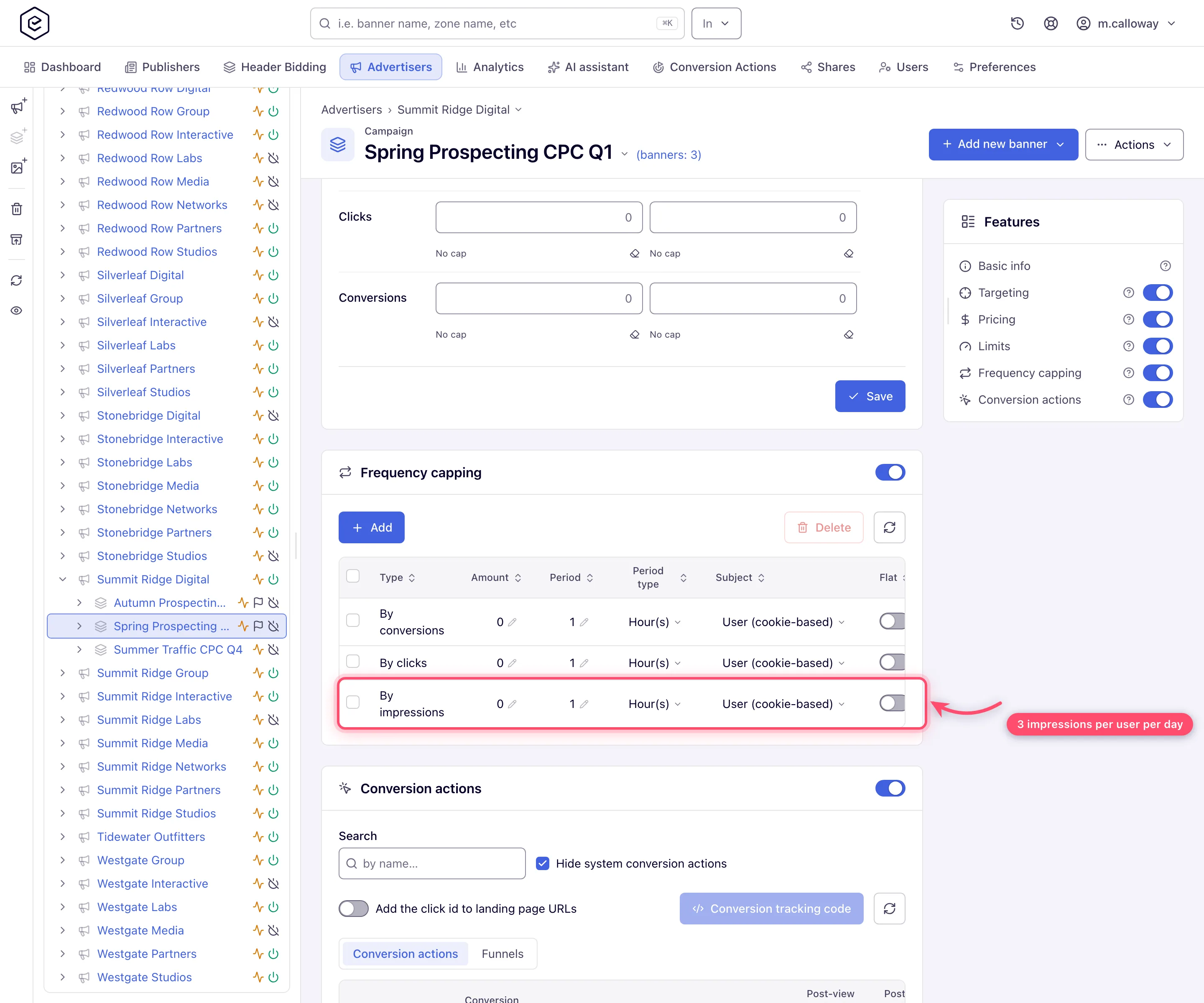
- If the Subject column is shown, set the row to User (cookie-based + server-side storage). Plain cookie caps stop working where the browser does not keep the cookie: private browsing, Safari, Firefox, Brave, DuckDuckGo and iOS devices. The mixed subject falls back to a server-side counter for exactly those visitors (details). The column appears only when your network has server-side capping storage on, IP capping (or L.E.S. IP capping) enabled, and your role may pick an IP subject, which no role can out of the box (ask your network administrator); where it is missing, new rows keep the default User (cookie-based) subject.
- Tick Flat if the exposures should be spaced out: 3 per day flat means each impression
blocks the visitor for
period ÷ amount— about 8 hours — instead of all three back-to-back in one session. A flat row keeps no counter, only a “blocked until” time. - If the brand runs several campaigns at once and the cap must hold across all of them, add an advertiser-level frequency cap too (the advertiser’s card offers the Frequency kind only) — see the capping matrix. Caps at different levels stack: the visitor is blocked at whichever runs out first.
3. Split by geo and device
Two patterns, pick per how different the splits really are:
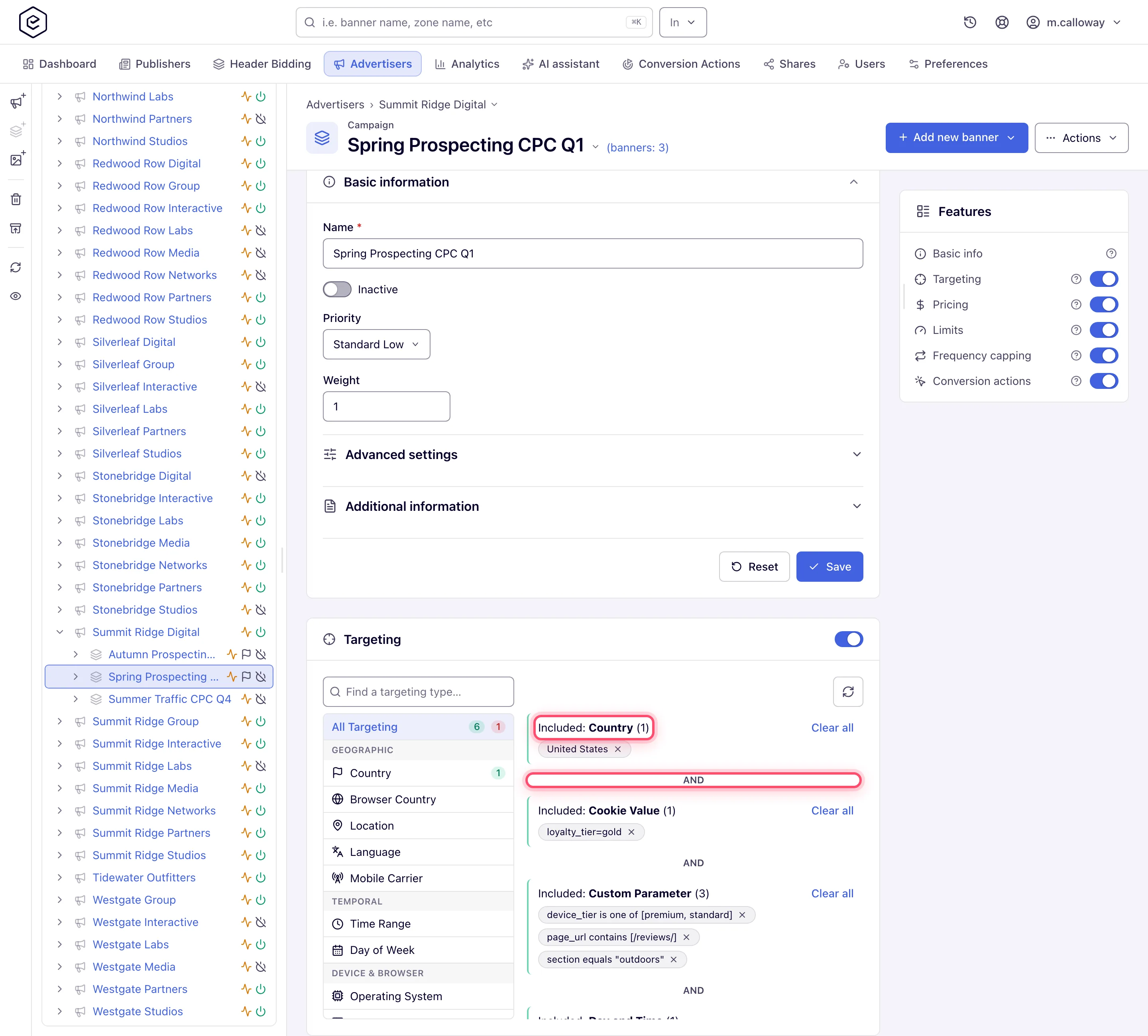
- One campaign, combined targeting — when the same creatives run everywhere: add a
Country rule and a Device Format rule on the campaign’s Targeting card; groups of
different dimensions combine with AND by default (switching a pair to OR is a role
permission; ask your network administrator if the switch is missing)
(Add targeting rules).
- One campaign per cell — when each geo/device cell has its own budget, creatives or price: clone the campaign per cell (e.g. “Brand — DE mobile”, “Brand — DE desktop”) and give each its own targeting, limits and CPM rows. Separate campaigns also give you per-cell delivery lines in every report without extra grouping — which matters, because a General report cannot group by Device Format.
4. Hold the share of voice
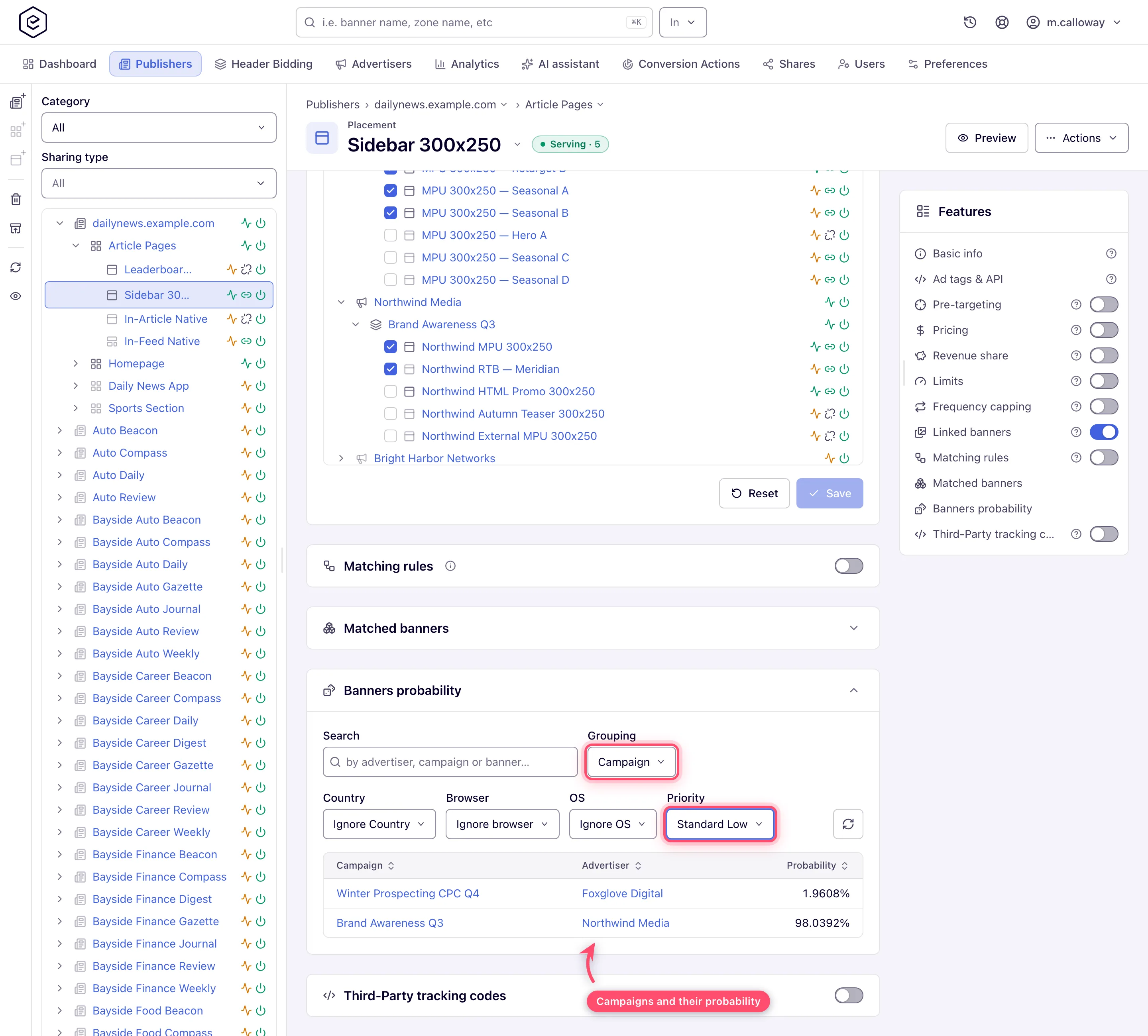
Within one priority tier, traffic is split by campaign Weight — weight 2 gets roughly twice the share of weight 1, all else equal — as long as the network runs the default Manual Weighting algorithm; the eCPM algorithms replace the weighted draw with a price ranking (Optimize ad rotation). To hold a 30% share against two other campaigns, keep all three in the same priority tier and set weights 3/4/3 (or any same-ratio set).
Verify the resulting split on a key placement: Account → Publishers → … → placement → Banners probability, set Grouping to Campaign — the card computes each campaign’s serving probability for a simulated request. Leave its Priority filter on the default As served view, which shares the traffic out inside the top tier the way ad serving does; Ignore Priority spreads probability across every tier at once.
5. Pace the delivery
If the flight has a fixed impression volume, set a start and end date on the campaign’s Limits card, put the volume in the Impressions row’s Total cap — and a Daily one beside it if the volume should arrive evenly — then turn on Even pacing so it spreads across the flight instead of burning out in the first days (Limits). A stock network shows only the Daily and Total columns; Weekly and Monthly are off for every role until your network administrator grants them. Pacing needs the end date: a total cap on a campaign with no end date is not paced. A filled Total cap (and a passed end date) switches the campaign off for good — turn it back on by hand if you extend the flight (why).
6. Collect viewability signals
Epom does not have a standard “viewable impressions” report column, but the signals are there:
- Display: on image banners served into Site / Non-standard placements, tick Enable viewability tracking (beta) under Advanced settings on the banner — see Image banners. No stock role has the checkbox; ask your network manager to switch it on.
- Video: enable the viewability events under Viewability & other on the video placement’s VAST tracking card (Ad Viewable Impression / Ad Repeated Viewable Impression / Ad Not Viewable Impression / Ad View Undetermined Impression). On a player that supports IAB Open Measurement — Google IMA and the other major SDKs — Epom measures these itself against the MRC criterion (50% of the ad on screen for 2 continuous seconds), provided the tag is VAST 4.1 or higher; the new interface’s version picker defaults to 4.2, so a freshly copied tag qualifies, while the classic placement page cannot reach 4.1 at all. In a player without Open Measurement there is no viewability at any version, and programmatic (OpenRTB) video is not measured by Epom at all. Each enabled VAST event is recorded through a system conversion action, so you can report on it with Split columns by → Viewability in the report builder, which picks and orders that family’s actions for you. See Video viewability and Open Measurement and Video placements.
- Third-party measurement (IAS, MOAT-style vendors): on video, attach the vendor’s URL as a third-party pixel firing on a viewability event on the same VAST tracking card — Epom’s verification script then calls it from inside the player’s verification frame. Only the URL is called; the vendor’s own script does not run there. Where that is not an option, the instrumented vendor tag rides along inside the creative markup itself — paste it as an HTML-code banner.
7. Read reach and delivery
Run a General report with Group by → Campaign (or Campaign and Country, to audit the geo split) and the Unique visitors metric column — impressions against uniques is your effective frequency check. That column is one of the most conditional in the product: it appears only when the Group by is exactly Campaign, or exactly Campaign plus Country, with no filter on Site, Zone, Placement, Placement Type, Placement Size, Banner, Channel, labels or templates set, and only for roles whose report columns include it — the stock Advertiser role’s reports do not show the column (metrics reference). Put the flight’s key chart on a dashboard for daily monitoring.
Corner cases and gotchas
Corner case — share of voice only works inside one priority tier. Priority beats weight: a Premium campaign takes everything it is eligible for before any Standard campaign serves. If one competing campaign sits in a higher tier, no weight ratio will produce your 30/40/30 split. Align the tiers first.
Corner case — cookie-only caps leak on private browsing. With subject User (cookie-based), an incognito visitor gets a fresh counter every session and can see the ad far more often than the cap says. Use the mixed subject. If the Subject column is not visible, either server-side storage is off for your network or your role may not pick an IP subject — ask your network administrator which; existing rows keep whatever subject they were created with, and the ad server still honours it.
Corner case — switching the card off deletes the caps; counters are per visitor. Turning Frequency capping off deletes the cap rows, and turning it back on creates fresh empty ones at Amount 0. Counters already sitting in visitors’ cookies or in the server-side store are not cleared by any of this — they expire on their own schedule. Changing an Amount reaches the ad server only with its next full rebuild (every 10 minutes), so raising a cap from 3 to 5 does not help a visitor already at 3 until then.
Corner case — the probability panel simulates a generic visitor. It counts a banner or campaign whose limit is already reached (shown as NA), but it knows nothing about frequency capping — it cannot see an individual user’s counters — so a real visitor who hit a cap sees a different rotation than the panel shows. It also models only nine kinds of targeting and not the CTR or I2C optimizers.
Note: the Flat checkbox spreads the cap, not the budget. For budget pacing use Even pacing on the Limits card — the two are independent.
Per-role notes
- Advertiser: on the stock role, pricing, targeting, flight dates and the report. Frequency capping, weights, impression caps, pacing, priority, the share-of-voice check and the Unique visitors column are not in it — ask your network manager to set them or to switch them on for your role.
- Network manager: the whole recipe, including the placement’s Banners probability card and the Priority select.
- Can view share: pricing, caps and targeting are visible but read-only.
