
Display placements (site, mobile site, non-standard)
The display placement family — what each type gets, why only Site Placement has a size, and how the default (passback) code, refresh, overlay, flexible size and adapter template behave.
The display family — Site Placement, Mobile Site Placement and Non-standard Placement — is the web-page inventory: a slot in a page that a JavaScript tag fills. The three share one Basic info layout, but they do not share a size, and that is the first thing to get straight. Tag options live on the Ad tags & API card.
Who this is for
Publishers and network managers editing display inventory.
Prerequisites
- A saved placement of type Site, Mobile Site or Non-standard (create one).
What each of the three actually gets
| Site Placement | Mobile Site Placement | Non-standard Placement | |
|---|---|---|---|
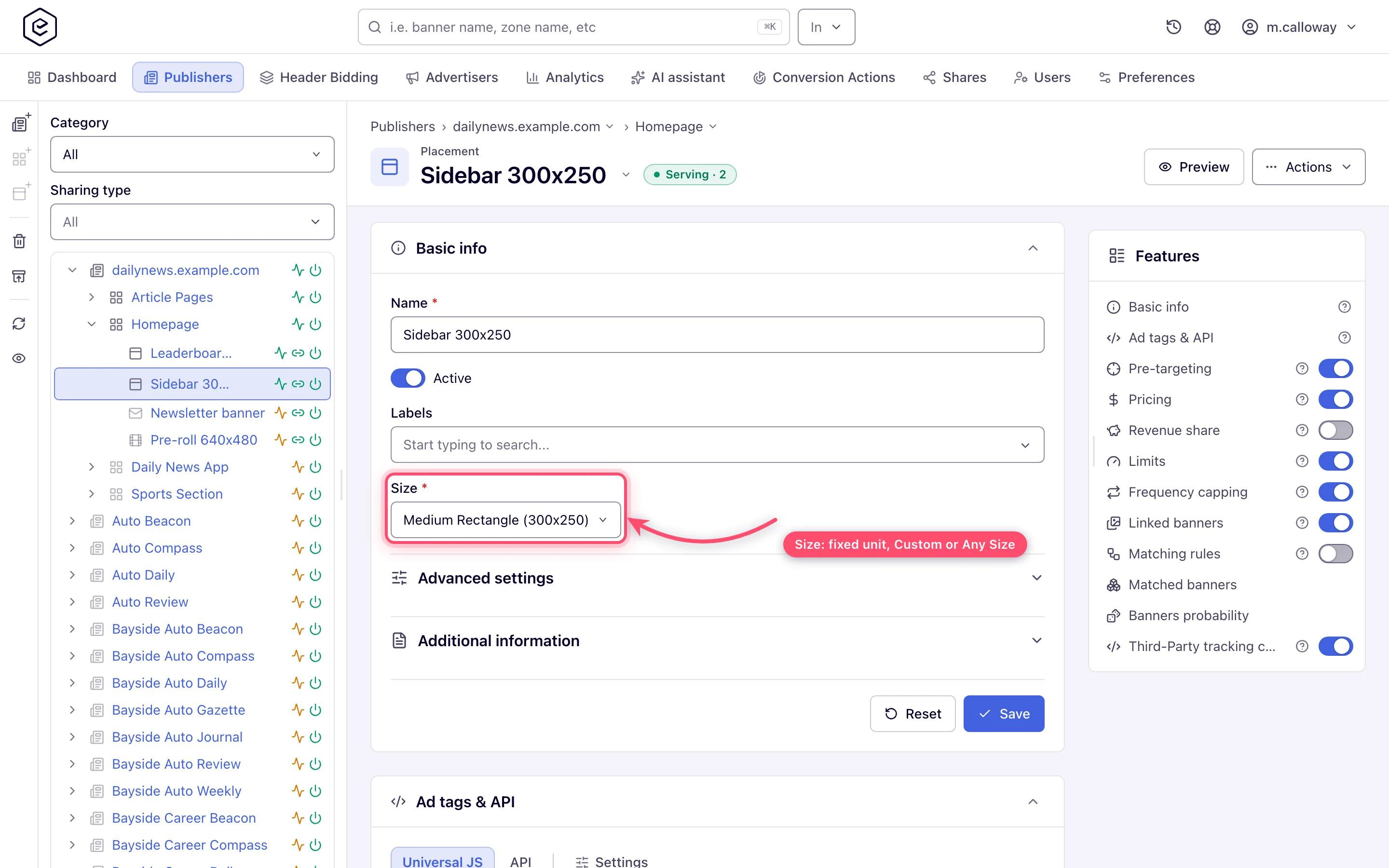
| Size (ad unit) | yes, and required | no field at all | no field at all |
| Ad units offered | 15, including Custom and Any Size | — | — |
| Ad tag types | Universal JS, Mount JS, Simple Iframe, Direct URL, API | Universal JS, Mount JS, API, Direct URL | Universal JS, Mount JS, Direct URL, API |
| Preview button | yes | yes | yes |
Corner case: Mobile Site and Non-standard placements have no Size field. Only Site, Email, Video and Application placements carry a size, and the card hides the whole Size section when there is none. Banners still link to these placements — there is simply no placement-side dimension for the match to compare against, so size stops being a filter. If you need a dimension-constrained mobile slot, a Site Placement sized with a mobile-sized unit — Large Mobile Banner (320x100), or Custom for any other size — is the type that gives you one.
Steps
-
Open the placement (Account → Publishers → site → zone → placement).
-
On a Site Placement, set the Size. A fixed ad unit carries its own dimensions; pick Custom to type your own, or Any Size to let any banner size match.
-
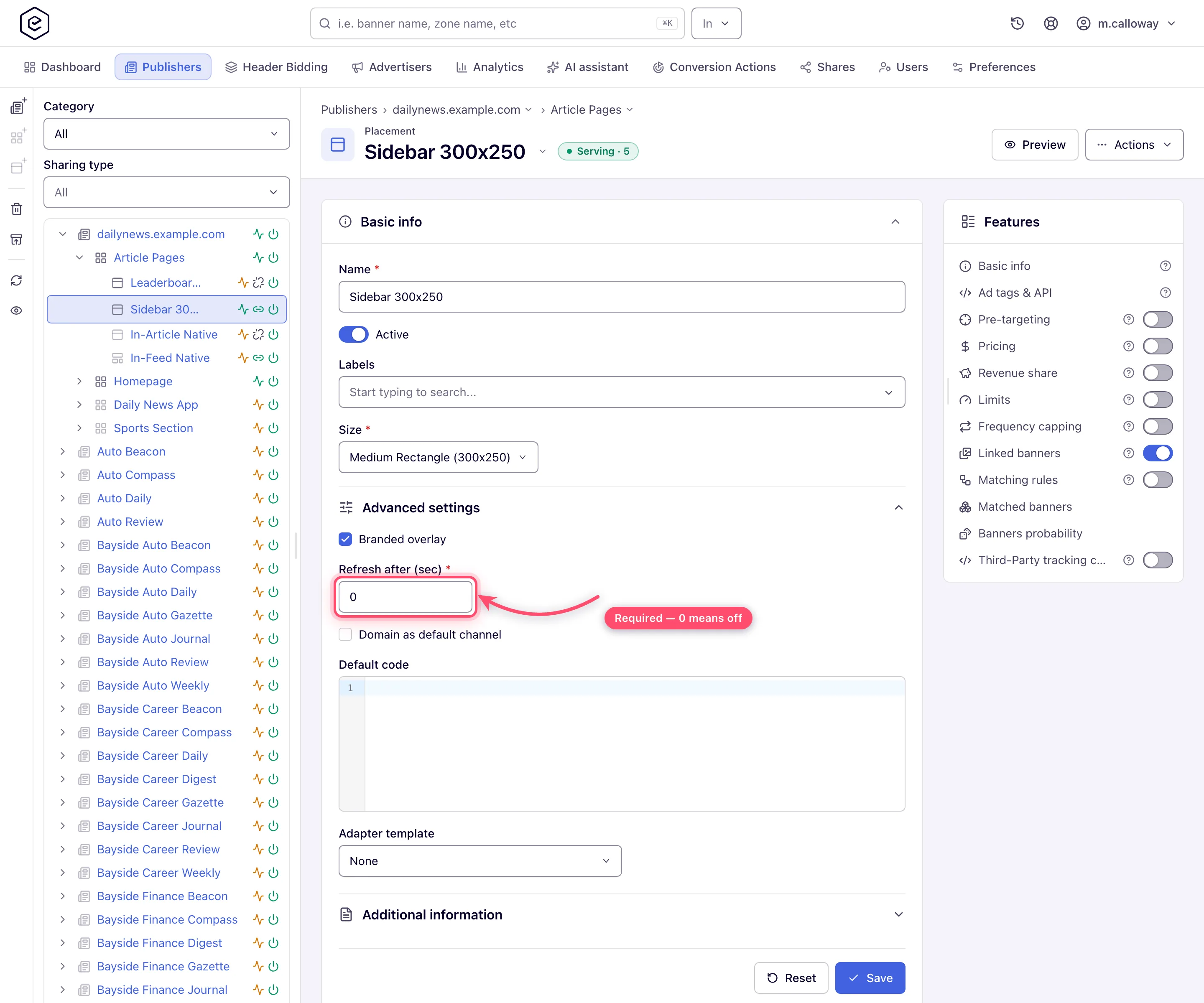
Expand Advanced settings for refresh, overlay, flexible size and the rest. The frame shows what a Network Manager sees: Flexible placement size and Disable auto-Linking are drawn only if your role allows them, and Always redirect only on Mobile Site and Non-standard placements.
-
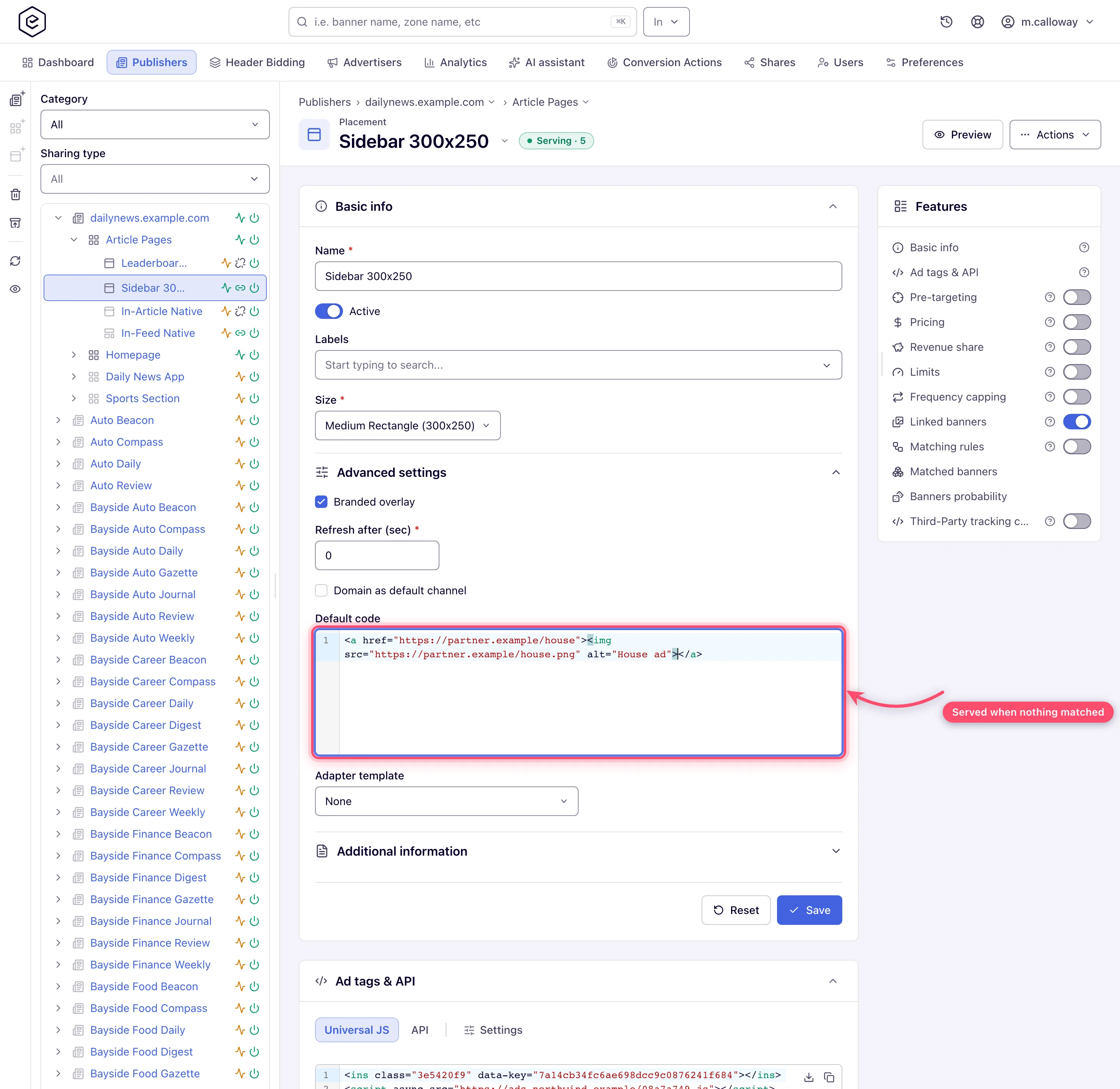
Paste your fallback tag into Default code. It renders whenever the request produced no banner — a passback.
-
Click Save. One save writes the whole Basic info card, Advanced settings included.
When you are creating the placement or have added a label, and Disable auto-Linking is off, Save first asks the server which auto-linkable banners would link and, if there are any, puts up “Link the matching auto-linkable banners to this placement (N)?” with Yes and No. Yes links them as part of the save; No saves the placement without linking.
Options and fields
The labels below are exactly what the form shows.
| Field | What it does | Control | Default |
|---|---|---|---|
| Size | The dimensions banners match against. Site Placement only | Ad-unit select (+ Width/Height on Custom) | — |
| Branded overlay | Draws the network’s branding overlay over served ads — only Site, Mobile Site and Non-standard placements draw it. Shown only when branded placements are switched on for the network and your role | Checkbox | on for a new Site Placement, off for a new Mobile Site or Non-standard one (white-label defaults) |
| Always redirect | Answers the ad request with a 302 redirect to the banner’s URL instead of markup — for pops, tab-unders and direct links. Mobile Site and Non-standard only. Needs a redirect template or an OpenRTB banner; see Pop-under, tab-under and direct-link placements | Checkbox | off |
| Disable auto-Linking | Excludes this placement from automatic banner linking. Not drawn on a placement without a size (Mobile Site, Non-standard) | Checkbox | off |
| Refresh after (sec) | In-page auto-refresh of the ad; 0 is off | Number 0–1000, required | 0 |
| Flexible placement size | Lets any banner that fits inside the slot serve into it: width and height at or under the placement’s | Checkbox | off |
| Domain as default channel | Reports the calling page’s domain as the channel when the tag passes none | Checkbox | off |
| Default code | Passback markup served when nothing matched | Code editor | empty |
| Adapter template | Renders native demand into this display slot; picking one reveals its properties inline | Select, default None | None |
| Placement key / Created | Read-only identifiers | Text | — |
Note: the form draws only the fields your role and the placement type allow, so a field missing from your screen is down to one of the two — see User roles.
Corner cases and gotchas
Fields that are not what they look like
Corner case: Refresh after (sec) is required. Clearing it to “turn it off” fails the save with “Required” — the off value is
0, not empty.
Corner case: Flexible placement size widens matching from “equals exactly” to “fits inside” but does not resize anything. A 300×250 banner matches a flexible 728×300 slot (300 ≤ 728 and 250 ≤ 300) and renders at its own size, leaving the rest of the slot empty; a 728×90 banner does not match a flexible 300×250 slot at all. To accept every banner size, pick the Any Size ad unit instead. On mobile and non-standard placements the tag’s Fit container option on the Settings tab constrains rendering when the slot has to stay put. See Responsive and flexible sizes.
Corner case: Disable auto-Linking is drawn only on a placement that has a size — in this family that is the Site Placement — and only if your role allows it; otherwise the checkbox is absent, not locked. The capital L in “auto-Linking” is how the label is spelled.
Corner case: the Yes / No auto-link question on Save is skipped when Disable auto-Linking is ticked, and is asked only on creation or when a label was added — editing anything else never links banners. If the server cannot work out the candidates the save goes ahead without linking and a “Can not check banner auto link” error toast appears.
The passback
Corner case: Default code fires whenever no banner matched — not only when nothing is linked. If banners are linked but every one of them is blocked by targeting, capping or a limit, the passback still renders. A “wrong ad is showing” report can be your own fallback. For ordered fallbacks across several demand sources use Daisy chaining rather than nesting passbacks.
Corner case: the Default code editor is drawn only on Site, Mobile Site and Non-standard placements, and only if your role allows default code. A save that carries
defaultCodewithout that right is denied as a whole.
Native in a display slot
Corner case: Adapter template is how native-styled demand reaches a display slot. It is deliberately absent on Native and Video placements — a Native placement returns raw JSON and renders nothing by itself, so it has nothing to adapt.
Per-role notes
- Publisher and network manager — the same page for both; the Labels picker shows only if your network administrator grants Placement Labels to your role.
- Administrator — sets the ad units the Size list offers; edits placements from a network user’s account.
- Can View share — the card is read-only and Save / Reset are hidden.
- Masked share — the name is a masked alias and Description is hidden.
Exact grants: see User roles.
