
Attach matching rules to an entity
The Matching rules card on advertiser, campaign, banner, site, zone and placement edit — how category/label rules pair demand with inventory, what include/exclude and Combine with really do, and when to reach for targeting or blocking instead.
Every saved advertiser, campaign, banner, site, zone and placement carries a Matching rules card. It attaches the network’s category/label rules — built by your network administrator in Admin → Ad serving → Rules — to this one entity, so the ad server can pair it automatically with entities on the opposite side that carry the right categories and labels.
The single most useful thing to know before you touch it: matching rules are a linking tool, not a filter. For every ad request, the ad server builds the placement’s pool of eligible banners from two sources and takes the union of them — banners linked to the placement directly (the Linked banners / Linked placements card) plus banners the matching rules pair with it. Only then does targeting narrow that pool down. So a matching rule can bring demand in that nobody linked by hand; it cannot take out demand that was linked by hand.
Which tool do you actually want?
Five different features shape which demand meets which inventory, and they are routinely confused for each other. Pick from the left column.
| You want to… | Use | Why not the neighbours |
|---|---|---|
| Serve only when the request looks a certain way — country, OS, browser, time of day, a custom parameter | Targeting / Pre-targeting — see Add targeting | Matching rules never see a request. They pair entities before any request exists. |
| Pair this entity automatically with everything on the other side carrying a category or label, instead of linking each one by hand | Matching rules (this card) | Targeting only filters a pool that already exists; it can never add a banner to a placement. |
| Refuse one named advertiser, campaign, banner, site or placement | Blocking — see Block demand and inventory | An exclude line only shrinks the rule-matched pool. It cannot remove a directly linked banner. |
| Have a rule attached automatically to every entity created from now on | the default for boxes in Admin → Ad serving → Rules | This card attaches to the one entity you have open, and only when you click Add. |
| Keep programmatic (DSP) creatives of an IAB category off your inventory | Blocked IAB categories on the OpenRTB card — see Keep unwanted ad categories off your inventory | Matching rules act inside Epom’s own pairing; they are never sent in a bid request. |
Warning: the combination that catches people out is matching rules used as a blocklist for direct demand. Adding an exclude line to a placement does not stop a banner that a trafficker linked to that placement in the Linked banners card — the two pools are unioned, not intersected. To stop a specific piece of demand, block it by name.
Who this is for
Network managers, on both sides. Matching rules is a network-manager card as shipped, and the side is implied by the entity you open:
- Demand side (advertiser, campaign) — attach Inventory rules to say which inventory these ads should be paired with.
- Supply side (site, zone, placement) — attach Campaign rules to say which demand should be paired with this inventory.
Advertisers and publishers do not get the card. The pairing still happens to their entities — they simply do not see or set it; see Per-role notes.
Prerequisites
- The rules already exist. This card only selects from the admin catalogue; it never creates a rule. If the picker is empty, your network administrator must first add rules of the matching type in Admin → Ad serving → Rules. That page is in the admin area — from the account area you can attach rules but not author them.
- The entity is saved. The card is not offered on the create step.
- The categories or labels the rule matches on are actually set on the entities you expect to pair — see What a rule looks at below, because the answer is not the entity you would guess.
Steps
- Open the entity’s edit page and scroll to Matching rules — or click it in the Features rail on the right, which mirrors the card and its switch.
- Turn the card’s switch on. The card expands, and the entity now takes part in rule matching. (Turning it on also attaches any rules your network administrator marked default for this entity type — see the corner case below.)
- Build a line. The ⓘ beside the card title says in one sentence what the card does. Fill in:
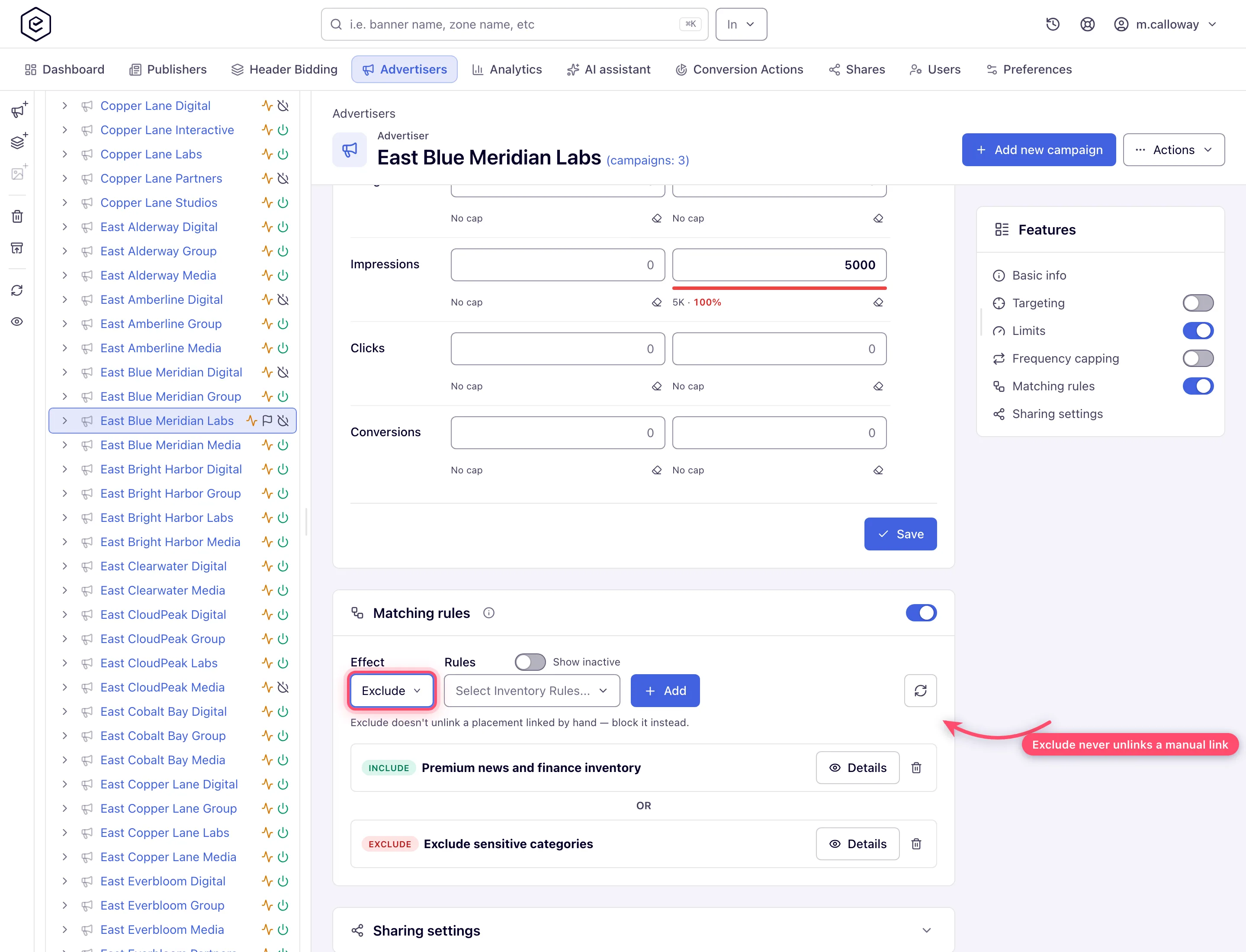
- Effect — Include (pair with what matches) or Exclude (pair with everything except what matches). With Exclude chosen, a line under the row reminds you that it does not unlink anything linked by hand.
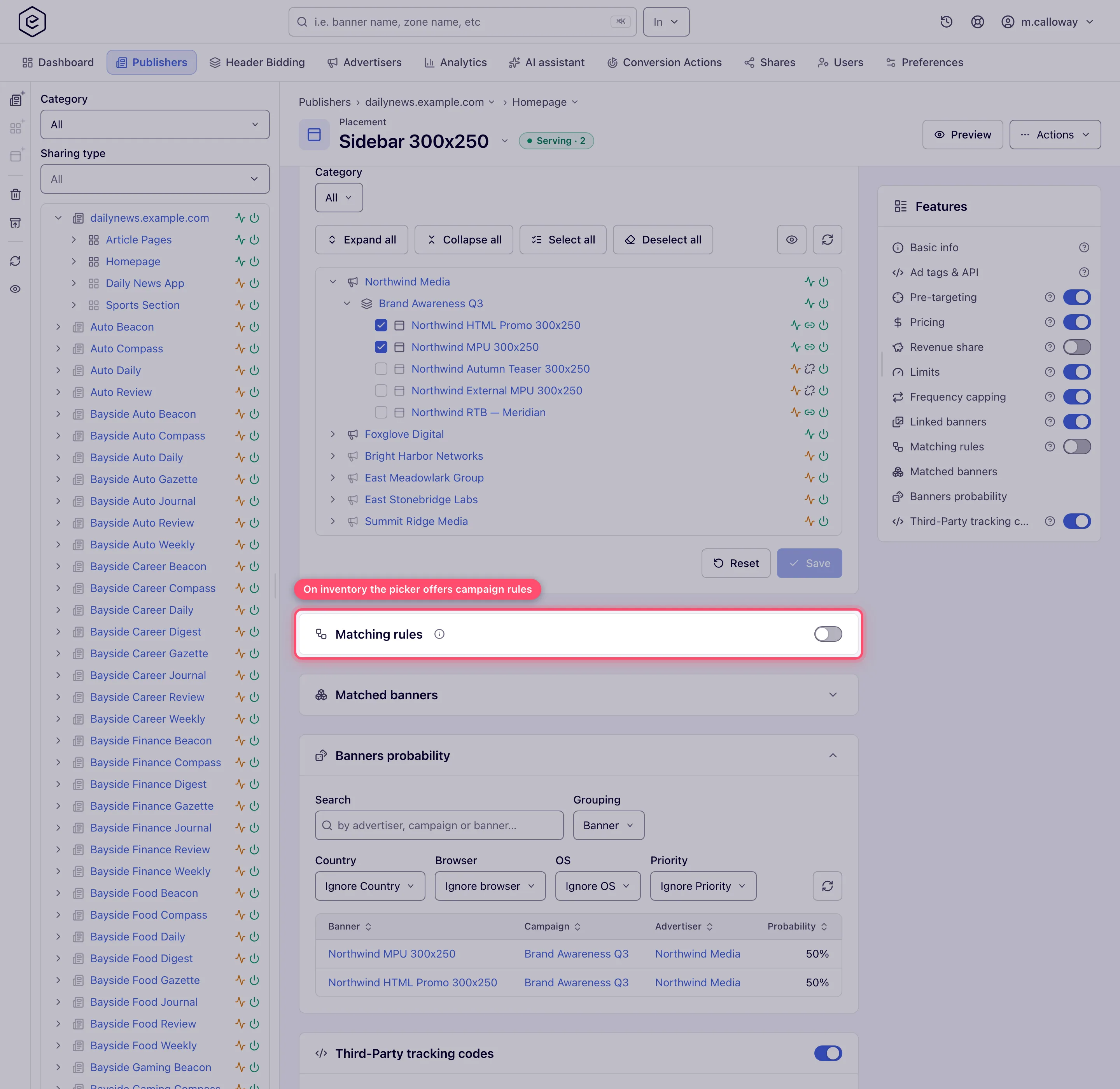
- Rules — pick one or more rules from the searchable multi-select. Its placeholder names the side: Select Inventory Rules… on demand, Select Campaign Rules… on supply. Flip Show inactive to also list rules your network administrator has deactivated (they render greyed).
- Combine with — appears only once you have picked two or more rules: all of (the
entity must match every rule in the line) or any of (one is enough).
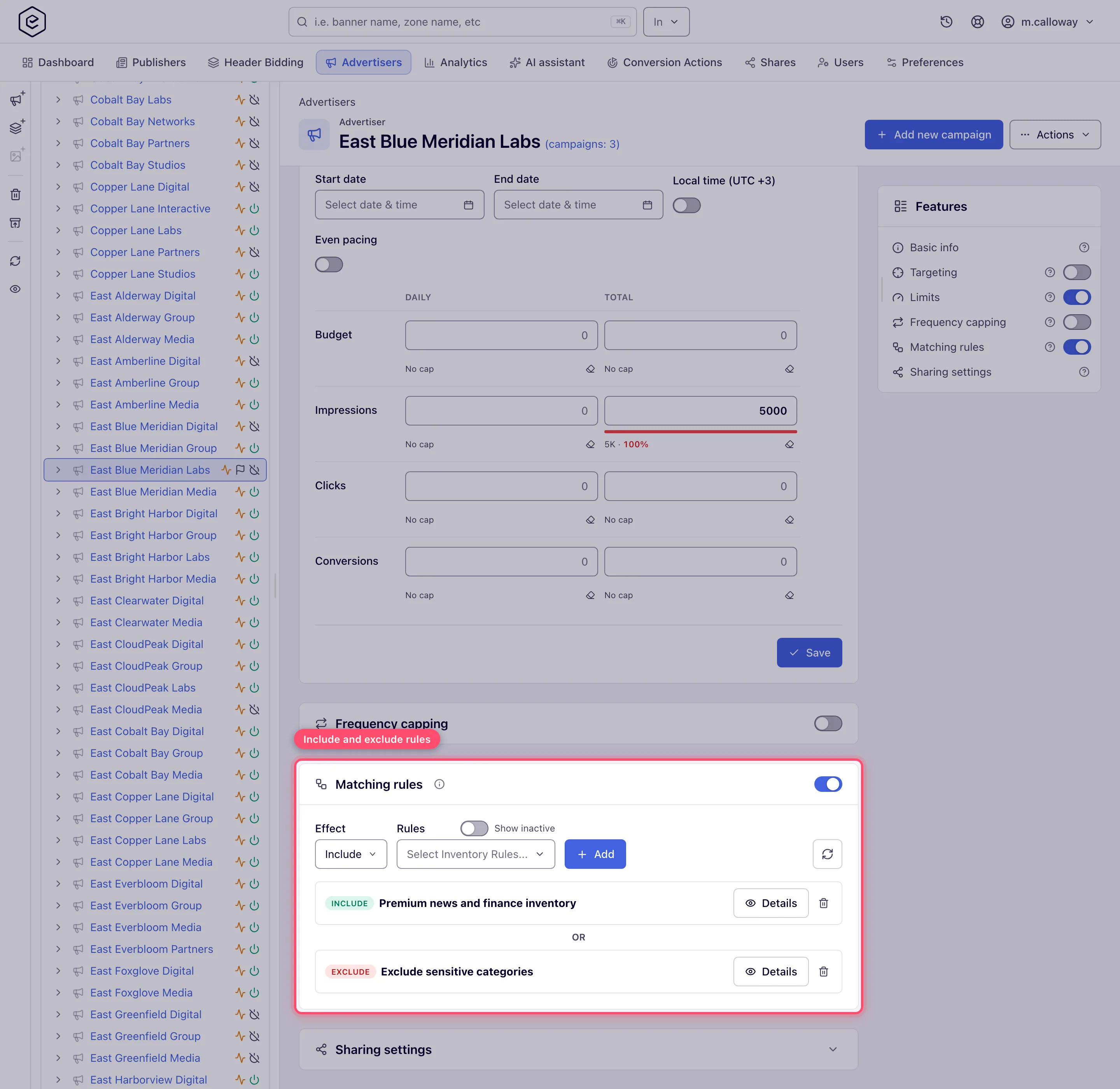
- Click Add. The line is written immediately — there is no separate Save — and appears
below as a saved line: an Include/Exclude badge, the
all of:/any of:prefix when it holds two or more rules, and the rule names. With nothing selected, Add raises the error toast At least one rule should be selected!. - Add more lines as needed. Consecutive lines are separated by an Or divider, which is literal: the entity qualifies if it satisfies any one line.
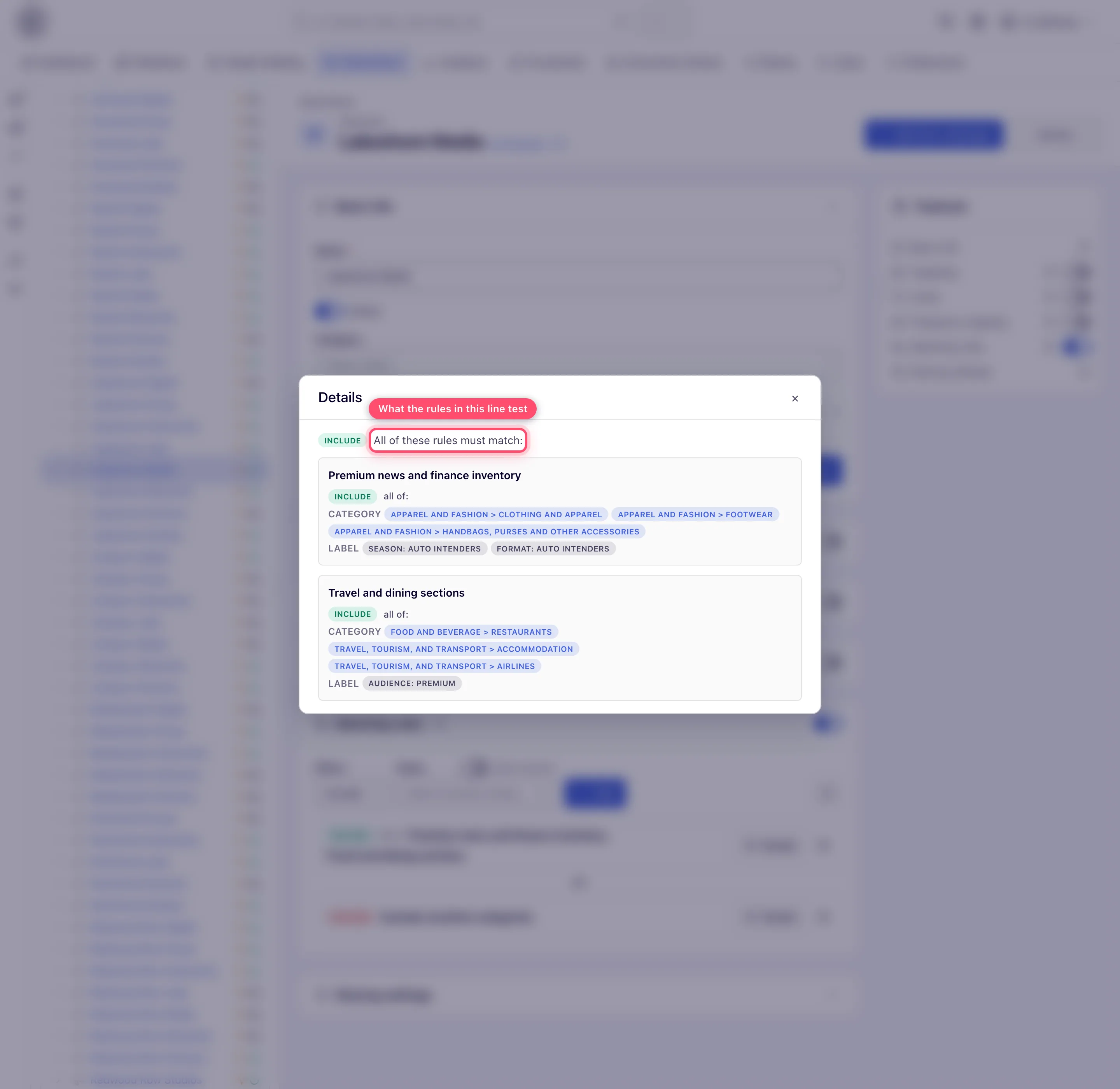
- Click Details on a line to see what its rules actually test — each rule’s
category/label conditions, with their own include/exclude and all of / any of.
- Check the result in the Matched placements (demand) / Matched banners (supply) card immediately below: it lists what this entity currently pairs with and labels each row Matched by rules or linking, which is the quickest way to tell whether a line did anything. That card disappears when the Matching rules card does.
- Remove a line with its bin icon and confirm Delete record?. That write is immediate too.
The demand/supply flip
The card always selects rules of the opposite side from the entity you are on. This is the single most common reason a rule “matches nothing”.
| You are editing | The card offers | Those rules test | So the line controls |
|---|---|---|---|
| Advertiser / campaign / banner (demand) | Inventory rules | inventory categories & labels | which inventory your ads pair with |
| Site / zone / placement (supply) | Campaign rules | advertising categories & labels | which demand pairs with your inventory |
What a rule looks at
A rule does not test the entity you attached it to, and it does not test the entity level you might expect. Whatever level you attach at, the pairing is always evaluated placement ↔ banner, and the categories and labels are read from these places only:
| Side being matched | Categories come from | Labels come from |
|---|---|---|
| Inventory (a placement) | the site’s inventory categories | the placement’s own labels |
| Demand (a banner) | the advertiser’s advertising categories | the banner’s labels plus its campaign’s labels |
Nothing else contributes. A zone has no categories or labels of its own in this path; a placement has labels but no categories; a campaign has labels but no categories; an advertiser has categories but no labels. If a rule matches nothing, check the row above before you check the rule.
Options and fields
The add-line row
| Control | What it does | Default |
|---|---|---|
| Card switch | Turns rule matching on for this entity. Writes at once and runs apply default rules. | Off, unless your network administrator ticked this entity type in Rules panel default status (Admin → Inventory & campaigns settings), which decides the switch’s state on newly created entities |
| Effect | Include = pair with what the line matches. Exclude = pair with everything except what it matches. | Include |
| Rules | Searchable multi-select of the opposite side’s rules. | empty |
| Show inactive | Also lists rules your network administrator deactivated; they render greyed. | Off |
| Combine with | all of (AND) / any of (OR) across the rules in this line. Hidden until two rules are picked. | all of |
| Add | Writes the line. No confirmation, no Save step. | — |
| Refresh (circular-arrow icon, end of the row) | Re-reads the saved lines from the server. Useful when a colleague is editing the same entity. | — |
A saved line
| Element | What it tells you |
|---|---|
| Include / Exclude badge | the line’s Effect |
all of: / any of: | the Combine-with operator — shown only when the line holds two or more rules |
| rule names | greyed if that rule has since been deactivated by your network administrator |
| Or divider | separates consecutive lines; the entity qualifies on any one of them |
| Details | opens the read-only modal below. Available to everyone who can see the card. |
| bin icon | deletes the line after a Delete record? confirmation. Hidden when you cannot edit. |
The Details modal
Read-only, three levels deep, from the outside in:
| Level | What it shows |
|---|---|
| the line | its Include/Exclude badge and either All of these rules must match: or Any one of these rules can match: |
| each rule | its name; and All conditions below must match: when the rule has two or more conditions |
| each condition | an Include/Exclude badge, an all of: / any of: prefix when it names two or more values, then the Category chips and Label chips it tests |
How the lines are evaluated
Worth reading once, because the include/exclude arithmetic is not what most readers assume.
- Within a line, all of intersects the rules’ matches and any of unions them.
- A line’s Effect is applied to that result: Include keeps it; Exclude turns it into everything on the other side, minus it.
- Between lines the results are unioned — that is the Or divider.
- Across entity levels, the results are intersected. Site, zone and placement rules all apply to the same placement, and advertiser, campaign and banner rules all apply to the same banner: a level whose switch is on must be satisfied, and a level whose switch is off simply does not participate. So a parent’s rules constrain its children whether or not the children have their own; a child never overrides its parent.
Corner case: two Exclude lines cancel each other out. Because lines are unioned, “everything except A” OR “everything except B” is “everything except things that are both A and B” — if A and B do not overlap, nothing is excluded at all. To exclude two rules, put them in one Exclude line with any of.
Corner case: an Include line next to an Exclude line does not narrow it. The Exclude line already resolves to almost everything, and the union can only widen. Keep one entity to one style — either a set of Include lines, or a single Exclude line.
Corner cases and gotchas
Corner case: both sides must have the card switched on for a pairing to happen. Rule matching only ever considers inventory whose placement, zone or site has rules on, and demand whose banner, campaign or advertiser has rules on. A placement with a perfect Include line will never pair with a banner whose whole advertiser chain has rules off — and no message anywhere says so.
Corner case: what an entity with the card on and no lines matches is an admin decision, and the card’s empty state tells you which way it is set. Either “…will receive traffic based on all applicable system rules. If necessary, select and apply specific rules to limit traffic.” — it pairs with everything on the other side that also has rules on — or “…will receive no rule-matched traffic; only directly linked items keep serving. Select and apply specific rules to receive matched traffic.” — it drops out of rule matching entirely, while hard links keep serving. The switch is Rules management in Admin → Inventory & campaigns settings, set separately for the Publishers tab (All campaigns rules / None of campaigns rules) and the Advertisers tab (All inventory rules / None of inventory rules). A network ships on the permissive All… setting, so switching a card on and adding nothing is, by default, a broadening change rather than a no-op. Read the empty-state sentence before assuming otherwise. (“No traffic” always means no rule-matched traffic; directly linked banners keep serving either way.)
Corner case: turning the switch on runs apply default rules on the server every time, not just the first. Any rule your network administrator marked default for this entity type and that is not on any of the entity’s lines yet is added as a single-rule line. A default rule you folded into a multi-rule line counts as attached and is not added again; one you deleted comes back the next time the card is switched on.
Corner case: turning the switch off does not delete the lines. It only stops the entity taking part; the lines are hidden and come back when you switch it on again — along with any defaults that have been added in the meantime, and minus any rule your network administrator deleted while the card was off.
Corner case: your network administrator deactivating a rule can silently stop your entity pairing with anything. Inactive rules are dropped from the ad server’s cache; a line whose every rule is inactive is dropped with them, and an entity left with no live lines falls back to the Rules management setting above — which usually means no rule-matched traffic. The line still shows in the card, greyed. Check for grey before you debug anything else.
Corner case: your network administrator cannot delete a rule that an entity with its Matching rules card switched on still references — the delete is refused and the admin grid reports which entities hold it. Entities whose card is switched off do not block the delete: the rule is removed from their lines (a line left with no rule is removed too), so it is gone when the card is switched on again.
Corner case: editing a rule in Admin changes it retroactively for every entity that references it. There is no per-entity copy — the card stores a pointer. A rule renamed or re-scoped by your network administrator changes what your line does without your line changing.
Corner case: rule changes reach ad serving in two stages, not instantly. They land at the next ad-cache reload, and then the first request for a given placement after that reload is still answered from the previously computed set while a background worker recalculates. Allow a couple of minutes and a second request before concluding a rule does not work.
Corner case: reading the saved lines and opening Details needs only view rights on the entity, so a role without Manage Rules still sees the lines, read-only. Add, the bin icon and the on/off switch need update rights on the entity and Manage Rules for that side; a call without them is refused with a 403 naming rules management.
Over the API
The card has a REST twin per entity kind (advertiser, campaign, banner, site, zone,
placement), under /rest-api/rules/{kind}/…:
| Task | Call |
|---|---|
| Switch the card on / off | POST /rest-api/rules/{kind}/{id}/enable.do · …/disable.do |
| Read the saved lines | GET /rest-api/rules/{kind}/{id}/get.do — also answers rulesEnabled |
| Add a line | POST /rest-api/rules/{kind}/{id}/add.do with ruleIds, include (true = Include) and operator (AND = all of, OR = any of) |
| Remove a line | POST /rest-api/rules/{kind}/{id}/remove.do with ruleGroupId |
| Open a line’s Details | GET /rest-api/rules/{kind}/show-details.do?ruleGroupId=… |
| List the rules you may attach | GET /rest-api/rules/{kind}/available-rules.do?type=INVENTORY on a demand-side kind, type=CAMPAIGN on a supply-side one |
Adding a line while the rules switch is off saves it and tells you so: the answer carries
rulesEnabled: false and a warning (The rule group is saved, but rules are switched off on this
…: it takes effect once they are enabled.). The line does nothing until the switch is on. An
unknown rule id is a 400 (No rules with these ids: …) and nothing is saved. The permissions are the card’s own: view rights to read,
update rights plus Manage Rules to change.
Per-role notes
- Network manager — the card on both sides, with the Matched placements / Matched banners card beside it.
- Advertiser — no card, yet a network rule can pair your campaigns with inventory you never linked. Unexpected delivery is the first thing to ask the network about.
- Publisher — no card; demand you did not link can be paired with your inventory by a network rule.
- Shared-entity viewer — on a Can View share, saved lines and Details are read-only; with rules off, the card is hidden.
Related
- Matching rules and network defaults — where your network administrator builds the rules this card attaches, and the default for flags
- Block demand and inventory (pre-targeting blocks) — refuse a specific named entity, which an exclude line cannot do
- Add targeting to an entity — filter by what the request looks like
- Category taxonomies — the advertising and inventory vocabularies rules match on
- Keep unwanted ad categories off your inventory
- Hierarchy and linking — the direct links that matching rules are unioned with
- Targeting and pre-targeting overview
