
Bulk banner operations
Mass-upload creatives, rewrite landing URLs, edit template properties across a set, toggle status, and copy/move/link with the clipboard.
Anything you would hate to do one banner at a time: mass-uploading creatives, rewriting landing URLs, editing template properties across a set, toggling status, and copying, moving or linking between campaigns.
Most of it lives in the grids view of Account → Advertisers. Grids is a display preference, not a URL — switch it in Preferences, then use the Group by selector to work at the Advertisers, All campaigns or All banners level.
Who this is for
Network managers and advertiser users working on more than a handful of creatives at once. Every tool here acts on the rows you have selected, and the rows you hold read-only are left out — see Per-role notes.
Prerequisites
- Update rights on the campaigns whose banners you change — your own, or shared to you with edit rights. Rows you hold read-only are left out of every action.
- For the toolbar, the grids view: switch it in Preferences; the tree view has no multi-select.
- For Mass banner upload: a campaign to upload into, and the banner permission of the placement type you pick — Standard Site Banners, Mobile Site Banners, Email Banners or Video Banners. A type your role lacks is not offered. Linking settings need Auto-linking settings; Banner labels need Banner Labels.
- For Update properties with template fields: the selected banners all on the same template.
Steps
Each operation below stands on its own; use the one you need.
Mass banner upload
Creates many banners in one campaign from a batch of creatives — Local File banners from images, Local Video banners from video files. Start it from a campaign’s Actions → Mass banner upload, or from the campaigns grid with exactly one campaign selected.
The wizard has four steps: Placement type → Uploaded creatives → Banner settings → Complete.
-
Placement type — pick Site, Mobile site, Email or Video. The placement fixes the banner type, shown next to it and not editable: video placements make Local Video, everything else makes Local File.
-
Uploaded creatives — drag the files in, or click to browse. They upload immediately and each becomes an editable row, so you can keep adding batches.
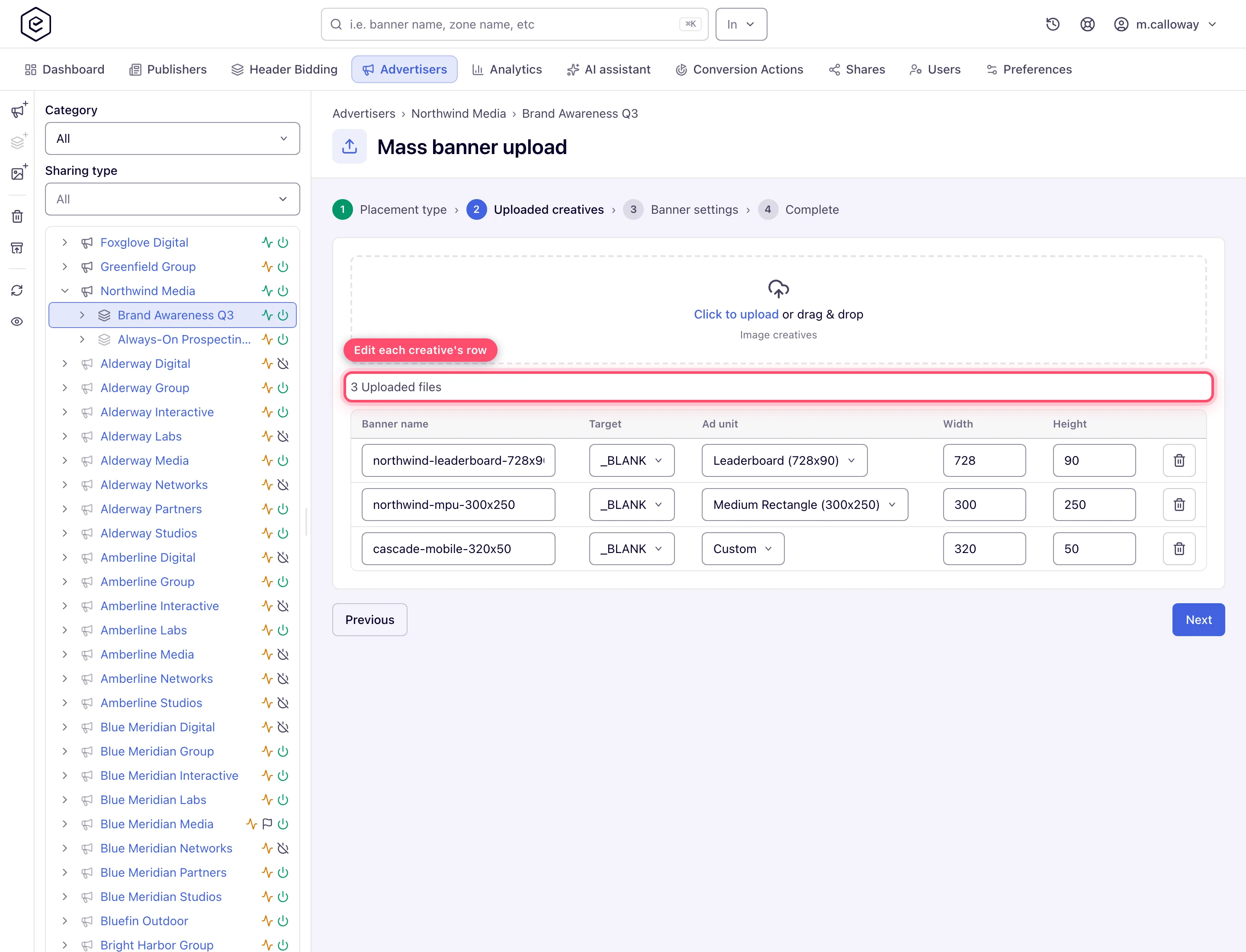
Each image row is prefilled for you: the Banner name from the file name, and the Ad unit from the creative’s real dimensions. A size with no matching ad unit falls back to Custom with the width and height filled in — that is what happens to a 320×50 on a site placement. Video rows carry only the name and the file, because Local Video creatives have no ad unit, size or target.
-
Banner settings — naming flags and the values every banner in the batch will share.
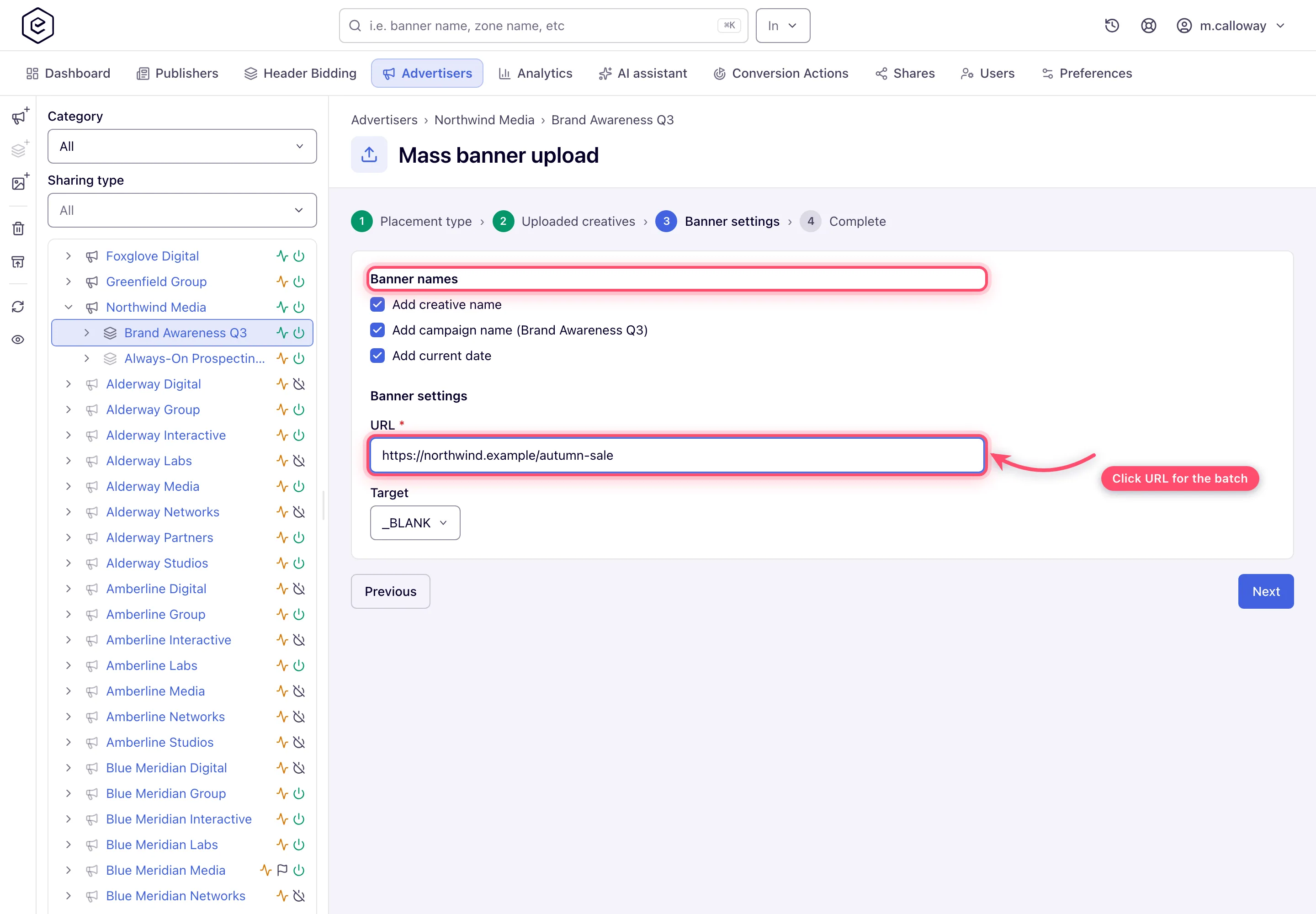
Add creative name, Add campaign name and Add current date are all on by default, so the banners come out named after the file, the campaign and today unless you untick them. The shared URL is required for image batches and optional for video ones; Target appears for image batches only. Two more parts depend on your permissions: a Linking settings section (Link to all matching placements in category and Auto-link new placements from category, each with an optional Link to labeled as) with the Auto-linking settings permission, and Banner labels with the Banner Labels permission.
-
Complete — a dry run. The counts you see (files uploaded, banners to be created, banners and placements to be linked) come from a preview call; nothing is created until you press Finish.
Note: the files upload as soon as you pick them, but no banner exists until Finish. Abandoning the wizard creates nothing; the uploaded files stay in a temporary staging folder on the server.
The bulk toolbar
Tick rows in the grid and the toolbar acts on the selection.
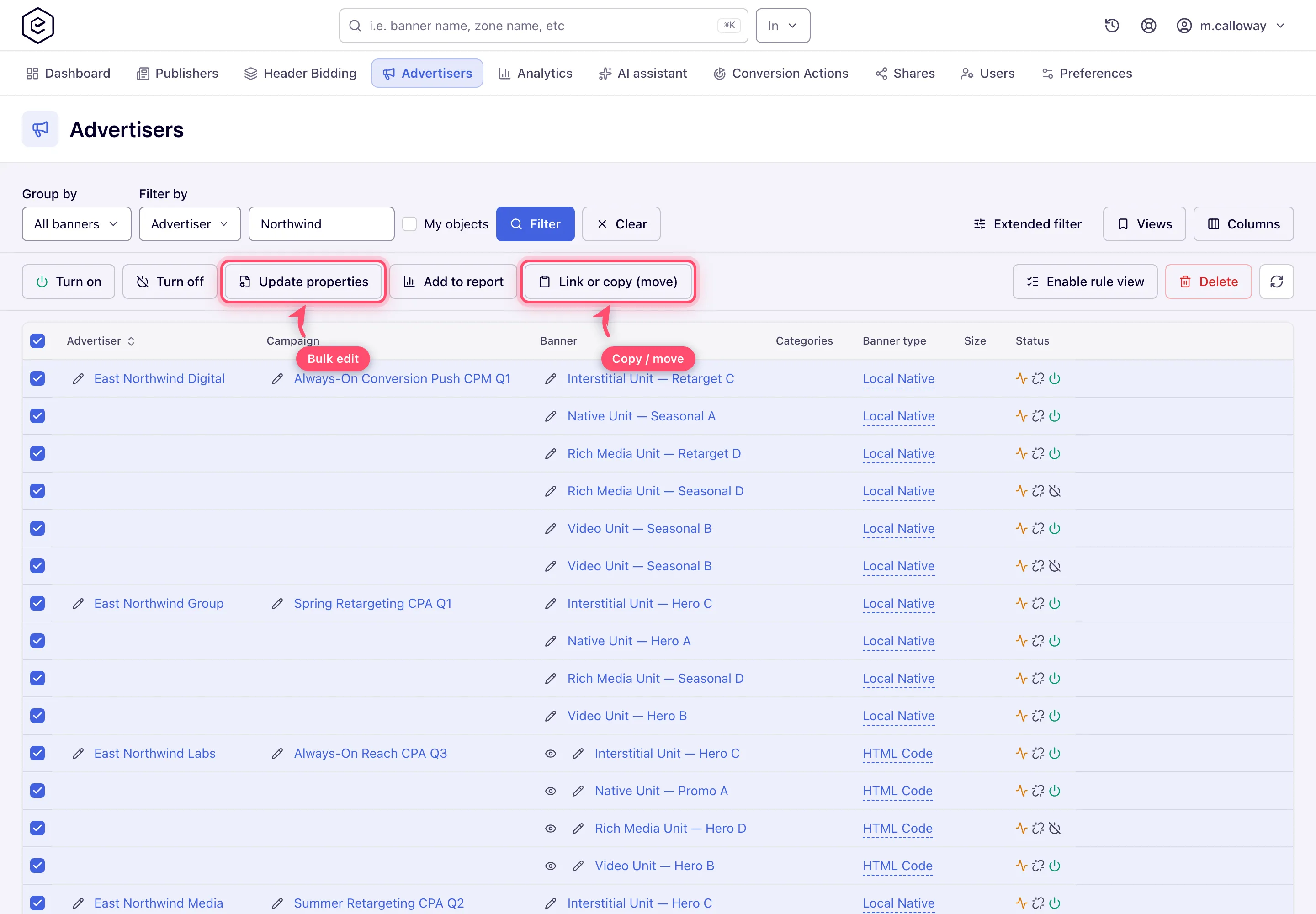
| Action | What it does |
|---|---|
| Turn on / Turn off | Bulk activity toggle, with Undo in the toast. Every switched row raises the same activated/deactivated notification as a single edit. Also available over the API as POST /rest-api/banners/status.do (and …/campaigns/status.do, …/advertisers/status.do) — see Entities CRUD. |
| Update properties | See below. Banners level. |
| Labels | Opens Apply labels: pick the labels and a Mode — Add, Replace or Remove — for the selection. Only present when your role may label that level. Over the API POST /rest-api/banners/labels.do does the same for up to 500 banners and adds a clear all mode — see Bulk labels. |
| Add to report | Pins the selection as a filter on the Analytics tab. |
| Link or copy (move) | Puts the rows on the clipboard — see below. |
| Enable rule view | Swaps the grid into per-entity matching-rule display. |
| Delete | Bulk delete, with a confirmation that the items are deleted together with everything in them and can be restored within 90 days. Every id is checked first: if any is unknown, nothing is deleted and the refusal lists every unknown id; if you lack the Delete share on one, nothing is deleted and the refusal names the first such item. Once the checks pass, the items are deleted one by one, not in one transaction. For 90 days Recently deleted (the box-with-arrow button in the Advertisers / Publishers tree’s action rail, also linked from the “Entries has been removed” toast), or POST /rest-api/deleted-entities/{type}/{id}/restore brings each one back — see Restore something you deleted. |
The Filter by combo above the toolbar decides what the neighbouring name box matches — it is set to Advertiser by default, so typing there filters by advertiser name, not banner name.
Update properties
Select banners → Update properties. What you get depends on the selection:
-
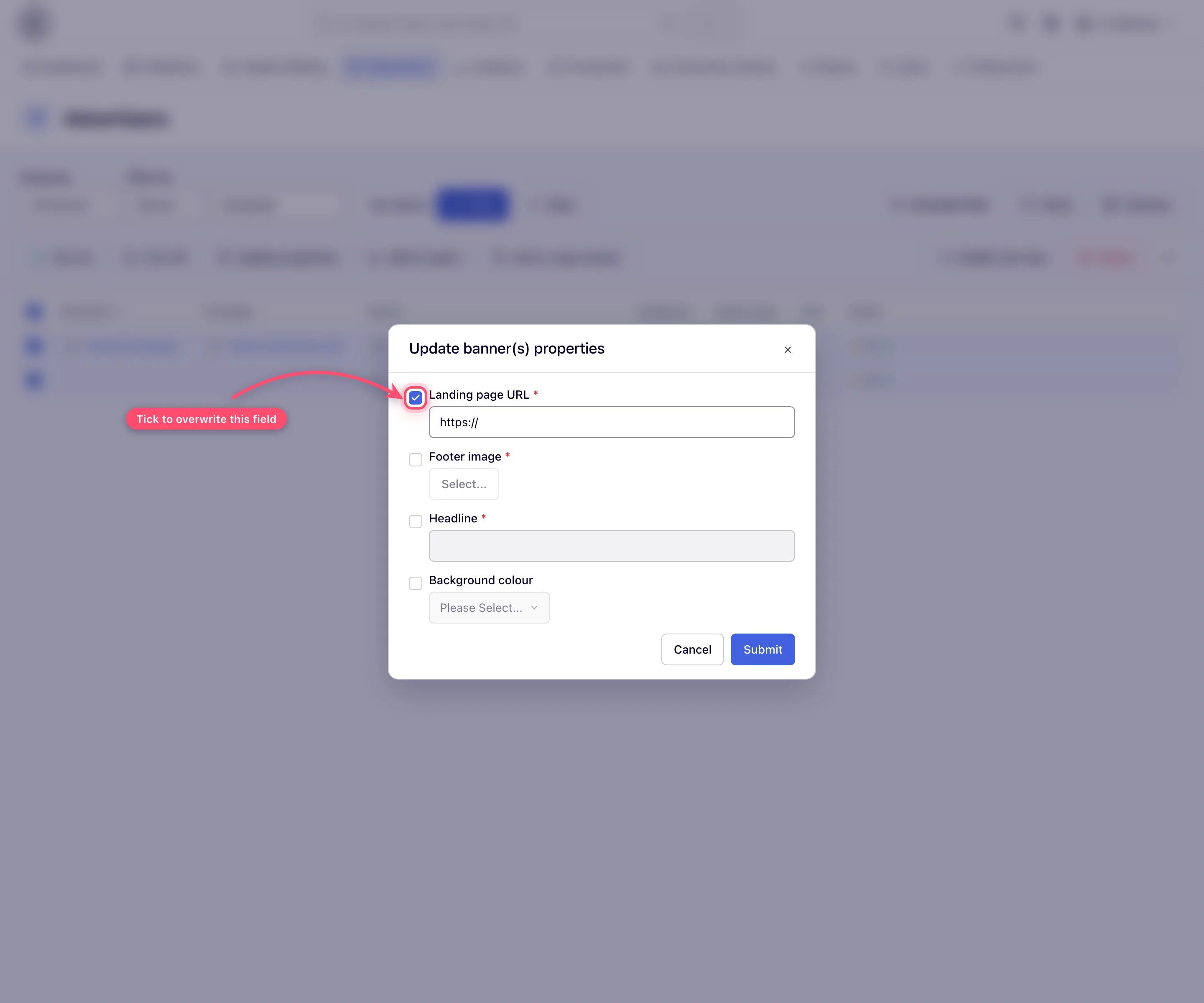
Every selected banner uses the same template → the modal lists that template’s properties, each behind an opt-in checkbox. The input stays disabled until you tick it, and only ticked properties are written — so you can change one field across hundreds of banners without disturbing the rest. File and HTML5 ZIP properties accept uploads here too.
-
Any other mix → the modal reduces to a single URL field that sets the landing URL of every selected banner.
Change URL(s)
Select campaigns → Change URL(s) → enter one URL, and every banner of every selected campaign that has a landing-URL field gets it. The answer is a count, such as Successfully updated 12 banners from 30; banners of types without such a field are counted but left as they are — see the corner case below. Over the API see Rewriting landing URLs in bulk.
Add a macro or parameter to all landing URLs of an advertiser (each banner keeps its own URL)
Change URL(s) and the banner-level Update properties URL field both write one URL into
every selected banner. To append something to URLs that differ per banner — a tracking macro such
as &cid=$$CLICK_ID$$, a utm_ tag, &sub1=$$PLACEMENT_ID$$ — use the REST pair that reads
and writes landing URLs banner by banner:
- Read the current URLs:
GET /rest-api/banners/urls.do?bannerIds=5001&bannerIds=5002…. The answer listsid,typeandurlfor each banner. It has no advertiser or campaign filter, so collect the advertiser’s banner IDs first — for example fromGET /rest-api/campaign/{campaignId}/banners.dofor each of its campaigns. - Edit each URL in your script: add
&cid=$$CLICK_ID$$(or?cid=…when the URL has no query yet). - Write them back:
POST /rest-api/banners/urls.dowith a JSON body[{"id":5001,"url":"https://offer.example.com/a?x=1&cid=$$CLICK_ID$$"}, …]— each entry carries its own URL. The answer lists theupdatedIDs and thefailureswith a reason (invalid_url,no_url_property_found,permission_denied,not_found,deleted, …); the other entries are saved regardless.
Which “URL” is meant depends on the banner type: the click URL of image and video banners (Local/External File, Local/External Video), the native click URL of native banners, and the first URL property of a Template banner. HTML Code, OpenRTB, VPAID Framework and Advanced Local Video banners carry no such field and are left out of the list — edit their markup or settings directly. You need edit rights on each banner’s advertiser.
The AI assistant can run the same read-edit-write for you when you ask it to add a parameter to an advertiser’s landing URLs. See the Macros reference for what to append.
Clipboard — copy, move, link between campaigns
Link or copy (move) puts the selected rows on a floating clipboard; navigate to the destination and act from the clipboard bar.
- Paste a copy / Move — same family, one level down: banners into a campaign, campaigns into an advertiser, zones into a site, placements into a zone. Move needs exactly one destination row. A copy asks Please enter number of copies, from 1 to 20; over the API and in every console copy path the same ceiling of 20 applies.
- Link / Unlink — across families: banners ↔ placements, creating or removing serving links without copying anything.
Copying into the level you are already in — a second copy of a banner in the same campaign — needs no destination row. Stand in that container’s own grid with nothing selected and paste: an empty selection means “here”. The clipboard bar says where it will land before you commit.
Dragging does the same on the entity tree: drag a banner onto a campaign, a campaign onto an advertiser. Only rows that will accept the drop highlight, and the badge on the highlighted row shows which operations are on offer — one icon means the outcome is fixed, two mean you will be asked to choose.
Corner cases and gotchas
Note — which banners a bulk URL change writes: both Change URL(s) and the URL-only mode of Update properties write the URL to Local File, External File, Local Video, External Video, Local Native, External Native and Template banners. HTML Code, OpenRTB, Third Party VAST/VPAID Tag URL, VPAID Framework and Advanced Local Video(s) banners are left as they are, and so are native banners with no native preferences and templates with no URL-flagged property. The result is reported only as a count — Successfully updated 12 banners from 30 — without naming the banners that were left out. When the two numbers differ, set those banners’ URLs individually; to get a per-banner list of what was and was not written, use the REST
POST /rest-api/banners/urls.docall, whose answer names every banner it could not update.
Corner case: bulk Turn on/off and Labels both leave read-only shared rows out. Once they finish they tell you how many they skipped — N read-only shared item(s) skipped — and if everything selected was read-only they stop with “All selected items are read-only shares” (Labels says so before its dialog opens). The count in the Labels dialog is the rows it will actually change.
Corner case: a banner whose template is inactive cannot be switched on — Banner(s) that use inactive template can not be turned ON — unless your role holds the admin-only permission Update properties and status, based on inactive template. In a bulk Turn on such a banner stays off.
Corner case: Update properties shows template fields only when the whole selection uses one template. Add a single banner of another type and the modal quietly downgrades to URL-only — which is also when the note above on which banner types take a URL applies.
Corner case — a size the wizard does not recognise: the wizard matches each creative’s detected dimensions against the placement type’s ad units. Where none matches, the row is staged with that type’s Custom size and the detected width and height, for you to accept or change. Every size the network has is available to the wizard as soon as it is saved in Admin → Custom sizes.
Corner case: Mass banner upload stays disabled on the campaigns grid until exactly one campaign is selected; at the banners level it is available only when the list is scoped to a single campaign.
Corner case: the clipboard holds one entity type at a time. Adding a different type prompts Selected item(s) are not …. Clear current clipboard content before copy? — accepting drops the previous buffer.
Corner case: a copy of several can fail part-way. The copies already saved stay: the REST answer names the copy that failed and lists the ones that exist, and a bulk campaign copy lists a campaign whose copy failed in
failedCampaignIdsafter rolling that one campaign’s copy back.
Corner case: zones and placements move through the clipboard too (a zone into a site, a placement into a zone). A moved placement keeps its placement key, so its published ad tags keep working — see Move or copy a zone or placement.
Corner case: copying or moving a banner with Keep creative(s) linked silently drops the links your Link Placements to Banners grant does not reach — at Shared or Shared linked a copy keeps only the links on inventory shared with you. The copy still succeeds; check the new banner’s placement count if it matters.
Per-role notes
- Read-only shares are skipped, not refused. The on/off toggle leaves out the rows you hold as a read-only (masked) share, applies to the rest, and tells you how many it skipped. If every selected row is read-only, nothing changes and you get “All selected items are read-only shares”. Labels treats the same rows the same way.
- Add to report works on any selection, read-only rows included.
Related
- Banner types — decision guide
- Image banners — what mass upload creates on non-video placements
- Video banners — Local Video, what mass upload creates on video placements
- HTML code and Template banners — template properties
- Hierarchy and linking — what link and unlink mean
