
Header bidding
Sell a publisher's inventory through Prebid — on a page with our Prebid.js or theirs, through our Prebid Server or theirs, and in an app with Prebid Mobile. One tag per page layout, five ready-made hand-overs on its Code tab, and the report that says who filled each slot.
Header bidding lets your demand price a publisher’s inventory before their ad server is asked. On a web page, that is an auction in the browser: what your campaigns take, they take at a known price; what they leave, Google Ad Manager fills exactly as before, with no passback hop. In an app there is no browser auction — Prebid Mobile asks a Prebid Server — and the same tag serves that too. The publisher installs one script and marks each ad position, or hands their developer a handful of ids; every later change is made in the tag on your side, with nothing to re-install.
There is no Epom SDK and nothing of ours to compile. Epom is reached as an ordinary Prebid
bidder — epom_as — by whichever Prebid the publisher runs, and it answers with the same creatives,
targeting, capping and pricing every other Epom tag gets.
Which route is yours
Everything in this guide hangs off one question: who runs the auction, and what of it is theirs. Pick the row that describes the publisher, then read the section it points to. The Code tab of a saved tag has one face per row, and each face hands over exactly what that row needs.
| The publisher… | Route | What you hand over | Where in this guide |
|---|---|---|---|
| runs Google Ad Manager and has no Prebid | Our Prebid.js — the tag brings Prebid and the ad slots | One script and one container per ad position; a line item in their Ad Manager | If the page runs Google Ad Manager |
runs Google Ad Manager with their own googletag calls they must keep | Our Prebid.js, adopting their slots | The same script; their slot ids or ad unit paths in the tag | Adopting a page’s existing Google slots |
| already runs Prebid.js on the page | Their Prebid.js, our adapter | One bids entry per ad unit, and an alias line if you bid under your own name | When the site runs its own Prebid |
| has an app, or wants a server-side auction without standing anything up | Our Prebid Server | The auction endpoint, the account, the slot ids; two SDK calls | Our Prebid Server |
| runs their own Prebid Server | Their Prebid Server, our setup — their server reads the slots from us | The address of /hb/stored-requests, or one document per slot | Their Prebid Server, our setup |
| runs their own Prebid Server and already stores these slots | Their Prebid Server, our adapter | Our bidder fragment alone, to merge into their document | Their Prebid Server, our adapter |
| runs Prebid.js on the page but calls its bidders through a Prebid Server | Their Prebid.js, our adapter — routed server-side | The same bids entry; their own s2sConfig does the routing | Through their Prebid.js, into their Prebid Server |
Whatever the route, the tag is built the same way — a site, its settings, one slot per ad position — and the placement behind each slot decides what can be sold there:
| The slot sells… | Build it on | On a page | Through a Prebid Server or in an app |
|---|---|---|---|
| Display banners | a Site Placement, with the ad units the container accepts | The tag draws the winner, or hands it to Google | The caller’s own sizes are what count; the slot’s ad units are written into the stored request |
| Instream video | a Video Placement | The VAST is handed to the publisher’s player, not drawn | The SDK or their server plays the VAST |
| Native | a Native Placement | Drawn in the container | The assets are handed back, the app draws them |
| Full-screen — interstitial, playable, anything that is not a rectangle | a Non-standard Placement, ad units left empty | Sized by the placement’s Fit container | Answered at the size of the screen; see the corner cases under Full-screen and other Non-standard slots |
One slot sells one kind of creative — the placement’s type decides — so a rewarded video and a rewarded playable are two slots, and an app that has both asks for two ids.
Who this is for
Network managers and admins with inventory rights on the site the tag belongs to. Header Bidding is a network-manager section: the tab needs the Header Bidding Tab Visible toggle and Inventory View on the role, and a tag is exactly as reachable as its site — view rights to list it, update rights to save it, delete rights to delete it. What the rest of the feature needs switched on is listed under Permissions. The publisher needs no login: they receive the script and the container attributes, or the ids, and paste them once — what they do with each is on Header bidding: what a publisher installs. A publisher’s developer who is integrating an app should be handed the example apps together with the ids — they are the end-to-end reference for that route.
Prerequisites
- A site with at least one placement of a supported type. A slot can be built on a Site, Video, Native or Non-standard Placement. Mobile Site, Application, Email and Click-through placements are listed in the picker but closed off, and so is a Non-standard Placement with Always redirect on.
- An ad-serving domain on the network. The tag’s Serving domain picker is filled from the domains the network has configured for ad serving. With none, the picker is empty and Save answers Choose the domain the tag is served from; ask Epom support or your account manager to add one.
- For the Prebid Server routes, a network id on the ad server. Without it the slot ids and documents never appear — see Slot ids.
- For the Google Ad Manager route, the publisher’s cooperation. You need the ad unit path of every position you sell, and someone with access to their Ad Manager to create the key-values, the line item and the creative.
- For a publisher who already runs Prebid.js or a Prebid Server, our
epom_asadapter has to be in their build — see When the site runs its own Prebid.
Steps
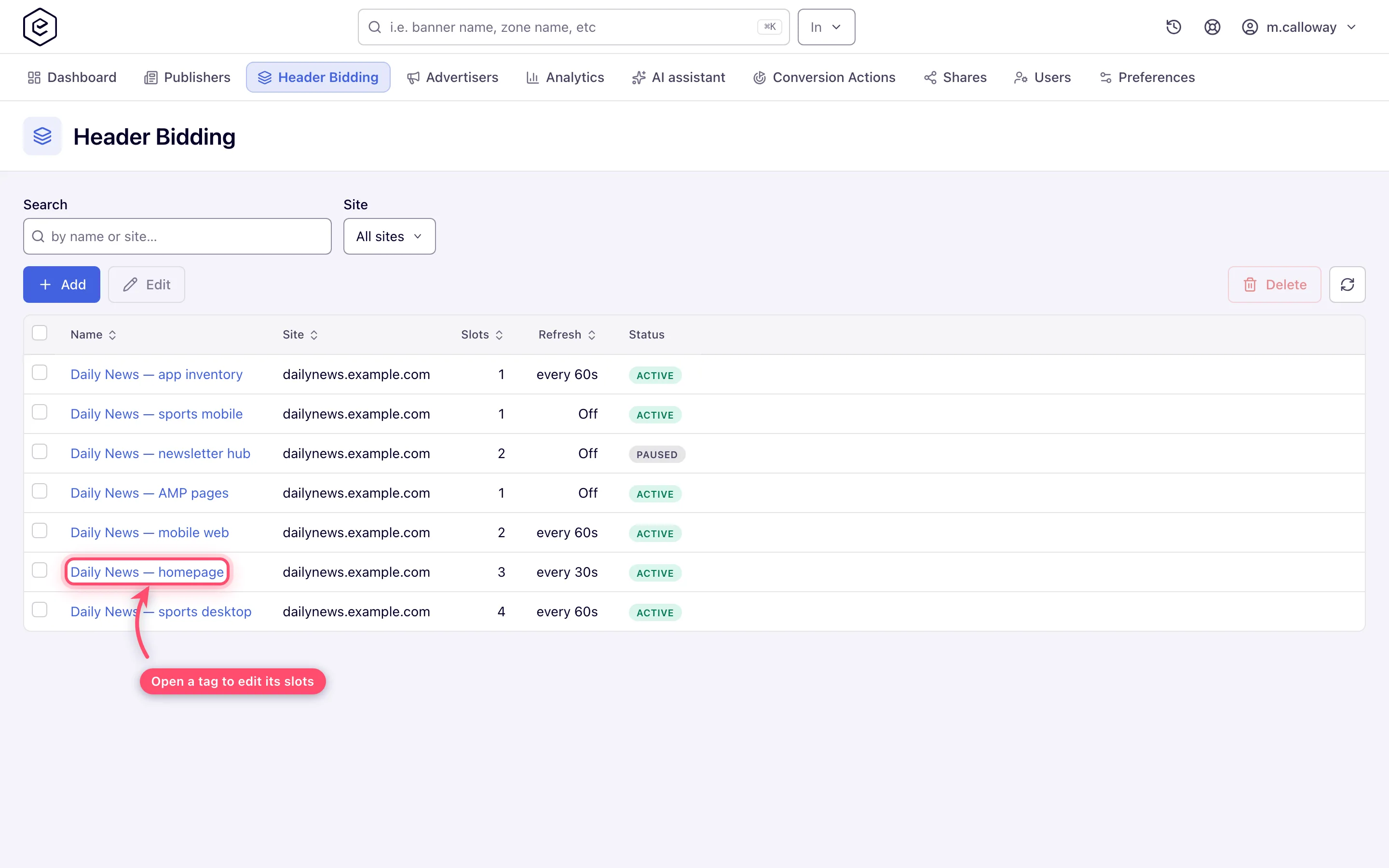
- Go to Account → Header Bidding and click Add. The new tag opens on Tag settings.
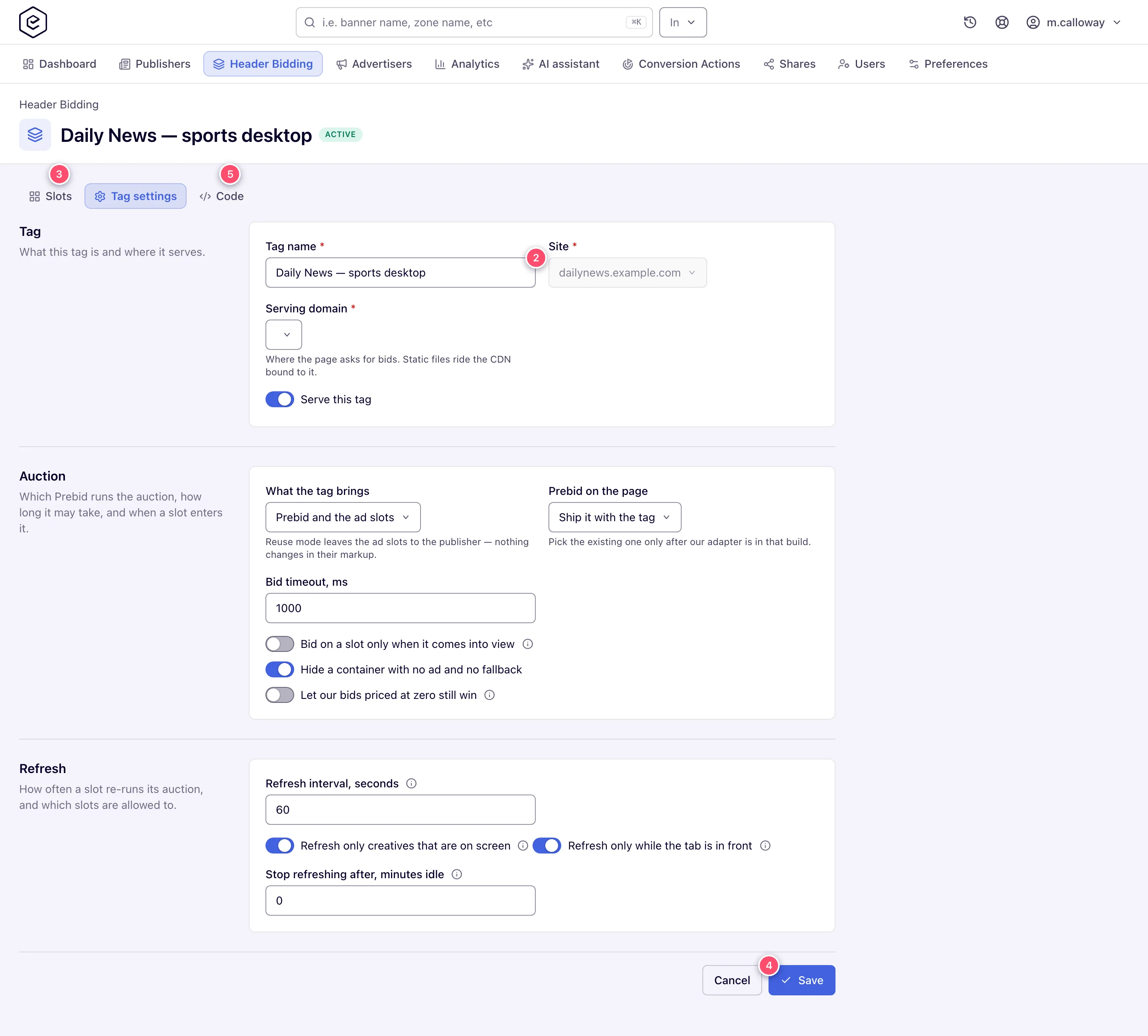
- Fill Tag name, pick the Site and the Serving domain, and choose What the tag brings for the route you picked in Which route is yours. See Create a tag.
- Open Slots and click Add slot (once a slot exists, Add in the slot list’s header) for each ad position: pick the Placement, name the Container name, pick the Ad units, and add Other bidders on the Partners tab if the publisher sells the position to others as well. See Slots.
- Click Save. The toast reads Tag saved, and a new tag reopens on its own edit page, on Slots, now with a script address, slot ids and documents on the Code face. If a slot or a setting blocks the save, a red toast names it.
- Open Code, pick the face that matches the publisher’s route on Where the auction runs, and copy what it prints.
- Hand it over, and — on the Google Ad Manager route — create the key-values, line item and creative in the publisher’s Ad Manager (The Google Ad Manager line item).
- Check the result: the Header Bidding report shows who filled each
slot, and What the troubleshooting log says about a bid explains a
slot that returns nothing.
Settings, reports and the route pages
The steps above are the same on every route. What differs is on its own page:
- Header bidding tag settings and slots — every setting on the tag and the slot; video, native and full-screen slots; when a placement answers bids and what the troubleshooting log says when it does not; who the bid names as the advertiser; other bidders; the supply chain; consent; channel and custom parameters.
- Header bidding reports and targeting — the Header Bidding report, Traffic Source, win rate, and targeting header-bidding traffic.
- One page per route in Which route is yours: Google Ad Manager, the site’s own Prebid.js, a Prebid Server and Prebid Mobile in an app.
Permissions
The Header Bidding section needs the Header Bidding Tab Visible toggle and Inventory View on the role; without the toggle its pages answer Access denied. Out of the box the toggle is on only for roles that may update every site on the network — the stock Network Manager — and off for the stock Publisher; it is an ordinary role permission, so a network can switch it on for a publisher role. The Advertiser domain field, the Traffic Source group-by, filter and targeting rules, and the Header Bidding report type each have their own permission and are not on the page until granted — no error, no greyed control. Analytics Report Type Header Bidding, like the Advanced, Impressions Log and Clicks Log report types, is granted on Admin → Users & access → Admin roles & permissions. See Manage users, roles and permissions.
Grant them per role. A permission change can take a while to reach every user; a user’s open browser also keeps the permissions it last fetched for up to five minutes, until a page reload. If a change has not taken effect after that, contact Epom support or your account manager.
What Epom configures
These are server-side settings outside the account; ask Epom support or your account manager to change them:
- The network id — every network that serves stored requests needs one, or the Prebid Server faces stay empty after a save and the network serves no stored requests at all.
- Programmatic partners on header bidding — off by default; the platform-wide half of the two switches described under Corner cases & gotchas below.
- The Prebid Server and cache the face names — the hosts the Our Prebid Server face prints;
without one the corresponding material disappears from the face. Both are
pbs.eashb.comandcache.eashb.comout of the box, and can name a dedicated instance instead — see Which Prebid Server to use. Whichever server it is, it has to be pointed at the network’s/hb/stored-requestsand given the network’s account — the server refuses an account it does not recognise. - Listing slot ids from your own tooling —
/hb/stored-requestscan list a network’s slot ids to tooling that holds the network’s listing password (HTTP Basic); without it the listing is off. A wrong or missing password answers401with an empty envelope — the same body an empty network returns — so read the status, not the body.
Corner cases and gotchas
Corner case: a slot inside a closed dialog or collapsed panel has no box, so it is deliberately not auctioned until it opens — a bid bought for it would expire unseen and spend the campaign’s caps.
Corner case: Programmatic partners bid on header bidding only when you say so, and they are off by default. A header-bidding call is a price quote: the bid still has to win the page’s own auction, and usually does not. So a partner has to be willing to be quoted before it is asked. Two switches have to agree — the platform-wide one (a server-side setting; ask Epom support or your account manager), and Allow in header bidding (in the Auction & encryption section) on the partner’s own form under Admin → Demand partners (DSP) → DSP partners; a network role that holds the DSP Partners grant reaches the same form under Account → RTB. A partner on a CPC or CPI pricing model is never asked, because it cannot honestly quote a CPM. When a partner does win, the win notice is not sent at quote time: it rides in the creative and fires when the page actually renders it, so the partner is told it won only once that is true. A video response holding several ads carries it in the first ad only, so one win is reported once. A bid priced from a partner carries no deal id — see What fills and what Google keeps under The Google Ad Manager line item.
Corner case: A page with more Epom ad units than the ad server allows gets no bid at all — the request is refused whole. The limit is 40 unless Epom has changed it for your network.
Corner case: A tag edit takes up to five minutes to reach a page that already loaded it, and up to five to reach an app through the Prebid Server’s cache on the Our Prebid Server face; the ad servers themselves see it within one.
From the REST API or an AI assistant: tags are under
/rest-api/hb-tags— list, read one with its page code, create, change only the fields you send, delete — with the same checks as the console (Header Bidding API reference). An assistant connected through MCP sets up a whole tag in one call withhb_tag_setupand says how it differs from the site’s other tags.
Per-role notes
- Network manager — sets up tags and their hand-overs once the role holds Header Bidding Tab Visible and Inventory View.
- Publisher — the stock role has no Header Bidding tab: it receives what the Code face prints (see Header bidding: what a publisher installs), and its reports count what its placements fill through it. A network can add the tab to a publisher role; the publisher then builds tags for the sites it may update.
- Advertiser — reports are unchanged; a network manager sets any Traffic Source rule.
- Can View share — sees the site’s tags, but Save answers You cannot change this tag and Delete You cannot delete this tag.
Exact grants: see Permissions.
Related
- Header bidding: what a publisher installs
- Header bidding tag settings and slots
- Header bidding with Google Ad Manager
- Header bidding on a site that runs its own Prebid.js
- Header bidding through a Prebid Server
- Header bidding in an app with Prebid Mobile
- Header bidding reports and targeting
- Reference apps for Prebid Mobile — iOS and Android
- Ad tags and the ad API
- Create a placement
- Create a video placement
- Create a native placement
- Create and edit a site
- Create and edit an advertiser
- Analytics dimensions reference
- Targeting dimensions reference
- OpenRTB integration reference
- Manage users, roles and permissions
