
Test a conversion
Click the campaign's ad, complete the conversion path in the same browser and confirm the first conversion arrived — the action's Activity badge, the Conversions column and the Conversions Log — with the lag to expect and a fix-it checklist.
What it is and why
A tracking code that is installed is not yet a tracking code that reports. Before you hand the campaign over, walk the path a visitor takes — see the ad, click it, convert — and confirm the conversion arrived where you will later look for it. This is the last stage of Get the pixel and S2S tracking code, and it is the same whether the code is a pixel or snippet or a server-to-server postback.
Example. You click the “Spring Prospecting CPC” ad on a test page, land on the advertiser’s site and complete a purchase in the same browser. Within the hour the purchase action’s Activity badge on Account → Conversion Actions reads Live, and a report with the Conversions column shows 1 for the campaign today.
Typical scenarios
| You want | Do | Where |
|---|---|---|
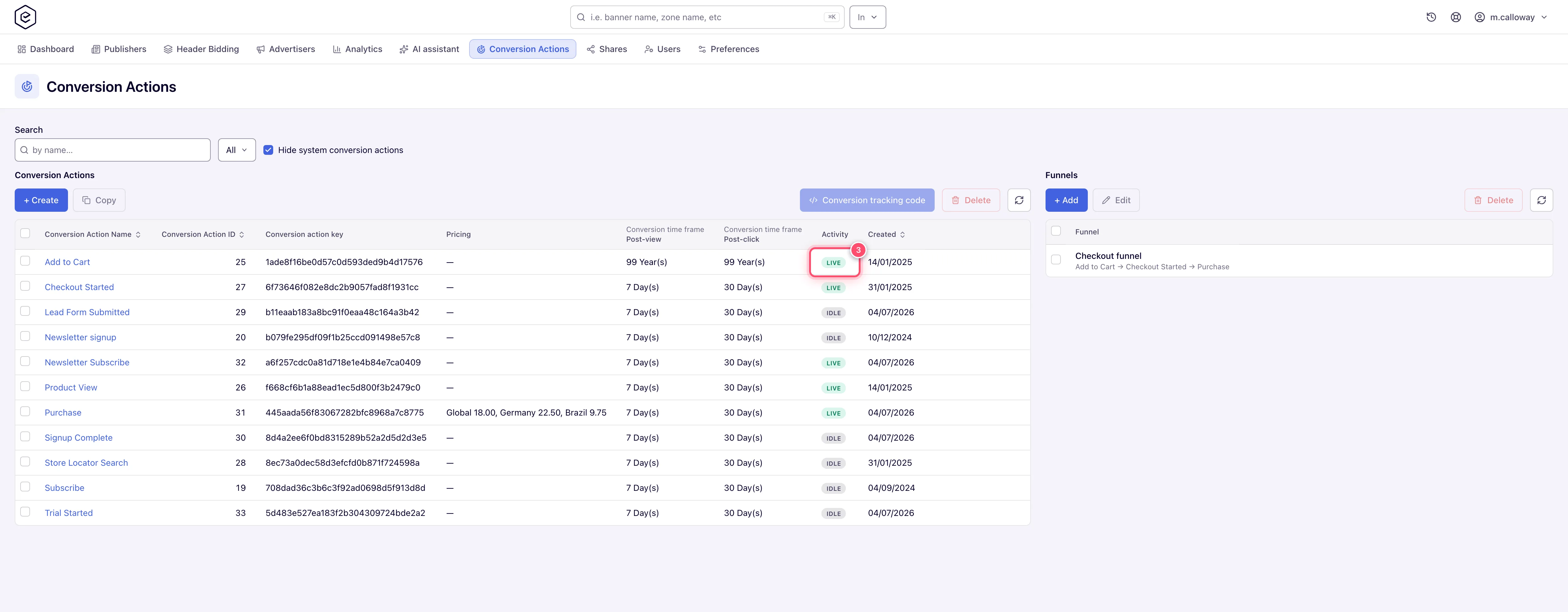
| Confirm a new pixel or postback counts at all | Click the ad, convert, wait for Live | Account → Conversion Actions, the Activity column |
| See the single test conversion as a row of its own | Switch on Detailed conversion log on the action, then open the Conversions Log | the action’s General information; Analytics |
| Find out why nothing arrived | Ask the pixel for its reason | Why a conversion did not count |
Step by step
-
Open a page that serves the campaign’s ad and click the ad (a click is the strongest attribution signal), or at least let the impression load.
-
Complete the conversion path in the same browser: land on the page with the pixel, or trigger your backend postback with the captured click id / Sub ID value.
-
Verify:
- Account → Conversion Actions — the action’s Activity badge turns Live (it means conversions were recorded in the last 2 days; otherwise it reads Idle).
- Run a report with the Conversions column, or open the Conversions Log report for a per-event row (requires the action’s Detailed conversion log option to be on).
-
If nothing arrives, ask the pixel why — see Why a conversion did not count.
Caveats and exceptions
Live lags behind the conversion. The Activity set is recomputed hourly, so a conversion counted a minute ago can still show Idle; a report with the Conversions column is the immediate check. Live then stays on while a conversion landed in the last two days.
The caveats that apply to every tracking code — who can do this, the domain selector, which tabs exist outside a campaign — are on Get the pixel and S2S tracking code.
Not working?
| Symptom | Check | Where |
|---|---|---|
| Conversions counted, but Activity still Idle | The set is recomputed hourly; check a report instead. | Analytics, Conversions column |
| Nothing in the Conversions Log | Detailed conversion log is off on the action. | the action’s General information |
A conversion that never arrives at all: the pixel’s symptoms are on Copy the pixel or the landing-page snippet, the postback’s on Set up a server-to-server postback, and the rest on Get the pixel and S2S tracking code.
Reference
The codes being tested and the permission behind each are in the Reference on the hub; the action’s windows and the Detailed conversion log option are in the field table on Create and edit conversion actions.
Related pages:
