
Manage users: create, assign a role, switch and leave notes
Create or edit a platform user, assign the role that decides where they land, switch into their account, leave notes they read on their Notes tab and update your own admin account — step by step, with the caveats and a fix-it checklist.
Everyone who signs in is a user, and every user holds exactly one role; the role decides which half of the product the user lands in and what they see, so creating a user is mostly a matter of picking the right role. This page covers the people: User management and your own Admin user preferences. The roles themselves are on Edit roles and their permission matrix; how the two fit together is on Manage users, roles and permissions.
Example. A network runs 3 roles: Network manager, Trader and Publisher. Hiring a fourth trader is one user record with Role = Trader; nothing else has to be set up, because the role already says what a trader sees. The activation mail carries a set-password link valid 72 hours; the password you typed is never mailed.
Typical scenarios
| You want | Do | Where |
|---|---|---|
| A new account manager who sees everything | Add a user with Role = your network-manager role; the activation mail carries a set-password link valid 72 hours | Admin → Users & access → User management |
| See what a client sees | Select the user, Switch; Exit user brings you back | User management |
| Tell a user something they will read in the console | Add a note in Notes for the user under the user form; they read it on their Notes tab with an unread badge | The user’s edit page (needs Notes Tab Visible on their role) |
Step by step
Create or edit a user
-
Go to Admin → Users & access → User management. You need the User management Admin UI permission on your own role.
-
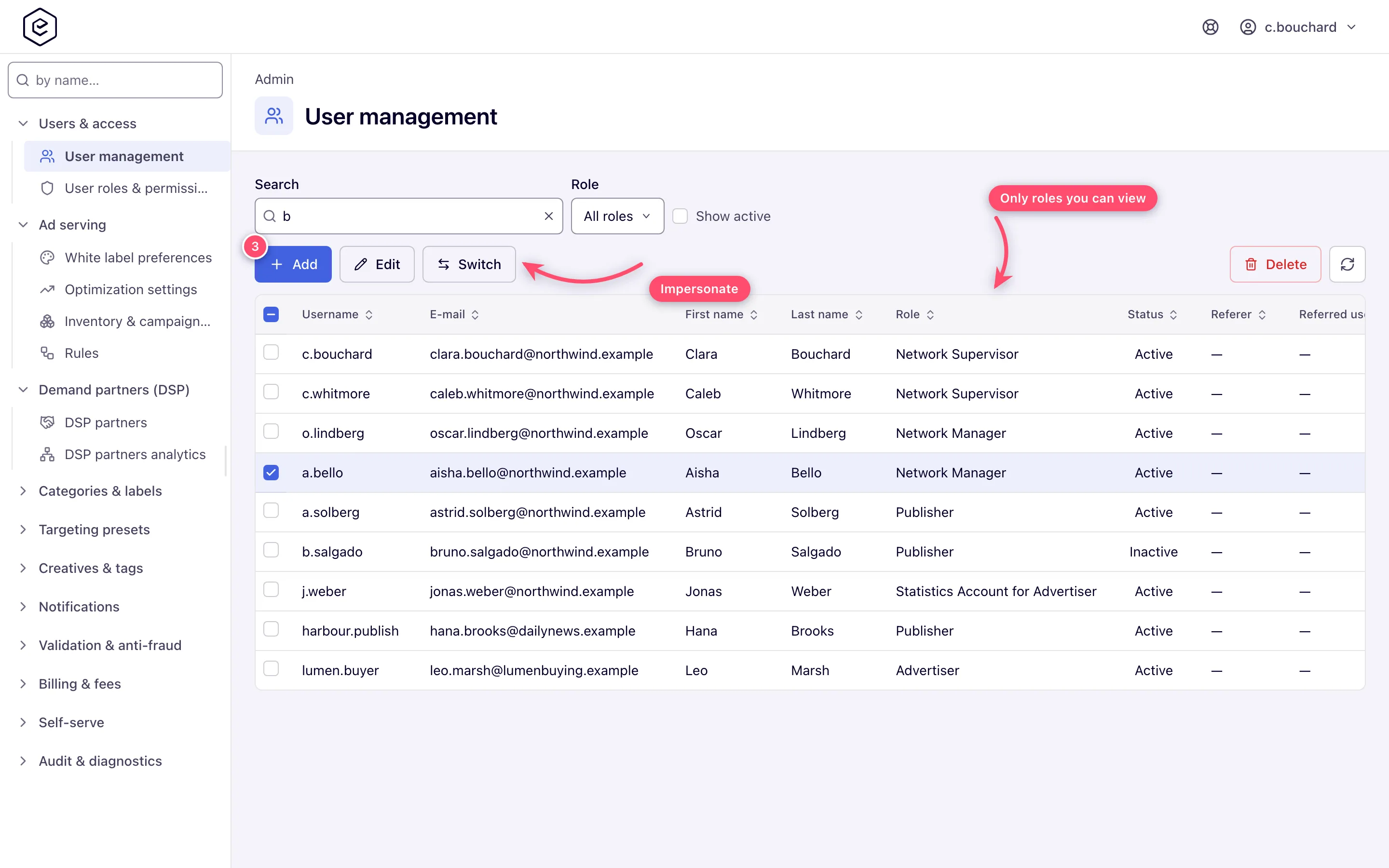
Narrow the list if you need to: Search by username or email, pick a Role, or tick Show active. The grid lists only users whose role you hold View on, so it is normally shorter than the network’s headcount.
-
Click Add, or select a row and click Edit (double-clicking an editable row works too). The form opens as its own page.
-
Fill the three sections — Login information, Personal information, Additional information. Username, E-mail, Role and Created are required; Password only when creating (8–64 characters, not on the common-password blocklist).
-
Click Save. A Record successfully processed. toast confirms; a newly created user gets its own edit URL so a second save updates it instead of creating a duplicate.
The password you type is never mailed. The activation mail carries a single-use set-password link, valid 72 hours by default; a new link invalidates the old one. Send the user through the link, or through Forgot password if it has expired.
Assign a role
The Role select sits in Additional information and is required. Changing it changes the user’s whole permission set at once and — if the new role is built on the other base role — moves them between the Account and Admin areas at their next sign-in. The select offers every role on the network; the save checks that you hold Create on the new role and on the user’s current one, otherwise it answers 403 Access denied.
Switch into a user’s account
- Select the row and click Switch. It enables only for an active user whose role you hold Access on; the server refuses the switch for any other user with 403.
- You land in that user’s account. The user menu’s log-out slot becomes Exit user, which returns you to User management.
An admin session cannot open the Account area directly whatever its role carries; Switch is the way to see the account side.
Leave notes the user can read
-
On an existing user’s edit page, scroll to the Notes for the user panel below the form.
-
Type an optional title (up to 200 characters) and the text (up to 5,000 characters, line breaks kept) and click Add. The note saves at once; the form’s Save does not touch notes. Each note has Edit and Delete (Delete asks first).
-
The user reads it on their Notes tab, between Analytics and Preferences, newest first. Each note in your panel says Read on … and when, or Not read yet.
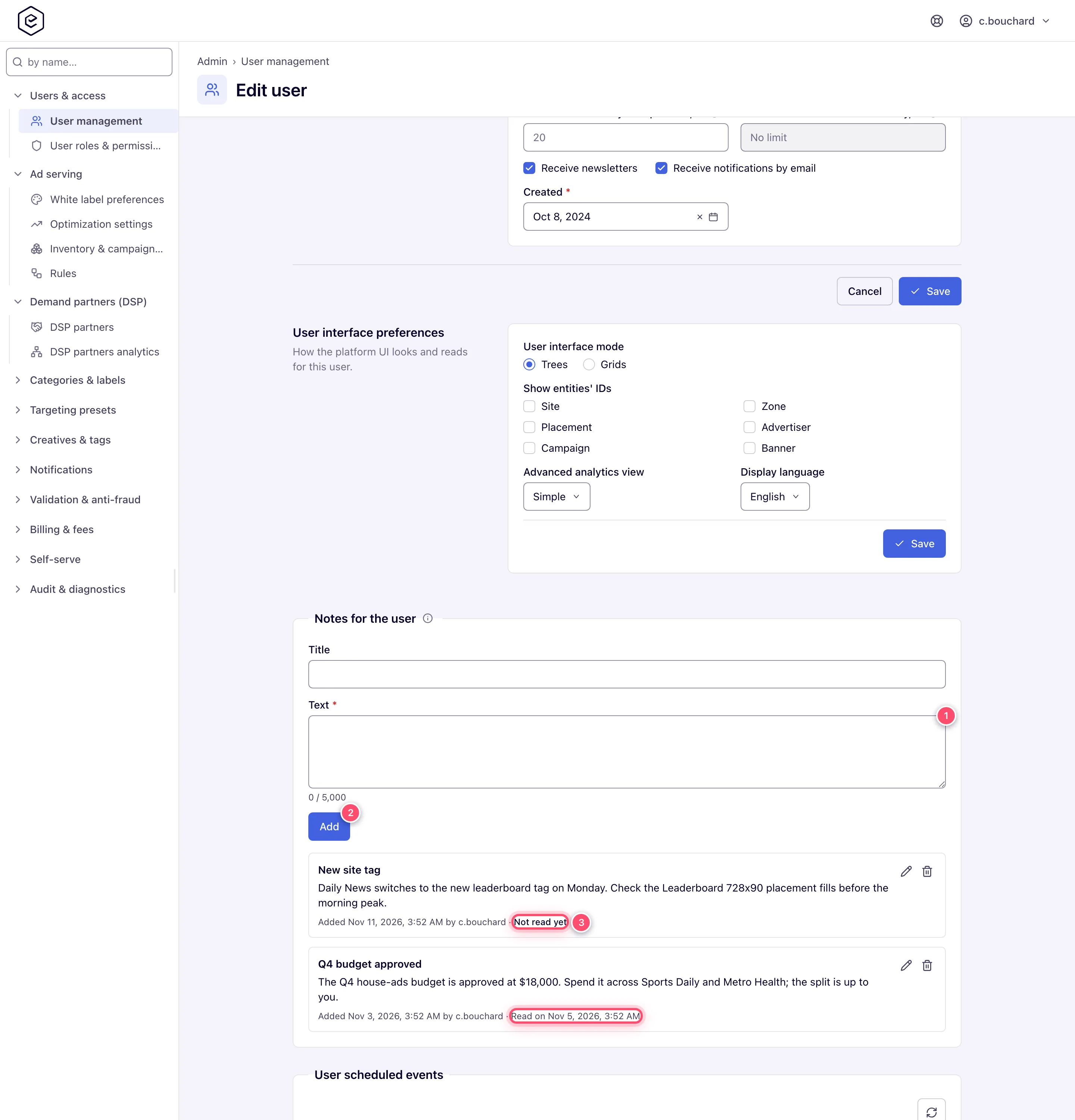
The tab needs Notes Tab Visible on the user’s role (off on every role until you tick it) and at least one note: a user with the permission and no notes sees no Notes tab until you add the first one (it appears on their next page load or within about three minutes). The panel warns when the role lacks the permission, and while the user has no notes it says the tab appears with the first one. The Internal notes field in the form is yours alone: the user never sees it, and contact-form messages are appended to it.
Update your own admin account
Go to Admin → Users & access → Admin user preferences. Change password (current, new, confirm) and Change personal information (name, email, phone, country, state/province, company, website) save independently.
Caveats and exceptions
Notes. A new or edited note is unread again until the user marks it read — opening the tab
does not. Only the user can mark notes read: when you switch into them, the Notes tab shows what
is unread without check marks, and the server refuses the call. Adding, changing and deleting
notes takes the same right as editing the user; a view-only role sees the notes without the
buttons. Without Notes Tab Visible the notes are not in the user’s profile over the REST API
or the AI assistant either (the assistant’s whoami reports the permission as may.notesTab).
You cannot delete your own account. The button stays disabled on your row and the server refuses the request.
The caveats that apply to every user and role — who can do this, the base role, grants that were never set, how long a change takes — are on Manage users, roles and permissions.
Not working?
The full checklist is on Manage users, roles and permissions; the causes that are about a user record:
| Symptom | Check | Where |
|---|---|---|
| 403 Access denied on saving a user | You lack Create on the user’s new role or on their current one | User Management group of your own role, the Create column |
| Switch stays disabled | The user is inactive, or you lack Access on their role | The Active box on the user; the Access column of your role |
| A user shows an empty Role cell | Their role was deleted; they can do nothing until given one. Listed only to a role holding Manage Role somewhere | Open Edit and pick a role |
| A user’s Notes tab is missing, or the panel says the role lacks it | Tabs Management → Notes Tab Visible is off (default on every role) | User roles & permissions → that role |
| A user’s Notes tab is missing although their role has Notes Tab Visible | The tab shows only once the user has a note | Add the first note; the tab appears on their next page load or within about three minutes |
| The user did not get a password | It is never mailed; the activation link expired after 72 hours | Resend through Forgot password |
Reference
Every field of the form, the password rules and the companion panels: User edit form; the grid’s button rules and users whose role was deleted: The user grid. Which Admin UI permission each page needs is in the hub’s Reference.
