
Bulk edit banners: properties, URLs, status and labels
Select banners or campaigns in the grids view and act on the whole selection — rewrite landing URLs, change one template property across a set, turn banners on or off, apply labels — or append a macro to landing URLs that differ per banner over the REST API.
In the grids view of Account → Advertisers you tick rows and the bulk toolbar acts on the selection: one landing URL for every banner of the selected campaigns, one template field changed across hundreds of banners that share a template, status toggled, labels applied. When every banner must keep its own URL and only gain a parameter, the REST pair that reads and writes landing URLs banner by banner does it instead. The grids view is a display preference — switch it in Preferences, then pick the level with Group by; the rest of the bulk operations are on Bulk banner operations.
Example. Two weeks after launch the landing page of Northwind Brand Q3 moves: select the
campaign → Change URL(s) → one URL → Successfully updated 24 banners from 24. A month
later the tracking vendor wants &cid=$$CLICK_ID$$ on every URL, which differs per banner — a
script reads the 24 URLs with GET /rest-api/banners/urls.do, appends the parameter and writes
them back with one POST.
Typical scenarios
| You want | Use | Where |
|---|---|---|
| Pause 40 banners of one advertiser for the weekend, then resume | Turn off / Turn on on the selection (with Undo) | grids view, All banners level |
| One new landing URL for every banner of 3 campaigns | Change URL(s) | grids view, campaigns selected |
| Change one template field (the promo text) on 150 banners that share a template | Update properties — tick only that property | grids view, banners selected |
Append &cid=$$CLICK_ID$$ to URLs that differ per banner | the REST pair GET / POST /rest-api/banners/urls.do | Add a macro to every landing URL |
| Tag 60 banners Q3-launch for a matching rule | Labels → Mode Add | grids view |
Step by step
Each operation stands on its own; use the one you need.
The bulk toolbar
Tick rows in the grid and the toolbar acts on the selection; the actions are listed in the Reference. The Filter by combo above the toolbar decides what the neighbouring name box matches — it is set to Advertiser by default, so typing there filters by advertiser name, not banner name.
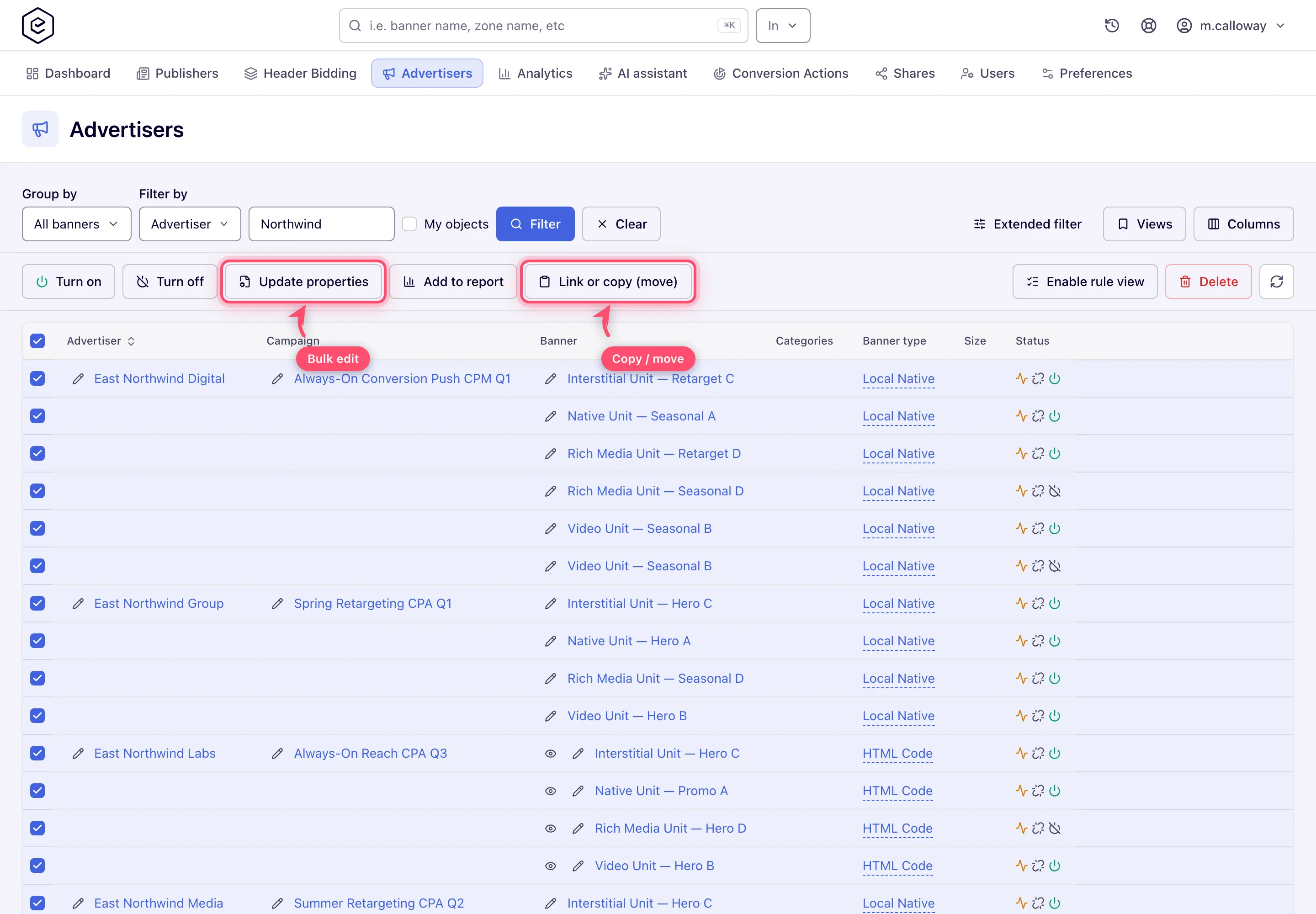
Update properties
Select banners → Update properties. What you get depends on the selection:
-
Every selected banner uses the same template → the modal lists that template’s properties, each behind an opt-in checkbox. The input stays disabled until you tick it, and only ticked properties are written — so you can change one field across hundreds of banners without disturbing the rest. File and HTML5 ZIP properties accept uploads here too.
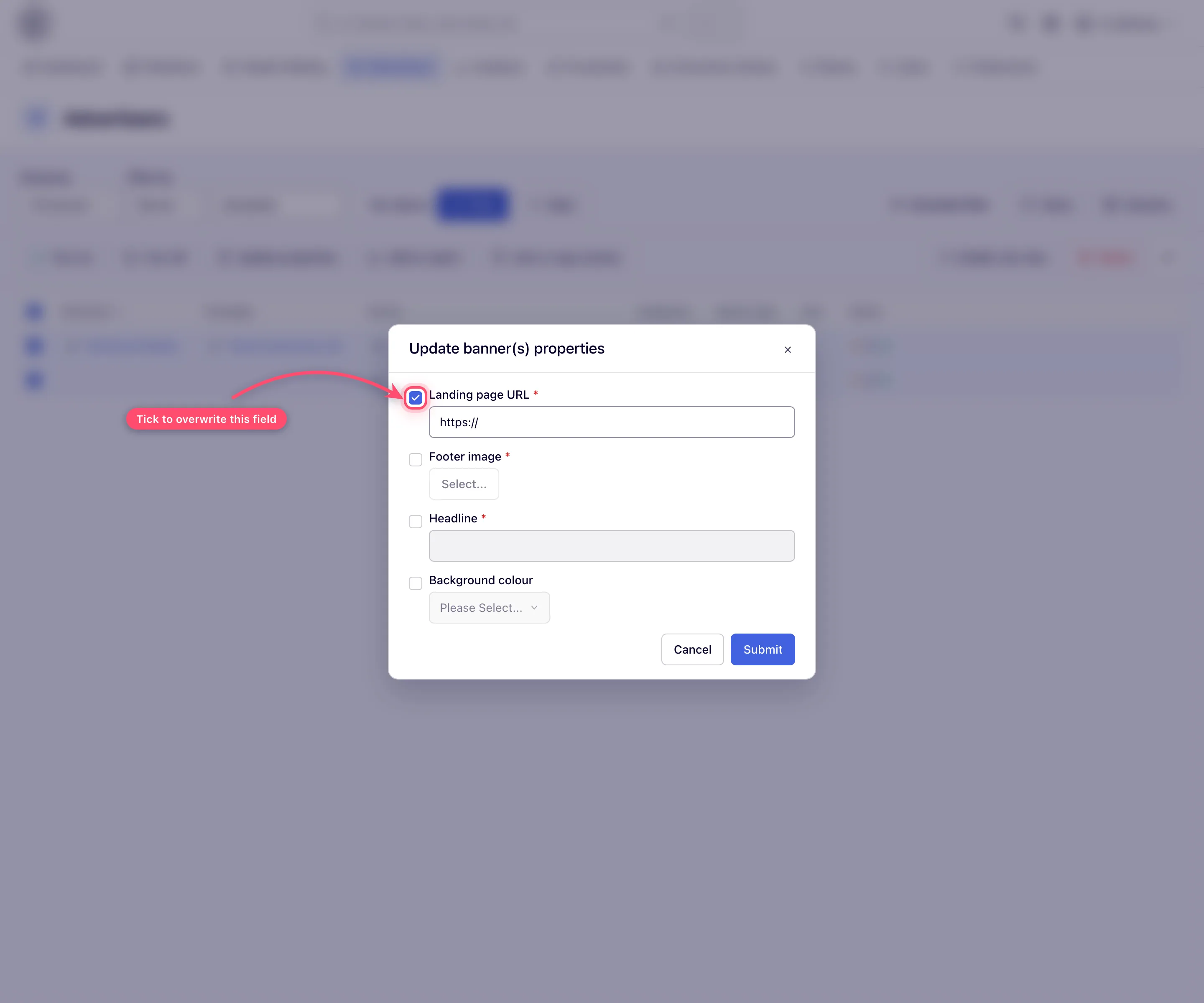
-
Any other mix → the modal reduces to a single URL field that sets the landing URL of every selected banner.
Change URL(s)
Select campaigns → Change URL(s) → enter one URL, and every banner of every selected campaign that has a landing-URL field gets it. The answer is a count, such as Successfully updated 12 banners from 30; banners of types without such a field are counted but left as they are — see the caveat below. Over the API see Rewriting landing URLs in bulk.
Add a macro or parameter to every landing URL
Change URL(s) and the banner-level Update properties URL field both write one URL into
every selected banner. To append something to URLs that differ per banner — a tracking macro, a
utm_ tag — use the REST pair that reads and writes landing URLs banner by banner, described
step by step on
Add a macro or parameter to all landing URLs of an advertiser.
Caveats and exceptions
Which banners a bulk URL change writes. Both Change URL(s) and the URL-only mode of Update
properties write the URL to Local File, External File, Local Video, External Video, Local
Native, External Native and Template banners. HTML Code, OpenRTB, Third Party VAST/VPAID Tag
URL, VPAID Framework and Advanced Local Video(s) banners are left as they are, and so are native
banners with no native preferences and templates with no URL-flagged property. The result is
reported only as a count — Successfully updated 12 banners from 30 — without naming the banners
that were left out. When the two numbers differ, set those banners’ URLs individually; to get a
per-banner list of what was and was not written, use the REST
POST /rest-api/banners/urls.do
call, whose answer names every banner it could not update.
Update properties shows template fields only when the whole selection uses one template. Add a single banner of another type and the modal quietly downgrades to URL-only — which is also when the note above applies.
An inactive template blocks Turn on. A banner whose template is inactive cannot be switched on — Banner(s) that use inactive template can not be turned ON — unless your role holds the admin-only permission Update properties and status, based on inactive template. In a bulk Turn on such a banner stays off.
The caveats that apply to every bulk operation — who can do it, read-only shares, bulk delete — are on Bulk banner operations.
Not working?
| Symptom | Cause | Check — where |
|---|---|---|
| Successfully updated 12 banners from 30 | 18 banners have no landing-URL field (HTML Code, OpenRTB, VAST tag, VPAID, Advanced Local Video) or no URL-flagged template property | set those by hand, or POST /rest-api/banners/urls.do for a per-banner list |
| Update properties shows only a URL field | The selection mixes templates or types | filter the grid to one template first |
| Banner(s) that use inactive template can not be turned ON | The template is inactive | activate the template, or the admin-only permission Update properties and status, based on inactive template |
| The name box filters nothing | Filter by is on Advertiser | switch it to the level you are typing |
The causes shared by every bulk operation — the tree view, read-only shares — are on Bulk banner operations.
Reference
Every toolbar action, with its REST counterpart, is in The bulk toolbar actions. The URL endpoints are on Entities — banners.
