
Turn on two-factor sign-in
Protect a console account with a second step after the password — a passkey, a code from an authenticator app, a code by e-mail, or a one-time recovery code — how strong each method is, what the sign-in page asks and when, how to set each method up in Preferences, how administrators require a security level and a number of verifications for a role from a date, let passkeys sign in without a password, reset a user, and what it does not cover.
What it is and why
Two-factor sign-in adds a second step after your password: a passkey, a code from an authenticator app on your phone, a six-digit code sent to your e-mail, or one of your recovery codes. Someone who learns your password still cannot sign in without it. The methods are not equally strong, and each one shows its security level:
| Method | Level | Why |
|---|---|---|
| Passkey | High | Bound to this console’s address: a look-alike page cannot use it, and nothing is typed that could be passed on. |
| Authenticator app | Medium | A code from a secret on your phone. |
| E-mail code | Low | Whoever controls your mailbox can also reset your password. |
| Recovery code | Backup only | A way back in when another method is lost; it fills one place at most. |
It protects the console sign-in; API keys and the AI assistant connection have their own secret and do not ask for a code (see Caveats).
Example. A network manager at Northwind Media adds a passkey on their work laptop and keeps the authenticator app as a second method. Their network requires two verifications at Medium or higher for network managers, so from a hotel browser the console asks for the passkey and then the app’s code; at the office, in a browser the console remembers, it asks for neither.
Typical scenarios
| You want | Do | Where |
|---|---|---|
| Every network manager on a passkey from 1 March | Add the role, At least High, Required from 1 March | Admin → System preferences → Two-factor sign-in |
| Two different methods at every sign-in for administrators | Add the role, Verifications: 2 | Admin → System preferences → Two-factor sign-in |
| The strongest method, and no codes to type | Passkey → Add a passkey | Preferences → Two-factor sign-in |
| Signing in with a passkey alone | The administrator ticks Passkeys may sign in without a password | Admin → System preferences → Two-factor sign-in |
| A second step with nothing to install | E-mail code → Turn on, enter the code the mail brings | Preferences → Two-factor sign-in |
| Codes that work without your mailbox | Authenticator app → Set up, scan the QR code, enter the first code | Preferences → Two-factor sign-in |
| A way back in if the phone is lost | Keep the recovery codes shown when you turn the first method on | Preferences → Two-factor sign-in |
| Not to be asked on your own laptop every time | Nothing by default: the console remembers the browser after the code step. Where your network lets you choose, leave Remember this device ticked (untick it on a shared computer) | Sign-in page |
Step by step
The sign-in page
-
Enter your Username or e-mail and your Password, and click Sign in. The account’s e-mail address works as well as its username; if several accounts use the same e-mail, sign in with your username. The page fills the first field with what the last sign-in in this browser used.
-
If two-factor sign-in is on and the console asks for a second step, answer it:
- Passkey: click Use passkey; the browser asks for your fingerprint, face, screen lock or security key.
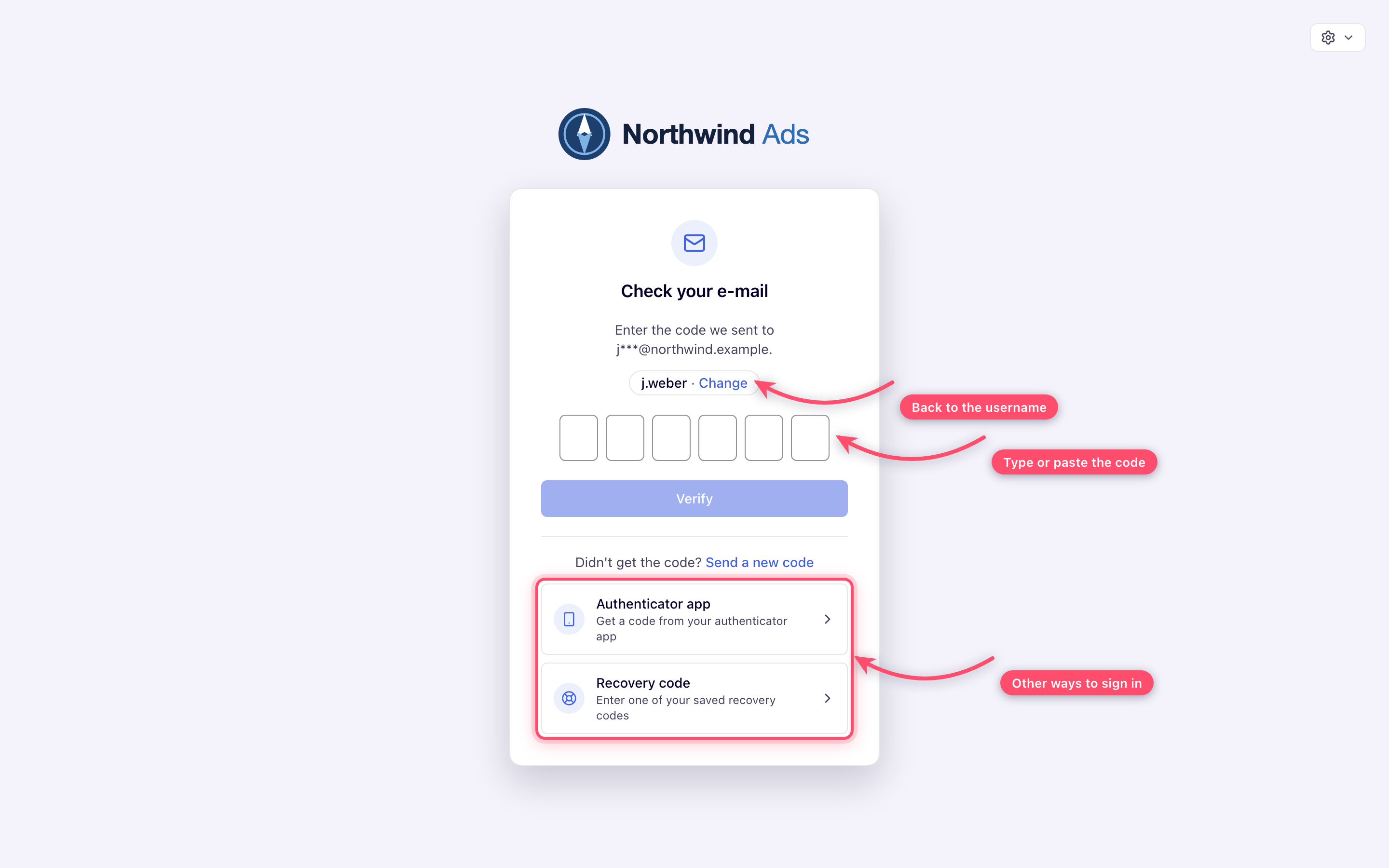
- E-mail code (Check your e-mail): the page says where the code went (j***@northwind.example). It works once and for 10 minutes. Didn’t get the code? Send a new code sends another; an earlier code still works until it expires.
- Authenticator app: the six-digit code the app shows now.
- Recovery code: one of the codes you saved; each works once.
A six-digit code goes into six boxes and is checked as soon as the last digit is typed or pasted; a wrong one is cleared so you can type the next. Try another way lists the other methods your account has, each with what it will do (Get a code at j***@northwind.example). Change beside the username goes back to the first step.
-
When your account or its role asks for more than one verification, the page says Verification 1 of 2 and, after the first, asks for a different method.
An account that signs in with single sign-on (SSO) has no password on this console: the page says This account uses single sign-on (SSO). and shows Continue with SSO in place of the password. Changing the username brings the password back. Its two-step verification is part of that company sign-in, so the console asks no second step of it: its Preferences say so instead of offering methods, and the network’s two-factor policy does not apply to it.
Where your network lets passkeys sign in without a password, the browser offers this console’s passkeys when you click the Username or e-mail field, and the page shows Sign in with a passkey. Pick yours: it signs you in, or asks for the remaining verifications when your role needs more than one.
Turn it on in Preferences
-
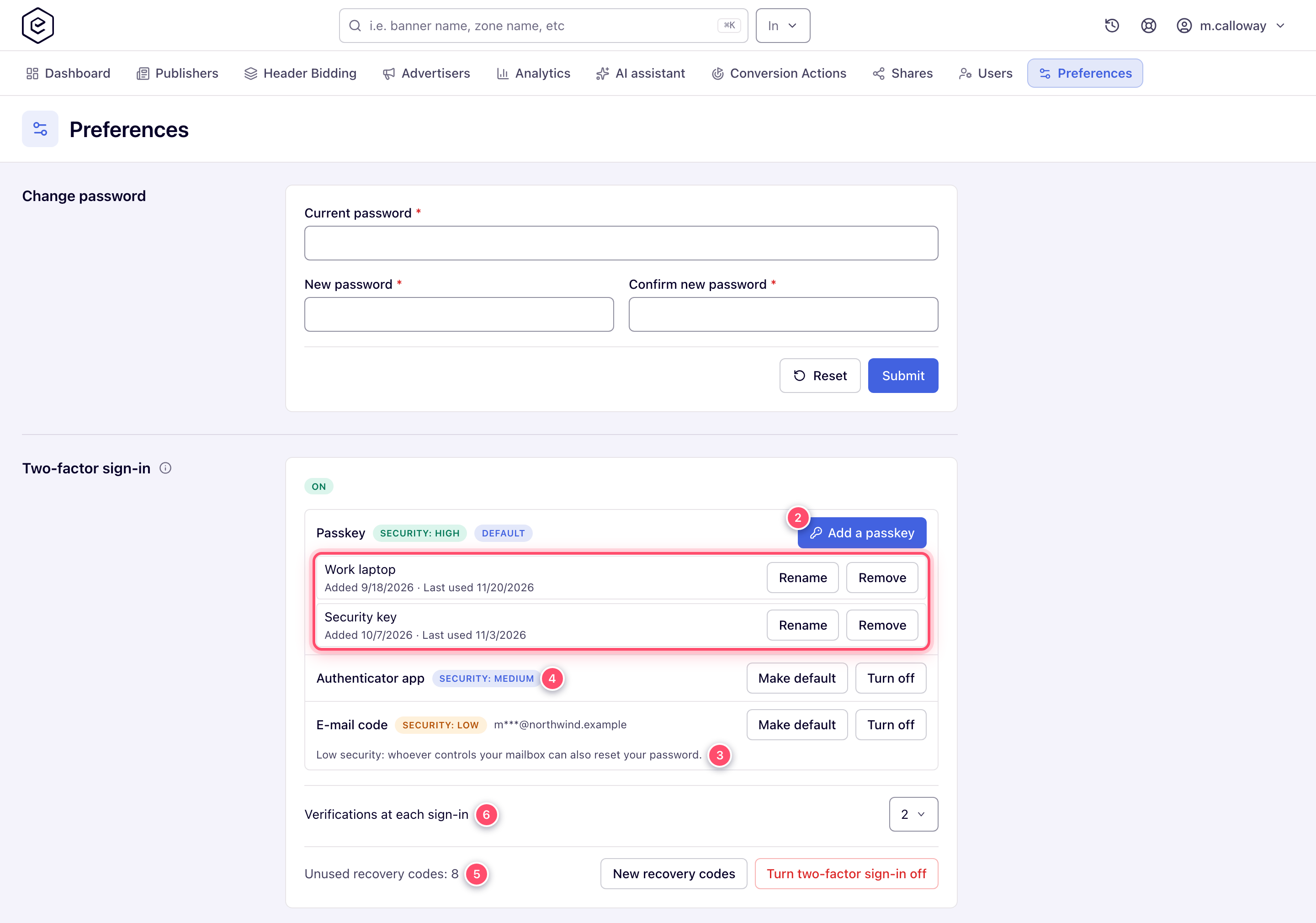
Open Preferences (Account → Preferences; administrators: Admin → Preferences) and find the Two-factor sign-in card. Each method shows its security level.
-
Passkey → Add a passkey. Enter your current password and click Continue, name the passkey (Work laptop), and click Create passkey. The browser asks for your fingerprint, face, screen lock or security key. The passkey works on this console’s address; add one per computer or phone, or keep one in a password manager that syncs it. Rename and Remove are beside each passkey, with the date it was added and last used; removing one asks for your password.
-
E-mail code → Turn on. The console sends a code to your e-mail address; enter it and click Confirm. This proves the mailbox works before the sign-in relies on it. The card warns that this is the weakest method.
-
Authenticator app → Set up. Enter your current password and click Continue. Scan the QR code with the app (Google Authenticator, 1Password, Microsoft Authenticator and similar), or type the key shown under it, then enter the code the app shows and click Confirm. The app lists the account under your network’s name.
-
The first method you turn on shows ten recovery codes. Save them now: they are shown only once. Click I saved them.
-
With two methods on, Make default picks the one the sign-in page asks for first, and Verifications at each sign-in can ask for two (or three) different methods every time. Asking for fewer again asks for your password.
Each change is recorded in the Actions log and e-mailed to you.
Require it for a role (administrators)
-
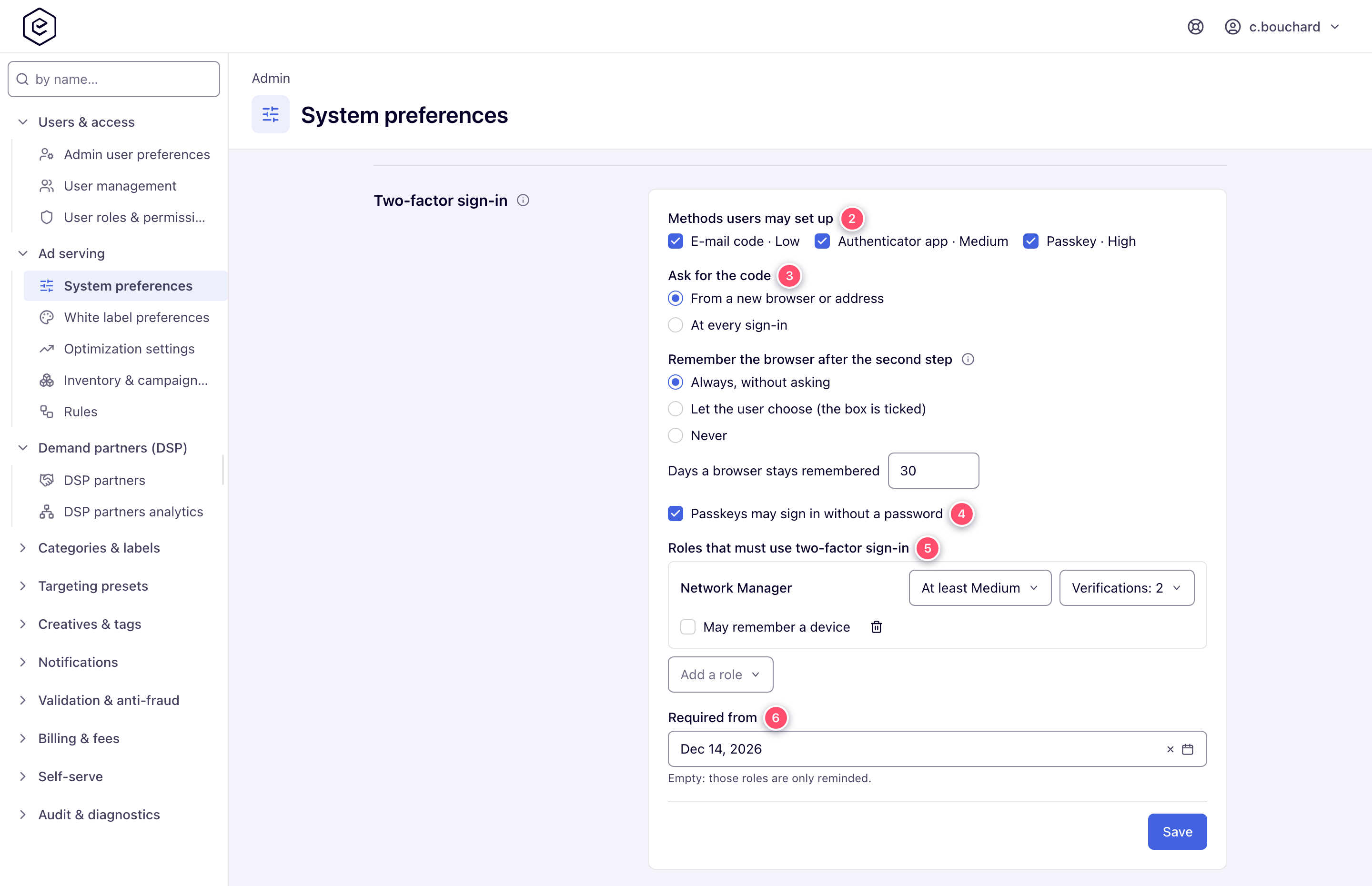
Open Admin → Ad serving → System preferences and find the Two-factor sign-in card. The role needs the System Preferences admin permission.
-
Under Methods users may set up, untick a method users must not use.
-
Under Ask for the code, choose From a new browser or address (the default) or At every sign-in. Under Remember the browser after the second step, Always, without asking (the default) remembers the browser with no box at all, Let the user choose shows the Remember this device box (ticked), and Never takes it away from everyone. Days a browser stays remembered sets for how long (30 by default).
-
Tick Passkeys may sign in without a password to let a passkey replace the password. It counts as one High verification; roles that ask for more still get the rest. Off (the default), a passkey is a second factor only.
-
Under Roles that must use two-factor sign-in, Add a role, then pick the minimum security level of its strongest method (At least Low, At least Medium, At least High), how many verifications a sign-in takes (1–3, each a different method), and whether its browsers may be remembered. To set a rule for everyone, add All other roles: it holds for every role without a rule of its own. A role added next to it replaces it for that role — stricter, softer, or Not required to take that role out.
-
Set Required from, then click Save. Left empty, those roles are only reminded.
Nothing changes for anyone until you add a role. From then until the date, every account that does not meet its role’s level and number sees a notice at the top of the console, and the required roles get a reminder e-mail 14 and 3 days before it. From the date, an account of a required role that has not set up enough is stopped at sign-in: it answers the methods it has (with nothing set up, an e-mail code first), then sets up the next one it needs on the sign-in page — e-mail codes, the authenticator app’s QR code, or a passkey — before it gets in.
Reset a user who lost every method (administrators)
Open the user in Admin → Users & access → User management and click Reset two-factor sign-in on the Two-factor sign-in panel. It removes the user’s methods, passkeys, recovery codes and remembered browsers, signs the user out on every browser, is recorded in the Actions log and is e-mailed to the user. Do it only once you are sure the request comes from the user. A required user then sets a method up again at the next sign-in.
Caveats and exceptions
When the code is asked. The sign-in asks for a code from a browser that never passed the second step for your account, and from a known browser on an address you have not signed in from recently. A remembered browser skips it for the number of days your network set (30 by default). Clearing the browser’s cookies makes it a new browser.
Remembered per address of the console. If your network’s console opens on more than one domain, each domain remembers the browser separately, so the first sign-in on each one asks for the code.
A passkey works on the address it was made on. A passkey belongs to the console’s domain name in the address bar when you added it. If your network’s console opens on more than one domain, add a passkey on each one you use; the card says Works on … only for a passkey made elsewhere. A console opened by IP address cannot hold passkeys at all.
A recovery code fills one place. When a sign-in takes two verifications, one recovery code can stand in for a lost method; the other verification still needs a method you have. Every sign-in with a recovery code mails the account (A recovery code was used to sign in to your account, with the codes left), and the console says so at the top until you close it, with a link to set two-factor sign-in up again.
Remember this device skips all of it or none. A remembered browser skips every verification; a new one is asked for all of them.
A single sign-on account has no password here. Its Preferences show no Change password form and no two-factor methods: both belong to the company account it signs in with.
Saved passwords keep working. The username and password fields are one ordinary form, marked for password managers, so a manager fills both and offers to save them; the code field is marked as a one-time code for managers that keep authenticator codes.
Staying signed in is not “Remember this device”. Every console sign-in keeps the browser signed in until it has not visited for the number of days your network sets (30 by default); see Signed-in devices. Remembering the browser after the second step is separate: it only lets later sign-ins in this browser skip the second step, for the days your network sets for it. A browser that was kept signed in before your account turned on two-factor sign-in is sent to the sign-in page once and is kept signed in again after it passes the second step.
Turning things off asks for your password. Setting up an authenticator or a passkey, generating new recovery codes, asking fewer verifications, and turning any method off or removing a passkey ask for your current password, so someone using an unattended session cannot replace your second factor with theirs. New recovery codes makes the old ones stop working.
Your network may require it. When your role must use two-factor sign-in, the card says from which date, which security level at least one of your methods must have, and how many different methods each sign-in takes. From that date, with one verification left, a method below the level is not offered, and “Remember this device” may be missing.
Wrong codes count like wrong passwords. Too many wrong codes lock the sign-in the same way too many wrong passwords do, and for the same time.
Read-only over the API. The API and the AI assistant can read your status (methods, their levels, your passkeys’ names and dates) and the network’s policy, but cannot add or remove a passkey, turn a method off or reset it; that takes the console.
Integrations use API keys. Two-factor sign-in guards the console sign-in. Scripts, integrations and the AI assistant authenticate with an API key, a secret of its own — keep it as safe as a password.
The authenticator app or the passkey is missing from the card. Your platform has not been set up for it yet: the authenticator app needs a key to store authenticator secrets, and passkeys are switched on by the platform. E-mail codes still work. Ask your platform administrator.
Which method should I use?
A passkey, if your browser and device can make one: it is High, cannot be phished by a look-alike page, and there is nothing to type. Keep a second method (the authenticator app) for a device you do not have with you. E-mail codes are Low: whoever controls your mailbox can also reset your password.
Lost every method?
Use a recovery code. Without one, ask your platform administrator to reset your two-factor sign-in.
Not working?
The passkey is refused or the browser shows no passkey:
- You are on another address of the console. A passkey works only on the domain it was made on; use that one, or add a passkey here.
- The browser or device cannot use it. Use a current browser; a passkey kept on a phone can sign in on a computer through the browser’s Use a phone or tablet option.
The code is refused. Check, in this order:
- The code expired or was used. An e-mail code works once and for 10 minutes. Click Send a new code.
- The phone’s clock is off. An authenticator code depends on the time; turn on automatic time on the phone. A code is also refused the second time it is entered.
- The sign-in timed out. After 10 minutes between the password and the code, the page goes back to the password step: The sign-in timed out. Enter your password again.
- The sign-in is locked. After too many wrong codes or passwords the page says to wait; try again after that time.
No code e-mail arrives: check the spam folder, then Send a new code. Five codes can be sent in 15 minutes; after that, wait or use another method.
Reference
| Method | Level | Set up with | At sign-in |
|---|---|---|---|
| Passkey | High | Password, then a name, then the browser’s fingerprint, face, screen-lock or security-key prompt | Use passkey; the browser asks the same; works on the domain it was made on |
| Authenticator app | Medium | Password, then the QR code or key, then its first code | Six digits from the app, each accepted once |
| E-mail code | Low | A code sent to your address | Six digits by e-mail, single use, valid 10 minutes |
| Recovery code | Backup only | Shown once when the first method is turned on; New recovery codes replaces them | Any unused code, XXXXX-XXXXX, single use; fills one place at most |
A role’s rule: the minimum level of its strongest method (Low, Medium, High) and 1–3 verifications, each a different method. The account can ask more of itself, never less than its role.
The sign-in keeps four cookies: the last account’s username, so the page can open on it; a random token for the browser that passed the second step; a random token that keeps the browser signed in; and a random id that tells the console whether the browser is new to the account, for the New sign-in e-mail. See Cookies.
Related pages: