
Set the company details and platform defaults
Fill in the Main tab of White label preferences — company details for every mail and VAST response, the language policy, the default theme, density and UI version, and the remaining sections down to the ad-serving domain — with the caveats and a fix-it checklist.
The Main tab of White label preferences holds the company details that go into every outgoing mail and every VAST response, the language and UI-version policy, the interface defaults, and the remaining install-wide sections down to the ad-serving domain and the supply chain. It is the first of the four tabs on Configure white-label branding; the colour theme and the images are on Set the theme, logos and sign-in background.
Example. Northwind Media resells the platform to 40 publishers. With Company name
Northwind Media, Website and Email filled in and Default language German, 12 of
its publishers work in German from their first sign-in, every notification mail is signed
Northwind Media with a Visit our website link, and every VAST response names Northwind Media as the ad system.
Typical scenarios
| You want | Set | Where |
|---|---|---|
Your name instead of Epom in every mail footer and VAST <AdSystem> | Company name, Website, Email, Phone; VAST AdSystem name if the ad-system label should differ from the website | Main → Company info / Ad-serving settings |
| Users can pick one of the 15 interface languages | Allow language change on public pages and … for Logged-in users — both off in a fresh install | Main → Company info |
| A sign-up link gone from the sign-in page | Hide sign-up (the form itself stays reachable by address) | Main → Ad-serving settings |
Step by step
-
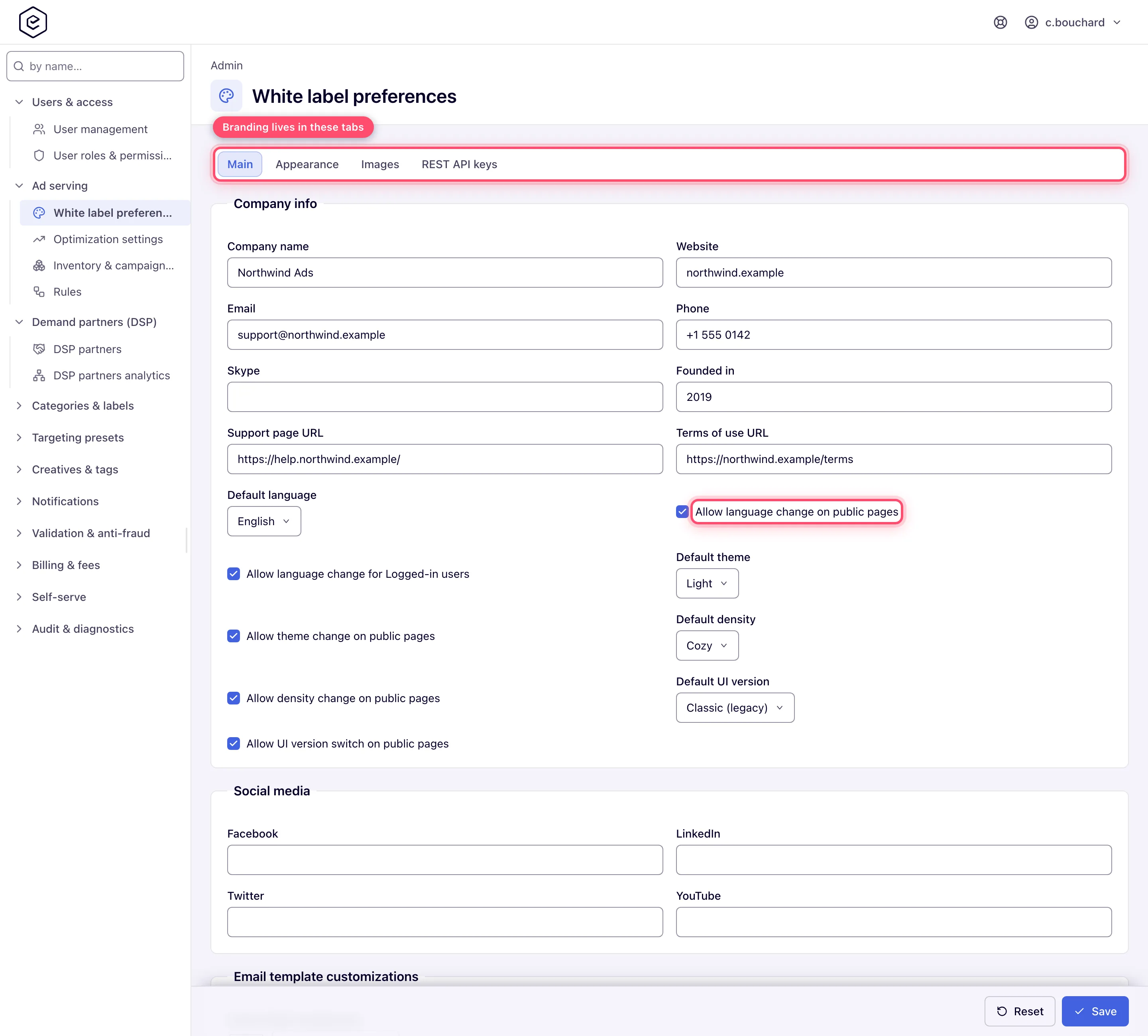
Go to Admin → Ad serving → White label preferences. The Main tab opens first. You need the White Label Preferences admin permission.
-
Fill in Company info: Company name, Website, Email, Phone, Support page URL, Terms of use URL. Company name is required — clearing it fails the save with Required under the field and nothing is written.
-
Set the language policy: Default language for new and anonymous visitors; Allow language change on public pages (picker on sign-in, sign-up, forgot- and reset-password); Allow language change for Logged-in users (header menu and Preferences). Independent, and both off in a fresh installation.
-
Set the interface defaults: Default theme, Default density, Default UI version (Classic (legacy) or New) and the three matching Allow … on public pages toggles.
-
Work down the remaining sections — Social media, Email template customizations, Analytics customizations, Ad-serving settings, Supply chain, Branded placement settings, Referral program settings, User’s payment details. Every field is in the reference.
-
Click Save in the sticky bar at the bottom. A green Properties successfully saved toast confirms it. Reset returns the tab to the values it loaded with — it does not undo a save.
Caveats and exceptions
Defaults reach only people who have not chosen. For theme and density the order is: a switch made in the current tab, then the user’s saved preference, then what this browser last used, then these defaults. Anyone who ever flipped the switch keeps that choice; open sessions pick up a changed default within about five minutes. The same holds for language and UI version until the user chooses in Preferences.
With both language toggles off there is no picker anywhere — not on sign-in, not in the header, not on Preferences — and nothing tells a user that the 15 other interfaces exist.
Website does double duty. It is the Visit our website link in every notification mail
and the default <AdSystem> of every VAST response. Fill in VAST AdSystem name to decouple
them.
Hide sign-up hides only the link. The form stays reachable by its address; which roles a visitor can sign up into is each role’s Sign-up grant.
The system default ad-serving domain is not just a label. It is the one host for every URL not on a placement’s tag domain and ends up inside the impression, click and conversion URLs of served creatives. Change it only with Epom support, who register the new host on every ad server; a host the ad servers do not answer on silently breaks tracking, and codes already on publisher pages keep working only while the old hostname stays registered and pointed at Epom. Run the checklist in Change the system default ad-serving domain first.
Supply chain. Publish sellers.json is off by default because the list becomes public; turning it on also switches the supply chain in bid requests to DSPs to the seller domain and each site’s seller ID, so tell your DSP partners first. Settings and rules: reference.
The caveats that apply to every tab — who can do this, the Main-tab save that switches the sign-in background off, how long changes take, the two settings that live only on the classic page — are on Configure white-label branding.
Not working?
| Symptom | Check | Where |
|---|---|---|
| Nobody can switch language | Both language toggles are off | Main → Company info |
| A user still sees the old default theme or language | They chose one already; defaults reach only users and browsers with no choice | Their Preferences; the browser’s stored choice |
| Main-tab save fails | Company name empty, an invalid URL in a URL field, Decimal precision outside 2–3, Top n outside 3–50, a non-ads.txt line or a second MANAGERDOMAIN for one country | The message under the field names it |
| Sign-up still reachable although hidden | Expected — Hide sign-up removes the link only | Role Sign-up grants decide who can register |
| Tracking broke after changing the ad-serving domain | The new host is not registered on the ad servers, is banned, or its DNS, SSL or routing is not set up yet | Change the system default ad-serving domain with Epom support |
The causes for the other tabs are on Configure white-label branding.
Reference
Every field of the tab, with defaults and validation: Company details · Platform defaults · Ad-serving settings · Supply chain · Branded placement settings · Remaining Main-tab sections.
