
Steer automatic pairing with a category rule
Define a brand-safety policy once against advertising and inventory categories — classify advertisers and sites, build a Campaign Rule with include or exclude conditions in the admin area, activate it and attach it through the Matching rules cards — and why a category rule steers pairing but never removes a hand-linked banner.
What it is and why
A category rule is the broadest, most maintainable baseline: the policy is written once against a
category, and every advertiser you later tag with it is covered. What a rule does is create
pairings — it steers which demand the platform pairs with your inventory automatically; it
cannot take out a banner somebody linked by hand, and for programmatic demand the category lever
is an advisory bcat to the DSP. It is the third layer of Use case: brand safety with category rules, domain lists and advertiser blocks.
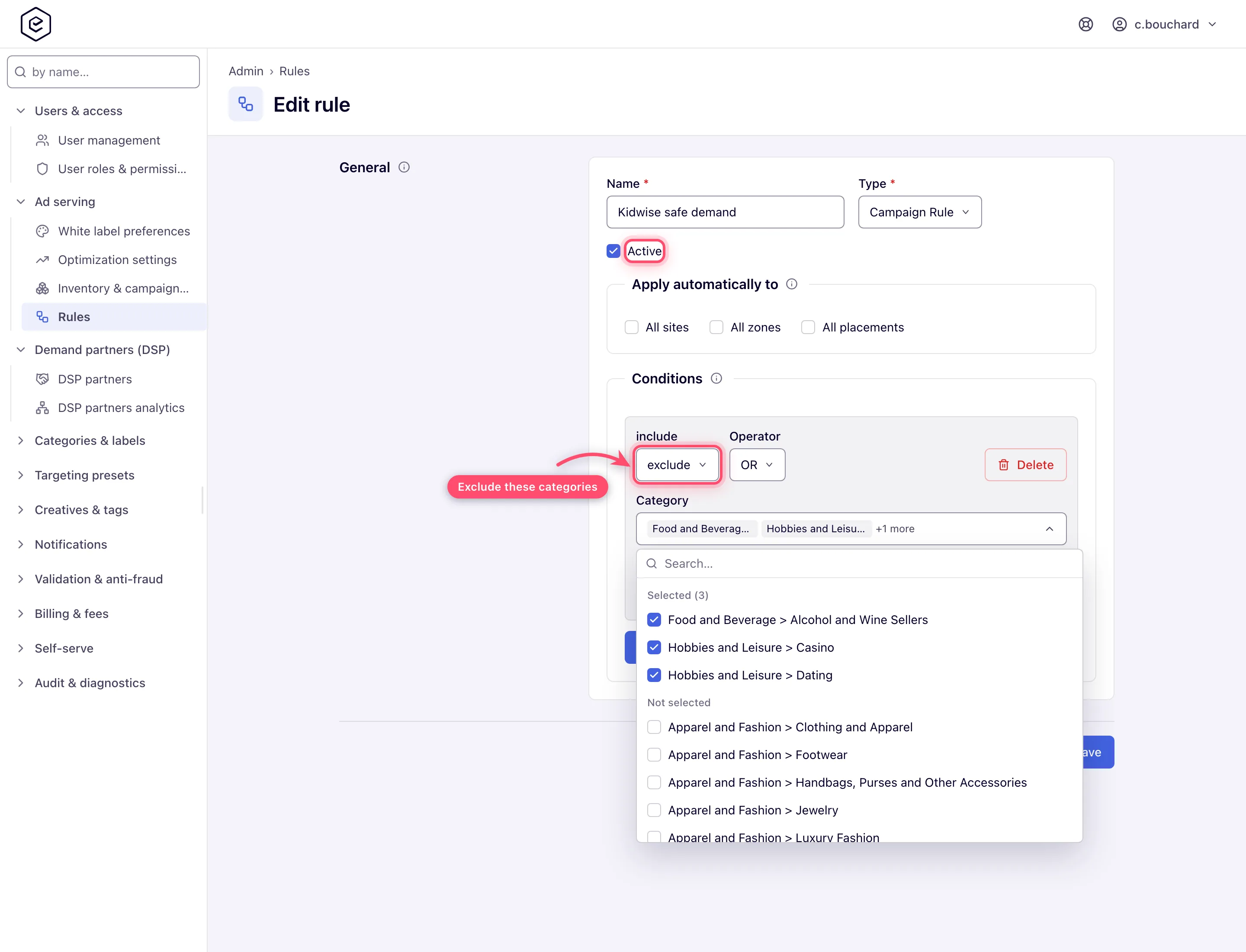
Example. The rule Kidwise safe demand — a Campaign Rule with one exclude condition on Casino, Alcohol and Wine Sellers and Dating — attached to the 8 Kidwise placements keeps every advertiser tagged with those categories out of automatic pairing. A gambling banner a trafficker linked to a placement by hand keeps serving regardless; stop it with a named block.
Typical scenarios
| You want to avoid… | Use | Does it stop demand? | Lives in |
|---|---|---|---|
| A class of demand being paired with your inventory automatically (gambling advertisers on a kids’ site) | Category rules | No — they steer automatic pairing; hand-linked banners are untouched | Admin → Ad serving → Rules, then the Matching rules card |
Step by step
Classify first, then build the rule in the admin area, then attach it on both sides.
The broadest, most maintainable baseline: define the policy once against a category, and every advertiser you later tag with that category is covered automatically. What a rule does is create pairings. For every ad request the ad server takes the union of the banners linked to the placement by hand and the banners the rules pair with it, and only then applies targeting. So a rule can bring demand in that nobody linked; it cannot take out demand that was linked by hand.
-
Classify demand and supply first. Tag advertisers with an advertising category (for example “Gambling”, “Alcohol”) in the Category field of their Basic info card; tag sensitive inventory with an inventory category (for example “Children”) in the Category field of the site’s Basic info card.
-
Administrator step: go to Admin → Ad serving → Rules and click Add. Name the rule and pick the Type Campaign Rule — it matches advertisers’ categories and labels and is attached to sites, zones or placements to control which demand is paired with them.
-
Under Conditions click Add and build each condition: an include / exclude picker, an Operator (AND / OR), and the Category (and Label) values. An include condition pairs only the categories you approve of (an allowance list); an exclude condition drops matching advertisers from what the rule pairs. Conditions are ANDed — an advertiser must satisfy every one.
-
Tick Active (a new rule is created inactive, and an inactive rule is ignored even where it is attached) and Save.
-
Attach the rule. On each site, zone or placement open the Matching rules card, switch it on and add the rule — and make sure Matching rules is also on for the demand side (advertiser, campaign or banner); with one side off nothing is paired. To have the rule attached automatically, tick the Apply automatically to boxes (All sites / All zones / All placements) and have your network administrator set the matching card in Admin → Ad serving → Inventory & campaigns settings → Rules panel default status to On.
Full mechanics and the include / exclude / AND / OR semantics: Matching rules and network defaults and Attach matching rules to an entity.
Caveats and exceptions
Category rules
- An exclude line is not a block. It subtracts from the pairings the rule itself would create, never from pairings that already exist. A gambling banner a trafficker linked to the placement by hand keeps serving whatever any rule says. To stop a specific advertiser, use a named block.
- Two Exclude lines on one entity cancel each other out. Lines on the Matching rules card are unioned, so “everything except A” plus “everything except B” is “everything except what is both A and B”: if A and B do not overlap, nothing is excluded at all. To exclude two rules, put them in one Exclude line with any of, and do not mix an Include line with an Exclude line on the same entity (the union can only widen).
- Apply automatically to is consumed at one moment only — when an entity’s Matching rules card is switched on — and it is not retroactive. A new site or placement is born with the card on only if the matching card in Rules panel default status is On; that setting ships Off for all six levels, so flagging the rule alone does nothing until it is changed. Entities that already exist get the rule only when someone attaches it or switches their card on.
- An uncategorised or miscategorised advertiser is invisible to the rule — a banner has no category of its own, it inherits its advertiser’s.
- Deleting a category that a rule matches on silently drops it from the rule’s match line — the line can quietly stop matching anything. Audit rules after pruning the taxonomy (taxonomies corner cases).
The caveats that apply to every layer — what none of the four controls can do, competitive separation and the roles — are on Use case: brand safety with category rules, domain lists and advertiser blocks.
Not working?
The rule pairs nothing, or a banner it should exclude still serves? The likely causes:
| Symptom | Likely cause | Check |
|---|---|---|
| A gambling banner still serves on the kids’ site although the category rule excludes Gambling | The banner is linked to the placement by hand; rules only steer automatic pairing | Placement → Linked Banners card; block the advertiser by name from Banners probability |
| Two Exclude lines on one entity, nothing is excluded | Lines are unioned: “except A” ∪ “except B” = everything, when A and B do not overlap | Entity → Matching rules; merge into one Exclude line with any of |
| The rule is attached but pairs nothing | The rule is inactive, Matching rules is off on the other side, or the advertiser carries no category | Admin → Ad serving → Rules → Active; the demand entity’s Matching rules card; advertiser Basic info → Category |
| New placements do not get the rule although Apply automatically to is ticked | The flag fires only when a card is switched on; Rules panel default status ships Off | Admin → Ad serving → Inventory & campaigns settings → Rules panel default status |
| The rule stopped matching after a taxonomy clean-up | A deleted category was dropped from the match line | Admin → Ad serving → Rules → open the rule’s conditions |
The other layers, and the verification step, are on Use case: brand safety with category rules, domain lists and advertiser blocks.
Reference
Full mechanics and the include / exclude / AND / OR semantics: Matching rules and network defaults and Attach matching rules to an entity; the categories: Manage category taxonomies. Which permission each control needs is in the reference table of the use case.
