
Save and reuse report templates
Keep a composed Filter form as a named template under Saved reports, apply it again in one click (or apply and run), overwrite it with Update, and delete it — with what applying replaces and why presets stay relative.
A saved report is the whole Filter form kept under a name — report type, date range, time granularity, group-by, filters, both entity-tree selections and the metric-column choice. Apply it to rebuild that form in one click, overwrite it with Update when the question changes, or delete it. What is stored is the form’s parameters, not its results and not its resolved dates. Scheduling a template to email itself is on Schedule recurring report emails; the overview is on Save, reuse and schedule reports.
Example. A publisher manager composes a General report, Last 7 days, grouped by Site with the Impressions, Revenue and eCPM columns, and saves it as Weekly sites. Every Monday she opens Saved reports and clicks ▷ on the row: the form reloads with last week’s seven days and the report runs in a new tab.
Typical scenarios
| You want | Set | Where |
|---|---|---|
| The same 6-filter report every morning without rebuilding the form | Save it as a template; click its title to reload the form, or ▷ to reload and run at once | Saved reports in the Analytics page header |
| Fixed dates that never slide, for example the Q3 campaign flight | Pick Custom range… with both dates before saving; every other preset is relative | Filter form, then Save current report settings… |
| The template to follow a change in the form, schedule intact | Apply it, change the form, Update ‘<title>‘ | Saved reports footer |
Step by step
Save the current form
-
Compose the report on the Filter tab — see Run a report.
-
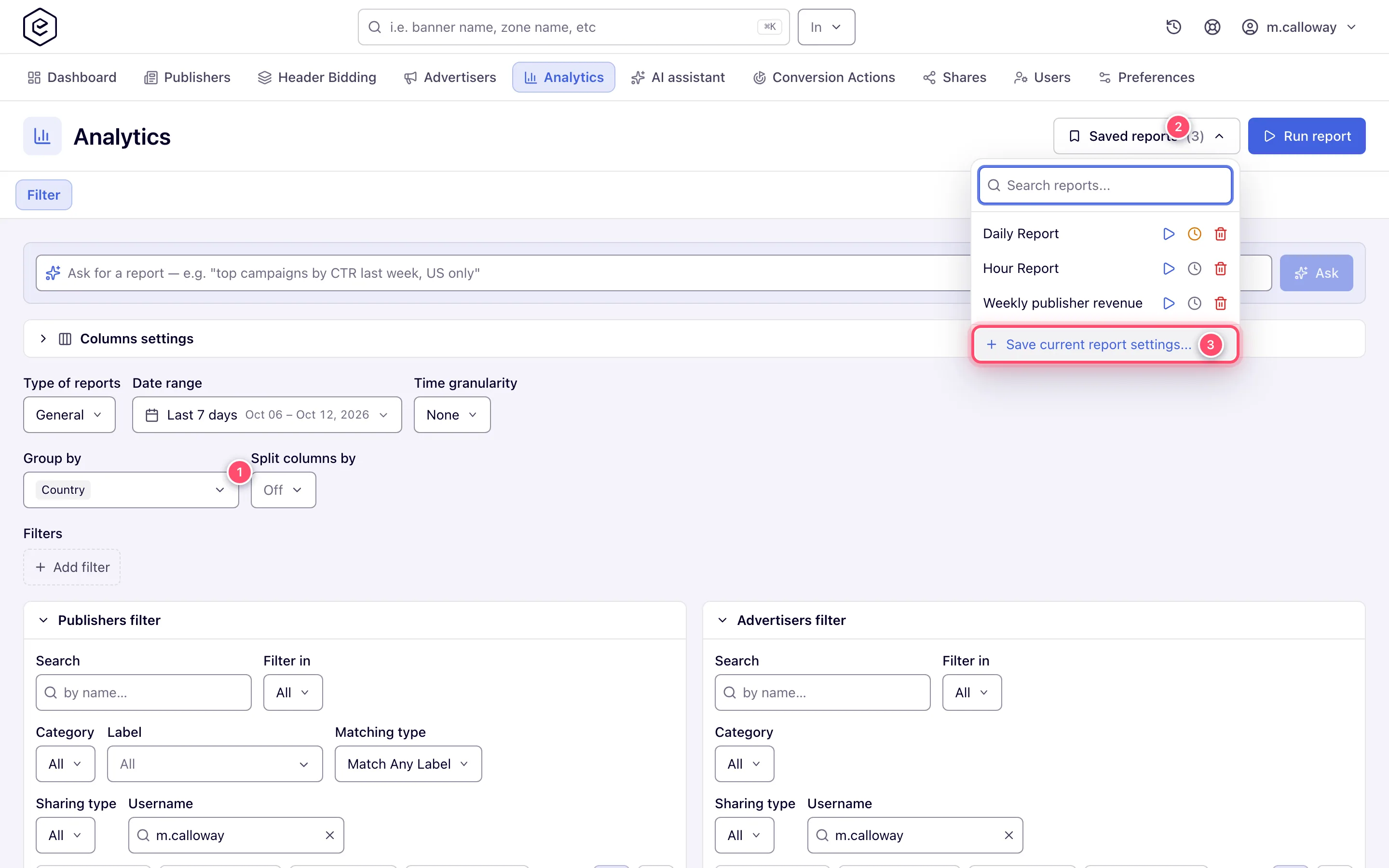
Click Saved reports in the page header, then Save current report settings… at the bottom of the popover.
-
Type a title (required, up to 256 characters) and confirm. A green Record has been saved toast appears, the new template is selected, and the count on the Saved reports button goes up.
Apply a template again
-
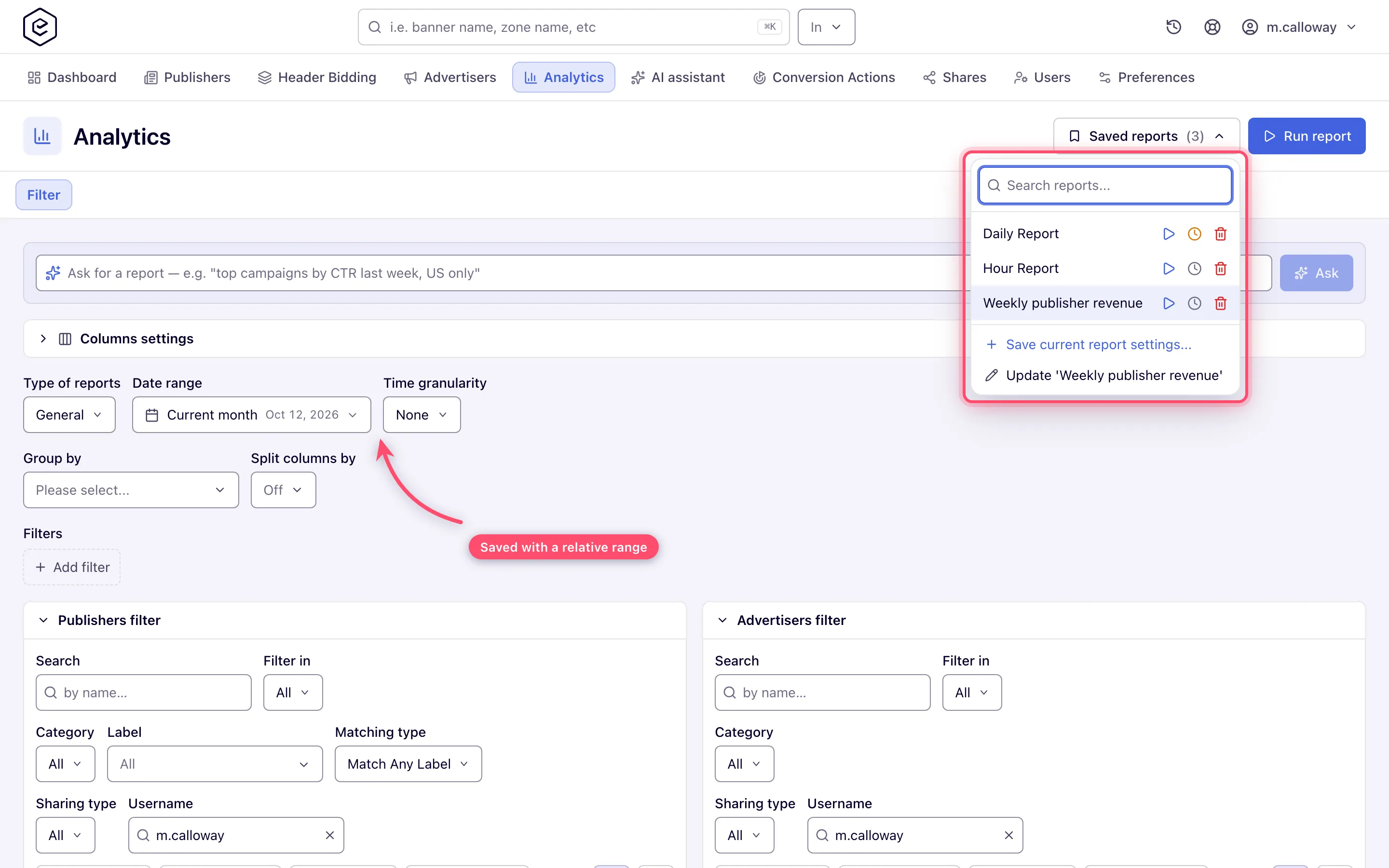
Open Saved reports and click a template’s title to load it into the form — a green Report template has been applied successfully toast confirms it. The blue ▷ icon on the row does the same and runs the report straight away in a new report tab.
-
The applied row is highlighted, and the footer gains Update ‘<title>’. Applying replaces the entire form, including the publisher and advertiser tree selections and the columns — it is not a merge.
Update or replace a template
- With a template applied, open Saved reports and choose Update ‘<title>’.
- Confirm the Edit current prompt. The template is overwritten with the form as it now stands. Use Save current report settings… instead to keep both versions.
Overwriting keeps the template’s id, so any schedule and recipients attached to it survive — the next email simply renders the new shape.
Delete a template
Click the red bin icon on the row and confirm Remove report template? with Delete. Deleting also removes every schedule slot attached to the template; recipients go with it.
Caveats and exceptions
- Templates are private to the login that saved them. The list is loaded per user and there is no way to share one; anyone sharing a login sees its templates and recipients. To get a report to a colleague, add them as a schedule recipient or export the file and send it.
- The date range comes back as the preset, not as dates. A Last 7 days template applied today runs over the last seven days from today. Only a Custom range… template carries two fixed dates — the one case where the saved parameters hold literal days, deliberately, so a relative range never freezes.
- Applying overwrites work in progress. Save the current form as its own template first if you might want it back — there is no undo and no merge. The caveats that apply to templates and schedules alike — who can use it, recipient addresses, the address bar — are on Save, reuse and schedule reports.
Not working?
| Symptom | Check | Where |
|---|---|---|
| Applying a template gave the wrong dates | The preset is relative; only Custom range… keeps fixed dates | Re-save with Custom range… if you need fixed days |
| My tree selection or columns vanished after applying | Applying replaces the whole form, including both trees and the column set | Save the in-progress form as its own template first |
| Cannot save the record | The save failed; no reason is shown | Retry with a shorter title (max 256 characters); if it keeps failing, ask Epom support or your account manager |
| A colleague cannot see my template | Templates are private to the login that saved them | Add them as a recipient, or export and send the file |
Emails that never arrive, and the Scheduling dialog, are on Schedule recurring report emails; the rest of the list is on Save, reuse and schedule reports.
Reference
The Saved reports popover controls are in the hub’s Reference; the REST calls that save, rename and delete a template are in Over the API.
