
Set up an email placement
Produce the email-safe image and click URLs for a newsletter — the Email tab's image + click code, Creative URL and Landing page URL, the serving Domain and default parameters that rebuild them, the rand merge tag, and what to check when the newsletter shows the same banner on every open.
What it is and why
An Email placement produces email-safe image and click URLs: an <a><img> snippet to paste
into the template, with the image picked at open time and no JavaScript involved. The URLs exist
once the placement is saved, and are rebuilt whenever its serving domain or default parameters
change. The other specialist types are on
Application, email and click-through placements; email ad
codes at site level are on Email ad codes on a site.
Example. A publisher’s weekly newsletter carries a 600×200 banner. It is an Email
Placement whose Email tab gives an <a><img> snippet to paste into the template — the image is
picked at open time, no JavaScript runs — and a merge tag on the rand parameter makes each open
a fresh request.
Typical scenarios
| You want | Create | Then hand over |
|---|---|---|
| An image + link in a newsletter | Email Placement (a size is required) | The <a><img> block from the Email tab, or the Creative URL and Landing page URL separately |
| A newsletter served from a second domain of the network | Email Placement, Domain picked on the Settings tab | The rebuilt URLs |
Step by step
Start from a saved placement of this type (create one).
-
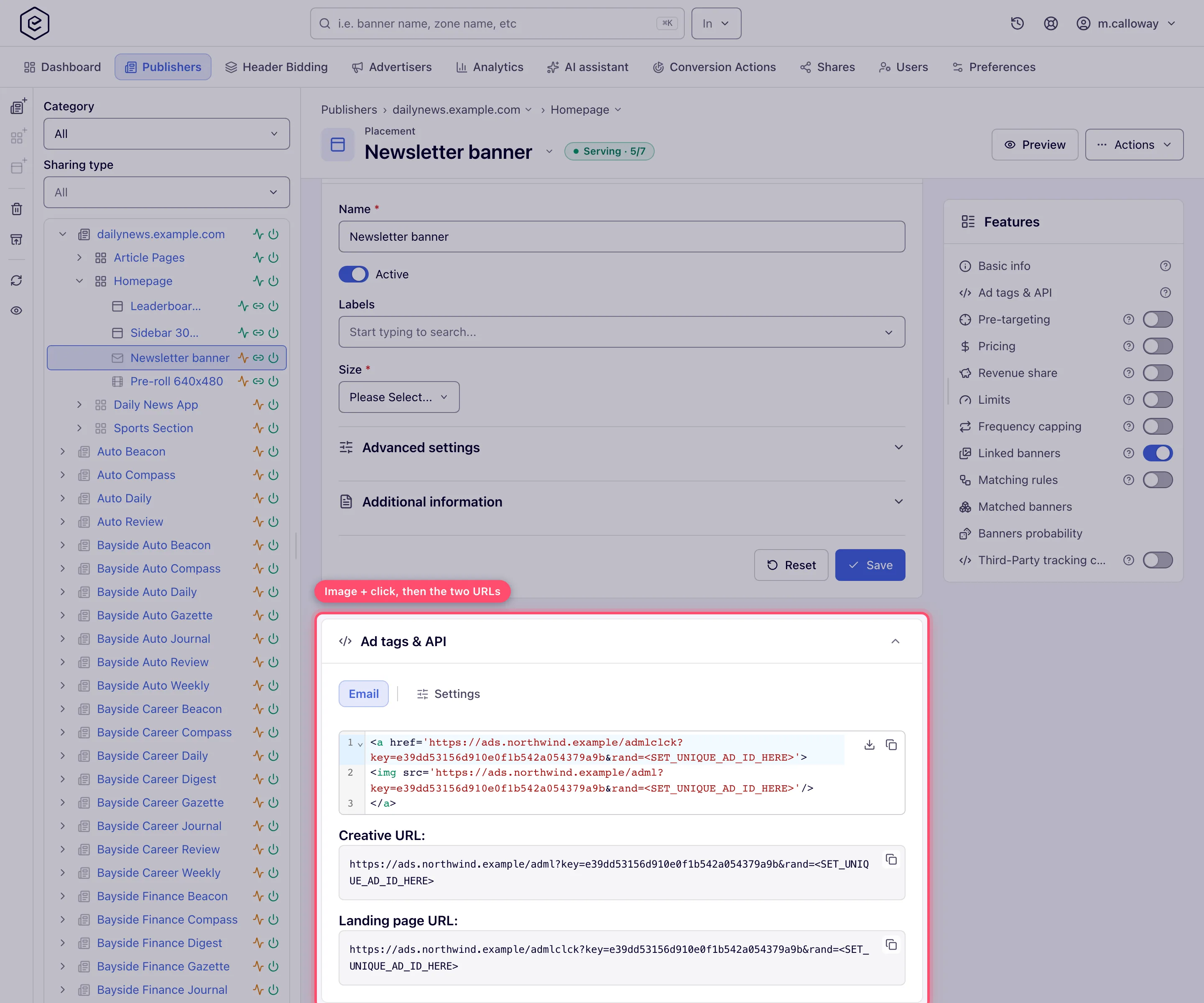
Create and save the placement — the integration URLs exist only after the first save. Open the Ad tags & API card and its Email tab:
- the image + click code block — a ready-to-paste
<a><img>snippet; - Creative URL — the
<img src>beacon, on its own copyable field; - Landing page URL — the
<a href>click target, on its own copyable field.
- the image + click code block — a ready-to-paste
-
If your network serves from several domains, pick the Domain on the Settings tab — the URLs are rebuilt for the chosen domain (it saves immediately).
-
Any default parameters you set in Settings are baked into all three, and they refresh in place when you change a default or the domain.
-
Paste the block into the email template. If your email platform supports merge tags, put one on the
randparameter so each open is a fresh request.
Caveats and exceptions
Email clients execute no JavaScript, so an email placement can only rotate whatever renders as
a static image at open time. Both URLs are read-only — you never edit them, only copy. Add a
cache-busting merge tag for the rand parameter if your email platform supports it.
Size is required on an Email placement, as on a Site placement; the other types leave it optional.
Who can do this, and the Preview button (an Email placement has one), are on Application, email and click-through placements.
Not working?
| Symptom | Check | Where |
|---|---|---|
| The Email tab is missing after creation | The URLs exist only after the first save | Save, then open Ad tags & API → Email |
| The newsletter shows the same banner on every open | Email clients run no JavaScript; rotation happens per request | Put a merge tag on the rand parameter |
| The email URLs changed since you copied them | You changed the Domain on the Settings tab or a default parameter; the URLs were rebuilt | Re-copy from the Email tab |
The symptoms common to all three types (the Settings tab missing on a share) are on Application, email and click-through placements.
Reference
The three outputs and the Domain picker: Email placement outputs on the hub; the REST call that creates or updates an email placement: Over the API.
