
Install the header-bidding script on a page with Google Ad Manager
For a publisher whose network sells through Prebid — put the network's script in the page head above the Google Publisher Tag, place one container per ad position, set up the line item in Ad Manager and load the page, with the WordPress note and what to check when the first page view shows no network ads.
What it is and why
Your pages serve ads through Google Ad Manager, and your network sells them through Prebid. The network sends you one script line and one container per ad position, plus a line item to set up in Ad Manager; you install them once, and every later change is made on the network’s side. The other setups — your own Prebid.js, an app — are on Header bidding: what a publisher installs.
Example. A news site runs Google Ad Manager with three positions. The network sends one
script line for the page <head> and three containers such as
<div data-eas-ad="leaderboard"></div>, plus a line item to set up in Ad Manager. From then on,
on each page view the network’s campaigns bid on the three positions; a position they buy
shows their ad, the other two are filled by Google exactly as before.
Typical scenarios
| How your pages serve ads today | What the network sends you | Where it goes |
|---|---|---|
| Google Ad Manager, no Prebid | One script and one container per ad position, plus a line item to set up in your Ad Manager | The script in the page <head>, the containers where the ads go |
Google Ad Manager with your own googletag code you must keep | The same script; the network lists your slot ids or ad unit paths in the tag | The page <head>, above the Google tag |
Step by step
-
Paste the script into the page
<head>, above the Google Publisher Tag, exactly as sent:<script src="https://{serving-domain}/eas/t/{tag-id}.js"></script>Do not add
asyncand do not defer it: it has to run before Google’s tag to hold the ad request until the bids are in.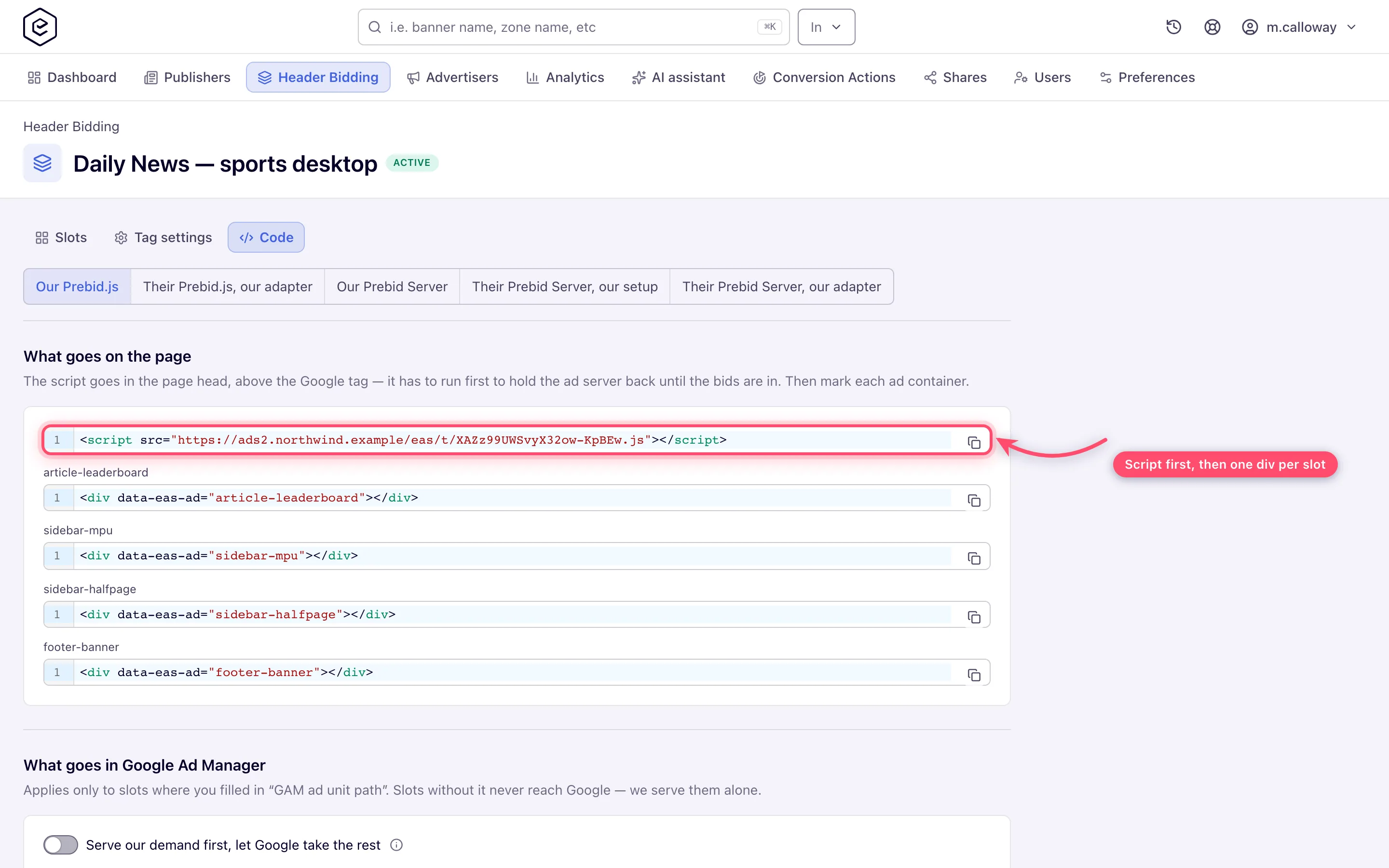
-
Where each ad should appear, place the container the network sent, for example
<div data-eas-ad="leaderboard"></div>. If the network adopted your existing Google slots, skip this step: your owngoogletagslots stay. -
In your Google Ad Manager, create what the network describes: the key-values
hb_pb,hb_adid,hb_size,hb_bidderandhb_deal_epom_as, an order with a line item targeted at your ad units, and the Prebid universal creative. The network’s guide to this is The Google Ad Manager line item. -
Load the page. Positions the network’s campaigns buy show their ads; the rest are filled by Google exactly as before.
On WordPress, put the script in the theme’s header area, not in a post block, so it loads above the Google tag on every page.
Caveats and exceptions
The tag script must load before the Google tag. Loaded after it — moved to the footer, given
async, or delayed by a script-optimisation plugin — it cannot hold Google’s first ad request,
so the page’s first impressions go without the bids and header bidding joins only from the first
refresh. The browser console says so.
The caveats that apply to every setup — who this is for, what you need before you start, the floors and consent you keep, how changes reach the page — are on Header bidding: what a publisher installs.
Not working?
- The first page view shows no network ads, refreshes do. Where: the position of the script
in the page source — it must be in
<head>, above the Google Publisher Tag, withoutasyncordefer, and not moved by a script-optimisation plugin. The browser console reports it.
The causes common to every setup (currency floors, the consent stub, the missing tab) are on Header bidding: what a publisher installs.
Reference
What the network sends per setup, and where it goes, is the table under Typical scenarios on the hub. The Google Ad Manager key-values and line item: The Google Ad Manager line item.
