
Filter, run and read the report
The second half of running a report on Account → Analytics — add value filters and narrow to entities in the Publishers and Advertisers trees, click Run report, read the report tab (title line, KPI tiles, detail grid) and jump in from an entity's hover card.
With the type, dates, grouping and columns set (Build the report form), the rest of the Filter tab narrows the report — value filters as chips, specific entities in the two check-trees — and Run report opens the result in a tab of its own, named after the report. This page covers that half; the overview is on Run a report.
Example. The same last-week-by-site report, narrowed to German traffic on two of Northwind Media’s sites: a Country filter chip set to Germany, the two sites ticked in the Publishers filter, Run report — the tab Site · Last 7 days opens with Query details naming the country and both sites.
Typical scenarios
| You want | Set | Where |
|---|---|---|
| Only one country’s traffic | Add filter → Country → the country → Done | the Filters bar |
| Two sites, nothing else | tick them in the Publishers filter tree | the entity trees |
| The report for one placement without building the form | Analytics on the placement’s hover card | the Publishers tree |
| The same report with one change | click back to the Filter tab, change it, Run report again | a second tab opens |
Step by step
Filters and entities
-
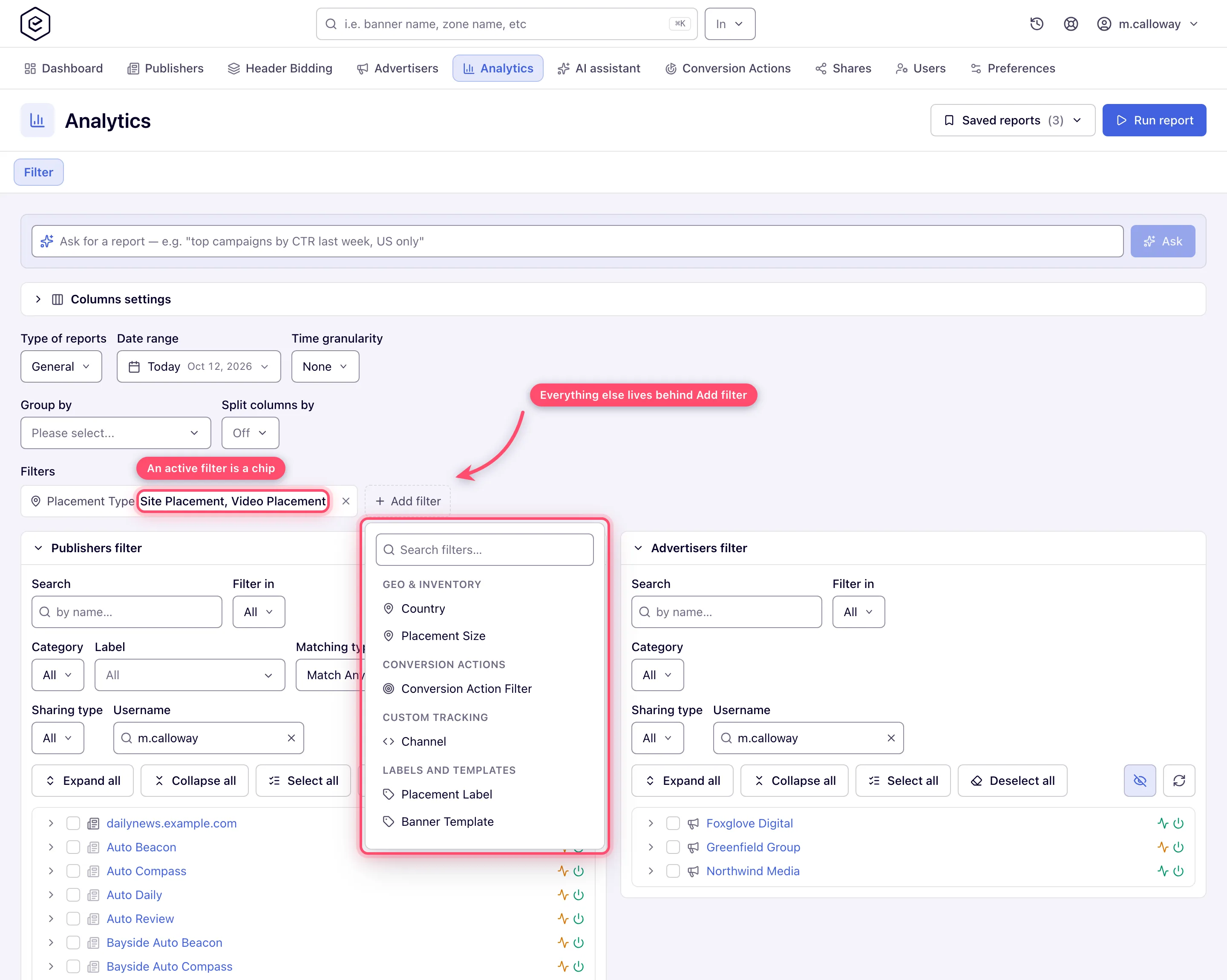
Add value Filters. Active filters show as chips carrying their values; everything else hides behind Add filter, a searchable menu grouped into Geo & inventory, Device & browser, Traffic quality, Conversion actions, Custom tracking and Labels and templates. Which groups and entries appear depends on the report type and your permissions. Click a chip to re-open its editor (Clear / Done), or its ✕ to remove it. An empty filter means “All” — it is not sent to the server at all. Details: Filters.
-
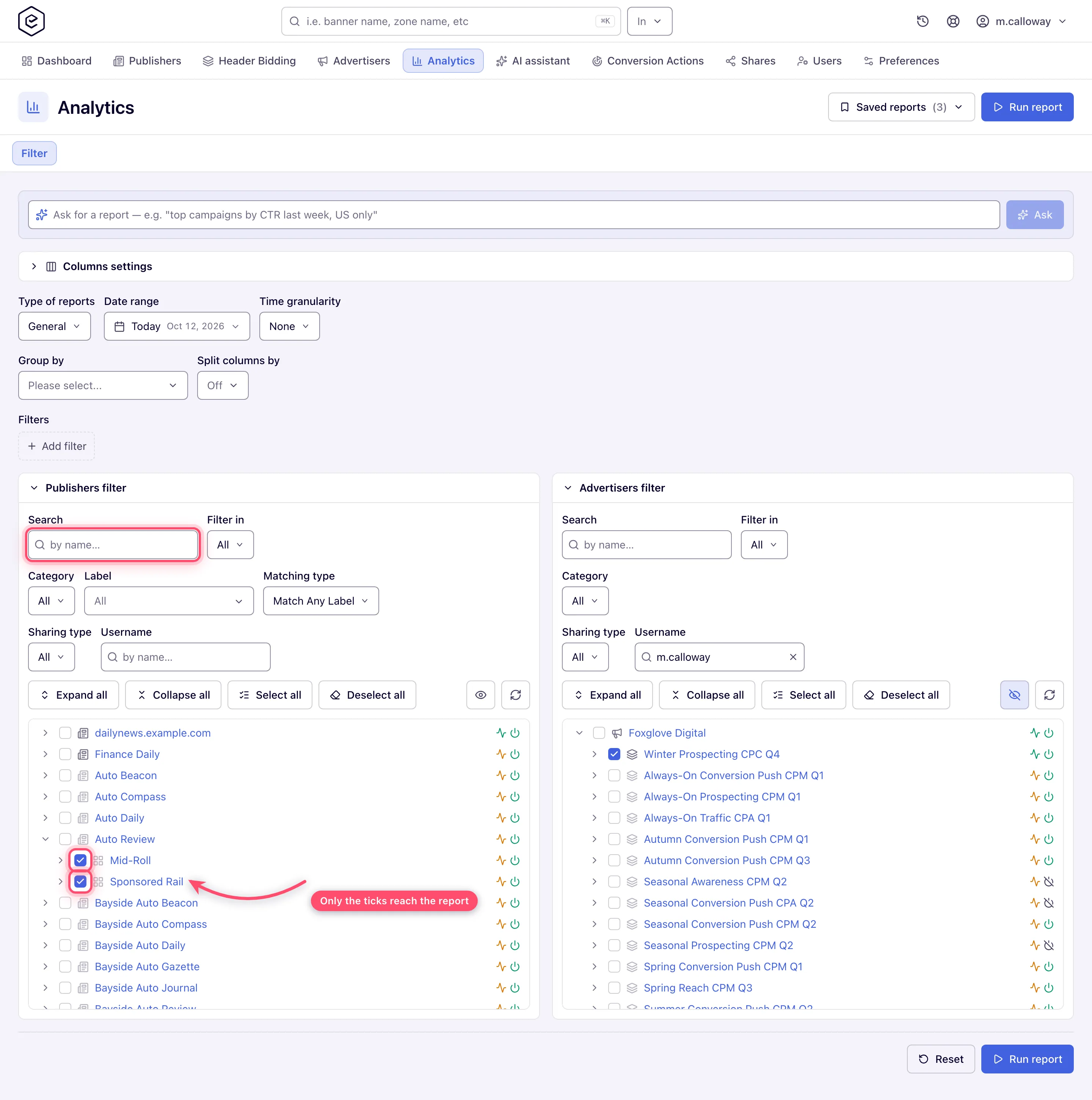
Narrow to specific entities in the Publishers filter and Advertisers filter check-trees — sites, zones and placements on one side; advertisers, campaigns and banners on the other. Only the checkboxes reach the report; Search, Filter in, Category, Label, Sharing type, Expand/Collapse, Select/Deselect all and Hide inactive (pressed by default) are ways to find the entity to tick. Ticking nothing means every entity, not none. Tick a parent and only that parent’s traffic is counted, at whatever depth your Group by asks for. Details, including the Grids view: Publishers and Advertisers filters.
Run and read
-
Click Run report — in the page header, or the copy at the bottom of the form. A new tab opens next to Filter, named after the report rather than numbered: Totals · Today, Country · Last 7 days, Impressions Log · Yesterday. Advanced and the three event logs run as background jobs and show a wait N% progress bar first.
-
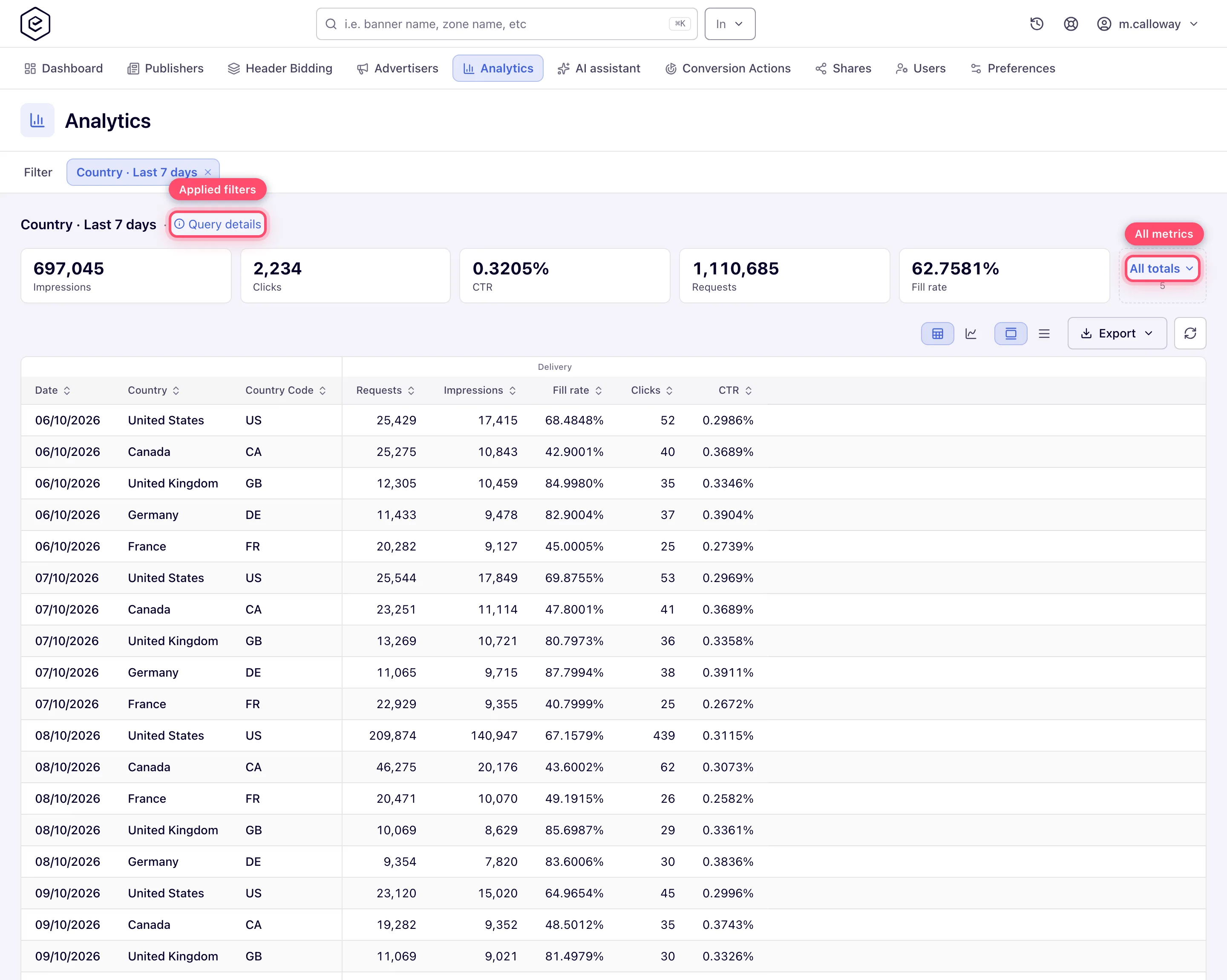
Read the report: the title line with a Query details link (the exact question asked, every filter by name), the KPI tiles (summary totals; All totals (N) expands the full metric × perspective matrix; the star pins a tile first), the toolbar (view switch Report in details / Graph and report / Graph, row density, Export, Columns, Refresh) and the detail grid, banded by metric family, 50 rows per page, header click sorts ascending → descending → unsorted. Details: Reading the report tab.
-
To refine, click back to the Filter tab. The form keeps everything you set — including the tree selections — so you can adjust one thing and run again. Each run is a new tab; close one with its ✕.
Jumping in from an entity
Hover any entity in the Advertisers or Publishers tree and choose Analytics on its hover card. The Filter tab opens pre-filled with that single entity over the last 7 days — review it and press Run report.
Caveats and exceptions
Filters you cannot see do not apply. A colleague’s saved report that uses a filter you do not have on screen runs for you without that filter, which is enough to make your numbers differ from theirs.
Label and template filters read today’s labels. General and Advanced both use the labels the placements and banners carry now; a placement that lost a label last week also drops out of the days before. Banner Template likewise keeps the banners built from the chosen templates now, whatever template they had on the day. On the Advanced report, a label or Banner Template filter (or a Banner Template grouping) that covers more placements or banners than your network allows (20,000 by default) is refused — narrow it by site, zone, placement, advertiser, campaign, banner, label or template and run again; a dashboard widget built that way shows the same message, and a scheduled mailing of it is not sent. How grouped label rows and totals count: Filters.
The entity deep link applies once (Analytics on a hover card) and then strips itself from the address bar, so refreshing will not re-apply the entity over edits you have made since.
The caveats that apply to the whole report — who can do this, the type reset, time zones, the running-report cap, session tabs — are on Run a report.
Not working?
| Symptom | Cause | Where to check / fix |
|---|---|---|
| Advanced refuses a label / template filter | It covers more than 20,000 placements or banners | narrow by site, zone, placement, advertiser, campaign, banner, label or template |
| My colleague’s saved report gives different numbers | A filter you cannot see is dropped for you | compare Query details |
| The Grids view shows an empty entity list | Only entities sent with Add to report (or added in the row above) are listed | add them; empty still means all |
| Refresh re-applied my entity deep link? No | The deep link applies once | re-open from the hover card |
The rest of the list is on Run a report.
Reference
The essentials are in Options and fields; every control in full on Run a report reference: Filters · Publishers and Advertisers filters · Reading the report tab · Working with report tabs · Row actions on the detail grid.
