
Link a conversion action to a campaign
Switch on the campaign's Conversion actions card so its pixel, snippet or postback reports against the action, set a Campaign alias to attribute conversions across campaigns, and let the ad server add the click id to landing URLs — step by step, with which creative types auto-tagging reaches and a fix-it checklist.
What it is and why
An action exists at the account level; a campaign reports conversions against it only once the
campaign’s Conversion actions card is switched on. The same card carries two campaign-wide
settings: a Campaign alias, which lets several campaigns attribute conversions as one group,
and Add the click id to landing page URLs, which saves you pasting $$CLICK_ID$$ into every
creative. This page is the last stage of
Create and edit conversion actions; the tracking code itself is on
Get the pixel and S2S tracking code.
Example. One spring flight runs as three campaigns, one each for Germany, Austria and
Switzerland. All three get the alias springsale on their Conversion actions card, so a click
on the German campaign followed by a purchase that lands on the Austrian one is still counted.
With Add the click id to landing page URLs on, their image creatives land visitors on
…/product?easclid=<click id> without anyone editing the URLs.
Typical scenarios
| You want | Set | Where |
|---|---|---|
| One flight split into three campaigns, one per country, whose conversions must be counted together | the same Campaign alias, for example springsale, on all three | each campaign’s Conversion actions card |
| A landing-page helper or Click-ID postback without editing every creative’s URL by hand | Add the click id to landing page URLs on | the campaign’s Conversion actions card |
| The campaign’s pixel or postback to report against a purchase action | The card switched on; the action is in its grid with its Conversion action key | the campaign’s Conversion actions card |
Step by step
Link the action to a campaign
-
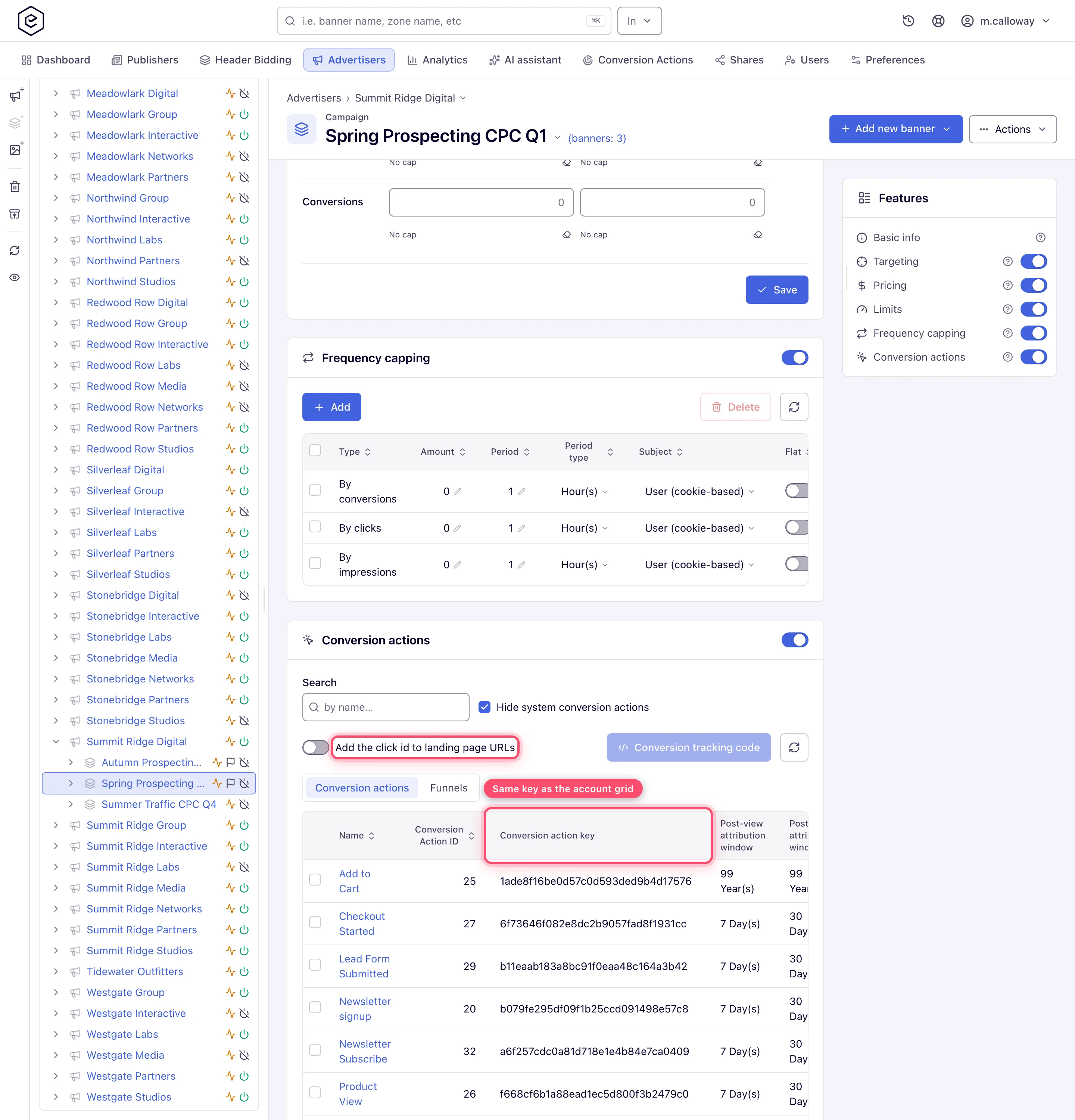
Go to Account → Advertisers → advertiser → campaign and open the Conversion actions card. No such card on the campaign means your role does not have it — see Who can do this.
-
Switch the card on. The grid lists the actions visible to you with their Conversion action key.
-
Optionally set a Campaign alias (pencil icon next to “Campaign alias:”). Type a value and press Enter or the ✓ button; Escape cancels. Campaigns sharing the same alias attribute conversions as one group — a click recorded for one campaign can convert against another campaign with the same alias, so a click on the German campaign and a purchase on the Austrian one are not lost as a cross-campaign mismatch. The alias is alphanumeric only — no hyphen, no underscore, no space — and at most 64 characters; anything else is refused under the field with “Please provide a valid alias value (valid characters: a-z, A-Z, 0-9)”. If there is no pencil, ask your network admin to enable the Campaign alias permission for your role.
-
If the integration reads the click id off the landing page — the server-to-server Click ID method, or the landing-page helper — switch on Add the click id to landing page URLs on the same card. The ad server then appends
easclid=<click id>to the landing URL itself, so you do not have to paste$$CLICK_ID$$into each one. See Auto-tagging reaches some creative types only below before relying on it.
Then copy the code the campaign will report with: Get the pixel and S2S tracking code.
Caveats and exceptions
Auto-tagging reaches some creative types only
Add the click id to landing page URLs rewrites the creative’s own Link field, so it
reaches the creative types that have one (image and video creatives, click-through and email
placements) and not the ones that keep their landing page inside markup (HTML Code, Template,
native, OpenRTB) — those still need $$CLICK_ID$$ written in by hand. The toggle is off until
you turn it on, because it rewrites a URL the advertiser owns, and a URL that already carries a
click id is left exactly as written. An untagged landing URL is the most common way an
integration ends up half-wired: the tracking code is installed and the landing page never
receives anything to store. See Install the landing-page helper for
the full creative-type matrix.
The caveats that apply to every conversion action — who can do this and what the card needs (Manage Action Tracking), the attribution windows, duplicates and the visitor’s IP, and when a saved setting reaches ad serving — are on Create and edit conversion actions.
Not working?
| Symptom | Check | Where |
|---|---|---|
| The campaign has no Conversion actions card | The stock Advertiser role has none; a network manager links the action or enables Manage Action Tracking for your role. | the campaign edit page; User roles |
| No pencil next to Campaign alias | The Campaign alias permission is off for your role. | the campaign’s Conversion actions card |
| The landing page never receives a click id | The creative is HTML Code, Template, native or OpenRTB — the toggle cannot rewrite it; put $$CLICK_ID$$ in the landing URL by hand. | the creative’s Link or markup |
The other symptoms are on Create and edit conversion actions.
Reference
The campaign card’s controls and the REST calls behind them are in the Conversion actions reference; the essentials are under Reference on the hub.
Related pages:
