
HTML Code banners
Serve your own HTML/JS markup — a third-party ad tag, custom HTML — with the HTML Code banner type, step by step, including Return as iFrame on video placements and checking the creative with Preview.
An HTML Code banner takes the markup you paste — a third-party ad tag, custom HTML/JS — and serves it verbatim with macros expanded. It is valid on Site, Non-standard, Mobile site, Video and Application placements, and renders through Preview before it reaches a page. The other markup type, Template banners, renders a template your network prepared; both are compared on HTML code and Template banners.
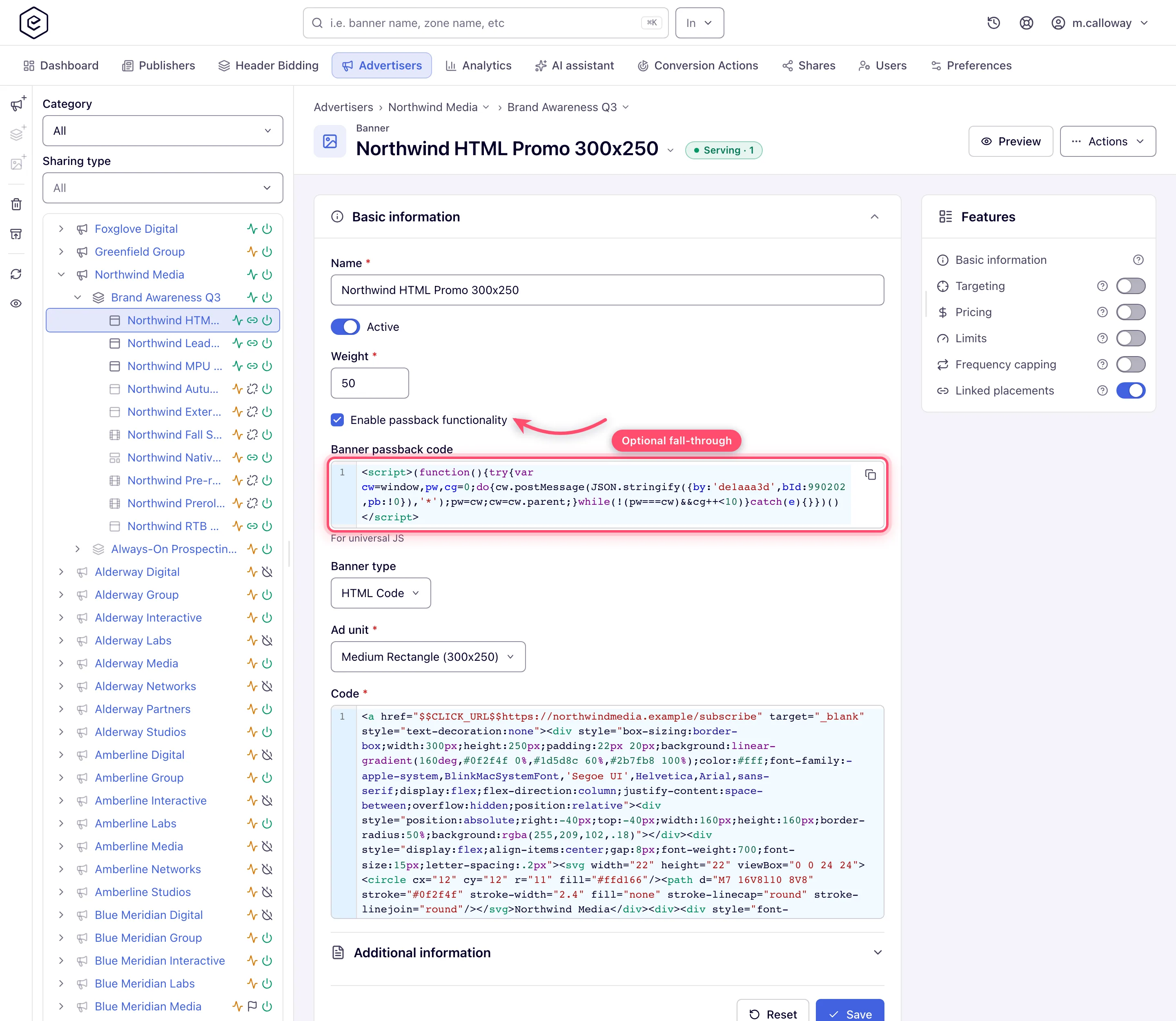
Example. Northwind Media gets a 300×250 JavaScript tag from an ad network for its sports sites. One HTML Code banner on a Site placement with the tag pasted into Code, Ad unit 300×250 and Enable passback functionality ticked lets the tag hand the slot back when it has no ad, so the next line of demand fills it instead of a blank.
Typical scenarios
| You want | Set | Where |
|---|---|---|
| A third-party JavaScript tag on a 300×250 site slot | Banner type HTML Code, Ad unit 300×250, the tag in Code | Add new banner → Site placement |
| Custom markup inside a VAST response | HTML Code on a Video placement, Ad unit required; Return as iFrame ticked (default) wraps it in an iframe | Add new banner → Video placement |
| A dynamic value in the markup (click URL, cache-buster, your own parameter) | $$CLICK_URL$$, $$RANDOM$$, custom parameters — expanded at serve time | Macros reference |
Step by step
HTML Code
-
Add new banner → the placement type. HTML Code is valid on Site, Non-standard, Mobile site, Video and Application placements — not Email, not Native.
-
Set Banner type to HTML Code.
-
Pick the Ad unit where the form shows one: required on Site and Video, optional on Mobile site, absent on Non-standard and Application (see What each placement asks for).
-
Paste your markup into Code. Required. Macros such as
$$CLICK_URL$$,$$RANDOM$$and your own custom parameters are expanded at serve time — see the macros reference. -
On a Video placement, leave Return as iFrame ticked to wrap the markup in an iframe inside the VAST response, or untick it to return the markup as it is.
-
On Site, Non-standard and Mobile site placements, tick Enable passback functionality if the tag should hand the slot back — see Set up passback.
-
Save. The banner opens on its own edit page; link it to placements from the Linked placements card.
Check it with Preview
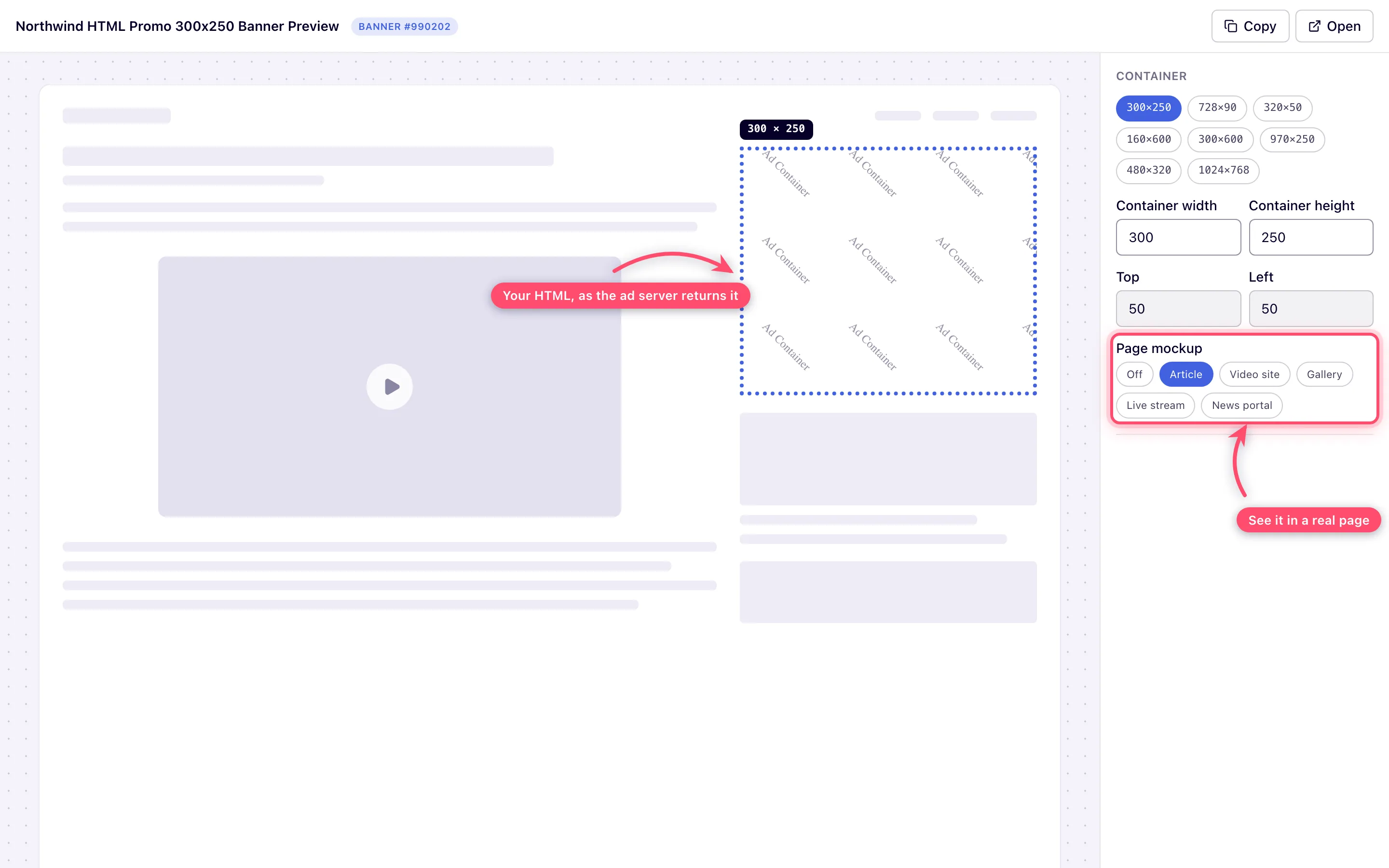
Preview in the page header opens the creative in a new tab and actually renders it. Resize the container, switch between the standard ad sizes, and drop the creative into a page mockup — article, video site, gallery, live stream or news portal — to see it the way a visitor would. Preview works for Template banners too.
Caveats and exceptions
A Code banner serves your markup verbatim into publisher pages. A broken or slow third-party tag degrades every placement the banner is linked to — preview it, and prefer a tag you can point at a test endpoint first.
The caveats that apply to both markup types — who can do this, the Ad unit rules per placement, what switching the type and saving deletes — are on HTML code and Template banners.
Not working?
| Symptom | Check | Where |
|---|---|---|
| Macro left unexpanded in the served markup | Misspelt or unknown macro name | Macros reference |
The rest of the list — passback, the type switch, a creative that renders in Preview but not on the page — is on HTML code and Template banners.
Reference
Which placements take a Code banner and which fields each asks for: What each placement asks for and Options and fields.
