
Target a list you already have
Paste a column of countries, carriers, domains, app packages, languages, device vendors, operating systems or browsers into Bulk add, read what will be targeted and what was skipped before anything is saved, and let AI translate the lines the dialog could not read.
Your list of countries, carriers or domains is usually in a spreadsheet, not in a picker. On Country, Browser Country, Language, Device Vendor, Mobile Carrier, Domain, Channel, App Package, Operating System and Browser the targeting editor offers Bulk add: paste the column and the dialog tells you what it found before anything is saved. One paste is one request, not 200 round trips — but it is still one rule per value, so a 200-country list does become 200 rules in the panel, each removable on its own.
Example. A client sends 38 country codes for a campaign, two of them twice and one of them (Brazil) already excluded on the campaign. The verdict reads 36 will be targeted., 2 repeated and were counted once. and Already an Exclude rule (1) — left as they are, and Include 36 saves 36 chips.
Typical scenarios
- A country list from a media plan. Paste the ISO codes or the names —
US,usandUnited Statesall work. World regions are not pasted; pick those in the editor, where they expand to one chip per country. - A blocklist of 150 domains on a placement. Pre-targeting → Domain → Bulk add, paste full
URLs straight from the report:
https://news.example.com/article?id=4becomesnews.example.com. Exclude 150. - An app allowlist of 60 bundle IDs. App Package → Bulk add — the single App Package field does not split on commas, so a pasted list belongs here, never in the single field.
- A carrier list in the client’s language. Local brand names land in not recognised; Match the rest with AI rewrites them in this account’s names for you to check.
Step by step
- Pick the dimension, then Bulk add.
- Paste the values. One per line, or separated by commas, semicolons, tabs or pipes — a column
copied straight out of a spreadsheet works. A single space is not a separator, so United
States stays one value; a line of space-separated codes (
US CA DE) is still split, but only when every part is recognised. - Read the verdict. It separates:
- how many will be targeted, and how many entries repeated and were counted once;
- what is already included in this direction, which is skipped (Already an Include rule (N) — left as they are);
- what is already excluded, which is skipped with a warning — the same value cannot be both, and a rule that includes and excludes one value serves nothing. Neither button touches a value that already has a rule. To flip one, remove its rule first.;
- what was not recognised, listed exactly as you pasted it, so you can fix those lines.
- If some lines were not recognised, Match the rest with AI offers to read them — see When the list is not in our words below.
- Press Include N or Exclude N. The number on the button is what will be saved.
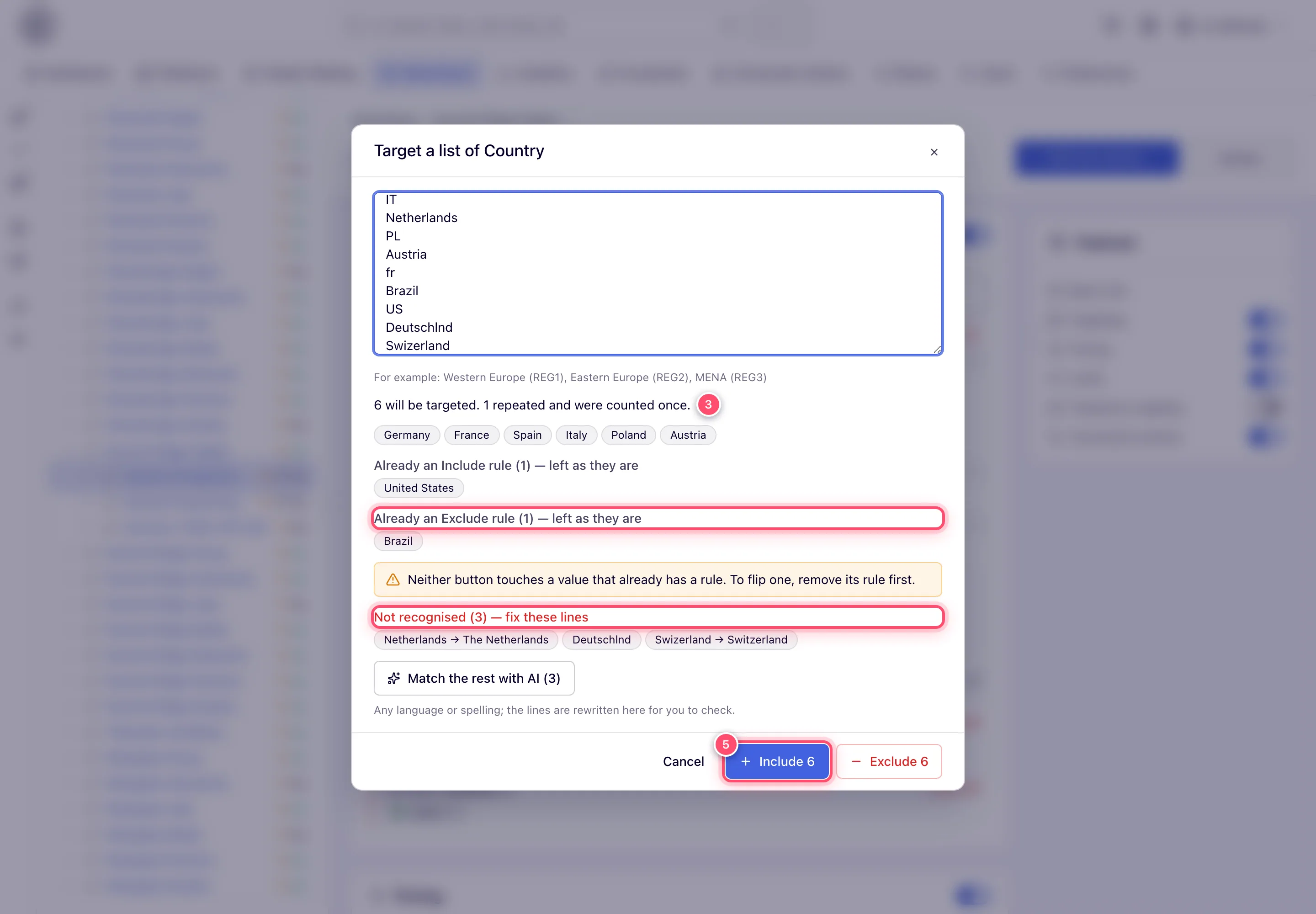
When the list is not in our words
A client’s list arrives in whatever words they use: country names in Arabic or Chinese, an
operating system named as a family (WINDOWS) where this account holds versions, a carrier under
its local brand, a column of typos. Those lines land in not recognised, because the dialog only
matches the dimension’s own values.
Match the rest with AI takes exactly those lines and asks an AI model which of this dimension’s values they mean. What comes back is written back into the text box in this account’s own names, so:
- you read the result as ordinary text and can edit or undo any line before saving;
- the usual verdict is recalculated from it, including the duplicate and already-targeted checks;
- a line the model is unsure about is left alone, still listed as not recognised;
- a value that is not in this dimension’s list cannot appear, whatever the model answers.
Nothing is saved by this step — Include N / Exclude N still is the save.
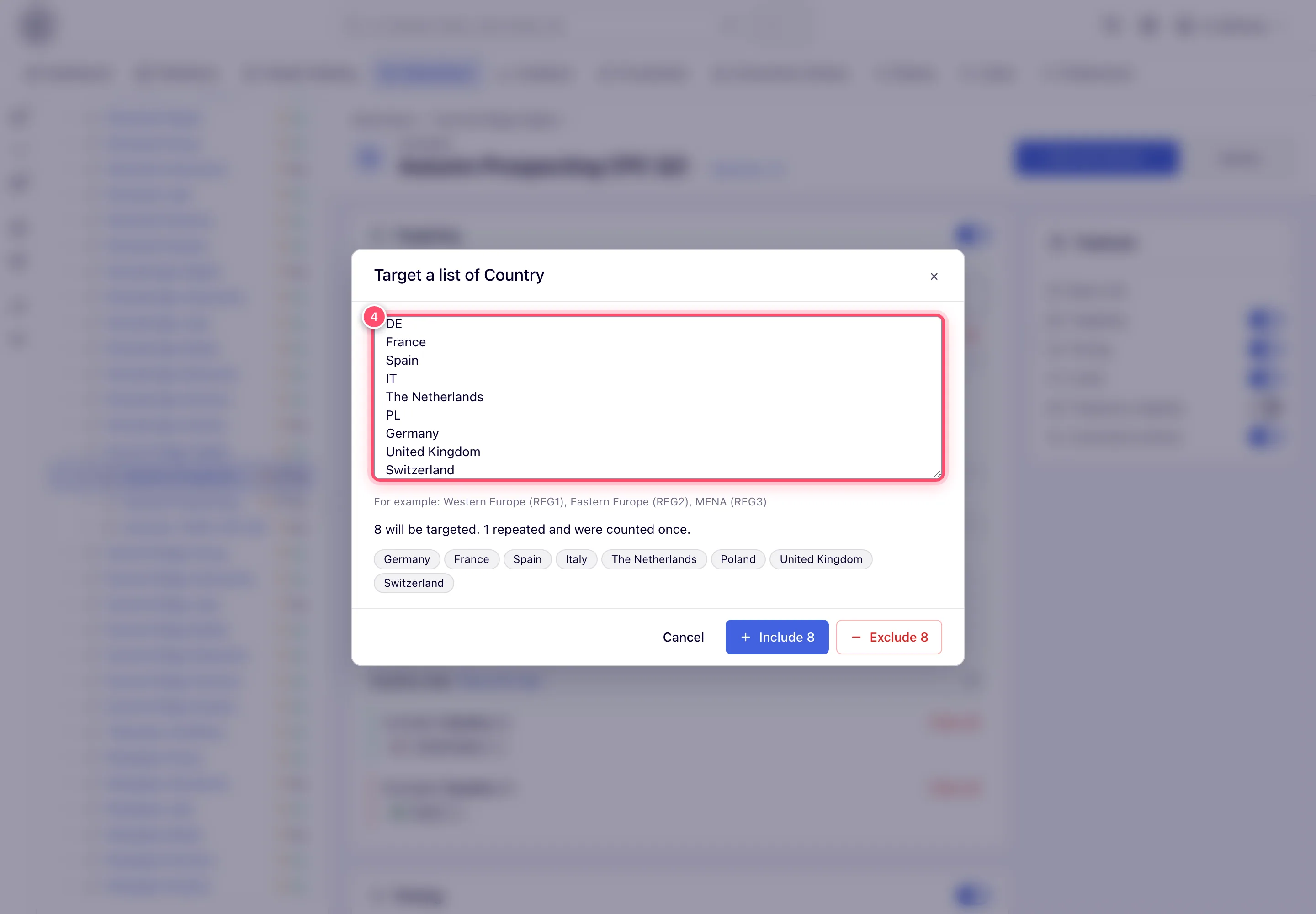
Caveats and exceptions
- Codes or names, any case. On Country, Browser Country, Language, Device Vendor and Mobile
Carrier you can paste either the code or the name (
US,us,United States). - Domains. Full URLs are reduced to their host.
www.is kept, because a rule onwww.example.comis not a rule onexample.com. A single label with no dot (com) is refused here: only the server knows whether it is a real top-level domain, so add that one through the single Domain field. - No versions by paste. A pasted operating system or browser carries no version — that is the single-value editor’s job.
- Only this entity is checked. The dialog checks the list against the dimension’s own options and against the rules this entity already has. It does not check the other entities in the chain — an advertiser-level exclude still wins over a campaign-level include, as How the rules combine describes.
- Where the AI button appears. Only on dimensions that have a list of values (so not Domain, Channel or App Package, which are free text) and only when there is an Anthropic key to run on — the same one the AI assistant picks for you: your own key, else the network’s, else the platform’s while the network’s billing plan switches it on.
- What it costs. On the platform’s key each request is billed to the network at the list price × the plan’s AI price multiplier and shows as Targeting list matching in the AI usage report. Each request counts against your monthly AI allowance, the same one the AI assistant counts against, on whichever key it ran. Only the lines the dialog could not match itself are sent to the AI provider, together with that dimension’s option list. Each account may run a limited number of matching requests per hour, counted on each server separately.
Not working?
| Symptom | Check | Where |
|---|---|---|
| Everything lands in not recognised | The values are not this dimension’s codes or names (a list of cities pasted into Country, say), or the whole line is space-separated and one part is unknown. | The dimension picked; the pasted text |
| Brazil and other values skipped with a warning | They are already excluded on this entity; an include would serve nothing. Remove the exclude first if you mean it. | The Excluded: block of that dimension |
com refused | A single label with no dot cannot be checked here; add it in the single Domain field. | The Domain editor |
| No Match the rest with AI button | The dimension is free text (Domain, Channel, App Package), or no Anthropic key is available: AI matching needs an Anthropic API key. | Preferences → AI key; the network’s AI settings |
| You have reached your monthly AI assistant budget | This month’s allowance is spent; no model is asked. The rest of the dialog still works. | AI assistant |
| AI left a line unchanged | The model was unsure, or the value is not in this dimension’s list; type the account’s own name for it. | The text box |
| Button says Include 36 but you pasted 40 | Repeats are counted once and already-included values are skipped; the number on the button is what will be saved. | The verdict lines |
Reference
| Dimension | Bulk add takes | Matched how |
|---|---|---|
| Country, Browser Country | ISO code or name, any case | Exact code or name; AI for other languages |
| Language | Code or name | Exact; AI available |
| Device Vendor | Vendor name | Exact; AI available |
| Mobile Carrier | Carrier name | Exact; AI available |
| Operating System, Browser | Family name, no version | Exact; AI available |
| Domain | Host, TLD or full URL | Reduced to host; www. kept; bare label refused |
| Channel | Channel name | Exact, case-sensitive |
| App Package | Package or bundle ID | Exact, case-sensitive |
Separators: new line, comma, semicolon, tab, pipe; space only when every part on the line is recognised.
