
Manage the network's REST API and Anthropic keys
Read, set or regenerate the network-level public and private key that signs the keyed REST endpoints, and store the network's own Anthropic API key so every user without a key of their own runs the AI assistant on it — on the REST API keys tab of White label preferences.
The REST API keys tab of White label preferences holds two network-level secrets: the public and private key pair that signs the keyed REST endpoints for registering and signing up users, and the network’s own Anthropic API key, which every user without a key of their own runs the AI features on. It is the last of the four tabs on Configure white-label branding.
Example. Northwind Media pastes its own Anthropic key under AI (Anthropic API key). From then on its 40 publishers use the AI assistant, the Traffic Quality analyst notes and AI matching of pasted targeting lists on Northwind’s key, and the platform bills nothing for it; the page shows The network key …7f3a is in use.
Typical scenarios
| You want | Set | Where |
|---|---|---|
| The AI assistant on your own Anthropic key, billed to you not Epom | Paste the key under AI (Anthropic API key) → Save key | REST API keys |
| Rotate the pair an integration signs its user-registration calls with | Regenerate keys, then update every integration within the minute | REST API keys → Keys management |
Step by step
-
Open REST API keys. Keys management holds the network-level pair: Public key (username) and Private key (password), which authenticate the keyed REST endpoints
POST /rest-api/register-user/{key}/{hash}/{timestamp}andPOST /rest-api/user-sign-up/{key}/{hash}/{timestamp}(the hash is signed with the private key).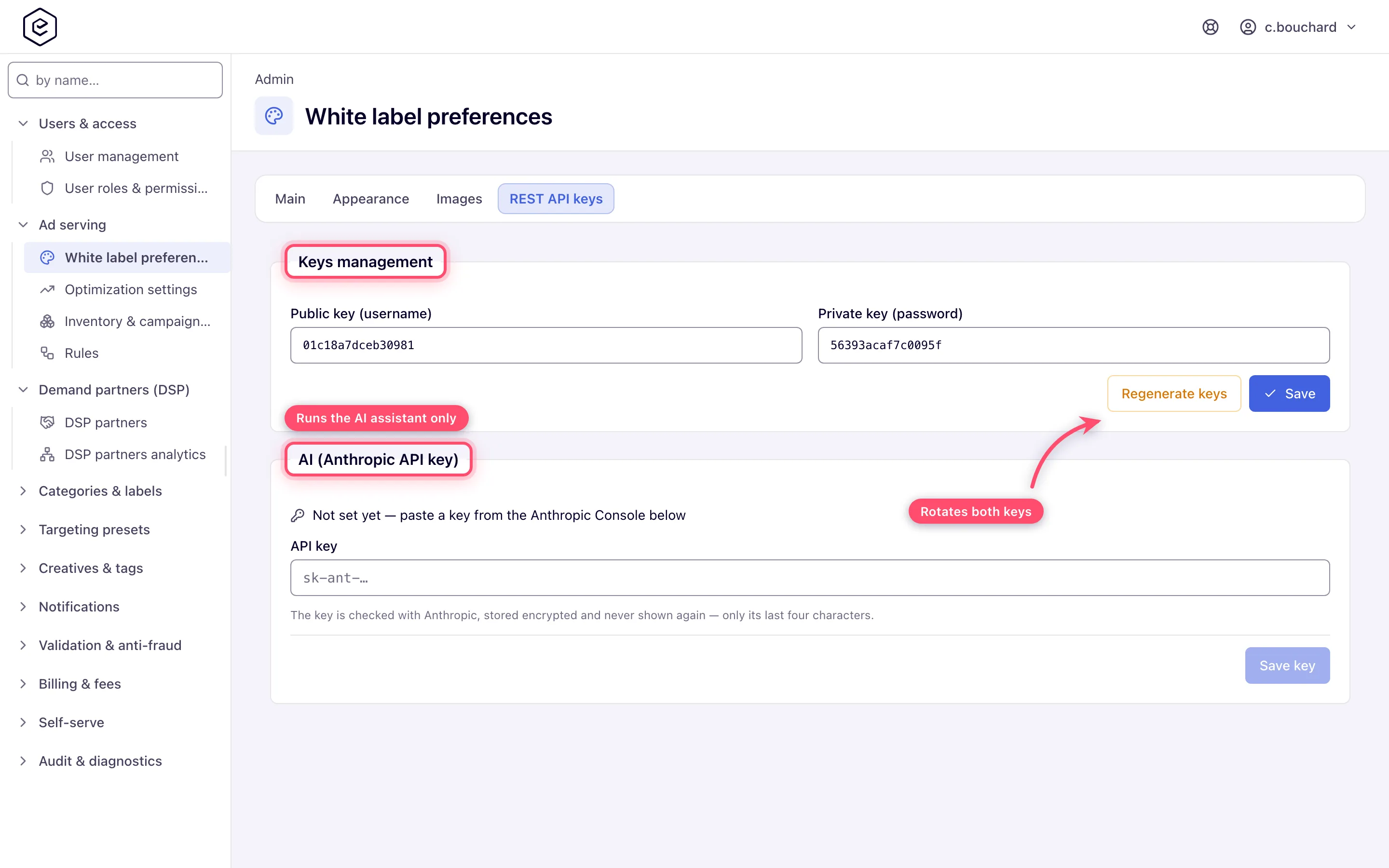
-
To rotate both, click Regenerate keys and confirm: a new random pair is saved at once and Keys regenerated. confirms it. To set your own, type the value (16 hex characters) and click Save. Either way the old pair stops working within about a minute — update every integration first.
-
Under AI (Anthropic API key), paste the network’s own key from the Anthropic Console and click Save key. Every user without a key of their own then runs the AI assistant and the other AI features on it (the Traffic Quality report’s analyst notes, AI matching of pasted targeting lists) and the platform bills nothing for it. The key is checked with Anthropic before it is stored (a refused key is not saved), kept encrypted and shown only by its last four characters (The network key …7f3a is in use). Replace key swaps it; Remove key deletes it, and users without their own key lose the AI features at once unless the platform’s key is switched on for the network (and then billed).
Caveats and exceptions
Whoever manages logos can also regenerate the keys. The White Label Preferences admin permission is all-or-nothing: there is no images-only or theme-only variant, so the people who hold it can rotate the REST pair and replace the Anthropic key too.
The caveats that apply to every tab are on Configure white-label branding.
Not working?
| Symptom | Check | Where |
|---|---|---|
| The AI assistant stopped for everyone | The network key was removed and the platform key is off | REST API keys → AI; AI assistant |
| Keyed REST calls fail after Regenerate | The old pair stops within a minute | Update every integration with the new pair |
The causes for the other tabs are on Configure white-label branding.
Reference
The fields of the tab: REST API keys tab. Which key the AI assistant picks for a user, and how the platform key is billed: AI assistant.
