
Capture ad requests with a troubleshooting log task
Record the ad requests that match a placement, banner, IP or country for a UTC time window, with the reason each banner was or was not chosen — create the task, pick the tracking mode, reproduce the problem and download the archive — with the caveats and a fix-it checklist.
A troubleshooting log task records the ad requests matching your filters for a time window, with the reason each banner was or was not chosen — the ad server’s own verdict on a real request. Use one when a placement serves nothing, a header-bidding or RTB bid is refused, or a consent or deal question needs that verdict. It is one of the tools on Review the actions log and troubleshooting log tasks; “who changed this” is answered by the Actions log.
Example. A publisher reports that placement 48213 on dailynews.example.com has shown no ad since Tuesday. You create a task for a 15-minute UTC window with Placement ids = 48213, IPs = the publisher’s office address and Sampling ratio 1, ask them to reload the page three times, download the archive, and read that every candidate banner was dropped by the campaign’s location targeting — it was switched to Germany-only on Tuesday.
Typical scenarios
| You want | Do | Where |
|---|---|---|
| See why a header-bidding bid for banner 9120 is refused | A task with Banner ids = 9120, Sampling ratio 1 and a 10-minute UTC window, left on Track filtered events (Track requests ignores Banner ids); send the bid inside the window | Troubleshooting log tasks |
| Check what the ad server made of one visitor’s consent string | A task with IPs = that visitor’s address and Cookie names = the consent cookie | Troubleshooting log tasks |
Step by step
Use a task when a placement serves nothing, a header-bidding or RTB bid is refused, or a consent or deal question needs the ad server’s own verdict on a real request.
-
Open Admin → Audit & diagnostics → Troubleshooting log tasks. The grid lists ID, Title, Start date and End date, newest first, with a title search above it.
-
Click Add. Give the task a Title and a Start and End — both in UTC. Keep the window short: a task records only the requests that arrive inside it.
-
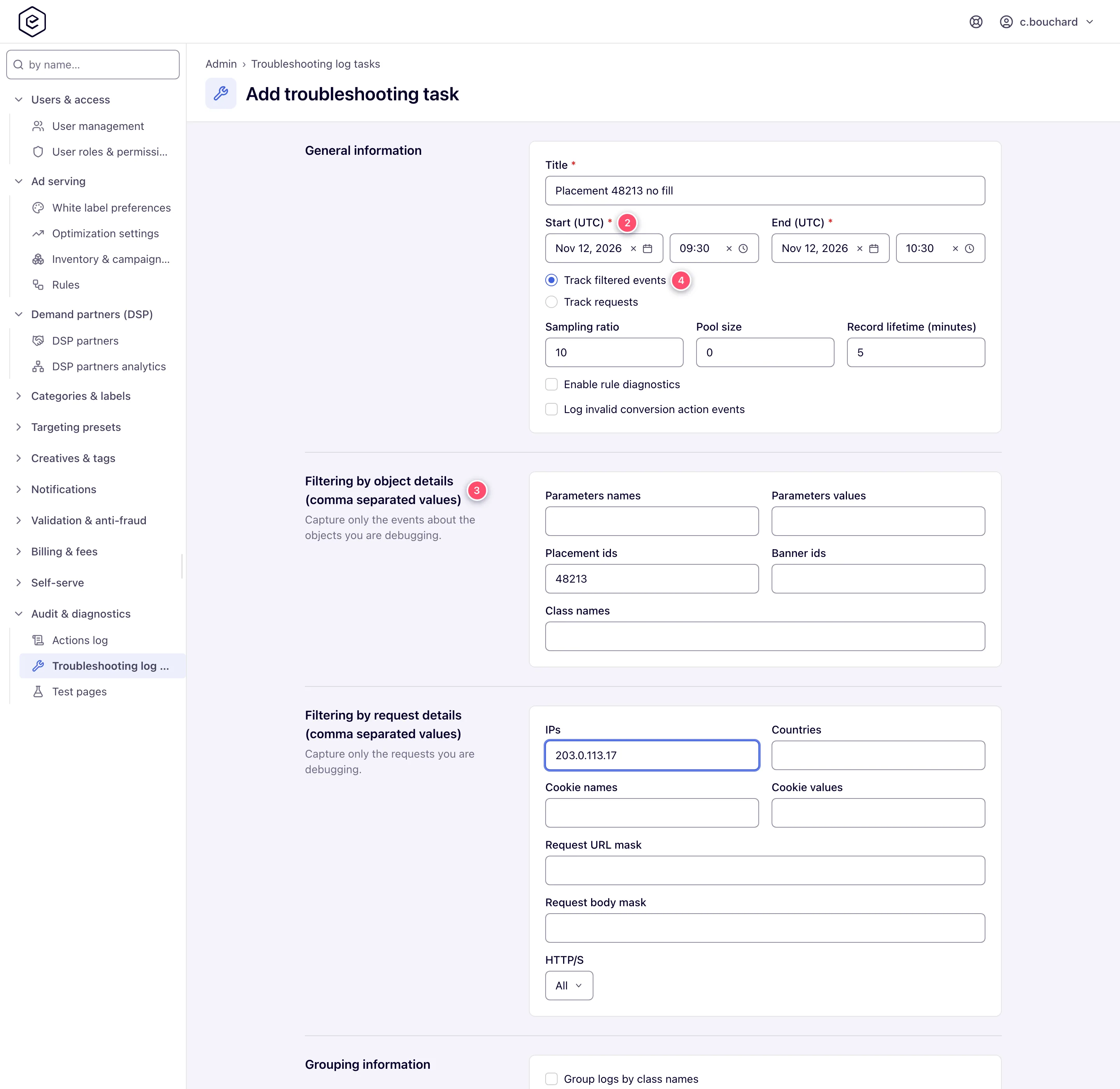
Narrow what is recorded. Under Filtering by object details (comma separated values): Parameters names / Parameters values, Placement ids, Banner ids and Class names. Under Filtering by request details (comma separated values): IPs, Countries, Cookie names / Cookie values, a Request URL mask, a Request body mask and HTTP/S. Put several values in one field separated by commas, with no spaces. Leave a field empty to not filter on it; the tighter the filters, the easier the result is to read.
-
Pick the tracking mode — Track filtered events (sampled, with a Sampling ratio) or Track requests (full capture of each matching request) — and save. The toast reads Done. Track requests greys out every field under Filtering by object details, together with Sampling ratio, Pool size, Record lifetime (minutes) and Group logs by class names, and the task ignores what they hold: only the request filters narrow it. To follow one placement or banner, stay on Track filtered events and set Sampling ratio to 1 — with Pool size at 0, every matching request is then recorded.
-
Reproduce the problem inside the window — load the page, play the video, send the bid.
-
After the window ends, select the task and click Download. You get one archive with everything the task recorded.
Caveats and exceptions
- A task records only requests that match its filters and arrive inside its UTC window, and each task has a size cap: a busy placement with no other filter can hit it before the window ends, after which nothing more is recorded. Filter by IP or country when you reproduce from a known machine.
- Track requests ignores the object filters. With Track requests picked, the Filtering by object details fields — Parameters names and values, Placement ids, Banner ids, Class names — are greyed out, and values typed there before switching are ignored. The task then records every request that passes the request filters, whatever placement or banner it is for.
- A Sampling ratio above 1 records only some of the matching requests, picked at random — at the default 10, at most about one in ten. When you reproduce a problem a handful of times, set it to 1.
- Serving traces from the AI assistant are tasks too, titled Serving trace of banner
by . While one runs, no other serving trace can start in the network; its summary is read through the AI assistant by the user who started it. - Deleting tasks is range-aware. With one row selected: delete it alone (No, only selected) or it and every older task (Yes). With two: just those two, or every task between them too. With three or more: the selection, after a confirm.
Who can open the page, and the caveats that apply to every tool in this group, are on Review the actions log and troubleshooting log tasks.
Not working?
| Symptom | Check | Where |
|---|---|---|
| The task’s download is empty | The window was not UTC, a filter excluded the traffic, or a Sampling ratio above 1 skipped the few requests you sent; widen, set the ratio to 1 and reproduce again inside the window | The task form |
| The download holds requests for other placements or banners | Track requests ignores the Filtering by object details fields; switch to Track filtered events, or narrow by IP or country | The task form |
| The download stops partway through the window | The task’s size cap was hit; filter by IP or country | The task form |
| A serving trace will not start | Another serving trace is running in the network | Troubleshooting log tasks grid, Serving trace of banner … |
The causes for the other tools in this group are on Review the actions log and troubleshooting log tasks.
Reference
The grid’s controls: Troubleshooting log tasks on the hub. What the archive tells you about a request that served nothing: Troubleshooting: ad not serving.
