
Mass banner upload
Turn a batch of image or video files into Local File or Local Video banners in one campaign with the four-step Mass banner upload wizard — placement type, uploaded creatives, shared settings and a dry run before anything is created.
Mass banner upload creates many banners in one campaign from a batch of creatives — Local File banners from images, Local Video banners from video files — instead of one banner form per file. Each file becomes a banner named after the file, the campaign and today’s date, with the ad unit read from the image’s real dimensions, and the whole batch shares one landing URL. The other bulk operations are on Bulk banner operations.
Example. The agency sends 24 JPGs for Northwind Brand Q3 — 6 sizes × 4 designs. The wizard takes the whole folder in one drop: 24 Local File banners, each with its own ad unit, all 24 pointing at the same landing page, created only when you press Finish.
Typical scenarios
| You want | Use | Where |
|---|---|---|
| 24 image files into one campaign as 24 banners | Mass banner upload | campaign Actions, or the campaigns grid with exactly one campaign selected |
| 8 MP4 files as Local Video banners on a video campaign | Placement type Video — the rows carry only the name and the file | the wizard, step 1 |
| Every banner of the batch linked to the placements of one category | Linking settings in step 3 (needs Auto-linking settings) | the wizard, step 3 |
Step by step
Start it from a campaign’s Actions → Mass banner upload, or from the campaigns grid with exactly one campaign selected. The wizard has four steps: Placement type → Uploaded creatives → Banner settings → Complete.
-
Placement type — pick Site, Mobile site, Email or Video. The placement fixes the banner type, shown next to it and not editable: video placements make Local Video, everything else makes Local File. A type your role lacks the banner permission for is not offered.
-
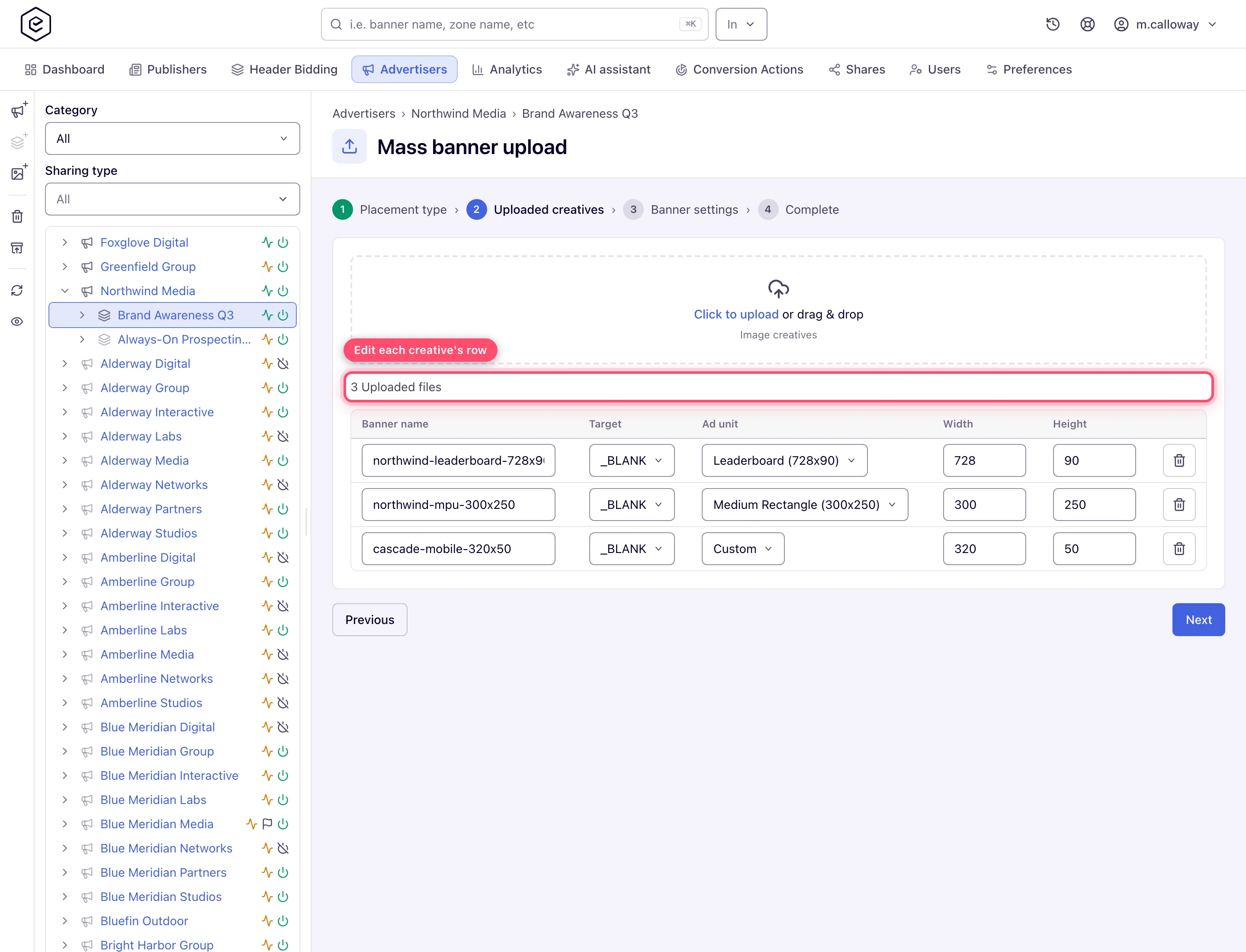
Uploaded creatives — drag the files in, or click to browse. They upload immediately and each becomes an editable row, so you can keep adding batches. Each image row is prefilled: the Banner name from the file name, the Ad unit from the creative’s real dimensions. A size with no matching ad unit falls back to Custom with the width and height filled in — that is what happens to a 320×50 on a site placement. Video rows carry only the name and the file, because Local Video creatives have no ad unit, size or target.
-
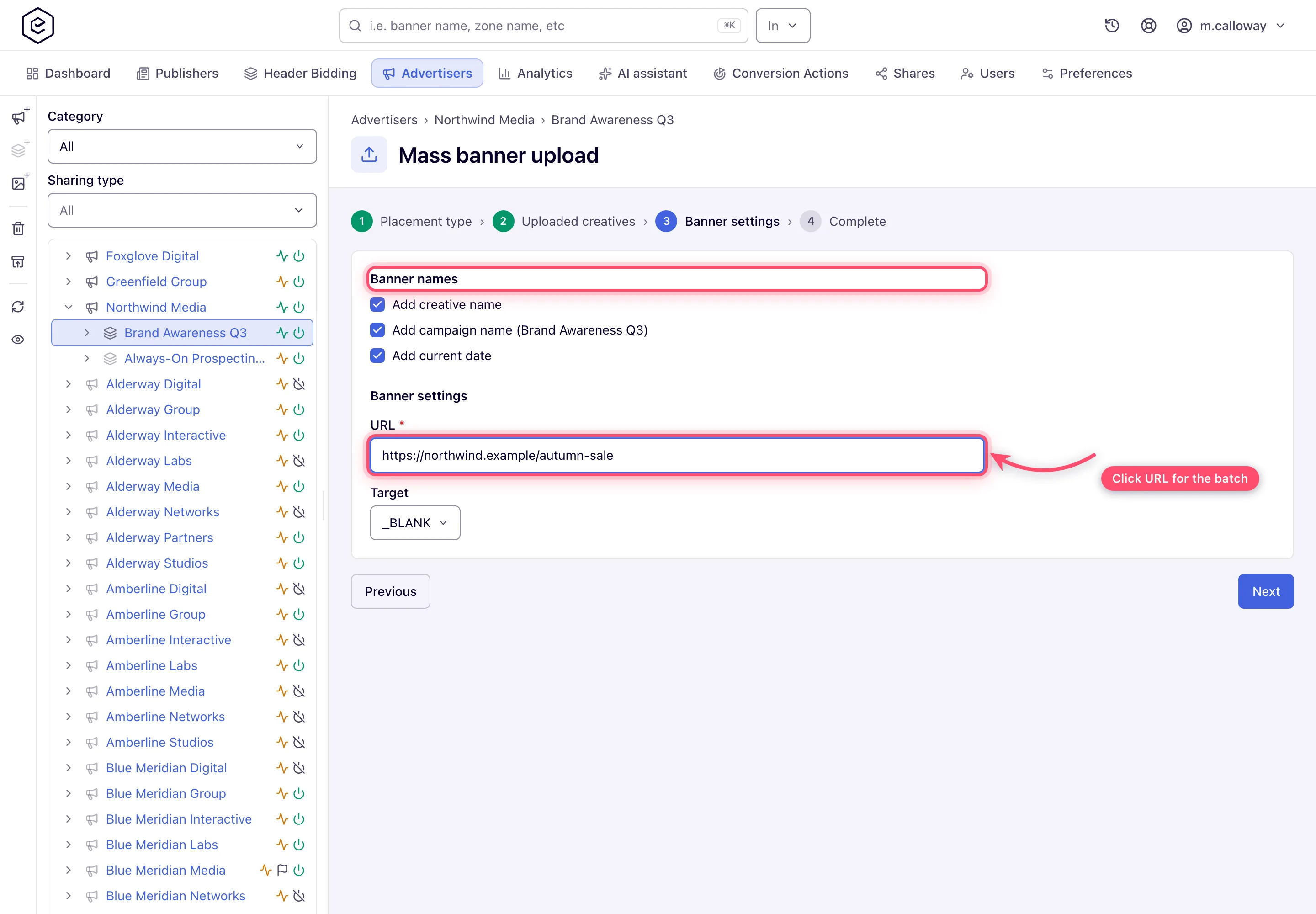
Banner settings — naming flags and the values every banner in the batch will share. Add creative name, Add campaign name and Add current date are all on by default, so the banners come out named after the file, the campaign and today unless you untick them. The shared URL is required for image batches and optional for video ones; Target appears for image batches only. Two more parts depend on your permissions: a Linking settings section (Link to all matching placements in category and Auto-link new placements from category, each with an optional Link to labeled as) with the Auto-linking settings permission, and Banner labels with the Banner Labels permission.
-
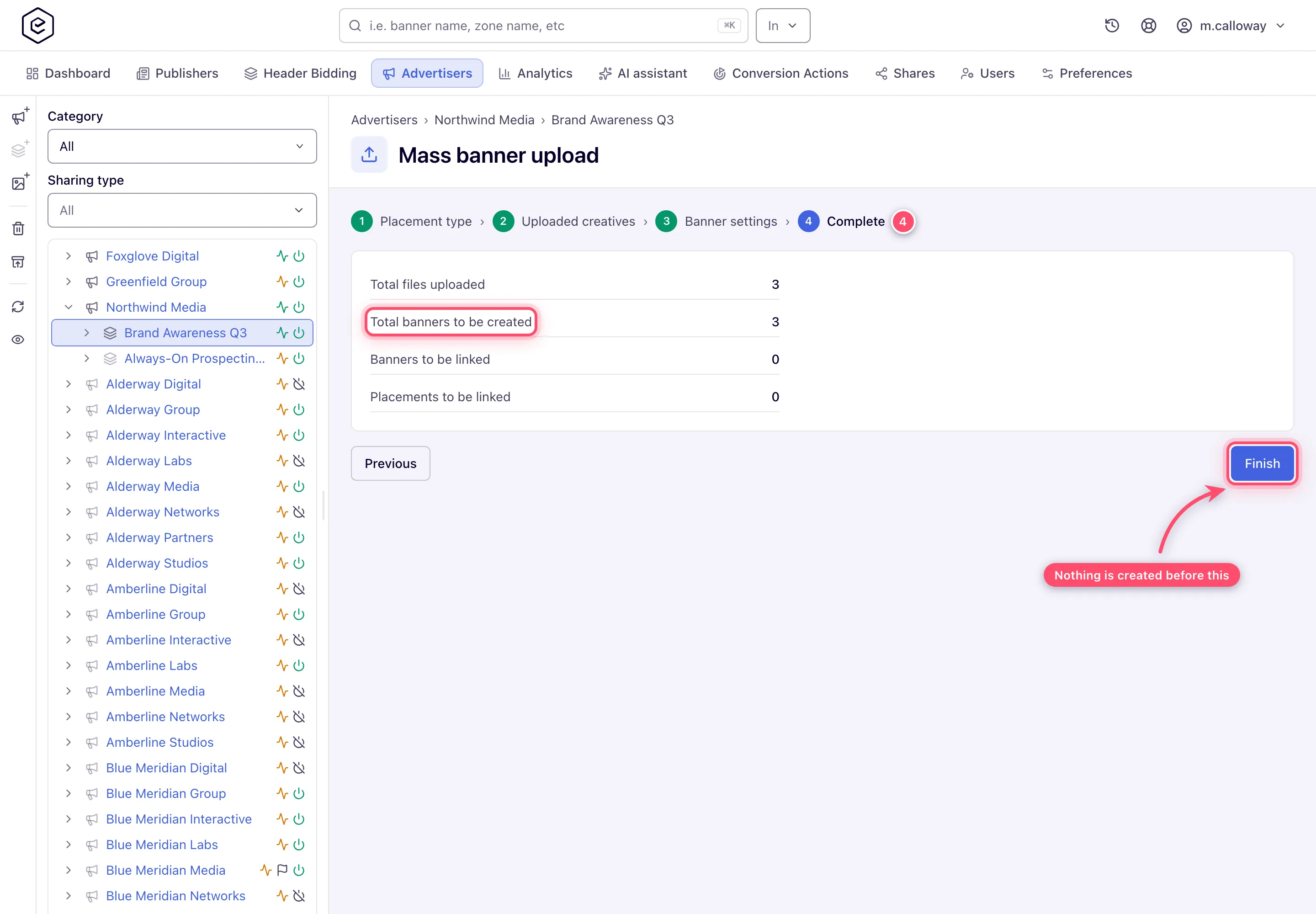
Complete — a dry run. The counts you see (files uploaded, banners to be created, banners and placements to be linked) come from a preview call; nothing is created until you press Finish. The files upload as soon as you pick them, but no banner exists until Finish — abandoning the wizard creates nothing; the uploaded files stay in a temporary staging folder on the server.
Caveats and exceptions
Who can do this. Mass banner upload needs the banner permission of the placement type you pick — Standard Site Banners, Mobile Site Banners, Email Banners or Video Banners; Linking settings need Auto-linking settings; Banner labels need Banner Labels.
Mass banner upload is scoped to one campaign. It stays disabled on the campaigns grid until exactly one campaign is selected; at the banners level it is available only when the list is scoped to a single campaign. A size the wizard does not recognise is staged with that type’s Custom size and the detected width and height, for you to accept or change; every size the network has is available to the wizard as soon as it is saved in Admin → Custom sizes.
The caveats that apply to every bulk operation are on Bulk banner operations.
Not working?
| Symptom | Cause | Check — where |
|---|---|---|
| Mass banner upload greyed out | Zero or several campaigns selected, or the banners list spans campaigns | select exactly one campaign |
| A placement type is missing in the wizard | Your role lacks that banner permission | Admin → Users & access → User roles & permissions |
| Wizard abandoned, files “uploaded” but no banners | Nothing is created before Finish | run the wizard again |
The causes shared by every bulk operation — the tree view, read-only shares — are on Bulk banner operations.
Reference
What the wizard creates is described on Image banners (Local File) and Video banners (Local Video). The toolbar the wizard is started from is in The bulk toolbar actions.
