
Leave notes for a user and switch into their account
Write notes a user reads on their Notes tab, with an unread badge until they mark them read, and switch into a user's account to see the console as they do, then Exit user to come back.
Two things you do on an existing user without changing their login: leave a note they read on their Notes tab — with the date, without the author, and an unread badge until they mark it read — and Switch into their account to see the dashboard, trees and reports exactly as they do. Creating and editing the login itself is on Create or edit a user; the overview is on Manage network users.
Example. A month after the dailynews login was created, the network manager uses Switch to see the dashboard exactly as the editor does, then Exit user to come back — and leaves a note Your Q3 invoice is ready that the editor sees flagged on their Notes tab at the next sign-in.
Typical scenarios
| You want | Do | Where |
|---|---|---|
| To see what a publisher sees | Tick the row → Switch; Exit user in the top-right menu brings you back | Users grid toolbar |
| Tell a client “your Q3 invoice is ready” where they will see it | Notes for the user panel → title and text → Add; the user’s Notes tab shows an unread badge until they mark it read | User edit page, below the form |
| Know whether the client read it | Read on with the date, or Not read yet, under the note | the same panel |
Step by step
Leave a note the user will read
-
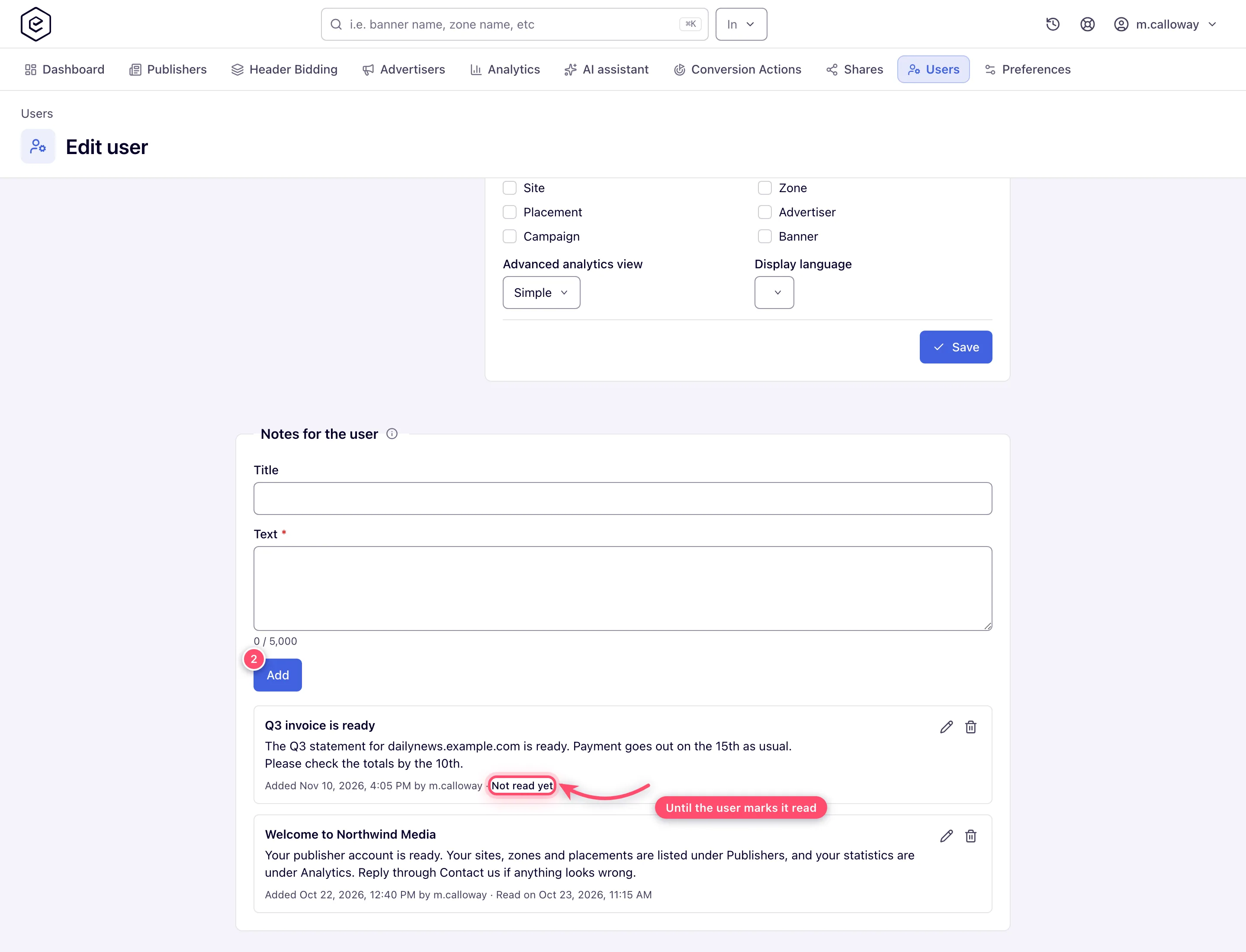
On the user’s edit page scroll to the Notes for the user panel (edit mode only).
-
Type an optional title and up to 5,000 characters of plain text; line breaks are kept. Click Add — the note is saved at once, newest first.
-
The user reads it on their Notes tab, with the date but not the author; the tab’s badge counts unread notes until they mark them read. Under each note you see who added and last changed it, and Read on with the date, or Not read yet.
Switch into a user and come back
- Tick an active user you may access and click Switch. Your session is replaced by theirs and you land on their account area.
- To come back, open the user menu (top right) and choose Exit user, which replaces Log out while you are switched in. The browser lands back on the Users grid (on your account home if you switched from the classic UI or another browser tab).
Caveats and exceptions
- Notes for the user. Each note has Edit and Delete (Delete asks first: The user will no longer see it on their Notes tab. This cannot be undone.). A new note is unread, and so is a note whose title or text you change. Switched into the user, you see the same badge but cannot mark anything read. The buttons need the same right as editing the user. The user’s Notes tab needs the Notes Tab Visible permission on their role, off by default, and shows only once they have a note. The panel warns when the role lacks the permission, and while the user has no notes it says the tab appears with the first one. The caveats that apply to the whole page — who sees the tab, Manage Preferences, statistic accounts, per-role notes — are on Manage network users.
Not working?
| Symptom | Cause | Check |
|---|---|---|
| Switch is grey | The user is inactive, or you may not access them | Status column; your role’s rights |
| The user cannot see the note I added | Their role lacks Notes Tab Visible (the panel warns) | Administrator enables it on the role |
| The user has no Notes tab although their role has Notes Tab Visible | The tab shows only once the user has a note | Add the first note; the tab appears on their next page load or within about three minutes |
| A note shows Not read yet although the user read it | Editing a note’s title or text marks it unread again; or you read it while switched in, which does not count | Ask the user to mark it read on their tab |
| Exit user is missing from the menu | You are not switched in — you signed in as that user directly | Log out and sign in as yourself |
The rest of the list — the form, roles, passwords, the API key — is on Manage network users.
Reference
The Notes for the user panel and the Notes Tab Visible permission are in the hub’s Reference.
