
Open the tracking window and pick the ad-serving domain
Tick an action on the campaign's Conversion actions card, open the Conversion tracking code window and choose the ad-serving domain that every pixel, snippet and postback URL in it is built against — step by step, with the caveats and a fix-it checklist.
What it is and why
Every tracking code — the browser pixel, the landing-page snippet and the server-to-server Conversion Tracking URLs — comes out of one window, the Conversion tracking code window on a campaign’s Conversion actions card, and every code in it is built against the Ad-serving domain you pick at the top. This page is the first stage of Get the pixel and S2S tracking code: opening the window on the right action and choosing the domain before you copy anything.
Example. The campaign “Spring Prospecting CPC” serves its tags from ads.example.com, a
custom domain registered for the network. You tick the purchase action, click Conversion
tracking code, and switch the selector from the system default to ads.example.com: the pixel
now reads the cookie that domain writes, and the Conversion Tracking URL your partner receives
names https://ads.example.com/at?…. The pick is saved on the campaign, so the next colleague who
opens the window sees the same domain.
Typical scenarios
| You want | Do | Where |
|---|---|---|
| The code for one action of a campaign | Tick the action’s row, click Conversion tracking code | the campaign’s Conversion actions card |
| Codes that match tags served from a custom domain | Pick that host in Ad-serving domain before copying | the selector above the tabs |
| Only the server-to-server URL, with no campaign in hand | Select the action and click Conversion tracking code | Account → Conversion Actions — the window opens on the Postback (S2S) tab alone |
Step by step
Open the tracking window
-
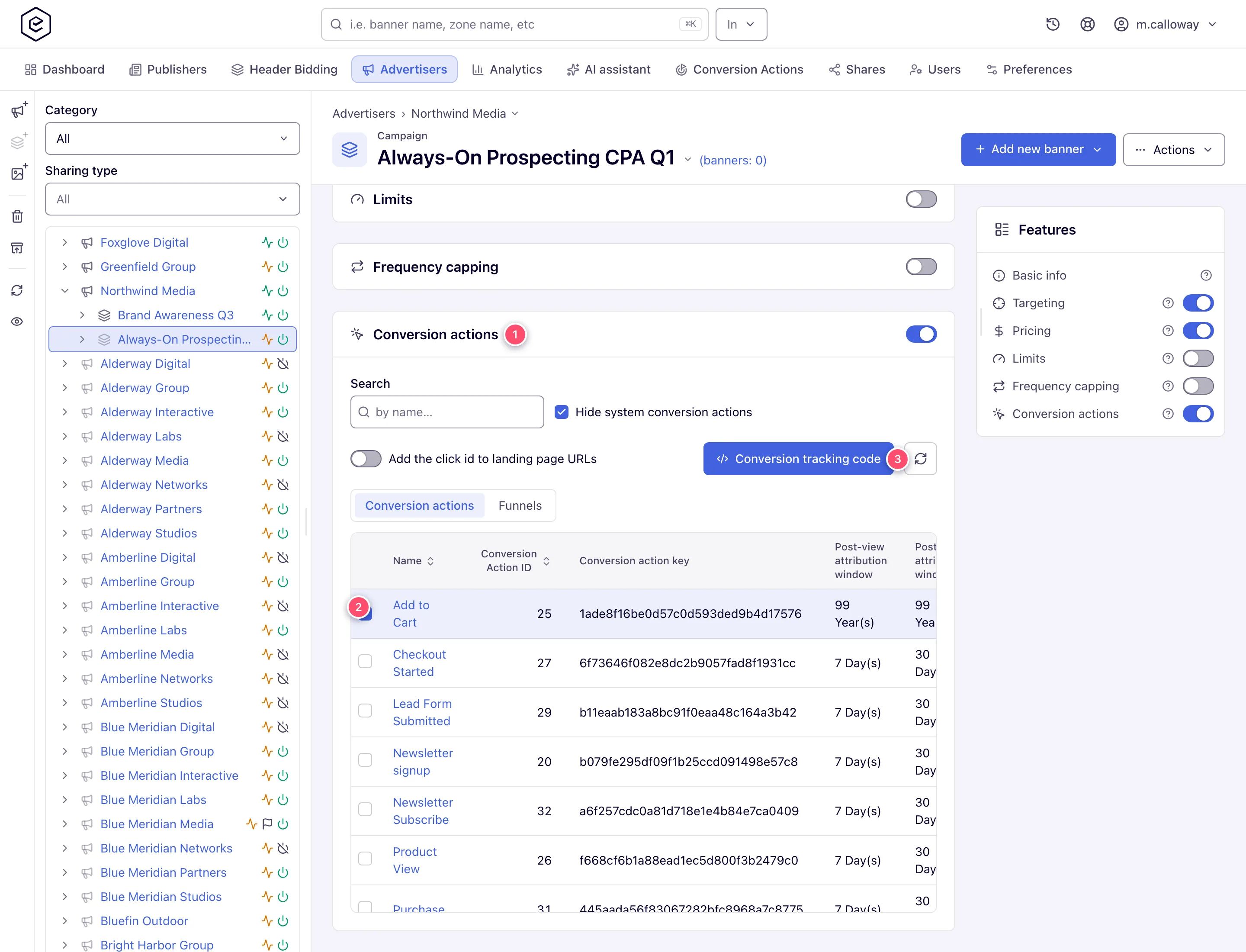
Go to Account → Advertisers → advertiser → campaign and open the Conversion actions card.
-
Tick an action row. The grid holds one tick at a time: ticking another row moves the tick to it, ticking the ticked row again clears it, and the Conversion tracking code button stays disabled while nothing is ticked. Click it.
-
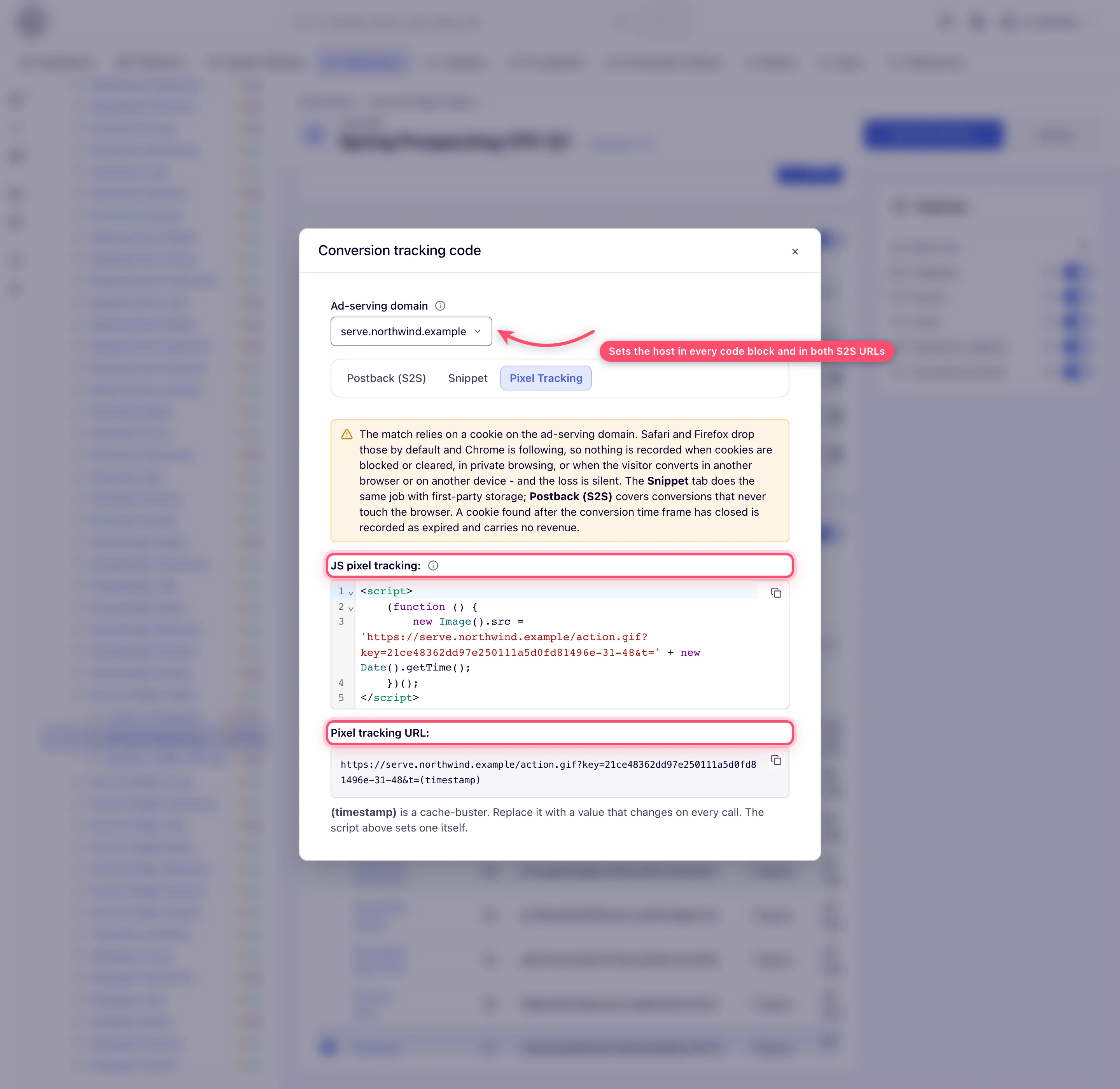
The Conversion tracking code window opens: an Ad-serving domain selector across the top, then up to three tabs below it — Postback (S2S), Snippet and Pixel Tracking, in that order. It opens on the first of those tabs. Each tab has its own permission — the Pixel Tracking tab needs Action Tracking: Code, the other two Action Tracking: Server-to-Server — so a tab your role lacks is simply not there.
Pick the ad-serving domain
-
Choose the domain your ad tags actually serve from. The selector sits above the tabs because it governs everything the window generates — the pixel code blocks, the generated snippet and both server-to-server Conversion Tracking URLs. The pixel matches a conversion against the browser cookie written when the ad was viewed or clicked; that cookie belongs to the serving domain, so a pixel loaded from any other host has nothing to read. The Conversion Tracking URLs are the endpoint your server calls, so they have to name a host that serves your ads.
-
It starts on the domain the codes would use anyway: opened from a campaign, the campaign’s own conversion-pixel domain, saved the last time someone picked one here; failing that, the network’s system default ad-serving domain. Opened from Account → Conversion Actions it is the system default. Changing it rewrites the codes and URLs in place, and from a campaign your choice is saved on that campaign, so everyone who opens this window next sees it — the (i) beside the label says which of the two you are in.
With the domain set, copy the code for your integration: the pixel or the landing-page snippet for the browser, or a server-to-server postback for a partner’s backend.
Caveats and exceptions
Saving a domain pick onto the campaign needs two rights. The Action Tracking: Code permission (the one behind the Pixel Tracking tab) and Update on the campaign. Without either, the pick is refused with a Permission denied toast and the selector keeps its old value — a role that holds only the server-to-server permission can read every code here but cannot move the domain. Opened from Account → Conversion Actions there is no campaign to save it on: the choice applies to what you are copying now and is forgotten when you close the window.
The Ad-serving domain selector is one choice for the whole window. It governs the pixel blocks, the snippet and both Conversion Tracking URLs — not a pixel-only control. If your tags serve from a custom domain, pick it before you copy anything. Change it after you have already handed a partner a Conversion Tracking URL and the two of you are naming different hosts: re-send the URL rather than assuming the old one still lines up with the cookie the pixel expects.
The domain list is network-wide. The system default ad-serving domain plus the host names registered for your network on the ad servers, the same for every advertiser and campaign. A host that is not on the list is refused outright (“Unknown ad-serving domain”), so a hand-edited request naming an arbitrary domain will not have a URL generated for it.
The caveats that apply to every tracking code — who can open the window, which tabs exist outside a campaign, and the Funnels tab — are on Get the pixel and S2S tracking code.
Not working?
| Symptom | Check | Where |
|---|---|---|
| No Conversion tracking code button on the campaign card | Manage Action Tracking is read-only or off for your role, or nothing is ticked (one tick at a time). | the card’s toolbar; User roles |
| A tab is missing | Pixel Tracking needs Action Tracking: Code; Snippet and Postback need Action Tracking: Server-to-Server; Pixel Tracking and Snippet exist only from a campaign. | where you opened the window; your role |
| Permission denied when picking a domain | You lack Action Tracking: Code or Update on the campaign, or you hold a Can view share. | your role; the share |
| ”Unknown ad-serving domain” | The host is not registered for your network on the ad servers. | the Ad-serving domain list; ask Epom support |
| A partner and you name different hosts for the postback | The domain was changed after the URL was sent. Re-send it. | the Ad-serving domain selector |
Symptoms of a code that is installed but never reports are on Get the pixel and S2S tracking code.
Reference
The tabs, the code blocks and the permission behind each are in the
Reference on the hub; the API counterpart of the domain pick
(the host parameter) is under Via the API.
Related pages:
