
Set up an application placement
Configure an in-app slot served through the ad API — the Ad category, Application OS and Display type selects, the API tab with the request URL and parameter table, the caveats (no Domain as default channel, size optional, the API-tab permission) and what to check when a banner never serves in the app.
What it is and why
An Application placement serves into a native mobile app through the ad API: the app (or your server) calls the request URL with the placement key and the device’s ids, and only banners whose ad category and OS match the slot are eligible. There is no ad tag for this type — the API tab is the whole integration. The other specialist types are on Application, email and click-through placements; mobile web pages use the Mobile Site Placement.
Example. A publisher’s Android news app has a 320×50 banner slot. It is an Application Placement with Ad category Banner Ad and Application OS Android; the app calls the API request URL from Ad tags & API → API with the placement key and the device’s ids, and a 320×50 application banner marked Banner Ad / Android fills it.
Typical scenarios
| You want | Create | Then hand over |
|---|---|---|
| A 320×50 banner slot in an iOS or Android app | Application Placement, Ad category Banner Ad, Application OS matching the app | The API request URL and parameter table from Ad tags & API → API |
| A full-screen interstitial or a rewarded video in the app | Application Placement, Ad category Interstitial Ad or Rewarded video | The same API URL; only banners with that category and OS are eligible |
Step by step
Start from a saved placement of this type (create one).
-
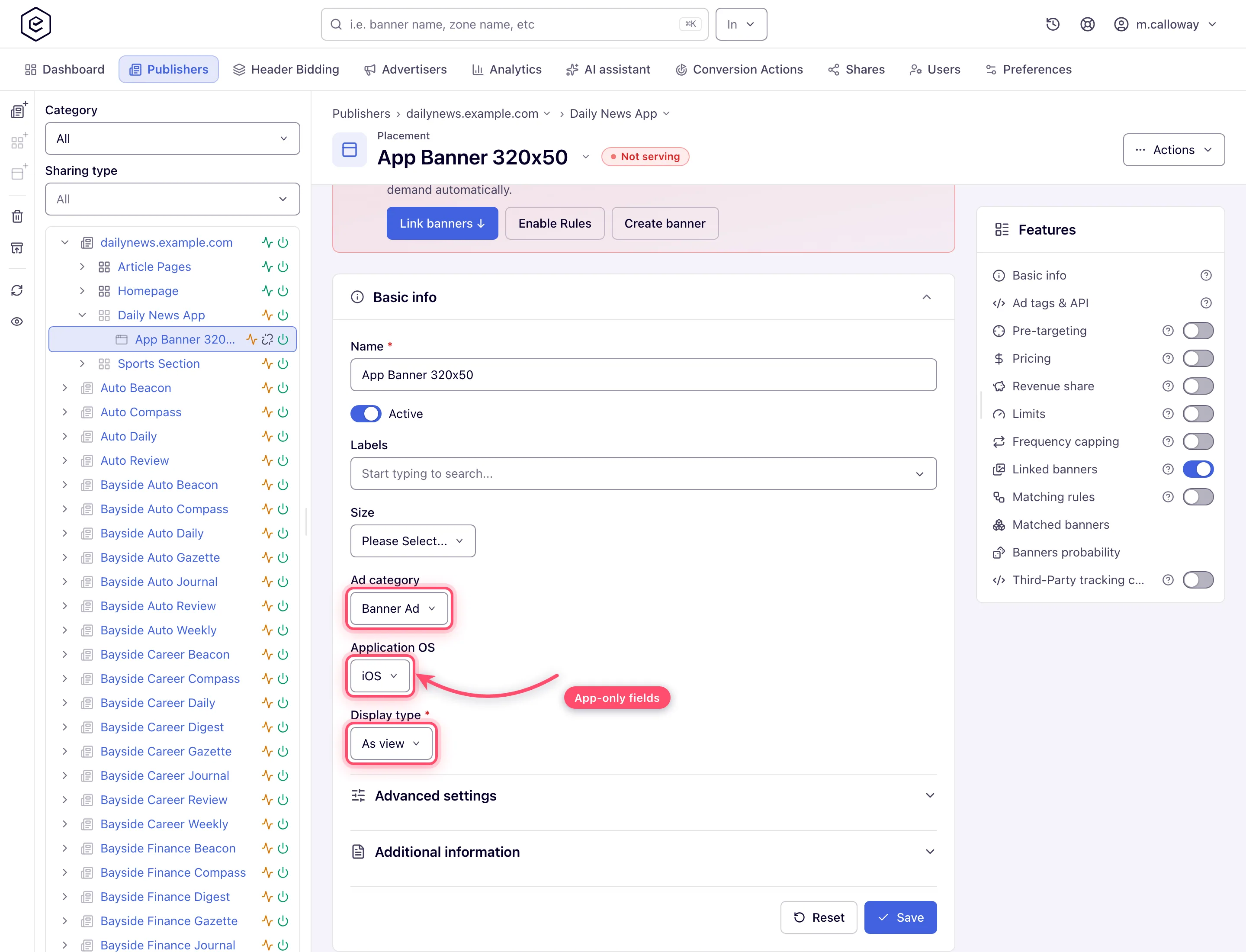
Open the placement. Beyond the shared fields, fill the app-specific selects:
- Ad category — the ad format of the slot: Banner Ad, Interstitial Ad, Native Ad or Rewarded video (a new placement starts on Banner Ad);
- Application OS — iOS (the default) or Android. A non-native application banner is eligible for the slot only when its OS and ad category both equal the placement’s;
- Display type — As view or As activity: how the app shows the ad. It is returned in
the API response as
DISPLAY_TYPE, unless the banner names its own.
-
Save, then open Ad tags & API → API tab: the request URL, the parameter table (
key,clientIp,clientUa,format, device identifiers…) and sample responses. It is the only integration path for this type — call it from the app or from your server.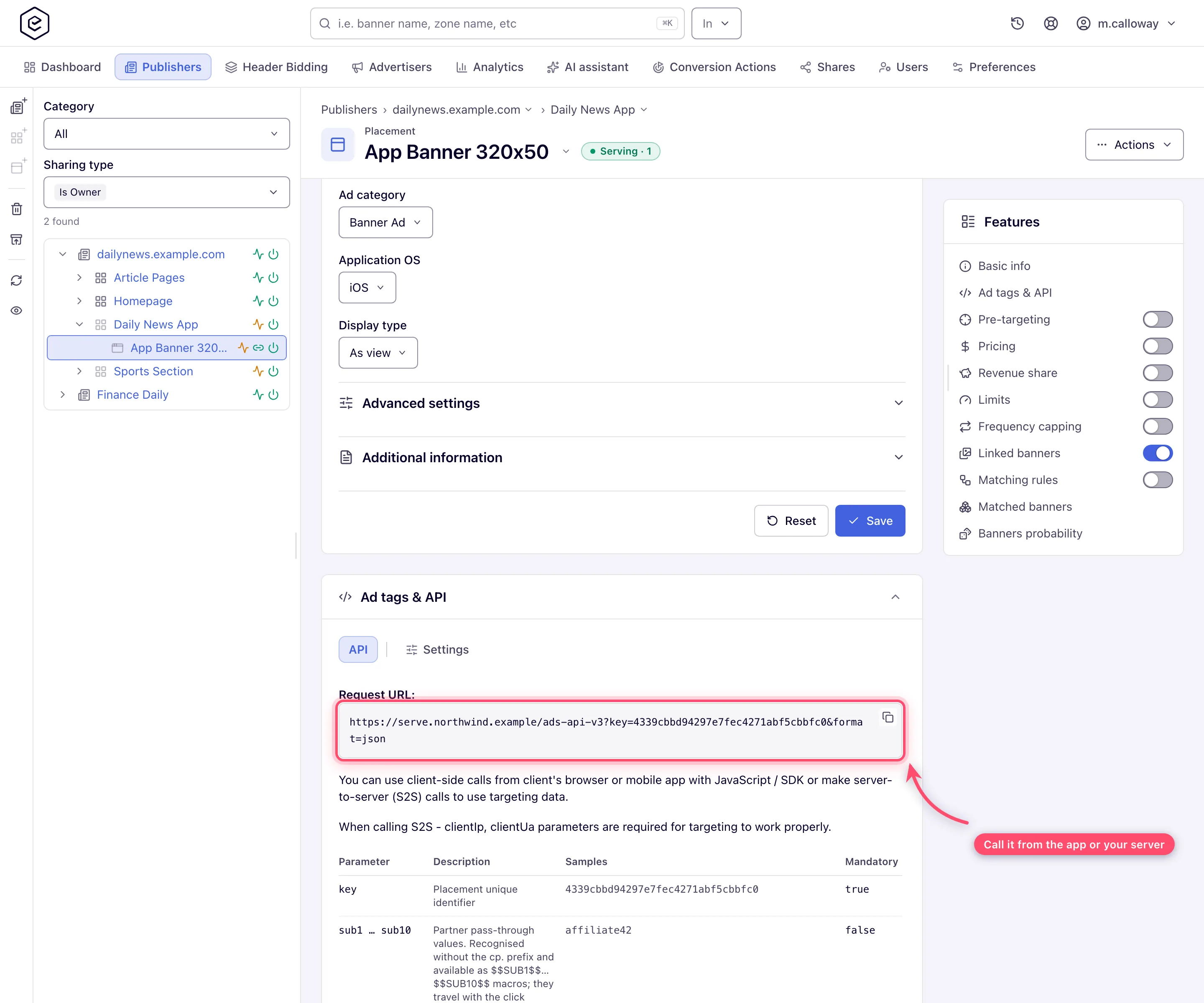
Caveats and exceptions
Application placements have no Domain as default channel — apps have no page domain for it to read. If you segment reporting by channel, pass the channel explicitly as a request parameter.
Display type is optional and nothing pre-selects a value — a placement can be saved without one. Ad category and Application OS, by contrast, are both defaulted and validated.
Size is not required on an Application Placement. Only Site and Email placements require one; every other type that has a Size field leaves it optional.
The application API tab needs its own permission. Without it the Ad tags & API card has nothing to show for this type and looks broken — ask your network admin for the grant.
Who can do this, and why there is no Preview button, are on Application, email and click-through placements.
Not working?
| Symptom | Check | Where |
|---|---|---|
| The Ad tags & API card is empty on an Application Placement | Your role lacks the application API-tab permission | Your network admin — User roles |
| A banner never serves in the app slot | A non-native application banner needs the same Application OS and Ad category as the placement | The placement’s two selects and the banner’s |
| Save lands an error on Ad category | Validation errors from saving land on this field even when another part of the form caused them | Read the message; Ad category and Application OS are validated, Display type is not |
| No channel in reports for app traffic | Application placements have no Domain as default channel | Pass channel on the API request |
The symptoms common to all three types (Preview answers Not Supported, the Settings tab missing on a share) are on Application, email and click-through placements.
Reference
The fields and their defaults: Application placement fields on the hub. The API request, its parameters and responses: API tab, VAST tags and the JavaScript API.
