
Create or edit a user
Find a login in the Users grid, create a new one or edit it — username and password, contact details, Active, Role, Internal notes, the API key and the AI assistant monthly limit — and what the save sends the user.
The Users grid lists every login of your network; Add and Edit open the same form — login information, personal information and the Additional information section with the role, the status, the API key and the AI assistant cap. A new user never receives a password: the activation e-mail carries a single-use link to set their own. Notes for the user and switching into an account are on Leave notes for a user and switch into their account; the overview is on Manage network users.
Example. Northwind Media signs a new publisher, dailynews.example. The network manager
clicks Add, enters username dailynews, the editor’s e-mail, role Publisher, leaves
Active ticked and saves. The platform mails the editor a single-use link to set their own
password; the manager never learns it.
Typical scenarios
| You want | Do | Where |
|---|---|---|
| A login for a new publisher or advertiser who sets their own password | Add → username, e-mail, role, Active ticked → Save; the activation e-mail carries the set-password link | Account → Users |
| A colleague’s access to end today, without losing their history | Edit → untick Active → Save; they cannot sign in and nobody can switch into them | User edit form, Additional information |
| A note only your team sees | Internal notes field on the form (the user never sees it) | User edit form, Additional information |
| Cap one heavy AI assistant user at $5 a month while the network default is $20 | AI assistant monthly limit per user, $ = 5 → Save (needs the Ad Server Fees permission) | User edit form, Additional information |
| Give an integrator a REST key | Edit → Generate next to API key (takes effect at once, no Save) | User edit form; needs API Key Access on your role |
Step by step
Find and manage existing users
-
Go to Account → Users. The tab shows only to roles with the User Management UI permission.
-
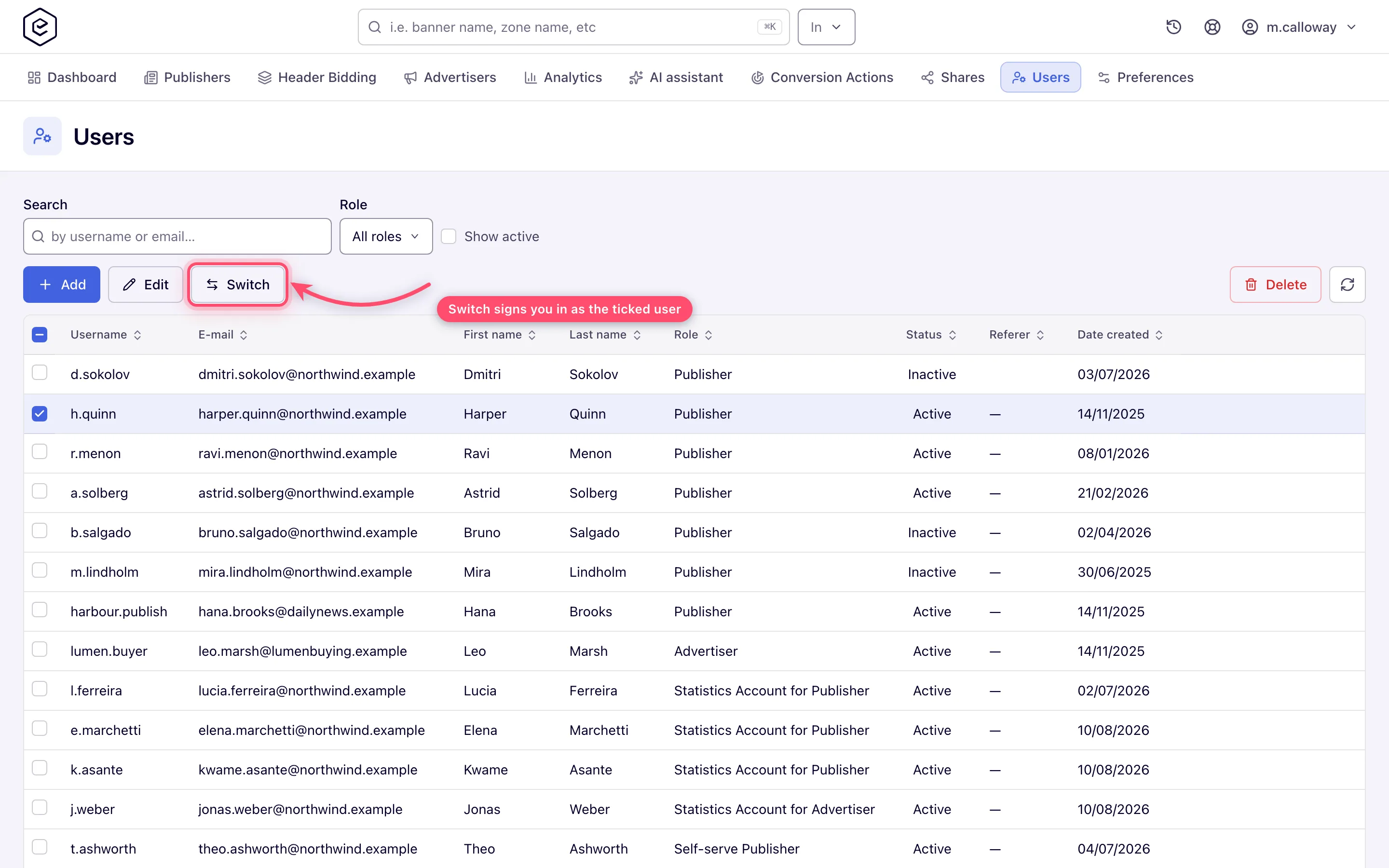
Filter the grid: Search by username or e-mail, narrow by Role (All roles), tick Show active to hide deactivated accounts. Show referrals (only with the referral program) narrows the grid to users who have referred clients. The grid shows Username, E-mail, First name, Last name, Role, Status, Referer, Referred users (referral program only) and Date created; click a header to sort.
-
Tick a row. The toolbar buttons light up according to what you may do with that user:
- Edit — opens the form (double-clicking an editable row does the same).
- Switch — signs you in as that user and lands you on their account area. Only offered for active users you’re allowed to access.
- Delete — removes the account after a confirm (Delete record?). Disabled for your own account and for users you may not remove.
Create or edit a user
-
Click Add (the page reads Add user) or Edit on a ticked row (Edit user).
-
Fill Login information: Username (required, up to 64 characters, unique) and the password. On create the password is required and the field shows what you type. On edit it is hidden behind a Change password button, which reveals New password with a cancel button — leave it untouched to keep the current password.
-
Fill Personal information: first/last name, E-mail (required, up to 64 characters), phone, country, state/province, company, website URL.
-
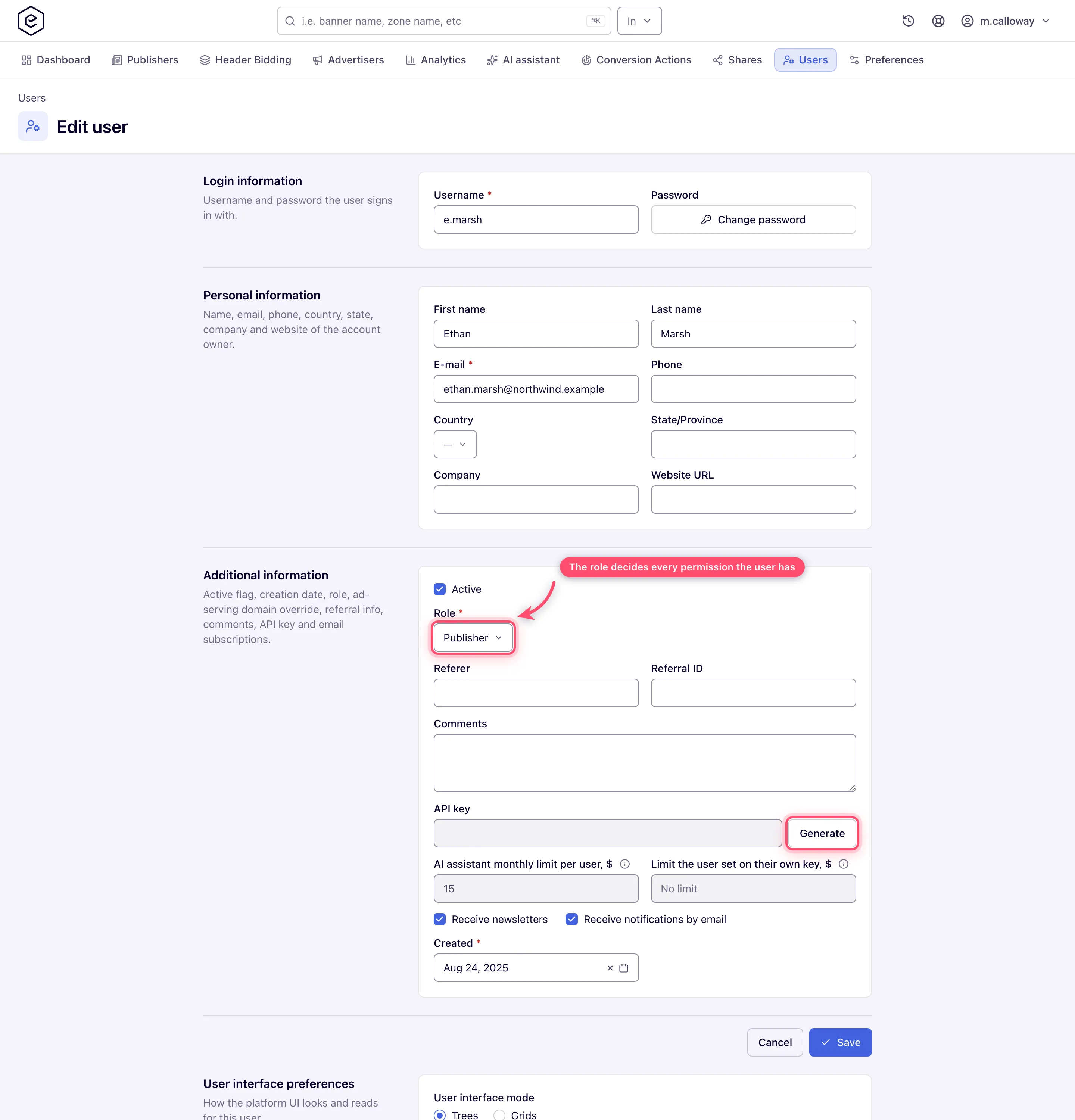
Fill Additional information:
- Active — untick to deactivate the account without deleting it.
- Role (required) — the role the user gets, which decides what they can reach. The list offers only roles your own role may create users in; an administrator role is never offered.
- Referer and Referral ID — referral bookkeeping fields.
- Internal notes — free text your team sees and the user never does (labelled Comments before release 155). Messages the user sends through the contact form are added here automatically. Notes meant for the user go in the Notes for the user panel below the form.
- API key — read-only; Generate replaces the key at once. Shown only when your role holds API Key Access.
- AI assistant monthly limit per user, $ — shown when the AI assistant is offered on the network; the hint under it names what an empty value falls back to (the network limit, or the platform default on the platform’s key). Editable only with the Ad Server Fees permission; otherwise read-only. A read-only Limit the user set on their own key, $ shows beside it when the user runs on their own Anthropic key — see Set monthly limits.
- Receive newsletters / Receive notifications by email — e-mail subscriptions.
- Created — a required date, today on a new user. It is a normal field: you can change it.
-
Click Save. The toast reads Record successfully processed. On success you stay on the form; a newly created user gets its own edit URL so further saves update it. When the account becomes active — including when you create it with Active ticked — the platform sends the user the activation e-mail with a single-use link for setting their own password; the password is never mailed.
Caveats and exceptions
- Manage Preferences on your own role. Without it, an existing user’s password, e-mail, phone, country, state, company and website URL are read-only and Change password is greyed out. A save that would change one of them anyway is refused with an error on that field — nothing is dropped silently. Creating a user needs the grant too, since a new login has no e-mail or password to keep: without it, Save on a new user is refused with Creating a user requires the Manage Preferences permission. Settings the form does not show, such as the user’s interface mode and analytics view, are never touched by a save.
- Password rules. 8–64 characters, must not begin or end with a space and must not be among the widely used passwords; the “must not contain the username or e-mail” rule is not applied on this form (it applies when users change their own password). Epom can tighten the limits for your network. Setting a password here does not send the user the password changed notice and does not end their open sessions — both happen only when users change their own password or use a reset link.
- Deactivated users cannot sign in and cannot be switched into; their row reads Inactive.
- Visibility and manageability are separate rights. Rows you cannot manage still appear in the grid. A save is accepted only for a role your role may create users in, and re-saving a user whose current role you may not hand out is refused.
- Generate takes effect at once — the key is minted on the server and the old one stops working immediately, with no Save needed. It needs an existing user: on a new one, save first.
- Internal notes are not fully private. The user’s console never shows the field and the AI assistant is never shown it, but the account’s own API integrations can still read and overwrite it, so do not write anything in it you would not show the user. The caveats that apply to the whole page — who sees the tab, statistic accounts, the login IP whitelist, per-role notes — are on Manage network users.
Not working?
| Symptom | Cause | Check |
|---|---|---|
| Edit / Delete stay grey for a ticked row | Your role cannot manage that user’s role — not a bug | Which roles your role may create users in (Users and roles) |
| Delete is grey on my own row | You cannot delete yourself | — |
| Creating a user requires the Manage Preferences permission. | Your role lacks Manage Preferences | Ask the administrator to enable it on your role |
| Password / e-mail / phone fields are read-only on an existing user | Same cause: Manage Preferences missing on your role | Same |
| Save refused with an error on the Role field | The role is one your role may not hand out (also when re-saving a user who already has it) | Pick a role from the list, or ask the administrator |
| Save refused on the password | Shorter than 8 or longer than 64 characters, leading/trailing space, or a widely used password | Retype it |
| The new user says they got no password | Passwords are never mailed; the activation e-mail carries a set-password link | Their inbox and spam for the activation e-mail; outbound mail set up for the network (Notifications & outbound mail) |
| No API key row on the form | Your role lacks API Key Access | Administrator grants it on your role |
| Generate does nothing on a new user | The key needs an existing user | Save first, then Generate |
| AI assistant monthly limit is read-only | Your role lacks Ad Server Fees (or the assistant is not offered on the network, in which case the field is absent) | Set monthly limits |
| Payment details can be changed only on your own account or on a user whose role you may manage. | The user’s role is outside what you may assign | Same bar as editing the user |
The rest of the list — the missing tab, notes, Switch and Exit user — is on Manage network users.
Reference
Every form field, the per-user panels and the permissions are in the hub’s Reference; the search and create-and-share calls in Over the API.
