
Create, edit, copy and delete a conversion action
Create a conversion action with its name, period type, post-click and post-view windows and default attribution type, edit the full form afterwards, and copy or delete actions from the grid — step by step, with the naming rule and a fix-it checklist.
What it is and why
A conversion action is created once at the account level, on Account → Conversion Actions, with a short create form; the edit page then opens the full General information form with the per-window period types, the duplicate windows and the server-to-server options. This page is the first stage of Create and edit conversion actions: the action’s lifecycle on the grid. Pricing it and switching it on for a campaign are on Set CPA pricing on a conversion action and Link a conversion action to a campaign.
Example. An online shop creates a purchase action with the default windows, 7 Day(s)
post-click and 1 Day(s) post-view. A visitor who clicks the ad on Monday and buys on Friday
is a post-click conversion; a visitor who only saw the ad on Monday and buys on Wednesday is
outside the one-day view window and is recorded as a zero-revenue Expired post-view
diagnostic. When the shop opens a second storefront, the action is copied as purchase_copy
with the same windows and prices, and renamed on its edit page.
Typical scenarios
| You want | Set | Where |
|---|---|---|
| A new purchase action with a 7-day click and 1-day view window | Conversion Action Name purchase, the default windows | + Create on the grid |
| An app install reported by a partner’s server that cannot say whether it followed a click | Default attribution type = Post-click, Apply attribution window to server-to-server conversions on | the action’s General information |
| The same windows and prices on a second action | Select the action, click Copy, rename the copy | the grid, or the action’s edit page |
Step by step
Create an action
-
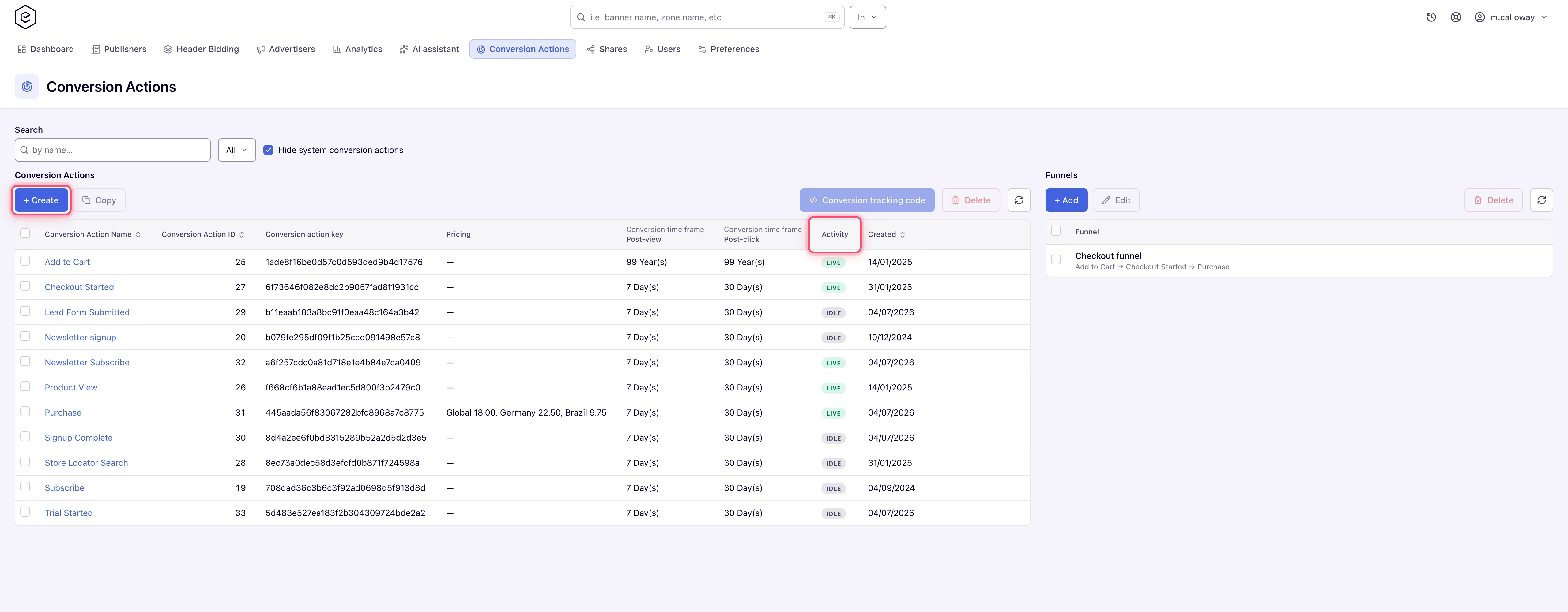
Go to Account → Conversion Actions and click + Create.
-
Fill in the General information form. It is deliberately shorter than the edit form — only these six fields are offered at creation, in this order:
- Conversion Action Name — up to 64 characters, and only letters, digits, hyphens and
underscores. It looks like a free-text label and is not: a space is rejected with
“Invalid conversion action name”. Use
purchaseorfirst-deposit, notFirst deposit. - Period type — one period that applies to both windows at creation time (Second(s) … Year(s)). On the edit page the two windows get their own period type.
- Post-view attribution window and Post-click attribution window — window values, 0–255. New actions start at 1 day post-view and 7 days post-click.
- Apply attribution window to server-to-server conversions — ticked by default on new actions.
- Default attribution type — how a server-to-server conversion is recorded when nothing else classified it. Unattributed, Post-click or Post-view; leave it at Unattributed unless you know what the integration measures.
- Conversion Action Name — up to 64 characters, and only letters, digits, hyphens and
underscores. It looks like a free-text label and is not: a space is rejected with
“Invalid conversion action name”. Use
-
Click Create. A Done toast confirms, and you land on the new action’s edit page.
Edit an action
-
On the grid, click the action name (or double-click the row).
-
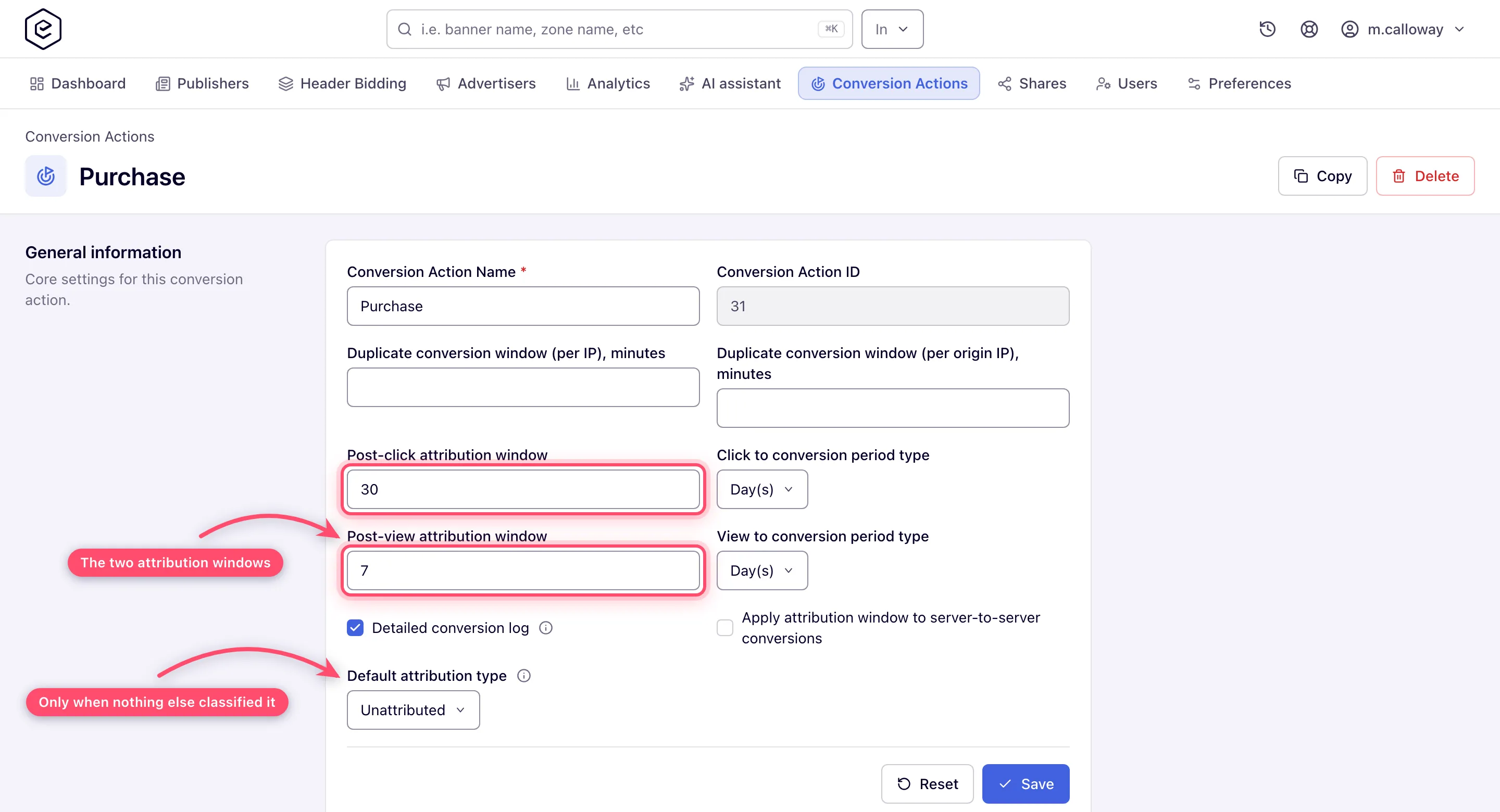
Adjust the General information section. It carries everything from the create form plus the read-only Conversion Action ID, the two Duplicate conversion window fields, Detailed conversion log, Reject duplicate conversions, Apply the click’s user IP to server-to-server conversions, and an independent period type per window (Click to conversion period type / View to conversion period type). The two window fields keep the same Post-click attribution window / Post-view attribution window names as the create form.
-
Click Save. A “Data has been saved.” toast confirms the update; Reset discards your edits and restores the last saved values.
Below the form the page holds up to three collapsible cards: Conversion Tracking (the server-to-server URLs — see Get the pixel and S2S tracking code; shown only if your role has server-to-server tracking), Conversion Action Sharing, and Pricing.
Copy or delete actions
- Copy — select exactly one row on the global grid and click Copy (the action’s own
edit page has the same button in its header). The copy is named
<name>_copy, then<name>_copy_1,<name>_copy_2… if that name is taken. It carries the two windows and their period types, both per-IP time frames, the attribution settings (Detailed conversion log, Apply attribution window to server-to-server conversions, Default attribution type, Reject duplicate conversions) and the whole Pricing card (global row and every country). You become the copy’s owner; the original’s other shares are not copied. - Delete — select one or more rows and click Delete, then confirm “Delete N record(s)?”. The same button sits in the edit page’s header and returns you to the grid afterwards. System actions cannot be deleted.
Next: Set CPA pricing on a conversion action, then Link a conversion action to a campaign.
Caveats and exceptions
The name rule checks only what you type. Built-in system actions and actions created before the letters-digits-hyphens-underscores rule keep their names and save normally as long as you leave the name alone; the full set of grid and system-action caveats — kept names, the Sub ID macro after a rename, the shorter form of system actions, the batch delete that a system action blocks, the hidden system rows and the Live / Idle badge — is under Names, system actions and the grid.
The caveats that apply to every conversion action — who can do this, the attribution windows, duplicates and the visitor’s IP, and when a saved setting reaches ad serving — are on Create and edit conversion actions.
Not working?
| Symptom | Check | Where |
|---|---|---|
| ”Invalid conversion action name” on save | The name has a space or punctuation other than - and _, or is over 64 characters. Rename to first_deposit, not First deposit. | General information → Conversion Action Name |
| Delete refuses the whole selection | A system action, or an action you hold no Delete grant on, is ticked. Untick it and delete again. | the ticked rows on the grid |
An action missing from the grid, a form field that is not shown, and a conversion that counted differently from what you set are on Create and edit conversion actions.
Reference
Every field of the create and edit forms, the cards below the form, the grid columns and the REST calls are in the Conversion actions reference; the essentials are under Reference on the hub.
Related pages:
