
Block a named advertiser, campaign or banner from your inventory
The one brand-safety control that removes hand-linked direct demand and any DSP creative that slipped through — block a banner, a campaign or a whole advertiser on a placement, a site or all sites from the Banners probability card, and block a site or placement from demand out of an analytics report.
What it is and why
A named block is the one hard stop for direct demand: it removes a banner, a campaign or a whole
advertiser from a placement, a site or every site, whatever any category rule or matching rule
says, and it is the fix for a DSP creative that got past bcat. It is the first layer of
Use case: brand safety with category rules, domain lists and advertiser blocks; the domain lists and category rules are the next two.
Example. “Lucky Seven Casino” has 3 campaigns and 14 banners. One block of the advertiser on the Kidwise site removes all 14 — and every campaign created later — from its 8 placements in one action.
Typical scenarios
| You want to avoid… | Use | Does it stop demand? | Lives in |
|---|---|---|---|
One named advertiser (its 3 campaigns and 14 banners) on your site, or one DSP creative that slipped past bcat | Named blocks | Yes — the only hard stop for direct demand | Banners probability card / analytics |
Step by step
Blocks are set on the supply side from the placement, or from an analytics report on the demand side.
The one control that removes hand-linked direct demand — and the fix for any DSP creative that got through. A block is absolute: it removes the pairing regardless of how well any dimension rule or matching rule matches.
-
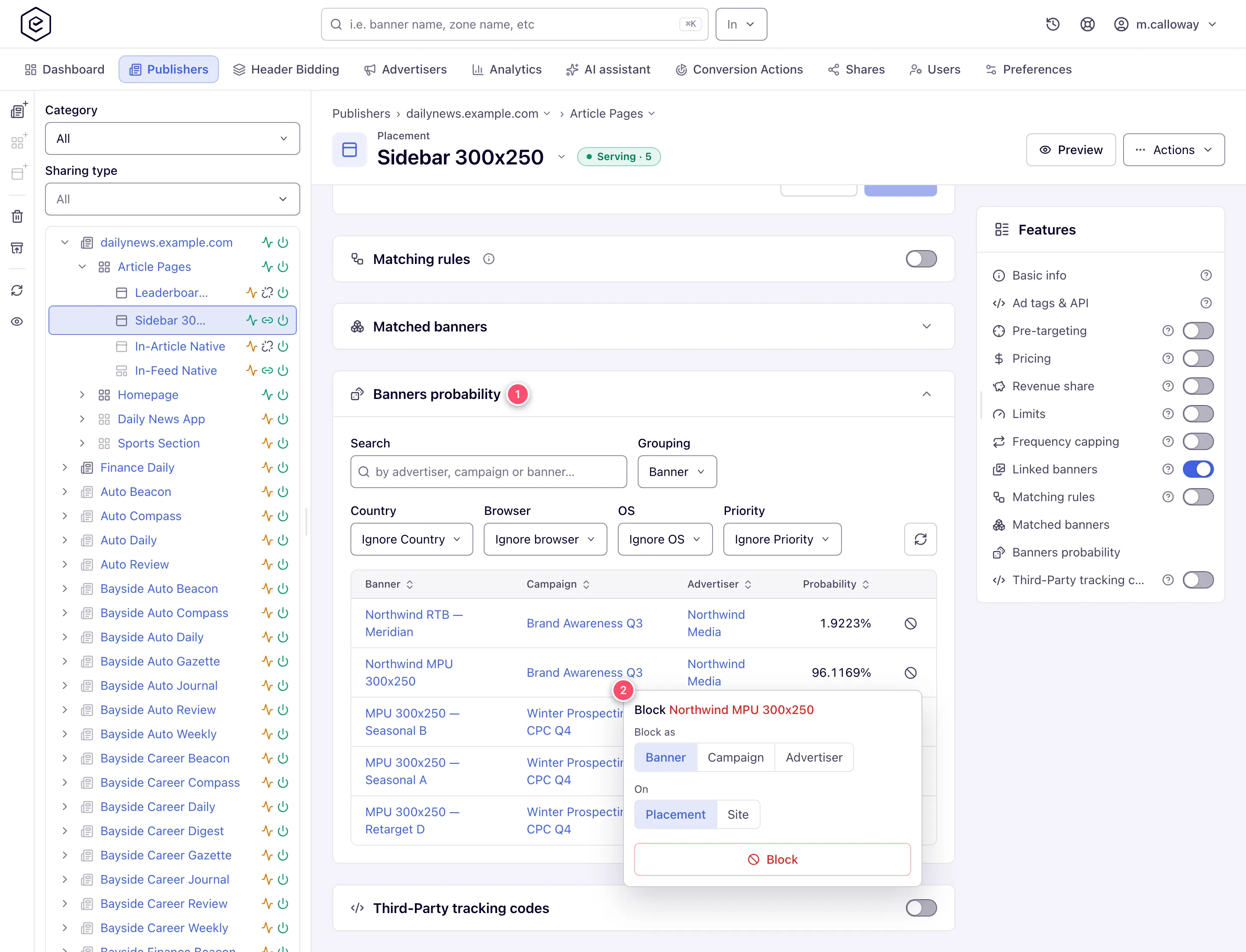
On Account → Publishers → site → zone → placement, open the Banners probability card — it lists every banner that can currently win on this placement.
-
Click the Block button at the end of the row (a circle with a slash). The popover offers Block as Banner, Campaign or Advertiser (blocking the advertiser removes all its campaigns and banners at once, including campaigns created later) and On — this Placement, the whole Site, or All sites. Click Block, then confirm.
-
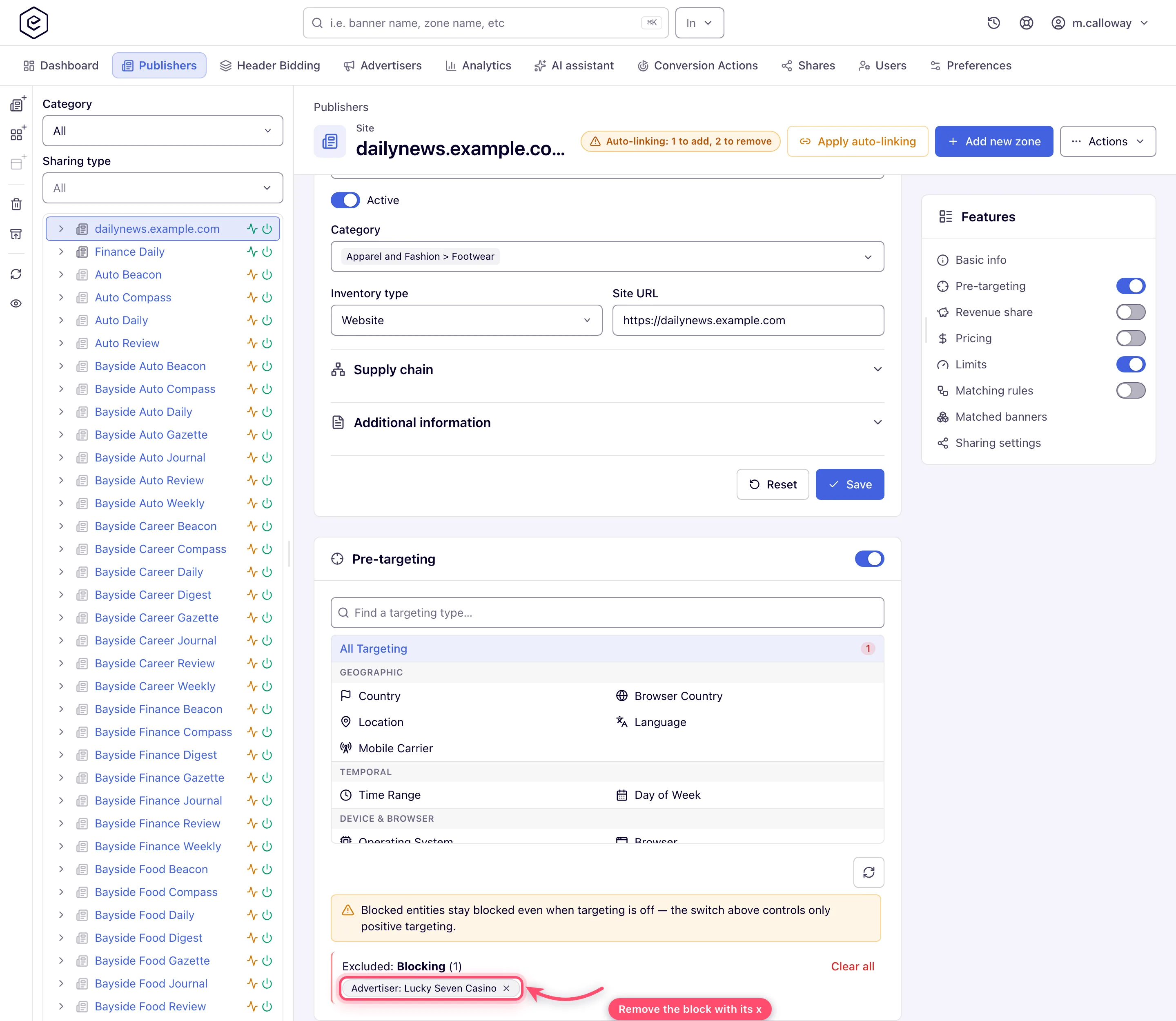
The block appears on the placement’s (or site’s) Pre-targeting card under Excluded: Blocking and can be removed there.
-
In the other direction, an advertiser or network manager blocks a site or placement from demand: run an Account → Analytics report grouped by Site or Placement together with Banner or Campaign, tick rows, and click Block site / Block placement in the selection bar — the rule lands on the banner’s or campaign’s Targeting card. The success toast appears whatever the server answered, so confirm the chip under Excluded: Blocking there.
Full behaviour and scopes: Block demand and inventory.
Caveats and exceptions
Named blocks
- Creating a block silently switches the targeting card on for the entity that receives it (a block cannot work with targeting off), which also re-activates that entity’s positive rules. Blocks then keep applying even if you later switch the card off — the switch only governs positive dimension rules.
- The Block buttons are drawn only for roles allowed that scope — each scope (placement / site / all sites; blocked sites / blocked placements on the demand side) is switched on separately, per role, and none is on out of the box.
The caveats that apply to every layer — what none of the four controls can do, competitive separation and the roles — are on Use case: brand safety with category rules, domain lists and advertiser blocks.
Not working?
A block is missing, or a block changed what else serves? The likely causes:
| Symptom | Likely cause | Check |
|---|---|---|
| No Block button on the Banners probability row | The block scope is not granted; none is on out of the box | Admin → Users and roles → block scopes (placement / site / all sites) |
| Rules on the placement stopped applying after a block was removed, or positive rules came back unexpectedly | A block switches the targeting card on; removing it does not switch it off | Placement → Pre-targeting card switch |
| Block site from analytics showed a success toast but no chip | The toast appears whatever the server answered | Banner / campaign → Targeting → Excluded: Blocking |
The other layers, and the verification step, are on Use case: brand safety with category rules, domain lists and advertiser blocks.
Reference
Full behaviour and scopes: Block demand and inventory (pre-targeting blocks). Which permission each control needs is in the reference table of the use case.
