
External File image banners
Point a banner at an image hosted on your own server or CDN — the Image creative URL, the Banner link on video placements, the click-through URL and Serve from our server with Refresh copy — step by step.
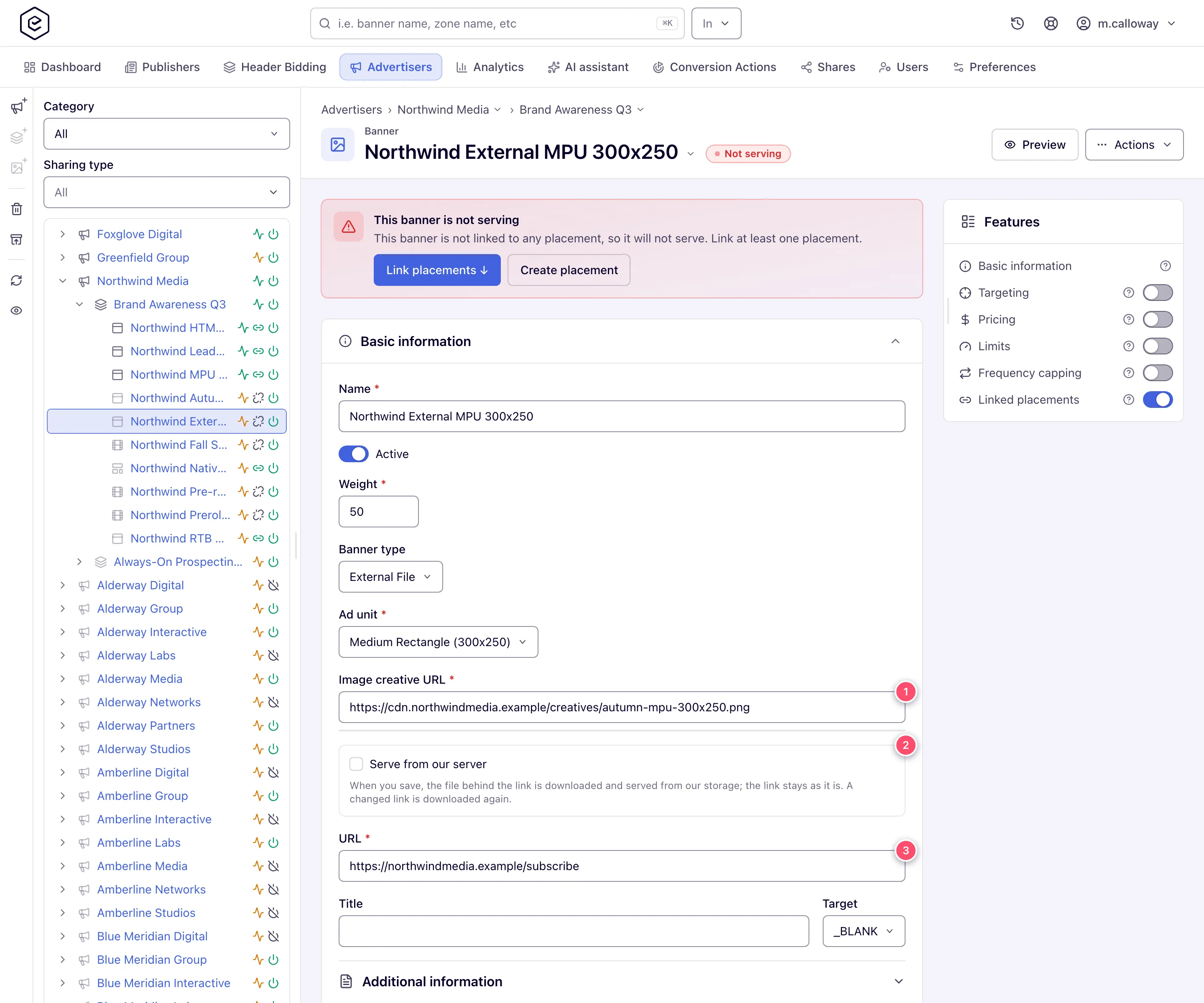
An External File banner is an image that stays on your server or CDN: you give Epom the URL, and every impression loads it from there — unless you tick Serve from our server, which keeps the URL but serves Epom’s stored copy. The click URL, ad unit, title and target are the same as on a Local File banner; both are compared on Image banners.
Example. Summit Ridge Digital keeps its 300×250 creative on its own CDN and swaps the file there every week. One External File banner with the CDN address in Image creative URL and the landing page in URL follows every swap; with Serve from our server ticked it serves Epom’s copy instead, and Refresh copy picks up the new file.
Typical scenarios
| You want | Set | Where |
|---|---|---|
| A creative that lives on the client’s CDN and changes there | External File, Image creative URL — hot-linked on every impression | Add new banner → External File |
| The client’s CDN image, but served from Epom (no hot-linking, no CDN outages) | External File + Serve from our server; Refresh copy when the file changes behind the same URL | Under the creative URL field |
| An image creative on a video placement | External File with Banner link (Video replaces Image creative URL); Epom fetches it on save to confirm it is an image | Add new banner → Video placement |
Step by step
External File
-
Add new banner → the placement type → set Banner type to External File.
-
Enter the Image creative URL — where the image is hosted. Required, no spaces. On a Video placement the field is called Banner link instead, and Epom fetches it on save to confirm it is an image (Cannot get an image file by this link otherwise).
-
Enter the click-through URL, pick the Ad unit, optionally Title and Target. The two URL fields are easy to mix up: Image creative URL is the picture, URL is where the click goes.
-
Optionally tick Serve from our server, under the creative URL field, to have Epom download the image and serve its own copy while the URL stays as typed.
-
Save. With the box ticked, Served from our copy lists the stored file; Refresh copy downloads the link again for a file that changed behind the same address — and also saves any other edit on the form.
Caveats and exceptions
Serve from our server downloads on save and when the URL changes. Clearing the box serves the link again and drops the copy. A failed download blocks the save, with the reason on the creative URL field.
The caveats that apply to both flavours — who can do this, the two messages after a successful save, the size mismatch, the network-wide file limit, linking — are on Image banners.
Not working?
| Symptom | Check | Where |
|---|---|---|
| Incorrect content type of the creative… after Save | External URL could not be fetched or is not an image; saved anyway (fatal on Video) | The Image creative URL |
| Cannot get an image file by this link | Video placement Banner link is not an image | The link |
| Old image still served after the CDN file changed | Serve from our server holds the copy | Refresh copy |
The rest of the list — the file limit, the size and URL messages, Not serving — is on Image banners.
Reference
Every field, what the form and the server check and the API parameters (imageBannerLink,
hostExternalFiles, refreshHostedFiles) are on Image banners.
