
Add the network's bidder to your own Prebid.js
For a publisher who already runs Prebid.js — build in the epom_as adapter, add the bids entry the network sent to each ad unit, run the alias line if there is one and keep a single auction, with the video cache note, where the adapter comes from and what to check when a position never shows network demand.
What it is and why
Your pages already run Prebid.js, and your network joins the auction as one more bidder: it
sends one bids entry per ad unit (and an alias line, if it bids under its own name), and you
add them next to your other bidders. Your ad units, sizes and other bidders stay as they are.
There is no Epom SDK — Epom takes part as an ordinary Prebid bidder called epom_as. The other
setups are on Header bidding: what a publisher installs.
Example. An ad unit article-leaderboard with sizes 728×90 and 970×90 gets a second bids
object — bidder: 'epom_as' with the network’s networkId, host and placementKey. On each
page view the network’s campaigns compete with the unit’s other bidders; when they win, their
creative renders in that unit, in one of its listed sizes.
Typical scenarios
| How your pages serve ads today | What the network sends you | Where it goes |
|---|---|---|
| Your own Prebid.js | One bids entry per ad unit (and an alias line, if the network bids under its own name) | Your Prebid configuration |
| Your own Prebid.js with video units | The same, plus a cache setting on your side | Your Prebid configuration |
Step by step
-
Make sure your Prebid.js build includes the
epom_asbidder adapter — see Getting the adapter. -
Add each
bidsentry to the existing ad unit it names — an extra object in that unit’sbidsarray, next to your other bidders. Keep yourmediaTypes, sizes and other bidders unchanged. With the values the network sent, an ad unit looks like this:pbjs.addAdUnits([{ code: 'article-leaderboard', // your ad unit, unchanged mediaTypes: { banner: { sizes: [[728, 90], [970, 90]] } }, bids: [ { bidder: 'yourOtherBidder', params: { /* unchanged */ } }, { bidder: 'epom_as', params: { networkId: 'n1234', // your network host: 'ads.example.com', // the network's serving domain placementKey: 'a4f21c9e7b' // the placement for this position } } ] }]);Copy the values from what the network sent rather than typing them (the parameters are under Reference on the hub). If the network bids under its own name, the entry’s
bidderis that name (for exampleepom_n1234) instead ofepom_as, and the alias line in the next step comes with it.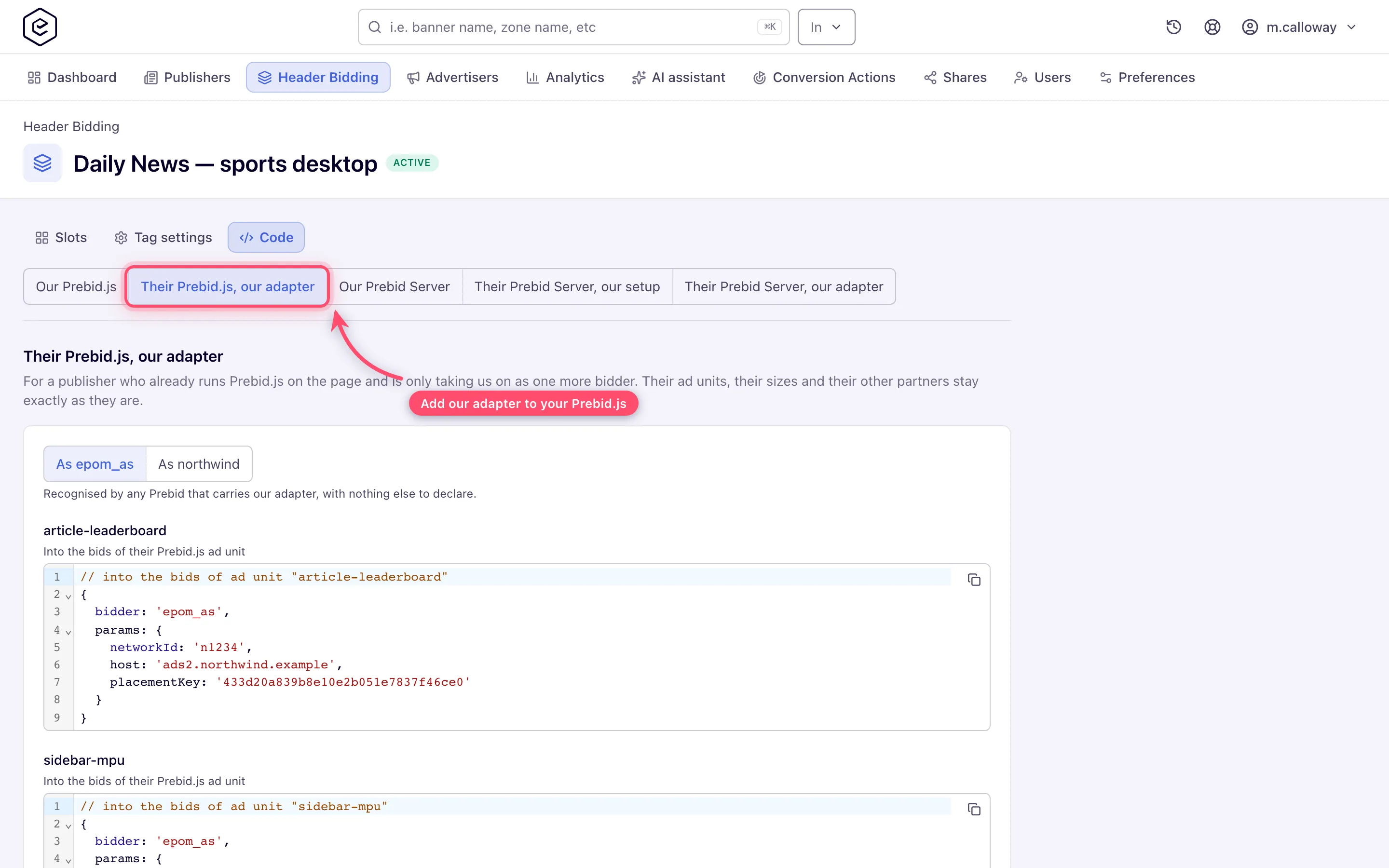
-
If the network sent an alias line (
pbjs.aliasBidder('epom_as', '…')), run it once per page before the auction; renamepbjsif your Prebid uses another global. -
Run your auction as usual. Do not add a second wrapper or the network’s own script beside your Prebid: two auctions on the same ad units overwrite each other’s results.
For video units, your Prebid needs a cache setting or it drops the network’s VAST bids before
your bidsBackHandler runs; see Instream video under
What the publisher does with it.
Getting the adapter
You need the epom_as adapter only when the auction runs in your own Prebid.js or your own
Prebid Server. With the network’s script, or with the Prebid Server address the network sends,
there is nothing to add.
The adapter is Epom’s and is not in the standard Prebid.js download or in a released Prebid Server build. It has been submitted to the Prebid projects and is under review; until it is released there, you get it from your network, which gets it from Epom:
- Prebid.js — the module to add to your own build, or a ready build that carries it.
- Prebid Server — your server has to be built with the adapter. Ask your network; Epom helps with the setup.
The epom_dsp adapter in the standard download is a different Epom product, for buying media,
and cannot take part in these auctions.
Caveats and exceptions
In your own Prebid, a creative bids only in a size your ad unit lists. If an ad unit never
shows Epom demand, check that its mediaTypes.banner.sizes include the sizes the network sells
there.
The caveats that apply to every setup — who this is for, what you need before you start, the floors and consent you keep, how changes reach the page — are on Header bidding: what a publisher installs.
Not working?
- A position never shows network demand (own Prebid.js). Where: that ad unit’s
mediaTypes.banner.sizesagainst the sizes the network sells; thebidsentry’snetworkId,host(bare hostname, nohttps://, no path) andplacementKeyagainst what the network sent; whether the alias line runs before the auction. - Two wrappers on the page. Where: the page source — the network’s script beside your own Prebid runs two auctions on the same units and each overwrites the other’s results; keep one.
- Video bids vanish before
bidsBackHandler. Where: your Prebid’s cache setting — see Instream video under What the publisher does with it.
The causes common to every setup (currency floors, the consent stub, the missing tab) are on Header bidding: what a publisher installs.
Reference
The bids entry’s parameters — networkId, host, placementKey, channel, customParams,
bidFloor / bidFloorCur — are the table under
Reference on the hub. The network’s side of this
setup: Header bidding on a site that runs its own Prebid.js.
