
Edit roles and their permission matrix
Open a role's tab on User roles & permissions or Admin roles & permissions, find a permission, set its grant, tick the Admin UI pages, save, and add, rename or delete a role — step by step, with the caveats and a fix-it checklist.
A role’s permission matrix decides which tabs, cards, report columns and targeting types render for every user holding it, and whose advertisers and sites fill them. Two Admin pages edit it: User roles & permissions (Network-based roles) and Admin roles & permissions (every role, with more rows per role). This page covers the matrix and the role list; the users who hold the roles are on Manage users, and how the two fit together is on Manage users, roles and permissions.
Example. Giving one trader the Risk Score column means a new role Trader + risk, copied from Trader with one cell changed, and moving that one user into it — a change on Trader itself would reach all 12 traders.
Typical scenarios
| You want | Do | Where |
|---|---|---|
| A trader role without Advanced analytics and without Traffic Risk Score targeting | Set Advanced Analytics and Targeting → Traffic Risk Score to Disabled on that role | User roles & permissions → the role’s tab |
| One person needs one extra permission | + Add role, Copy all settings from their role, change the one cell, move the user into the new role | User roles & permissions, then the user form |
| A client login that sees only its own 2 advertisers | Give them a role whose Campaigns row is Shared, then share the 2 advertisers with the user | User roles & permissions, then Shares |
Step by step
Edit a role’s permission matrix
-
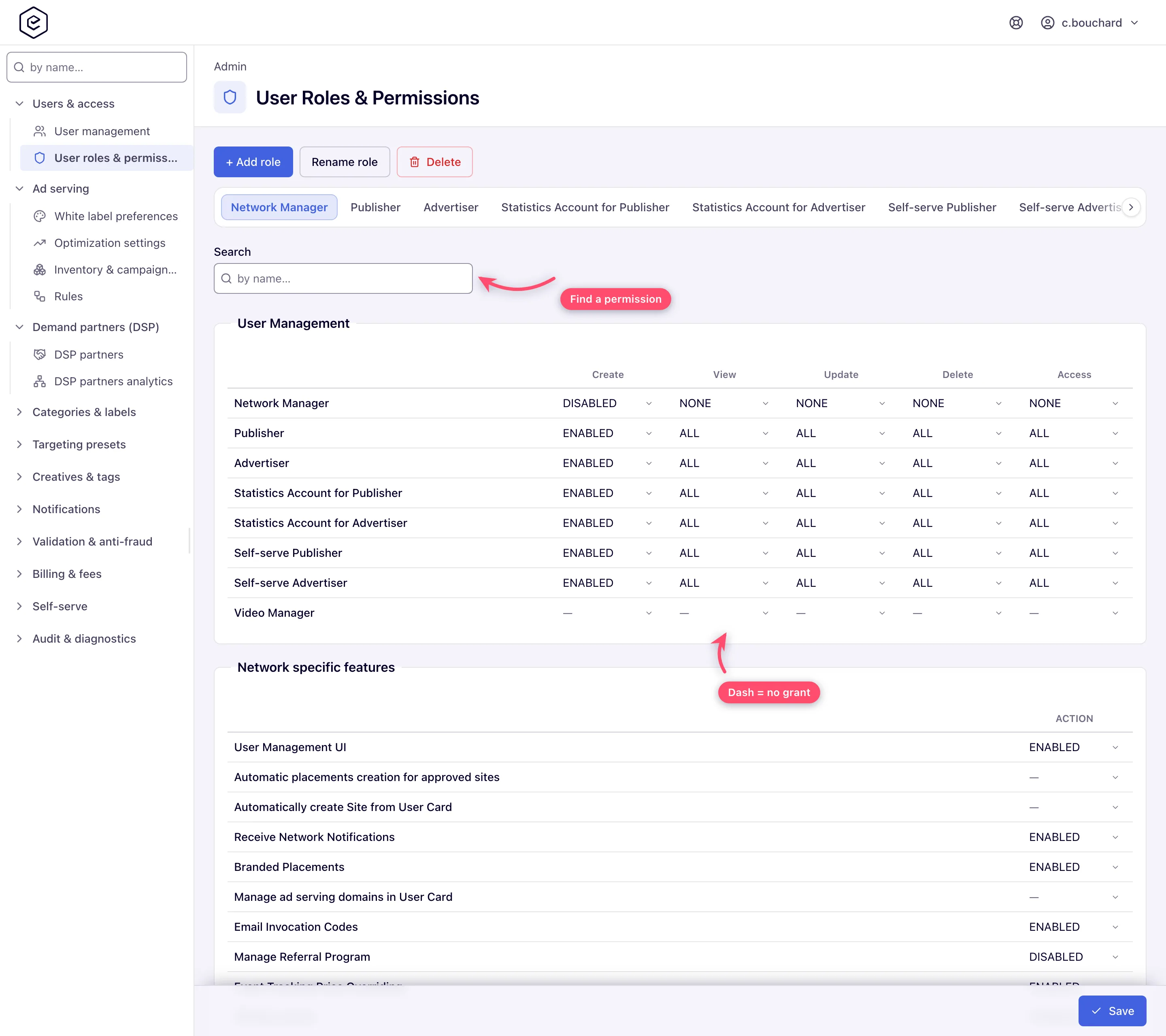
Go to Admin → Users & access → User roles & permissions (Network-based roles only) or Admin roles & permissions (every role, with more rows per role). Each role is a tab; the strip scrolls. Any tab opens read-only; only the save checks Manage Role.
-
Type in the sticky Search box to find a permission by name. It filters every group table and the checkbox section at once and shows a
shown/totalcounter. -
Click a cell to open its dropdown and pick a grant. A cell with no stored grant shows a dash until you choose one — and until then the feature is hidden for the whole role.
-
On an Admin-based role, tick the Admin UI permissions at the bottom, one checkbox per Admin page.
-
Click Save. A Permissions saved. toast confirms and the matrix reloads with the stored values.
Add, rename or delete a role
- + Add role opens an inline row: a Role name, the Static role it is built on (Network, or Admin if you hold Create ADMIN-based role), and an optional Copy all settings from an existing role. Copying takes that role’s Admin UI permissions and its whole matrix; without it the new role starts with just User roles & permissions.
- Rename role and Delete act on the open tab and need Manage Role on it. Deleting a role keeps its users — with no role, unable to do anything until they are given one.
Caveats and exceptions
A permission has to be granted, not just exist. The editor lists every permission the product knows, but a cell nobody ever set reads as a dash and the feature is hidden for the whole role. This mostly shows up on upgraded installations. The fix is to set the cell and save.
27 permissions are admin-only. DMP targeting and pre-targeting, site and banner approval and the two moderation modes, bid-floor management, video RTB configuration, banner view tracking, the accounting-period confirmations, the advertiser completeness delay, the advertiser analytics column, the Advanced report type and its default view, the four raw-log and cookie report types, header bidding, the three AJAX invocation-code permissions and inactive-template property updates — plus the whole DMP and Billing Management groups — are stripped from User roles & permissions. To grant one to an account role, open that role on Admin roles & permissions; a save that changes such a row from the user page is refused.
A save is all or nothing. The editor only offers what it will accept: the User Management group lists just the roles you manage and no Manage Role column, and you cannot tick an Admin UI checkbox your own role lacks (the checkbox list is delta-checked — removing is always fine, un-ticking every box saves “none”). A save posted by hand that oversteps answers 403. A role you do not manage is missing from that table, not greyed out.
The matrix is translated; role names are not. Group, permission, column and grant names follow your interface language; role names show exactly as typed.
The caveats that apply to every user and role — who can do this, the base role, the Admin UI checkbox re-checked on every request, how long a change takes — are on Manage users, roles and permissions.
Not working?
The full checklist is on Manage users, roles and permissions; the cause that is about the matrix editor itself:
| Symptom | Check | Where |
|---|---|---|
| Save refused on Admin UI permissions | You ticked a page your own role does not hold, or saved an admin-only row from the user page | Your own role’s checkboxes; use Admin roles & permissions |
Reference
The matrix columns and the grant sets are in the hub’s Reference; every operation and grant value, with the corner cases: Operations, Grants and How a role decides access.
