
AI assistant for administrators
Switch the AI assistant on per role, decide whose Anthropic key it runs on and what the platform's key costs, set the network default and per-user monthly limits, read the AI usage report on the Ad Server Fees page, and know what is billed, audited and kept.
The AI assistant is on by default for the roles that view all campaigns and all inventory, and runs on the platform’s Anthropic key out of the box — billed to the network once the promo month is over. As an administrator you decide which roles get it, whose key it runs on, how much each user may spend a month, and you read what it cost on the Ad Server Fees page.
Example. Northwind Media has 12 account users on the platform’s key with the default $20 a month each. The administrator adds the network’s own Anthropic key under White label → API keys, so from the next reply Anthropic bills the network directly and nothing lands on the Epom invoice; has the network default set to $30; and caps one intern at $5 on their user form. The AI usage section of Ad Server Fees then shows one row per user and key, with the $30 or $5 limit beside each.
Typical scenarios
| You want | Set | Where |
|---|---|---|
| The assistant for the Advertiser role too | Enable AI Assistant Chat (Network specific features) on that role | Admin → Users & Access → User Roles & Permissions |
| No charge on the Epom invoice | Add the network’s Anthropic key (needs the White label admin permission) — or let users add their own | Admin → White label → API keys → AI (Anthropic API key) |
| Every user capped at $10 a month instead of the $20 platform default | The network default Monthly limit per user, $ = 10 — a network setting; ask Epom support or your account manager | Network default |
| One power user allowed $100, one trainee $0 | AI assistant monthly limit per user, $ on each user’s form (needs Ad Server Fees) — 0 means no allowance | Account → Users → user or Admin → Users → user |
| To know what last month cost and who spent it | Pick the month in the AI usage section | Admin → Billing & Fees → Ad Server Fees |
| To see what the assistant changed and undo one change | Action log entries marked as made through the AI assistant; the assistant’s own recent_changes tool | Action log; the assistant |
Step by step
Switch it on
- The assistant is on by default. It is already enabled for the roles that view all campaigns and all inventory; for any other role, open it in Admin → Users & Access → User Roles & Permissions and enable AI Assistant Chat (Network specific features). See Manage users, roles and permissions. Remember that on the platform’s key every reply is billed to the network.
- It runs on the platform’s key out of the box (billed). To avoid that, add the network’s own Anthropic key in Admin → White label → API keys → AI (Anthropic API key) (needs the White label admin permission; not billed by the platform), or ask Epom support or your account manager to switch the platform’s key on in the network’s billing plan (billed), or let each user add their own key in Preferences — see Which key it runs on.
Set monthly limits
Who sets the cap depends on whose key the user runs on:
| Key | The cap that applies | Measured in |
|---|---|---|
| The user’s own key | Only the limit the user set for themself in Preferences → AI assistant; empty = no limit. Administrators’ limits do not apply. | Anthropic list price of the calls on that key |
| The network’s key | 1. the user’s limit on their edit form, else 2. the network default; with neither, no limit | Anthropic list price of the calls on that key |
| The platform’s key | 1. the user’s limit on their edit form, else 2. the network default, else 3. the platform default, $20 a month | Billed USD |
- The user’s limit is AI assistant monthly limit per user, $ on the user’s edit form (Account → Users → user or Admin → Users → user). Next to it, read-only, the form shows Limit the user set on their own key, $ — the user’s own cap, which only the user can change.
- The network default is a network setting; ask Epom support or your account manager to set or change it.
Leave a field empty to fall through to the next level. Values are in USD, from 0 to 1,000,000; 0 means no allowance — that user’s messages are refused as over the limit.
See what it cost
-
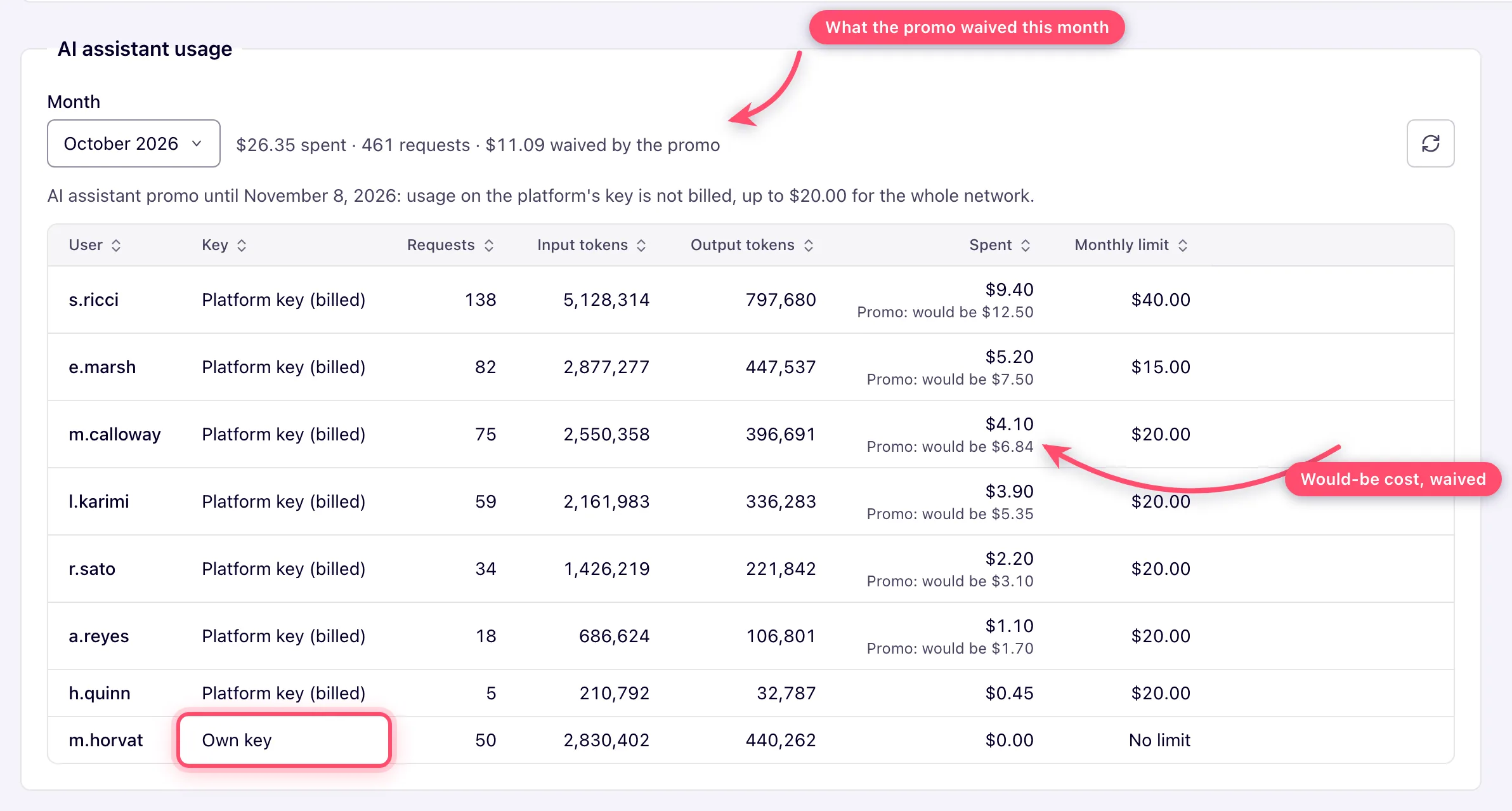
Open Admin → Billing & Fees → Ad Server Fees and scroll to the AI usage section, below the billing statistics. The assistant’s charges land on Epom’s invoice to the network, so the report sits with the rest of that invoice.
-
Pick a month. The section lists every user who used an AI feature, one row per user, feature (AI assistant, Document reading, Stale locations, Traffic Quality report, Targeting list matching) and key (Own key, Network key, Platform key (billed)): requests (model calls), input and output tokens, the amount spent and their effective monthly limit, most expensive first.
-
Scripts can read the same figures from
GET /rest-api/ai-chat/usage.do?month=YYYY-MM(tag AI Assistant Usage), with the same permission.
Caveats and exceptions
- The platform’s key and its price. Both settings belong to the network’s billing plan: whether the platform’s Anthropic key is used (billed), and the AI price multiplier (billed cost = Anthropic list price × this). Epom support sets them; you see both values, read-only, on the plan card in Admin → Billing & Fees → Ad Server Fees. To change them, ask Epom support or your account manager. See Finances, fees and referral billing.
- A user’s own limit never replaces the limit you set: it is stored separately and only ever applies on their own key, so a user who removes their key is back under your limit at once.
- Who may change a user’s limit. Only administrators and users holding the Ad Server Fees admin permission; anyone else gets an error naming the missing permission and nothing is saved. The network’s Billing Tab permission does not grant it: that tab is the network’s own books with its advertisers and publishers, while the assistant is billed on Epom’s invoice to the network.
- How the usage report reads. Every feature’s row shows the same limit, because all of them count against it; a row whose calls have no user behind it reads No user. Rows on an own or network key show $0 spent — the platform bills nothing for them. During the promo a platform-key row shows the amount actually billed ($0 while the promo waives it) with Promo: would be $X under it, the total adds $X waived by the promo, and a line above the table says until when the promo runs and its allowance for the whole network. The section is shown to admins who can open Ad Server Fees itself; the account-area Billing tab does not open it, and there is no usage report in the account area.
- Per role. AI Assistant Chat controls the tab and the chat; the demo account’s tab shows only if the demo role has it enabled. The usage report and editing per-user limits take the Ad Server Fees admin permission, not Billing Tab. Read-only or shared access is inherited by the assistant — it reads what the user can read and changes only what they can change.
- Until release 155 the Traffic Quality analyst notes and Match the rest with AI ran on Epom’s key for free, whatever the billing plan said. Now every AI feature runs on the same key cascade and is billed the same way.
Billing
Only usage on the platform’s key is billed to the network on its Epom invoice: the model’s list price × the network’s AI price multiplier — except what the promo waives, which is billed at $0 (the would-be amount is kept for the report). Calls on a user’s or the network’s own key are paid to Anthropic directly and bill nothing here (the usage report still records their list price for reference).
Audit
Every change the assistant makes is written to the action log under the user who
asked, marked as made through the AI assistant (each tool call is logged as mcp_<tool>, source
AI_CHAT). The assistant’s own recent_changes tool — and the MCP connector’s — list these
changes with the values they replaced, so a user can ask it to undo one. A password, key or URL
token among them is listed masked (***), and a long value such as a creative’s markup is listed
cut short (it ends with ... [N characters cut]); notRestorable names both, each as masked
or truncated. The undo leaves them out, and a call that sends one back is refused without
saving anything. Something deleted by mistake — an advertiser, campaign, banner, site, zone or
placement — it can bring back too (“restore the campaign I deleted this morning”): see
Restore something you deleted.
How Epom uses the conversations
The assistant keeps learning from use. Conversations, the 👍/👎 ratings with their comments and what the assistant reported it was missing show where it answers wrongly or lacks a tool, and are used only to make it better. They are kept for 180 days; a chat a user deletes is deleted there too.
Not working?
| Symptom | Cause | Check |
|---|---|---|
| A user has no AI assistant tab | Their role lacks AI Assistant Chat, or the assistant is switched off for the network | Role’s permission matrix, Network specific features; Epom support for the network switch |
| Users see The AI assistant needs an Anthropic API key | No own key, no network key, and the platform’s key is off in the billing plan | White label → API keys; the plan card on Ad Server Fees |
| Replies fail with The AI assistant is temporarily unavailable | The network key (or the user’s) was revoked in the Anthropic Console; keys are not re-checked | Replace or remove the key in White label (or the user does in Preferences) |
| Saving a user’s limit fails with an error naming a permission | Your role lacks Ad Server Fees (Billing Tab does not count) | Your admin role’s permissions |
| A user is cut off at once | Their limit is 0 — no allowance | Clear the field on their user form to fall through to the network default |
| Your limit does not cap a user | They run on their own key; only the limit they set themselves applies | Their row in AI usage shows Own key; the Limit the user set on their own key field on their form |
| The invoice shows AI charges you did not expect | The platform’s key is in use and the promo is over or its allowance is spent; the multiplier is applied to list price | AI usage rows marked Platform key (billed); the plan card for the multiplier and promo |
| No AI usage section on Ad Server Fees | Your role cannot open the page itself | Ad Server Fees admin permission |
Reference
| Setting | Where | Who can change it | Default |
|---|---|---|---|
| AI Assistant Chat permission | Role matrix, Network specific features | Administrator | On for roles that view all campaigns and all inventory |
| Network Anthropic key | Admin → White label → API keys → AI (Anthropic API key) | Admin with White label | None |
| Platform key on/off, AI price multiplier | Network billing plan (read-only on the plan card, Ad Server Fees) | Epom support | On; ×2 |
| AI promo allowance, $ and promo end date | Billing plan | Epom support | $20; one month from the release for existing networks |
| Monthly limit per user, $ (network default) | Network setting | Epom support or your account manager | Empty: no limit on the network’s key; $20 platform default on the platform’s key |
| AI assistant monthly limit per user, $ | The user’s edit form | Administrator or Ad Server Fees | Empty: falls through |
| AI usage report | Ad Server Fees | Anyone who can open the page | — |
GET /rest-api/ai-chat/usage.do?month=YYYY-MM | REST, tag AI Assistant Usage | Same permission | — |
