
AI assistant costs and keys
Which Anthropic API key the AI assistant runs on (yours, the network's or the platform's, billed), what a reply costs and how the monthly allowance is counted, the promo month, and the AI assistant card in Preferences where you add your own key and set your own limit.
Reference for Work with the AI assistant: which Anthropic API key the assistant calls the model with, what a reply costs you and how the monthly allowance is counted, the promo month, and the card in Preferences → AI assistant where you add your own key and set your own limit. Administrators set the network-side limits and read the usage report — see AI assistant for administrators.
Which key it runs on
The assistant calls the model with an Anthropic API key. The first of these that exists is used:
| Order | Key | Who sets it | Billed by the platform? |
|---|---|---|---|
| 1 | Your own key | You, in Preferences → AI assistant | No — Anthropic bills you directly. Works only for you. |
| 2 | The network’s key | A network administrator, in Admin → White label → API keys → AI (Anthropic API key) | No — Anthropic bills the network directly. Used by every user without a key of their own. |
| 3 | The platform’s key | Epom, switched on in the network’s active billing plan (ask Epom support or your account manager) | Yes — on the network’s Epom invoice at the list price × the plan’s AI price multiplier. |
| — | None | — | The assistant is off for you and shows the no-key page. |
Every billing plan ships with the platform’s key switched on; Epom can switch it off for a plan. During the promo usage on it is not billed; after it, every reply is.
The same cascade runs every AI feature, not only the chat: the analyst notes of a Traffic Quality report, Match the rest with AI when you paste a targeting list, reading a spec into a preset and Fix with AI on Stale locations. Each runs on your own key, else the network’s, else the platform’s while the billing plan switches it on — and then it is billed like the chat, at the list price × the plan’s AI price multiplier (×2 unless Epom set another). With none of them only the AI part is off: the Traffic Quality figures, statuses and PDF still work, without the analyst notes, and a pasted list is still matched exactly, without the AI step. Both say so where the AI part would be. Every one of them counts against your monthly allowance, the same one the chat counts against: what the Traffic Quality notes or a targeting match cost brings the chat closer to its limit, and once the month is spent they stop too, before any model call. The Traffic Quality page and the paste dialog then say You have reached your monthly AI assistant budget, the chat’s own words, and offer neither Add AI notes nor Match the rest with AI; a report asked for meanwhile is still made, without the notes.
Saving on cost. While the assistant runs on the platform’s key, Ways to save — in the details that open from the spend meter, and as a button on your Preferences card — lists the alternatives: add your own Anthropic key in Preferences, ask your network administrator for a network key, or use your own Claude subscription through the MCP connector (Claude Code, Cursor and other clients run the same tools against your account, paid by your own subscription).
Adding your key
- In Preferences → AI assistant click Add your own key.
- Paste a key from the Anthropic Console and click Save key (Cancel closes the field again). The key is checked with Anthropic first (a free call that lists the models); a key Anthropic refuses is not stored (The key was rejected by Anthropic.), and if Anthropic cannot be reached nothing is stored either (Could not verify the key, try again.).
- A stored key is encrypted and never shown again — the card shows only its last four characters (Your key ···7f3a · added Oct 6, 2026); the ⓘ next to the field says the same. Replace opens the field to swap it; Remove deletes it after a confirmation, and the assistant falls back to the network’s key, if there is one.
The card is shown only with the AI Assistant Chat permission.
What it costs you
-
Every reply shows its cost under it (Cost: $0.0420) — all the model calls and tool steps of that turn. On the platform’s key that is the billed amount; on your own or the network’s key it is the model’s list price (what Anthropic charges for it), which the platform does not bill.
-
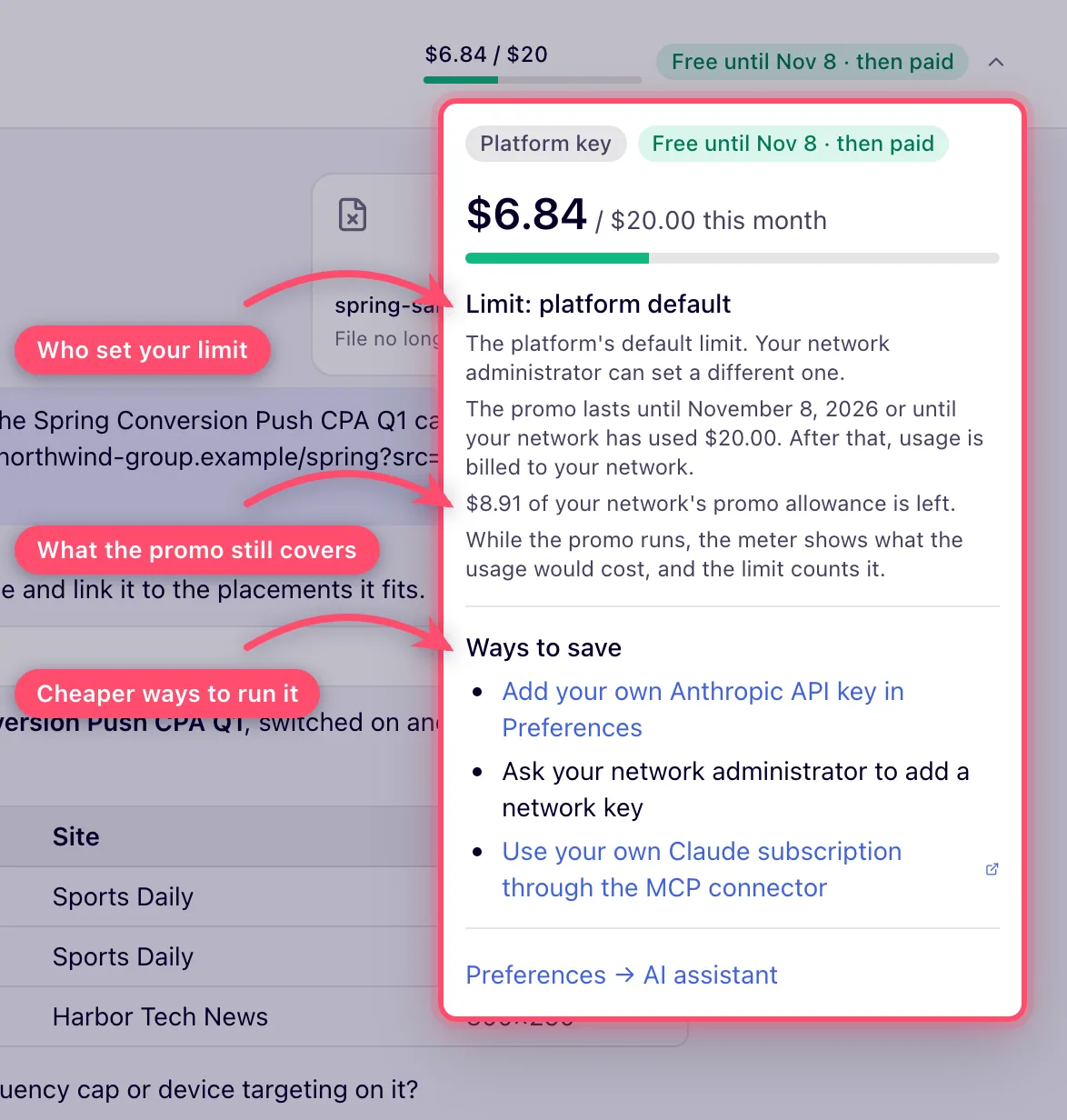
The header shows your month as a compact meter: $6.84 / $20 over a slim bar that turns amber at 80 % and red when the allowance is used up (just $6.84 with no limit), plus the promo badge while a promo applies. On a phone the same meter sits at the bottom of the chat list. Click it for the details: the key in use, the limit and who set it (Limit: platform default, Limit: set by your admin, Limit: network default, Limit: yours or No limit), what the figure counts (billed price on the platform’s key, Anthropic list price on your own or the network’s key), the promo, Ways to save on the platform’s key, and a link to Preferences → AI assistant.
-
The allowance is per user and per calendar month (UTC) and renews on the 1st, and it counts only what ran on the key you are on now. On the platform’s key there is always one (the platform default applies when nobody set one). On the network’s key there is a limit only if an administrator set one, measured at list price. On your own key only the limit you set yourself applies (see the Preferences card) — an administrator’s limits never cap your own key.
-
Fix with AI on the Stale locations page runs on the same key, permission and allowance: each time it asks the model about places names could not match, that request counts against your month and shows in the usage report like a reply. It has no chat of its own, so it shows no cost line.
-
The other AI features — a Traffic Quality report’s analyst notes, Match the rest with AI on a pasted targeting list, and reading a spec into a preset — count against the same month on the key they ran on, so the meter includes what they cost; they have no chat either, so no cost line.
-
Models cost differently. Prices are shown relative to the default model: Fast 1×, Balanced 4×, Deep 8× per token. Switching the model mid-chat makes the next reply cost more, because the conversation so far is cached per model and a new model re-reads the whole history at full price. See Models.
When the limit is reached
When your spend reaches your monthly limit, the message box is disabled with You’ve used this month’s AI assistant allowance of $20.00. It renews on the 1st — ask your network manager if you need more. On your own key, where the limit is the one you set, it says You’ve reached the monthly limit of $25.00 you set for your own key. Raise or clear it in Preferences → AI assistant. A reply already running when you cross the limit finishes the model call it is in and stops before the next one, keeping what it produced. What the other AI features spent this month counts toward the limit too.
The promo month
To let everyone try the assistant without worrying about the bill, usage on the platform’s key is free for the network until the last day of its promo (UTC, inclusive). The promo is part of the network’s billing plan, which Epom support sets; you see it on Admin → Billing & Fees → Ad Server Fees (see Finances & billing). Every existing network’s plan starts with the launch promo, for one month from the release; a new network gets its date when Epom sets the network up. An empty date means no promo.
During the promo the spend meter still counts what each reply would cost — so your monthly limit keeps applying and a runaway chat is still stopped — but the network is billed $0 for it. The meter on the assistant page and your Preferences card carry a green badge that always says the usage is paid afterwards: Free until Nov 8 · then paid. In the last week it turns amber and counts down (Free · ends in 3 days · then paid), and once a quarter of the allowance or less is left it shows the amount (Free: $4.50 left · then paid). The details behind the meter (and the ⓘ next to the limit on the Preferences card) spell it out: The promo lasts until {date} or until your network has used {allowance}. After that, usage is billed to your network., with how much of the allowance is left.
On your first visit to the assistant page during the promo a note above the message box says The AI assistant is free until {date}. After that, it is billed to your network. — Got it closes it for you in that browser; a new promo date announces itself again.
The promo has a shared allowance per network of would-be billed usage across all its users, for the whole promo: the plan’s AI promo allowance, $ ($20 for the launch promo; an empty field means the platform default, $20). The reply that would take the network past it, and every reply after it, is billed as usual — nothing is blocked. The badge then reads Promo ended, and the details say The promo has ended: usage is billed to your network. When the promo ends, usage is billed as usual. Own and network keys are not affected — they are never billed by the platform anyway.
Once the promo is over — its last day has passed or the allowance is used up — the assistant page shows a note above the message box: The promo has ended, with what you can do from now on: keep using the assistant there (billed to your network), add your own Anthropic key in Preferences (no bill from the platform, you pay Anthropic directly), or work from your own Claude through the MCP connector. Close it with ✕; it stays closed for you in that browser.
Your AI assistant card in Preferences
Preferences → AI assistant (shown with the AI Assistant Chat permission) gathers everything about your assistant spend in one place, as figures rather than sentences:
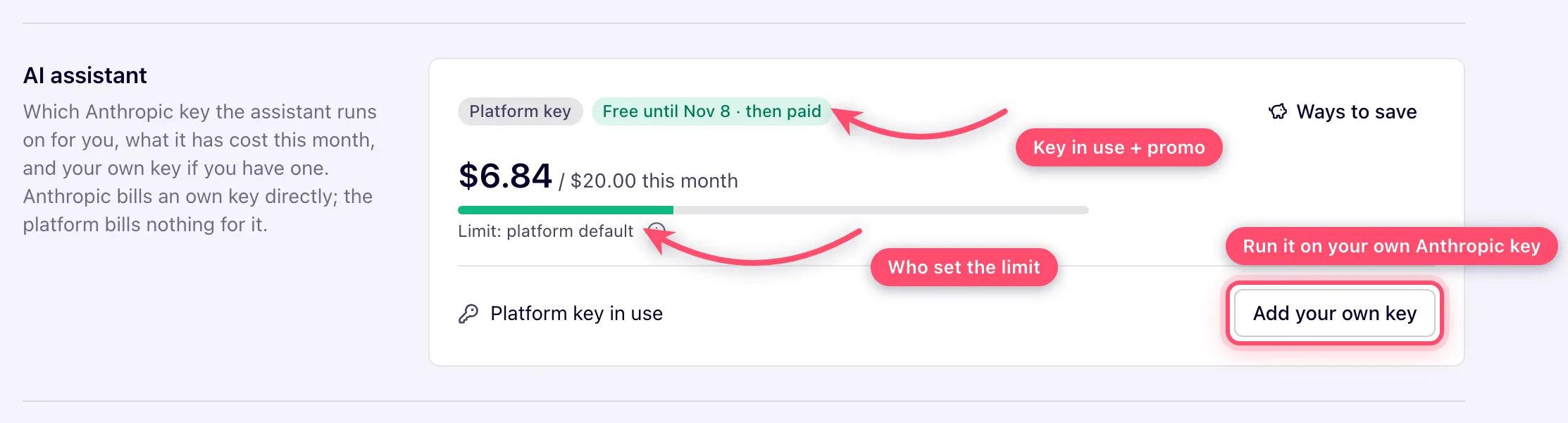
- Badges — the key you run on (Platform key, Your key ···7f3a, Network key or No key) and, on the platform’s key, the promo badge (Free until Nov 8 · then paid, or Promo ended). On the platform’s key a Ways to save button sits at the end of the row.
- This month — the spend as a big figure against the limit ($13.92 / $20.00 this month) with a slim bar that turns amber at 80 % and red at 100 %, and one short line naming who set the limit: Limit: yours (the one you set for your own key), Limit: set by your admin (the per-user limit on your user), Limit: network default, Limit: platform default, or No limit. The ⓘ next to it explains who can change the limit and what the figure counts — Billed to your network at the platform’s price on the platform’s key, Counted at Anthropic list price on your own or the network’s key — and, during the promo, how long it lasts and what is left of it. Hidden while you have no key.
- Your key — one row: Platform key in use / Network key in use / No key: the AI features are off with Add your own key, or Your key ···7f3a · added Oct 6, 2026 with Replace and Remove. The key field opens only when you click one of them (see Adding your key).
- Your monthly limit on your own key, $ — only while you run on your own key: the field, its ⓘ and Save limit in one row. Empty (No limit) means no cap; any amount from 0 to 1,000,000 stops the assistant once your own key has cost that much this month at Anthropic list price. It applies only to your own key: if you remove the key and fall back to the network’s or the platform’s key, the limits your administrator set apply again and your own limit is ignored. Click Save limit; an amount outside the range is refused with Enter your monthly limit in USD, from 0 to 1,000,000, or leave it empty for no limit.
Related
- Work with the AI assistant
- AI assistant for administrators — switch it on, set limits, see what it cost
- Get the most out of the AI assistant — saving on cost
- Preferences
- Connect an AI assistant (MCP)
- Finances, fees and referral billing
