
Local File image banners
Upload an image creative — or give a link, or pick it from the Media Library — and let Epom serve it, step by step, with the ad unit picked first, the click URL, what the saved banner looks like and Preview.
A Local File banner is the image creative you upload — or give a link to, or pick from the Media Library — and Epom serves. Pick the ad unit first, because the file is checked against it; then the click URL, Save, and the banner is ready to link. The other flavour, External File, keeps the image on your own server; both are compared on Image banners.
Example. Summit Ridge Digital has a 300×250 JPEG of 48 KB and a landing page. One Local File banner — Ad unit 300×250, the file dropped into Banner creative, the landing page in URL — serves on every 300×250 placement it is linked to. Had the file been 312 KB it would have been refused at the network’s default 200 KB limit.
Typical scenarios
| You want | Set | Where |
|---|---|---|
| A standard 300×250 creative you have as a file | Local File, Ad unit 300×250, drop the file, click URL | Add new banner → placement type |
| The same creative, already in the Media Library | File source → Media library; choose the Ad unit first, the picker lists only images of that size | Needs the Media Library permission |
| A creative hosted on a public server that you want stored on Epom | File source → From link — downloaded once on save | Banner creative |
| A size that is not in the list, e.g. 1456×180 | Ad unit Custom → Width and Height | Ad unit combo |
Step by step
Local File
-
On the campaign, Add new banner → the placement type → set Banner type to Local File.
-
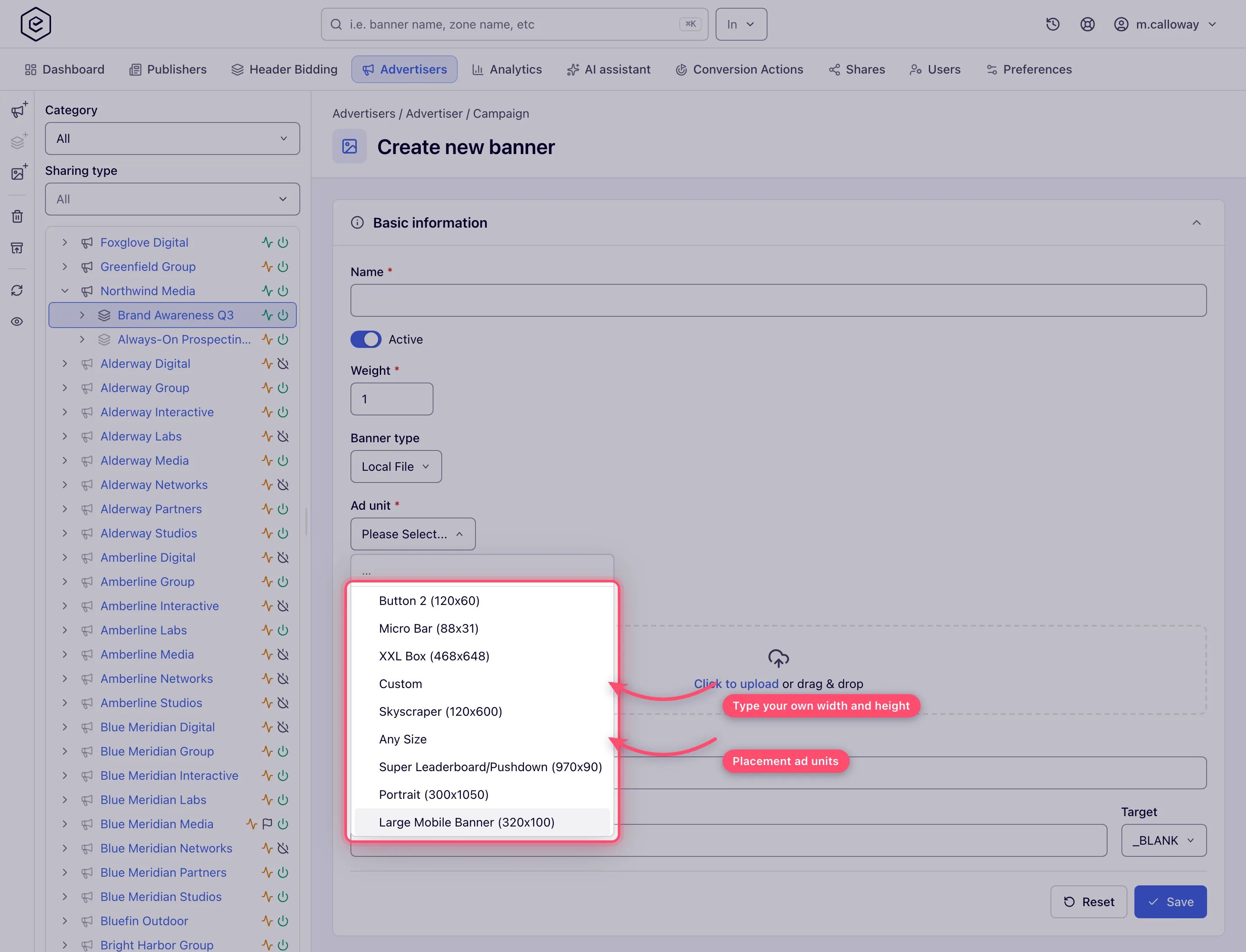
Pick the Ad unit. Required, and pick it before you upload — it decides the size the creative is checked against. Choose Custom to type a width and height by hand.
-
Drop the image into Banner creative, or click to browse. The File source switch above the drop zone offers two other ways in:
- From link — paste an
http://orhttps://address of a public host (no embedded user name or password). The file is downloaded once when you save and stored as if uploaded, so the host need not stay online. A link that cannot be fetched refuses the save and names the reason under the field: not an http or https URL, not a public internet address, answered an HTTP error, took too long, over the size limit, or not an image. - Media library — picks an image already in the Media Library. Offered only when your role holds the Media Library permission and the network’s file storage is on. The picker lists only images of the creative’s size.
- From link — paste an
-
Enter the URL — the click-through landing page. Required, no spaces.
-
Optionally set Title (the creative’s
alttext) and Target (which browser window the click opens).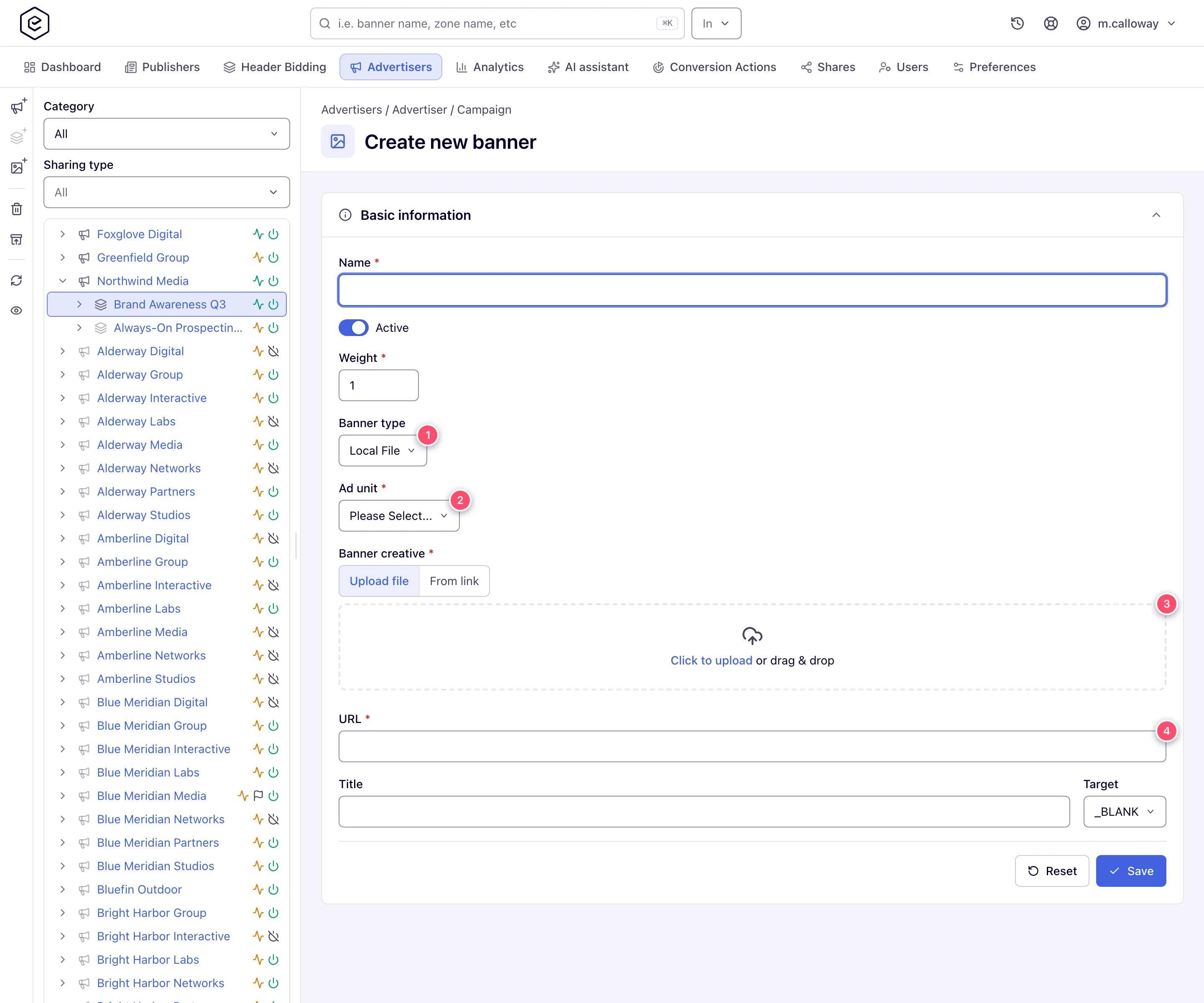
-
Save. The banner opens on its own edit page: the upload zone becomes an Image file row with a thumbnail, download and delete buttons (the File source switch stays above it for the next replacement), and Preview appears in the header. Link the banner to placements from the Linked placements card.
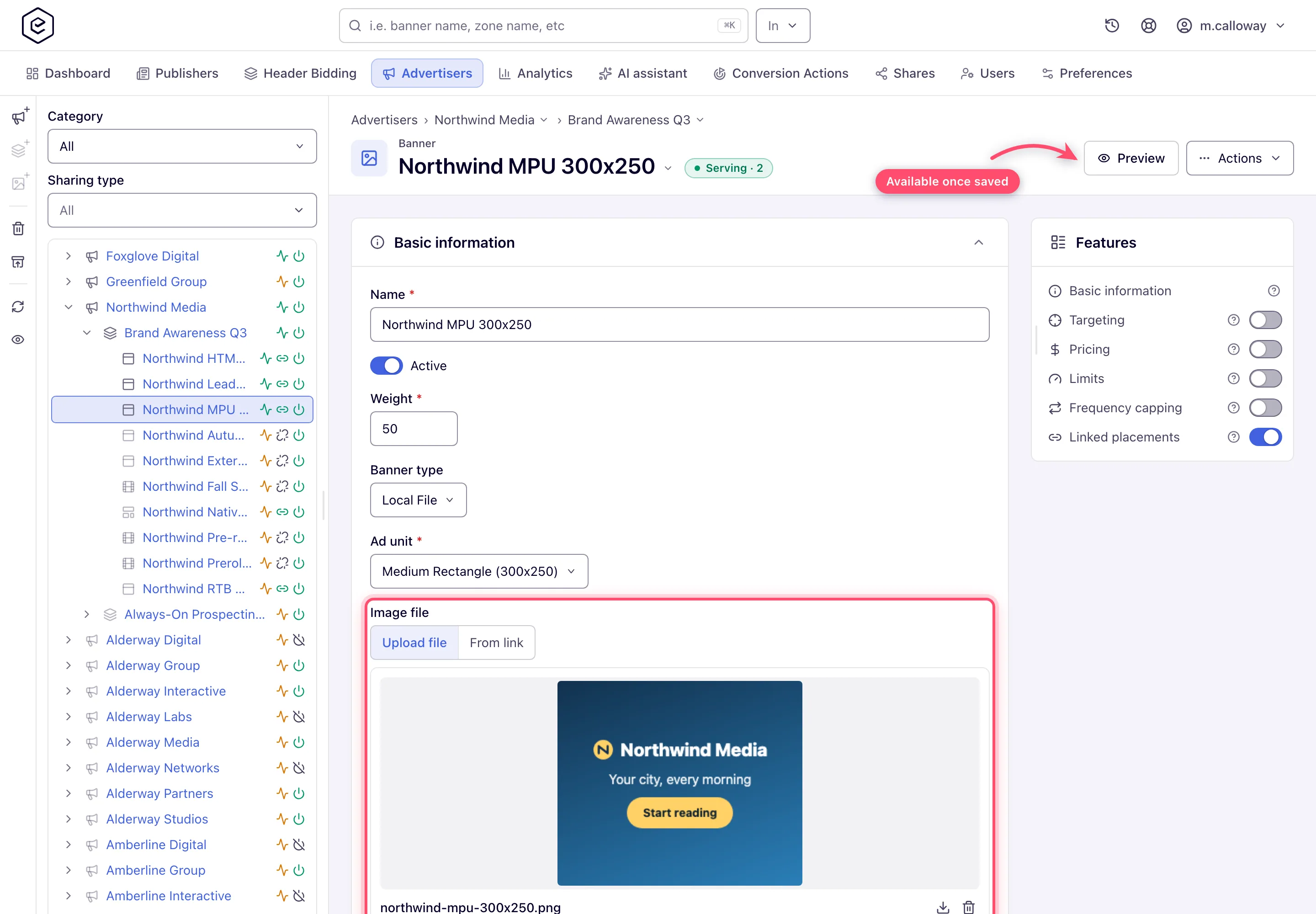
Preview opens in a new tab and renders the creative inside a resizable container, with the standard ad sizes as presets and an optional page mockup — the creative as a page would show it, not just the file.
Caveats and exceptions
Deleting the stored image is deferred. The row disappears, but the file is removed only when you next click Save — navigate away and the creative is still there. (Deleting a video file takes effect immediately.)
The caveats that apply to both flavours — who can do this, the two messages after a successful save, the size mismatch, the network-wide file limit, linking — are on Image banners.
Not working?
| Symptom | Check | Where |
|---|---|---|
| From-link save refused with a reason | Not http/https, not a public address, HTTP error, timeout, over the limit, not an image | The reason under Banner creative |
| No Media library option | Role lacks Media Library, or file storage is off for the network | Network admin |
| The picker shows no images | It lists only images of the creative’s size | Pick the Ad unit first |
| Old image still served after delete | Delete is deferred until Save | Click Save |
The rest of the list — Must be image, the file limit, the size and URL messages, Not serving — is on Image banners.
Reference
Every field, what the form and the server check and the API parameters (imageFile,
imageFileUrl, mediaAssetId) are on Image banners.
Related
- Image banners (Local File and External File)
- External File image banners
- Reuse creative files with the Media Library
- Bulk banner operations — upload many creatives at once
